
1. Introduction
Thank you for choosing the JXTZ WA113B&C Projection Alarm Clock. This digital alarm clock features a large LED display, time projection, multiple alarm settings, and temperature display. Please read this manual carefully to ensure proper use and optimal performance of your device.
2. Package Contents
Please check the package for the following items:
- 1 x JXTZ Projection Alarm Clock
- 1 x 1.5m USB Power Cable (adapter not included)
- 1 x Memory Battery (CR2032, pre-installed or separate)
- 1 x User Guide

3. Product Overview
Familiarize yourself with the main components and controls of your alarm clock:

- SNOOZE/LIGHT Button: Press to activate snooze or adjust display brightness.
- PROJECT Button: Controls projection function and brightness.
- ALARM Button: Enters alarm setting mode.
- SET Button: Enters time/date setting mode.
- UP/DOWN Buttons: Adjust values during setting or change temperature unit.
- Projection Lamp: Projects time onto a surface.
- Power Port: USB Type-C input for power.
- CR2032 Battery Compartment: For memory backup battery.
4. Setup
4.1 Power Connection
Connect the provided 1.5m USB power cable to the clock's power port and plug the other end into a USB power adapter (not included) or a USB port. The LED screen will only remain on when powered via USB.
4.2 Memory Function
The clock includes a CR2032 battery for memory backup. This ensures that time and alarm settings are retained during a power outage or temporary disconnection, preventing the need to reset them.
4.3 Initial Time and Date Setting
- Press and hold the SET button to enter time setting mode.
- Use the UP or DOWN buttons to adjust the hour, then press SET to confirm.
- Repeat for minutes, year, month, and day.
- After setting the date, you can select the 12-hour or 24-hour format using the UP or DOWN buttons. Press SET to confirm.
- Next, select the temperature unit (°C or °F) using the UP or DOWN buttons. Press SET to confirm and exit setting mode.
5. Operating Instructions
5.1 Display Brightness Adjustment
The 7.9-inch LED display has 4 adjustable brightness levels.
- Press the SNOOZE/LIGHT button repeatedly to cycle through brightness levels: Bright, Medium, Low, OFF.

5.2 Night Mode
The clock features a night mode that automatically dims the display during a set period.
- The default night mode period is from 18:00 to 7:00.
- To adjust the night mode time period, refer to the detailed instructions in the included User Guide.

5.3 Projection Function
The clock can project the time onto a ceiling or wall.
- The projection distance ranges from 1.6 to 16 feet (0.5 to 5 meters).
- Press the PROJECT button repeatedly to cycle through 3 adjustable projection brightness levels.
- The projection lamp can be rotated 180 degrees to adjust the projection angle.
- Important: The projector can only project towards the back of the clock. If projected forward, the numbers will appear reversed.


5.4 Alarm Setting
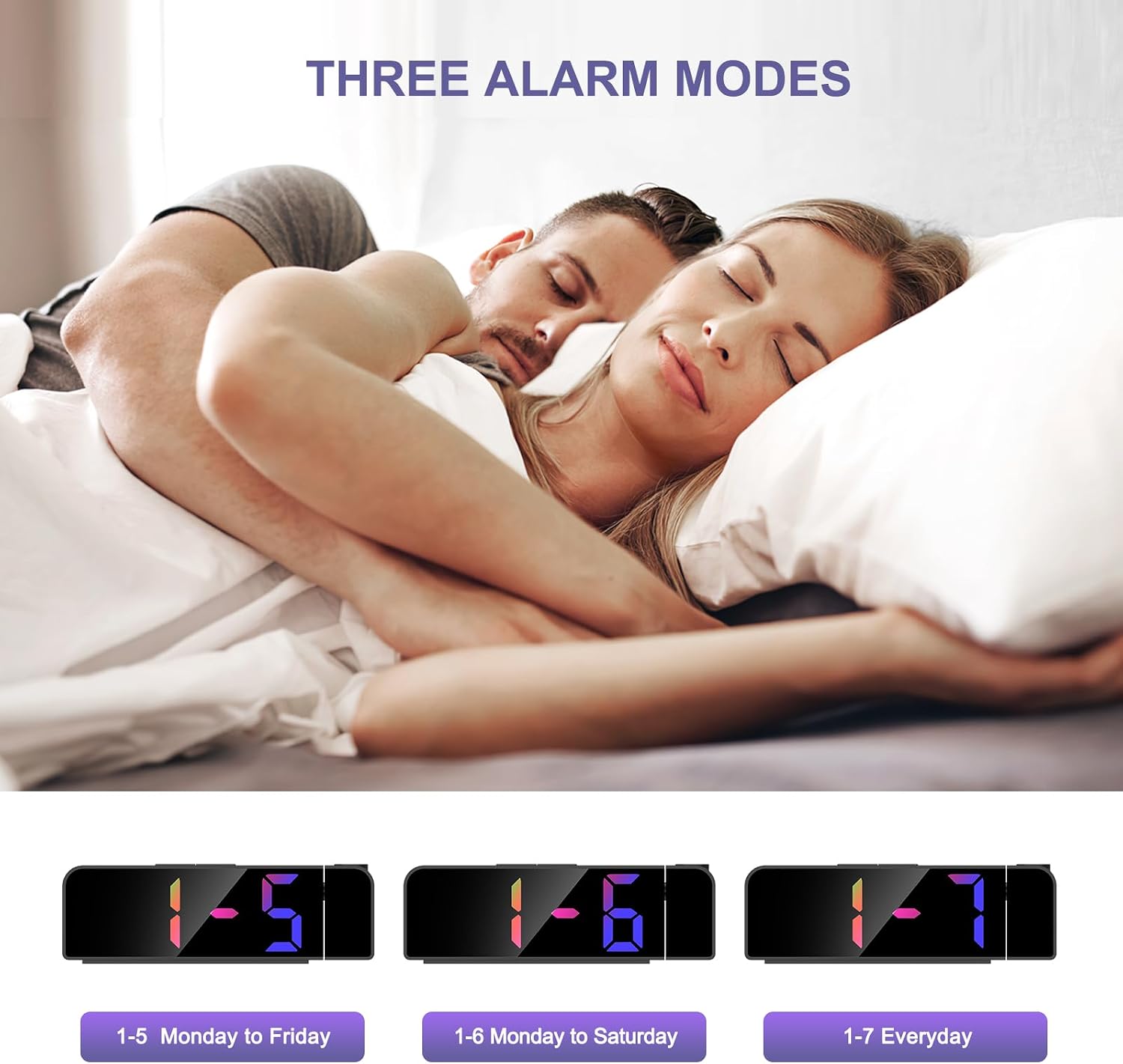
The clock offers 3 alarm modes and a snooze function.
- Press and hold the ALARM button to enter alarm setting mode.
- Use the UP or DOWN buttons to adjust the alarm hour, then press ALARM to confirm.
- Repeat for alarm minutes.
- Select one of the three alarm modes: Monday to Friday (1-5), Monday to Saturday (1-6), or Monday to Sunday (1-7). Use UP or DOWN buttons to select, then press ALARM to confirm.
- To activate or deactivate the alarm, short press the ALARM button. An alarm icon will appear/disappear on the display.
5.5 Snooze Function
When the alarm sounds:
- Press the SNOOZE/LIGHT button to activate snooze. The alarm will sound again after the set snooze duration.
- The default snooze time is 5 minutes. It can be adjusted from 1 to 60 minutes in the alarm settings.
- To turn off the alarm completely, press any other button (e.g., ALARM, SET, UP, DOWN).

5.6 12/24 Hour Format
During initial setup or time adjustment, you can switch between 12-hour and 24-hour time formats.
- When in time setting mode, use the UP or DOWN buttons to toggle between 12H and 24H.

6. Maintenance
- Clean the clock with a soft, dry cloth. Do not use abrasive cleaners or solvents.
- Keep the device away from water and high humidity.
- Avoid exposing the clock to direct sunlight or extreme temperatures.
- Ensure the projection lamp is clear of dust for optimal projection clarity.
7. Troubleshooting
- Display is off: Ensure the USB power cable is securely connected to a working power source. The LED screen requires continuous USB power to stay on.
- Projection is reversed: The projection lamp is designed to project time towards the back of the clock. Rotate the clock or the projection arm to ensure the numbers are displayed correctly on your desired surface.
- Time/Settings lost after power disconnection: Check if the CR2032 memory battery is correctly installed and has sufficient charge. Replace if necessary.
- Alarm not sounding: Ensure the alarm is activated (alarm icon visible on display) and the volume is not set to minimum (if applicable, refer to full user guide for volume control).
- Difficulty setting time/alarm: Refer to sections 4.3 and 5.4 for detailed step-by-step instructions. If issues persist, consult the full user guide.
8. Specifications
| Feature | Detail |
|---|---|
| Brand | JXTZ |
| Model Number | WA113B&C |
| Display Type | Digital LED |
| Display Size | 7.9 inches |
| Brightness Levels (Display) | 4 (Bright, Medium, Low, OFF) |
| Projection Distance | 1.6 to 16 feet (0.5 to 5 meters) |
| Projection Brightness Levels | 3 |
| Alarm Modes | Monday-Friday, Monday-Saturday, Monday-Sunday |
| Snooze Time | Adjustable 1-60 minutes (default 5 minutes) |
| Power Source | USB DC power cable (Type-C) |
| Memory Backup | CR2032 Battery (included) |
| Material | Acrylonitrile Butadiene Styrene (ABS) |
| Item Weight | 0.19 Kilograms (6.7 ounces) |
| Dimensions (Package) | 8.23 x 3.19 x 1.93 inches |
9. Warranty and Support
This product comes with a standard manufacturer's warranty. For specific warranty details, please refer to the information provided with your purchase or contact JXTZ customer support.
If you encounter any issues with the product operation or function, or if the product is defective or damaged, please contact our customer support team for assistance. We are committed to resolving any problems you may experience.