
1. General Information
The J JOYACCESS Wireless Keyboard and Mouse Combo provides a seamless and comfortable computing experience with its advanced features and ergonomic design. This manual will guide you through the setup, operation, and maintenance of your new wireless peripheral set.
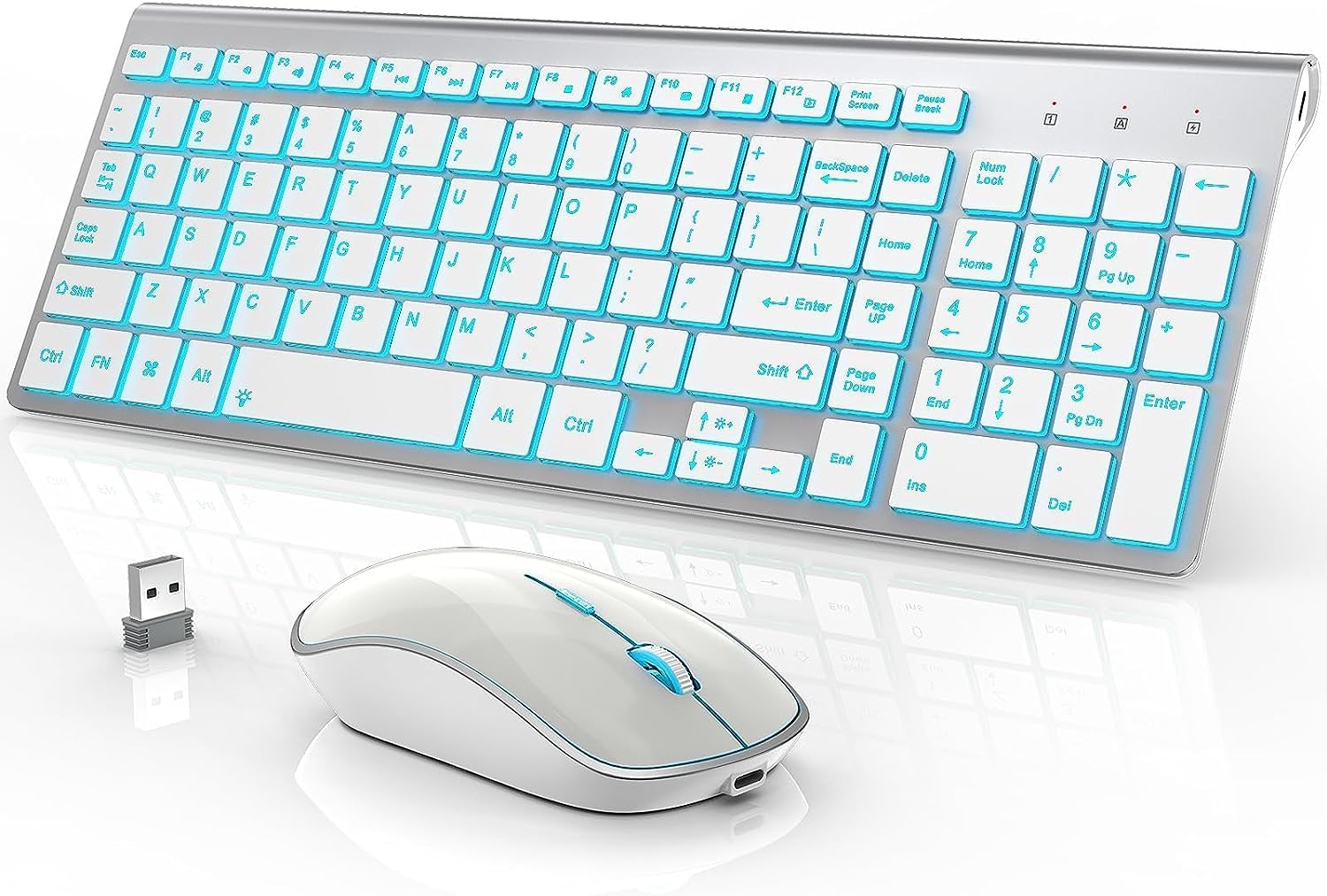
Figure 1: J JOYACCESS Wireless Keyboard and Mouse Combo (Silver+White Backlit)

Figure 2: Wide Compatibility with PC, Laptop, Desktop, Windows, and Mac OS.
2. Key Features
- 7 Backlight Options: Customize your typing experience with various backlight colors and three adjustable brightness levels.
- Type-C Rechargeable: Both keyboard and mouse are easily rechargeable via the included Type-C cable, eliminating the need for disposable batteries.
- Smart Energy Saving: Automatic sleep mode after inactivity (60 seconds for keyboard, 90 seconds for mouse) to conserve power.
- Quiet and Comfortable Typing: Scissor-switch low-profile keys provide a responsive and silent typing experience.
- Ergonomic Design: Keyboard with tilt angle and ergonomic mouse contour to reduce wrist and hand strain.
- 5 Adjustable DPI Mouse: Adjust cursor sensitivity with 5 DPI levels (up to 2400 DPI) for various tasks.
- Ultra-Slim and Compact: Full-size keyboard with numeric keypad in a streamlined, portable design.

Figure 3: Ergonomic design for reduced finger fatigue.
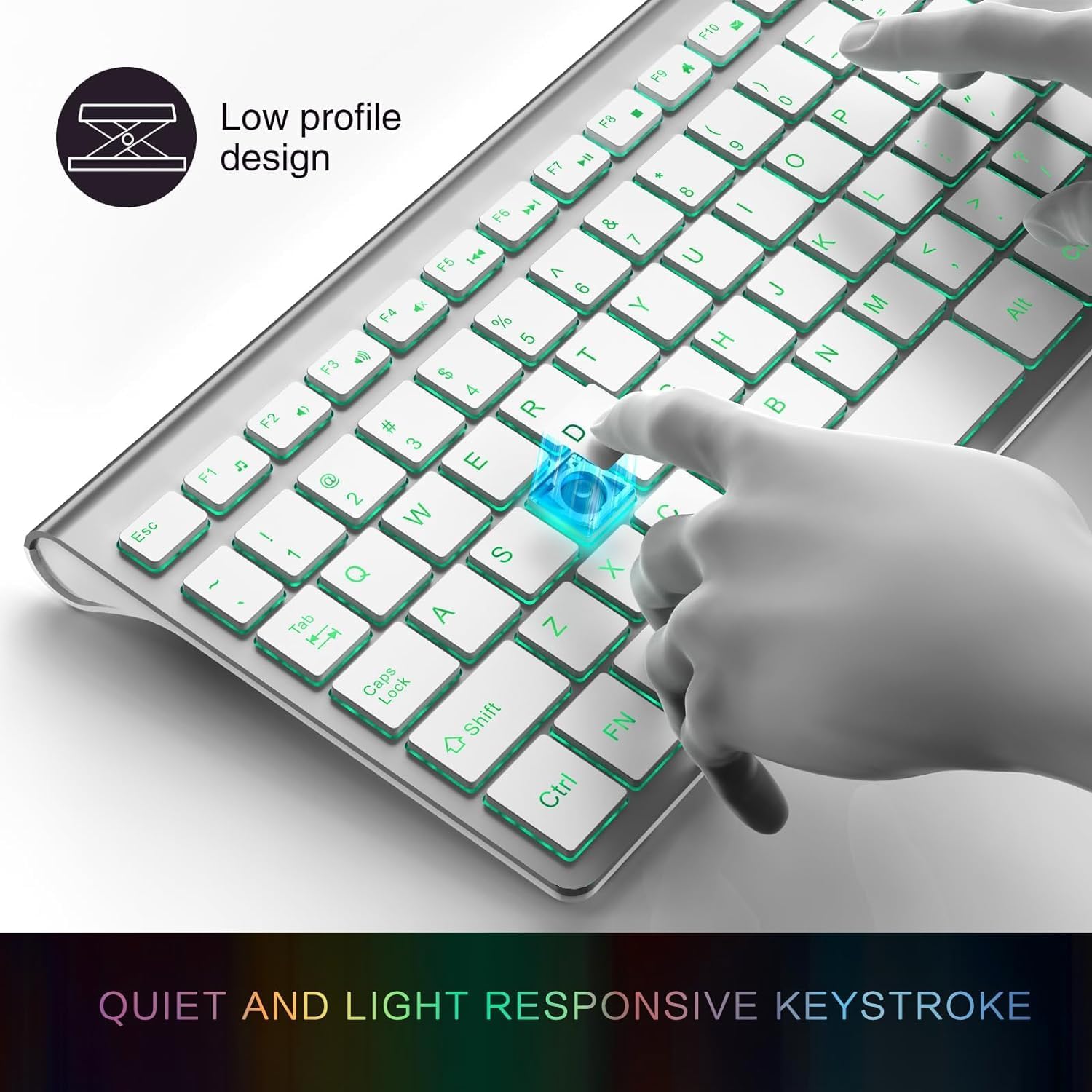
Figure 4: Quiet and light responsive keystrokes for comfortable typing.

Figure 5: Silent design for minimal disturbance.
3. What's in the Box
- Wireless Keyboard
- Wireless Mouse
- USB Receiver (stored inside the mouse)
- Type-C Cable
4. Setup
- Charge the Devices: Before first use, fully charge both the keyboard and mouse using the provided Type-C cable. The power indicator light will show charging status.
- Locate USB Receiver: The USB receiver is conveniently stored in a compartment on the underside of the mouse. Gently slide open the cover to retrieve it.
- Connect Receiver: Insert the USB receiver into an available USB port on your computer or laptop.
- Power On: Turn on the keyboard and mouse using their respective power switches. The devices should automatically connect to your computer.

Figure 6: Stable 2.4G wireless connection for reliable performance.

Figure 7: Type-C charging ports for both keyboard and mouse.
5. Operating Instructions
5.1 Keyboard Backlight Control
- Switch Light Color: Press FN +
 to cycle through 7 different backlight colors.
 - Adjust Brightness: Press FN + to adjust between three brightness levels (low, mid, high) or turn the backlight off.

Figure 8: Keyboard with 7 colored backlight options and adjustable brightness.
Video 1: Demonstration of the keyboard's 7 backlight options and brightness adjustment.
5.2 Mouse DPI Adjustment
The mouse features 5 adjustable DPI levels (800, 1200, 1600, 2000, 2400 DPI). Press the DPI button located on top of the mouse to cycle through the sensitivity settings. 1600 DPI is generally recommended for office use, while higher DPI settings are suitable for 4K monitors or gaming.

Figure 9: Mouse with 5 adjustable DPI levels and 7 color backlights.
5.3 Power Saving Mode
To conserve battery life, both the keyboard and mouse enter a sleep mode after a period of inactivity. The keyboard sleeps after 60 seconds, and the mouse after 90 seconds. To wake them up, simply press any key on the keyboard or click any button on the mouse.

Figure 10: Auto-sleep mode for energy saving. Press any key to wake.
6. Maintenance
- Cleaning: Use a soft, dry cloth to clean the surfaces of the keyboard and mouse. For stubborn dirt, slightly dampen the cloth with water or a mild cleaning solution. Avoid excessive moisture.
- Battery Care: Recharge the devices when the battery indicator light is low. Avoid fully depleting the battery frequently to prolong its lifespan. Store in a cool, dry place when not in use for extended periods.
- Storage: When transporting or storing the combo, ensure the USB receiver is securely placed back in its compartment within the mouse to prevent loss.
7. Troubleshooting
- No Connection:
- Ensure the USB receiver is properly inserted into a working USB port.
- Check if both the keyboard and mouse are powered on.
- Recharge the devices to ensure sufficient battery.
- Try plugging the USB receiver into a different USB port.
- Backlight Not Working:
- Ensure the keyboard is charged.
- Press FN + to adjust brightness or turn on the backlight.
- Mouse Not Responding:
- Check battery level and recharge if necessary.
- Ensure the mouse is powered on.
- Verify the USB receiver is connected and functioning.
8. Specifications
| Feature | Detail |
|---|---|
| Product Dimensions | 14.6 x 5.5 x 2.16 inches |
| Item Weight | 1.39 pounds |
| Batteries | 2 Lithium Polymer batteries (included) |
| Connectivity Technology | 2.4G Wireless (USB) |
| Special Feature | Ergonomic, Backlit, Rechargeable, Quiet Keys |
| Compatible Devices | Laptop, PC, Computer, Mac |
| Keyboard Backlight | 7 Switchable Colors, 3 Brightness Levels |
| Mouse DPI | 5 Adjustable Levels (up to 2400 DPI) |
9. Warranty and Support
For warranty information and customer support, please refer to the contact details provided with your product packaging or visit the official JOYACCESS website. Keep your purchase receipt for any warranty claims.
