1. Introduction
This manual provides comprehensive instructions for the installation, setup, and operation of your hizpo Android Car Stereo. Designed for Ford F150 P415 Raptor models with manual AC from 2008-2014, this unit enhances your vehicle's infotainment system with advanced features including Android 12, GPS navigation, Apple CarPlay, and Android Auto.
2. Compatibility
This hizpo car stereo is specifically designed for Ford F150 P415 Raptor vehicles equipped with manual AC, manufactured between 2008 and 2014. Please verify your vehicle's center console shape and size to ensure proper fitment before installation.

Image: Comparison of Ford F150 center consoles, highlighting compatible and incompatible designs for the stereo unit.

Image: Visual comparison of the car's dashboard before and after the hizpo car stereo installation.
3. Key Features
- Operating System: Android 12 with 8-Core UPC Octa Core 1.8 GHz processor.
- Memory & Storage: 4GB RAM + 32GB internal storage.
- Display: 9-inch 1280*720 QLED touchscreen for clear visuals and true color reproduction.
- Smartphone Integration: Built-in Wireless Apple CarPlay, Wireless & Wired Android Auto, and Mirror Link functionality.
- Audio: AM/FM radio, Dual Zone Video Out, Bluetooth Handsfree & Music, and a built-in BU32107EFV DSP IC for enhanced sound effects and noise reduction.
- Safety: Supports AHD backup camera function for improved visibility when reversing.
- Control: Steering Wheel Control compatibility for convenient operation.
4. Installation
Professional installation is recommended. Ensure the vehicle's power is disconnected before beginning. The unit comes with a wiring harness designed to fit the factory harness. Refer to the detailed wiring diagram below for connections.

Image: Detailed wiring diagram illustrating connections for power, RCA, and other components.
5. Setup
5.1 Steering Wheel Control
To configure steering wheel controls, navigate to the 'Steering Wheel Study' option in the settings menu. Follow the on-screen prompts to assign functions to your vehicle's steering wheel buttons. This allows for easier control of music and volume, enhancing driving safety.

Image: Interface for setting up steering wheel controls.
5.2 DSP Audio Settings
The built-in Digital Sound Processor (DSP) allows for precise audio customization. Access the DSP settings to adjust equalizer bands, surround sound, bass enhancement, and sound field settings to optimize your listening experience.

Image: DSP interface showing various audio adjustment options.
5.3 Apple CarPlay & Android Auto
Connect your smartphone via Bluetooth for wireless CarPlay/Android Auto or a USB cable for wired Android Auto. This allows access to navigation, calls, messages, and music directly from your phone, displayed on the car stereo screen.

Image: Illustration of connecting smartphones for CarPlay and Android Auto.

Image: Examples of Apple CarPlay and Android Auto interfaces on the stereo.
6. Operating Instructions
6.1 User Interface Navigation
The system features an intuitive Android interface. Swipe left or right to access different application pages. Tap on icons to launch applications such as Bluetooth, Radio, Music, Video, and more. The home screen provides quick access to essential functions and widgets.
Video: Demonstration of the hizpo Android 14 carplay radio stereo-S series user interface and features.
Video: Overview of the hizpo Carplay Android 12 car radio, including the weather display feature.
6.2 Radio Functionality
Access the Radio application to tune into AM/FM stations. You can manually scan for stations, save presets, and utilize RDS (Radio Data System) features where available.
6.3 GPS Navigation
The built-in GPS navigator provides accurate location and routing. Use pre-installed maps or download your preferred navigation apps from the Play Store. The system supports real-time traffic updates and voice guidance.
6.4 Picture-in-Picture (PIP)
The PIP feature allows you to watch videos in a small, resizable window while using other applications. This is useful for multitasking, such as following navigation while a passenger watches media.
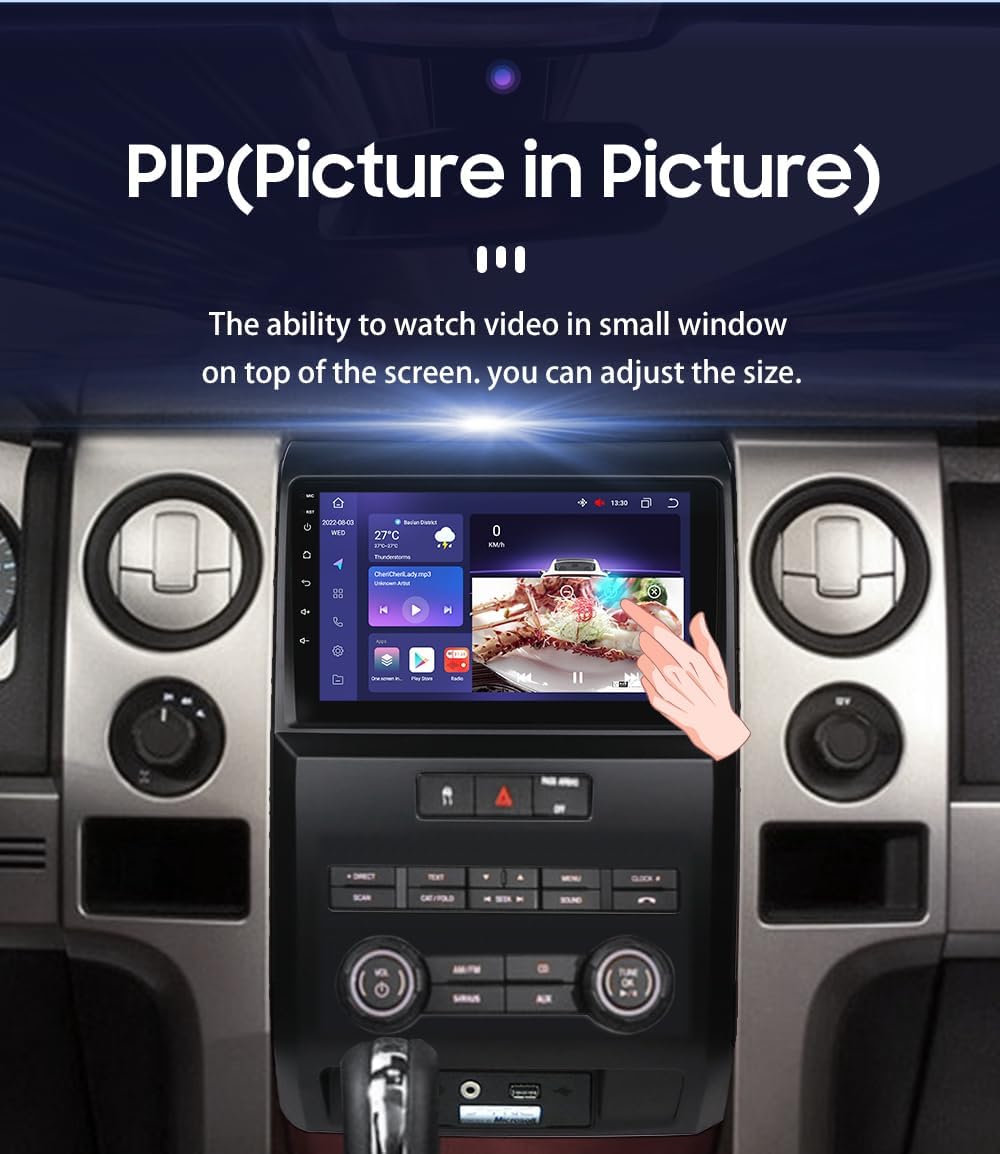
Image: Demonstration of the Picture-in-Picture (PIP) feature.
6.5 Rear View Camera Display
When the vehicle is shifted into reverse gear, the display automatically switches to the AHD backup camera feed, providing a clear view of the area behind your car. This helps in identifying obstacles and improving parking safety.

Image: Rear view camera display with dynamic parking guidelines.
6.6 Bluetooth Connectivity
Utilize Bluetooth 5.0 for stable and long-distance connections. Pair your smartphone for hands-free calling, contact synchronization, and audio streaming. The system supports A2DP for high-quality music playback.

Image: Diagram illustrating Bluetooth 5.0 dual channel technology.
6.7 Weather Display
The unit can display real-time weather information, updated every 30 minutes, keeping you informed about current conditions and forecasts for your location.

Image: Home screen displaying the weather widget.
7. Maintenance
To ensure optimal performance and longevity of your hizpo car stereo, regular maintenance is advised. Keep the screen clean using a soft, lint-free cloth. Avoid using harsh chemicals or abrasive materials. Ensure proper ventilation around the unit to prevent overheating.
7.1 Internal Cooling Fan
The unit is equipped with a small cooling fan to dissipate heat and maintain stable operation. Ensure that the fan vents are not obstructed.

Image: Close-up view of the internal cooling fan.
8. Troubleshooting
If you encounter issues with your hizpo car stereo, please refer to the following common troubleshooting steps:
- No Power: Check all power connections and fuses. Ensure the vehicle's ignition is on.
- No Sound: Verify speaker connections and audio settings (DSP, volume levels). Ensure the factory amplifier (if present) is correctly integrated.
- Touchscreen Unresponsive: Try restarting the unit. If the issue persists, a factory reset may be necessary (note: this will erase personal data).
- GPS Signal Issues: Ensure the GPS antenna is properly installed and has a clear line of sight to the sky.
- Bluetooth Connection Problems: Delete previous pairings on both the stereo and your phone, then attempt to re-pair. Ensure Bluetooth is enabled on both devices.
- CarPlay/Android Auto Not Connecting: Check USB cable connection (if wired). Ensure Bluetooth is on for wireless connections. Verify that the CarPlay/Android Auto app is updated on your phone.
For persistent issues, contact hizpo customer support.
9. Specifications
| Feature | Detail |
|---|---|
| Model Name | hizpo P415 |
| Operating System | Android 12 |
| CPU | 8-Core UPC Octa Core 1.8 Ghz |
| RAM + ROM | 4GB + 32GB |
| Screen Size | 9 Inches |
| Screen Resolution | 1280*720 QLED Touchscreen |
| Connectivity Technology | Bluetooth 5.0, WiFi |
| Special Features | Apple CarPlay/Android Auto, Built-in DSP, AHD Backup Camera Support |
| Audio Output Mode | Stereo |
| Mounting Type | Dashboard Mount |
| Item Weight | 5.52 pounds |
| Package Dimensions | 16.57 x 12.17 x 5.08 inches |
10. What's in the Box
- hizpo Android Car Stereo Unit
- USB Cable
- RCA Harness
- GPS Antenna
- User Manual (this document)
11. Warranty and Support
Your hizpo car stereo comes with a standard manufacturer's warranty. For specific warranty details, please refer to the warranty card included in the packaging or contact hizpo customer support. For technical assistance, troubleshooting, or service inquiries, please visit the official hizpo website or contact their support team directly.


