
1. Product Overview
The VIGORWORK 1531C is a single DIN car radio featuring a 10.4-inch vertical HD touchscreen. It offers a comprehensive multimedia experience with support for Apple CarPlay, Android Auto, Bluetooth connectivity, and various audio/video formats. The rotatable screen design allows for flexible viewing angles.
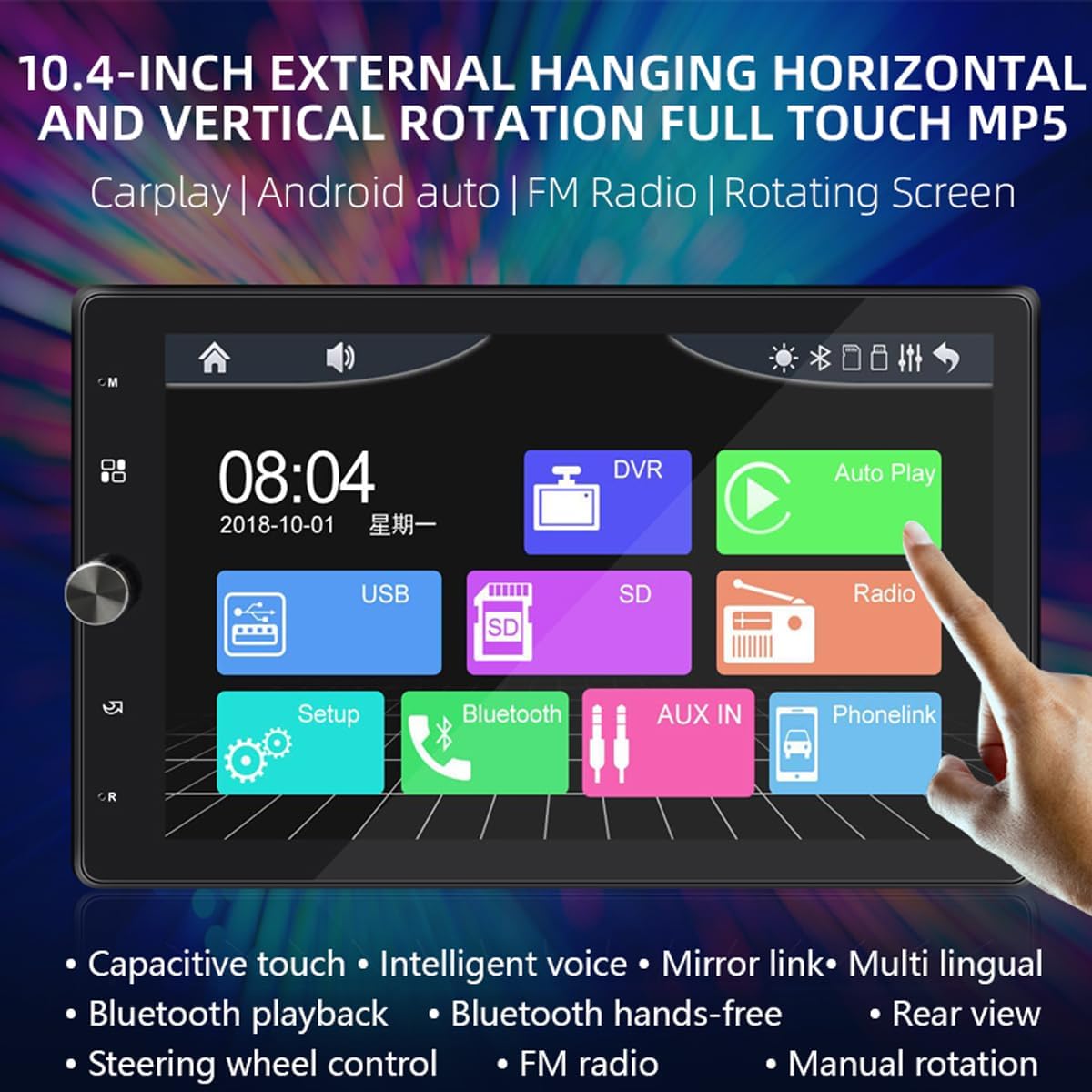
Figure 1: Main interface of the VIGORWORK 1531C Car Radio, showing icons for USB, SD, Radio, Setup, Bluetooth, AUX IN, and Phonelink.
2. Setup and Installation
This section provides general guidelines for installing your VIGORWORK 1531C car radio. Professional installation is recommended.
2.1 Power Connection
- Ensure the vehicle's ignition is off before starting installation.
- Connect the yellow wire to the constant 12V power supply.
- Connect the red wire to the accessory 12V power supply (switched with ignition).
- Connect the black wire to a good chassis ground.
2.2 Speaker Connections
Connect your vehicle's speakers to the corresponding output wires from the radio. Ensure correct polarity for optimal sound quality.
2.3 Antenna and External Devices
- Connect the FM antenna to the radio's antenna input.
- If using a rear view camera (purchased separately), connect its video input to the designated camera input on the radio.
- Connect any external USB devices or AUX sources as needed.
2.4 Screen Adjustment
The 10.4-inch screen supports manual rotation between horizontal and vertical orientations. Gently adjust the screen's edge to achieve the desired viewing angle. The interface will adapt to the screen's orientation.

Figure 2: Illustration of the manual screen rotation capability, allowing adjustment for both horizontal and vertical viewing modes.
3. Operating Instructions
3.1 Basic Operation
- Power On/Off: Press the power button to turn the unit on or off.
- Volume Control: Use the rotary knob or touchscreen controls to adjust volume.
- Main Menu: Tap the home icon on the screen to return to the main application menu.
3.2 Apple CarPlay and Android Auto
Connect your smartphone via USB to enable Apple CarPlay or Android Auto. This allows you to access navigation, make calls, send messages, and play music directly from your phone's interface on the car radio screen.

Figure 3: Display of the Apple CarPlay interface on the car radio screen, showing common applications like Phone, Music, Maps, and Messages.

Figure 4: Display of the Android Auto interface on the car radio screen, featuring applications such as Google Maps, YouTube Music, and Spotify.
3.3 Screen Mirroring
The unit supports screen mirroring for both Android and iOS devices. Connect your phone to display its content directly on the car radio's HD screen.
3.4 Bluetooth Functionality
Pair your smartphone with the car radio via Bluetooth for hands-free calling and wireless audio streaming. Access your phone's contacts and call history directly from the radio interface.

Figure 5: Diagram highlighting the built-in Bluetooth 5.1 chip, indicating support for high-definition noise reduction, bidirectional voice calls, and mobile app navigation broadcasts.
3.5 FM Radio
Access the FM radio function to listen to your favorite stations. The unit supports automatic and semi-automatic station searching, as well as manual fine-tuning. Frequencies range from 87.5-108MHz.
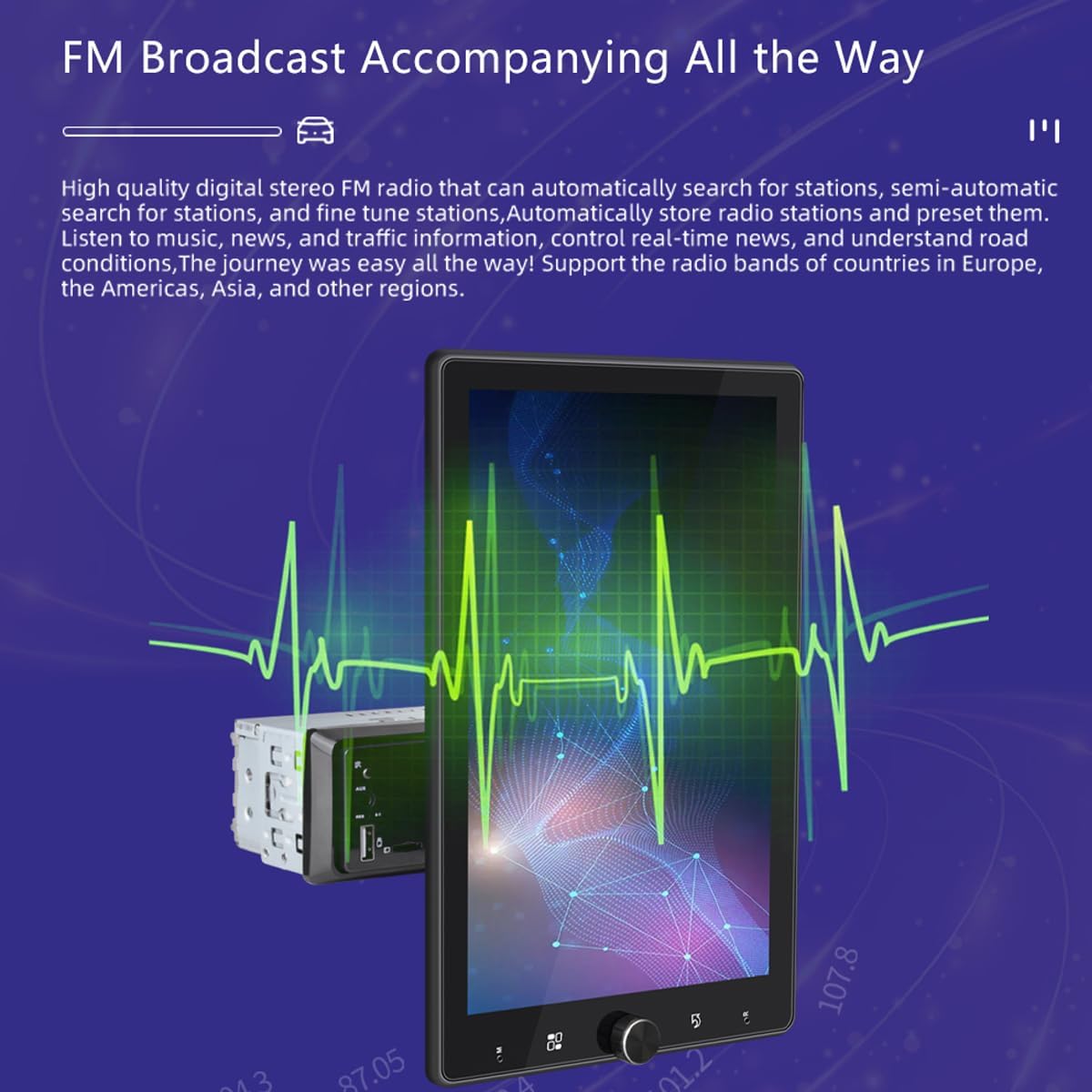
Figure 6: Visual representation of the FM radio function, showing a waveform graphic and radio frequencies, indicating high-quality digital stereo FM radio capabilities.
3.6 Multimedia Playback
The car radio supports playback from USB disks and TF cards. It is compatible with a wide range of video, audio, and picture formats:
- Video Formats: RMVB, RM, FLV, 3GP, DIVX, XVID, DAT, VOB, AVI, MP4
- Audio Formats: MP3, WMA, OGG, APE, AAC, FLAC, WAV
- Picture Formats: JPG, PNG, BMP
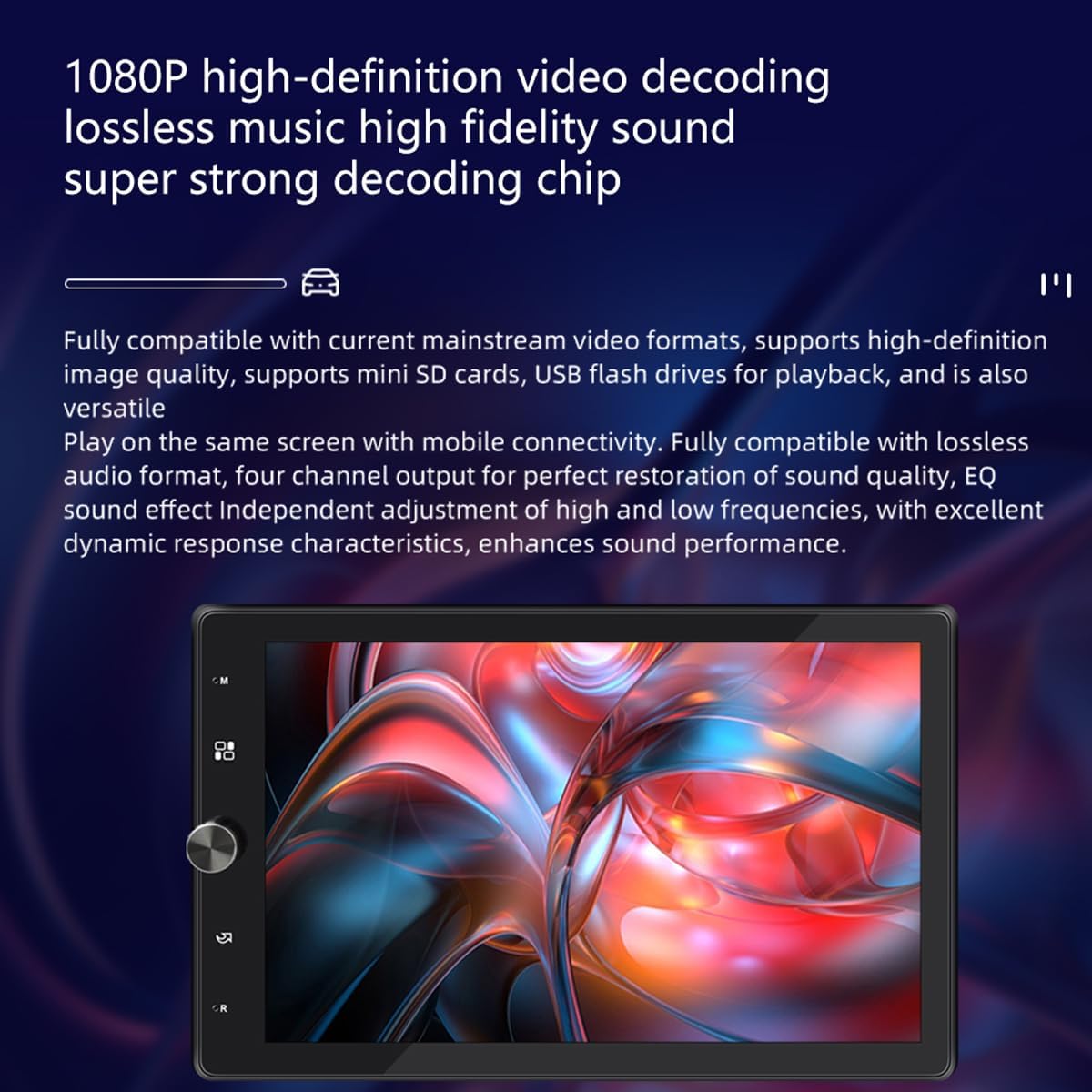
Figure 7: Image illustrating the 1080P high-definition video decoding and lossless music high-fidelity sound capabilities of the car radio.
3.7 Steering Wheel Control (SWC)
If your vehicle supports it, you can connect the steering wheel control wires to the radio to operate functions like volume, track change, and mode switching directly from your steering wheel.
3.8 Rear View Camera
When a compatible rear view camera is connected, the radio will automatically display the camera feed when the vehicle is shifted into reverse.
3.9 Language Selection
The unit supports multinational language selection. Navigate to the settings menu to choose your preferred language.
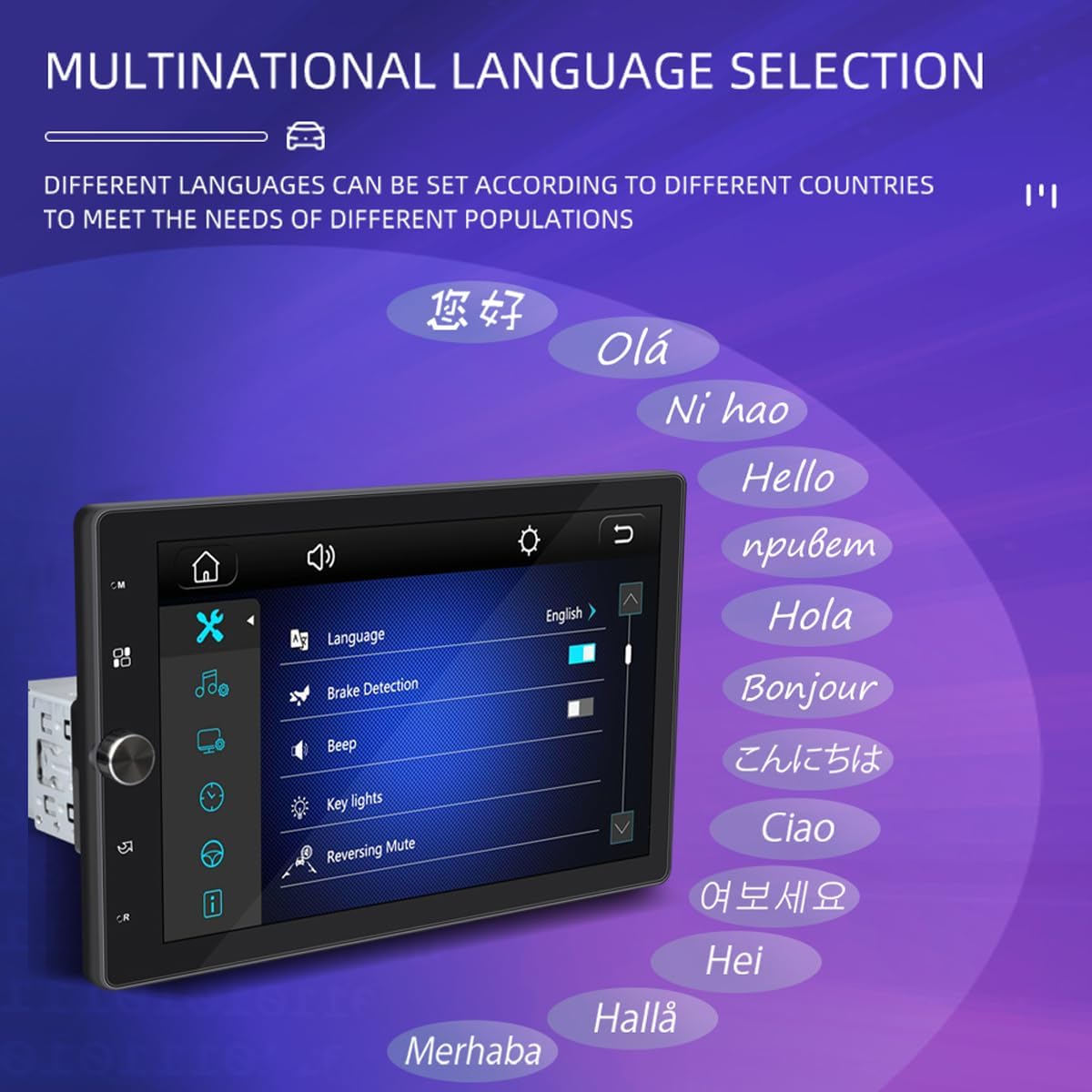
Figure 8: Screenshot of the car radio's settings menu, showing the 'Language' option and a list of various languages available for selection.
4. Maintenance
To ensure the longevity and optimal performance of your VIGORWORK 1531C car radio, follow these maintenance guidelines:
- Cleaning: Use a soft, dry cloth to clean the screen and exterior. Avoid abrasive cleaners or solvents.
- Temperature: Do not expose the unit to extreme temperatures or direct sunlight for prolonged periods.
- Moisture: Keep the unit dry and away from moisture.
- Software Updates: Check the manufacturer's website periodically for any available software updates.
5. Troubleshooting
If you encounter issues with your car radio, refer to the following common problems and solutions:
| Problem | Possible Cause | Solution |
|---|---|---|
| No power | Incorrect wiring, blown fuse, vehicle battery issue | Check power connections (yellow, red, black wires). Inspect vehicle fuses. Ensure battery is charged. |
| No sound | Incorrect speaker wiring, volume too low, mute activated | Verify speaker connections and polarity. Increase volume. Check if mute function is active. |
| Bluetooth not connecting | Bluetooth off on phone/radio, pairing mode not active | Ensure Bluetooth is enabled on both devices. Put radio in pairing mode. Delete previous pairings and try again. |
| CarPlay/Android Auto not working | Faulty USB cable, phone software issue, incorrect settings | Use a high-quality USB cable. Ensure phone software is updated. Check radio settings for CarPlay/Android Auto. |
| Screen unresponsive | Temporary software glitch, dirty screen | Restart the unit. Clean the touchscreen with a soft cloth. |
If the problem persists after trying these solutions, please contact customer support.
6. Specifications
| Feature | Specification |
|---|---|
| Model Number | 1531C |
| Screen Size | 10.4 inch HD Touchscreen (Rotatable) |
| Connectivity | Bluetooth 5.1, USB, TF Card, AUX |
| Smartphone Integration | Apple CarPlay, Android Auto, Mirror Link (iOS/Android) |
| FM Frequency Range | 87.5-108MHz |
| Supported Video Formats | RMVB, RM, FLV, 3GP, DIVX, XVID, DAT, VOB, AVI, MP4 |
| Supported Audio Formats | MP3, WMA, OGG, APE, AAC, FLAC, WAV |
| Supported Picture Formats | JPG, PNG, BMP |
| Max External Storage | >64GB (USB disk, TF card) |
| Output Power | 7388 high power output |
| Input Voltage | DC12V |
| Special Features | 24-hour digital clock, date, automatic colorful lights, remote control support, rear view support, USB DVR support, steering wheel remote control support |
7. Warranty and Support
For warranty information and customer support, please refer to the documentation provided with your purchase or contact the retailer. Keep your proof of purchase for any warranty claims.
For technical assistance or further inquiries, please visit the VIGORWORK official website or contact their customer service department.