Introduction
This manual provides detailed instructions for the installation, operation, and maintenance of your FITCAMX 4K Dash Cam, Model HD2-6588. This dash cam is specifically designed for Mercedes-Benz GLC-Class Coupe 2023-2026 and Hybrid models, offering an OEM-style integrated look. Please read this manual thoroughly before use to ensure proper functionality and safety.
Package Contents
Verify that all items listed below are included in your package:
- FITCAMX 4K Dash Cam (Front Camera)
- Connecting Cable
- User Manual
- 64GB Memory Card
- Removal Pry Tool

The package includes the 4K Dash Cam, connecting cable, user manual, 64GB memory card, and a removal pry tool for installation.
Compatibility
The FITCAMX HD2-6588 dash cam is designed for specific Mercedes-Benz GLC-Class models. To ensure compatibility, please confirm your vehicle's style and year of manufacture. This model is suitable for Mercedes-Benz GLC-Class 2023-2026 GLC 300 & GLC 350e Hybrid 2025-2026 vehicles that originally have two cameras equipped in the front rearview mirror cover.
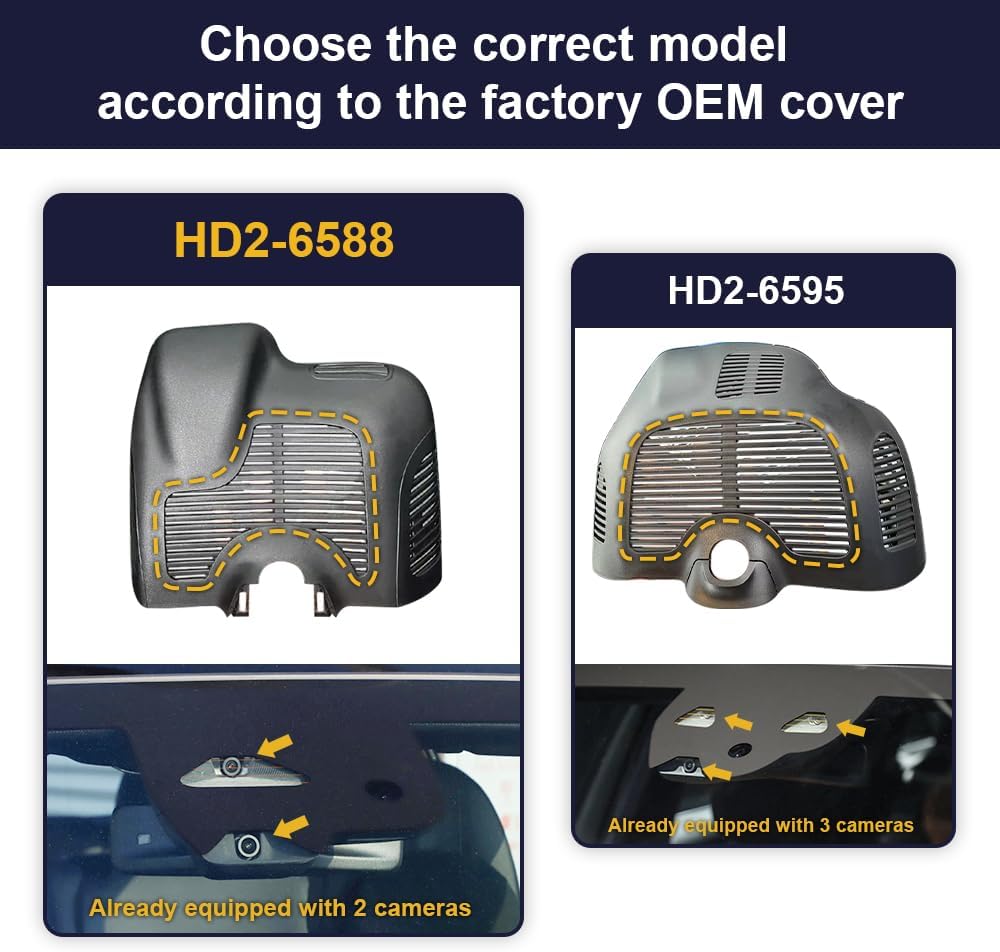
To ensure proper fit, verify your vehicle's rearview mirror cover matches model HD2-6588 (for vehicles with 2 original cameras) or HD2-6595 (for vehicles with 3 original cameras).
Setup and Installation
The FITCAMX dash cam is designed for a straightforward, OEM-style installation that integrates seamlessly with your vehicle's existing components.
Installation Steps:
- Use the provided plastic pry tool to carefully open the existing rearview mirror cover.
- Remove the back cover, then the larger main cover.
- Locate the rain sensor wiring and connect the supplied Y-Cable.
- Mount the FITCAMX dash cam into the housing.
- Reattach the back cover, ensuring all clips are securely fastened.

A visual guide demonstrating the installation process, including prying open the cover, connecting the Y-cable, and mounting the dash cam.
Installation Video:
Watch this official video for a step-by-step guide on how to install your FITCAMX dash cam in a Mercedes-Benz, ensuring a secure and integrated fit.

The FITCAMX dash cam integrates seamlessly with your vehicle's interior, maintaining an OEM factory appearance without obstructing the windshield.
Operating Instructions
Automatic Recording
The dash cam automatically begins recording when your vehicle is started and stops when the vehicle is turned off. This ensures that all driving moments are captured without manual intervention.
Loop Recording
The device features loop recording, which continuously records video. When the memory card reaches its full capacity, the oldest unlocked video files are automatically overwritten to make space for new recordings. You can set the loop recording duration (e.g., 1, 3, or 5 minutes) via the FITCAMX app.

The dash cam features loop recording, automatically overwriting the oldest files when the memory card is full, ensuring continuous recording.
G-Sensor (Emergency Recording)
The built-in G-Sensor detects sudden impacts, rapid acceleration, or sharp braking. In the event of a collision or significant movement, the G-Sensor automatically triggers emergency recording, locking the current video segment to prevent it from being overwritten by loop recording. This ensures critical footage is protected.

The built-in G-Sensor detects sudden impacts or collisions, automatically locking the current video footage to prevent it from being overwritten.
Night Vision
Equipped with an f/1.6 large aperture lens and WDR (Wide Dynamic Range) technology, the dash cam provides clear night vision. It automatically balances exposure to capture details in both low-light and high-light conditions, ensuring most driving moments are clearly recorded even at night.

Equipped with WDR technology and a large aperture lens, the dash cam provides clear night vision, capturing details in low-light conditions.
App Usage
The FITCAMX dash cam features built-in Wi-Fi and a dedicated mobile application for convenient access to your recordings and settings.
Connecting to the App:
- Download the FITCAMX app from the App Store (iOS) or Google Play (Android).
- Ensure the dash cam is powered on (vehicle ignition is on). The blue indicator lights on the dash cam will confirm it is working.
- On your smartphone, go to Wi-Fi settings and connect to the Wi-Fi network starting with "CAR", "LHD", or "CARDV". The default password is 12345678.
- Open the FITCAMX app. Once connected, you can access the camera's features.

Connect your smartphone to the dash cam via Wi-Fi using the FITCAMX app to view live footage, playback recordings, and manage settings.
App Features:
- Live View: Stream real-time video from the dash cam to your phone.
- Playback: Browse and play recorded videos directly on your device.
- Download: Save important video footage from the dash cam's memory card to your phone's album.
- Settings: Adjust various camera settings, including video resolution, sound recording, exposure compensation, and Wi-Fi name/password.
App Connection and Usage Video:
This video illustrates how to connect your dash cam to the FITCAMX mobile application via Wi-Fi, allowing you to access live view, recordings, and settings directly from your smartphone.
Features Overview
The FITCAMX 4K Dash Cam offers a range of features designed for reliable and high-quality video recording:
- OEM Style Integration: Designed to blend seamlessly with your vehicle's interior, appearing as a factory-installed component.
- 4K UHD 2160P Video: Records high-definition video at 2160P/30fps with a premium CMOS sensor and f/1.6 aperture lens.
- Built-in Wi-Fi & App Control: Connects to your smartphone via Wi-Fi for live viewing, video playback, downloading, and settings management.
- Loop Recording: Ensures continuous recording by overwriting the oldest files when the memory card is full.
- G-Sensor: Automatically detects impacts and locks emergency video footage to prevent overwriting.
- WDR Technology: Provides clear night vision by balancing exposure in varying light conditions.

Experience clear 4K UHD 2160P video recording, capturing detailed footage of your journeys.
Maintenance
Proper maintenance ensures the longevity and optimal performance of your dash cam:
- SD Card Formatting: Regularly format the memory card (at least once a month) using the FITCAMX app to prevent data corruption and ensure smooth recording.
- Lens Cleaning: Gently clean the camera lens with a soft, lint-free cloth to maintain clear video quality. Avoid abrasive materials or harsh chemicals.
- Firmware Updates: Check the FITCAMX app periodically for available firmware updates to ensure your dash cam has the latest features and performance improvements.
- Temperature Range: The dash cam is designed to operate in temperatures from -20°C to 85°C (-4°F to 185°F). Avoid prolonged exposure to extreme temperatures outside this range.
Parking Mode Upgrade:
To enable parking monitoring, an additional fuse box cable (for non-24h recording) or an OBD cable (for 24h recording) is required. These accessories are sold separately. Search ASIN: B09PQ9KDYX for the fuse box cable.

For enhanced parking surveillance, the dash cam can be upgraded with a fuse box cable (for non-24h recording) or an OBD cable (for 24h recording).
Troubleshooting
If you encounter issues with your FITCAMX dash cam, refer to the following common solutions:
- Dash Cam Not Turning On: Ensure the vehicle ignition is on and the dash cam is properly connected to its power source. Check the indicator lights on the dash cam.
- Wi-Fi Connection Issues: If you cannot connect to the dash cam's Wi-Fi, try turning off cellular data and Bluetooth on your phone before attempting to connect. Ensure you are selecting the correct Wi-Fi network (starting with CAR, LHD, or CARDV) and entering the correct password (12345678).
- App Not Showing Live View/Recordings: After connecting to the dash cam's Wi-Fi, return to the FITCAMX app. If issues persist, try restarting the app or your phone.
- Video Quality Issues: Ensure the lens is clean and free from obstructions. Check the video resolution settings in the app.
- SD Card Errors: Format the SD card regularly through the app. If errors persist, the SD card may be faulty and require replacement.
- CarPlay/Android Auto Interference: The dash cam's Wi-Fi will not affect the use of CarPlay or Android Auto. You do not need to keep the camera's Wi-Fi connected to your phone at all times for recording.
For further assistance, please contact FITCAMX customer support.
Specifications
| Product Dimensions | 11.81 x 9.06 x 3.94 inches |
| Item Weight | 1.5 pounds |
| Model Number | HD2-6588 |
| Batteries | 1 Lithium Metal battery required (included) |
| Connectivity Technology | Wi-Fi |
| Special Features | FITCAMX APP, OEM Style |
| Video Capture Resolution | Front 2160P Only |
| Mounting Type | Ceiling |
| Field Of View | 140 Degrees |
| Control Method | App |
Warranty & Support
FITCAMX is committed to providing reliable products and customer satisfaction.
Return Policy:
This product is eligible for a 30-day return for refund or replacement, subject to the retailer's terms and conditions.
Customer Support:
For any questions, technical assistance, or support needs, please contact FITCAMX directly. We offer prompt response and lifetime after-sales support to ensure your satisfaction.
You can often find contact information on the official FITCAMX website or through the retailer where you purchased the product.


