1. Product Overview
The FTVOGUE Smart Power Socket (Model GT-SS135 / LSPA2) is a versatile smart plug designed to provide remote control and timer functions for your electronic devices. It features a UK plug type, two USB ports, and is compatible with various smart home ecosystems.

Image 1.1: Front view of the FTVOGUE Smart Power Socket, showing the UK plug type, two USB charging ports, and the power button.
2. Safety Information
- Ensure the socket is used within its rated voltage (100-240VAC) and current (10A) limits to prevent damage or hazards.
- Do not disassemble or modify the device.
- Keep away from water and high humidity environments.
- Avoid plugging in appliances that exceed the maximum load of 16A.
3. Setup Guide
3.1 Initial Connection
- Plug the FTVOGUE Smart Power Socket into a standard UK wall outlet.
- Ensure the power indicator light on the socket is illuminated.

Image 3.1: The smart plug connected to a wall socket, demonstrating its compact design suitable for various locations.
3.2 Connecting to Wi-Fi and Smart Home Systems
The smart socket requires a 2.4GHz Wi-Fi network for remote control functionality. Follow these steps to connect:
- Download the compatible smart home application (e.g., Smart Life, Tuya Smart) on your smartphone.
- Register or log in to your account within the application.
- Press and hold the power button on the smart socket until the indicator light blinks rapidly, indicating pairing mode.
- In the app, select "Add Device" or the "+" icon, then choose "Electrical Outlet" or "Smart Plug".
- Follow the on-screen instructions to connect the plug to your 2.4GHz Wi-Fi network.
- Once connected, you can rename the device for easier control.

Image 3.2: Illustrates the process of pairing the smart plug with a mobile application for remote control.
The FTVOGUE Smart Power Socket supports integration with popular voice assistants:
- For Alexa and Echo dot
- Google Homepage
- IFTTT Roqi
- iPhone-Siri
Refer to the respective voice assistant's app for instructions on linking your smart home account.
4. Operating Instructions
4.1 Manual Control
Press the power button on the front of the smart socket to manually turn the connected device on or off.
4.2 Remote Control via App
Once connected to your smart home app, you can:
- Turn On/Off: Toggle the power of the connected device from anywhere with an internet connection.
- Set Schedules/Timers: Program the socket to turn on or off at specific times or after a set duration.
- Create Scenes: Group the smart socket with other smart devices to automate actions based on conditions (e.g., "Good Morning" scene turns on the coffee maker).
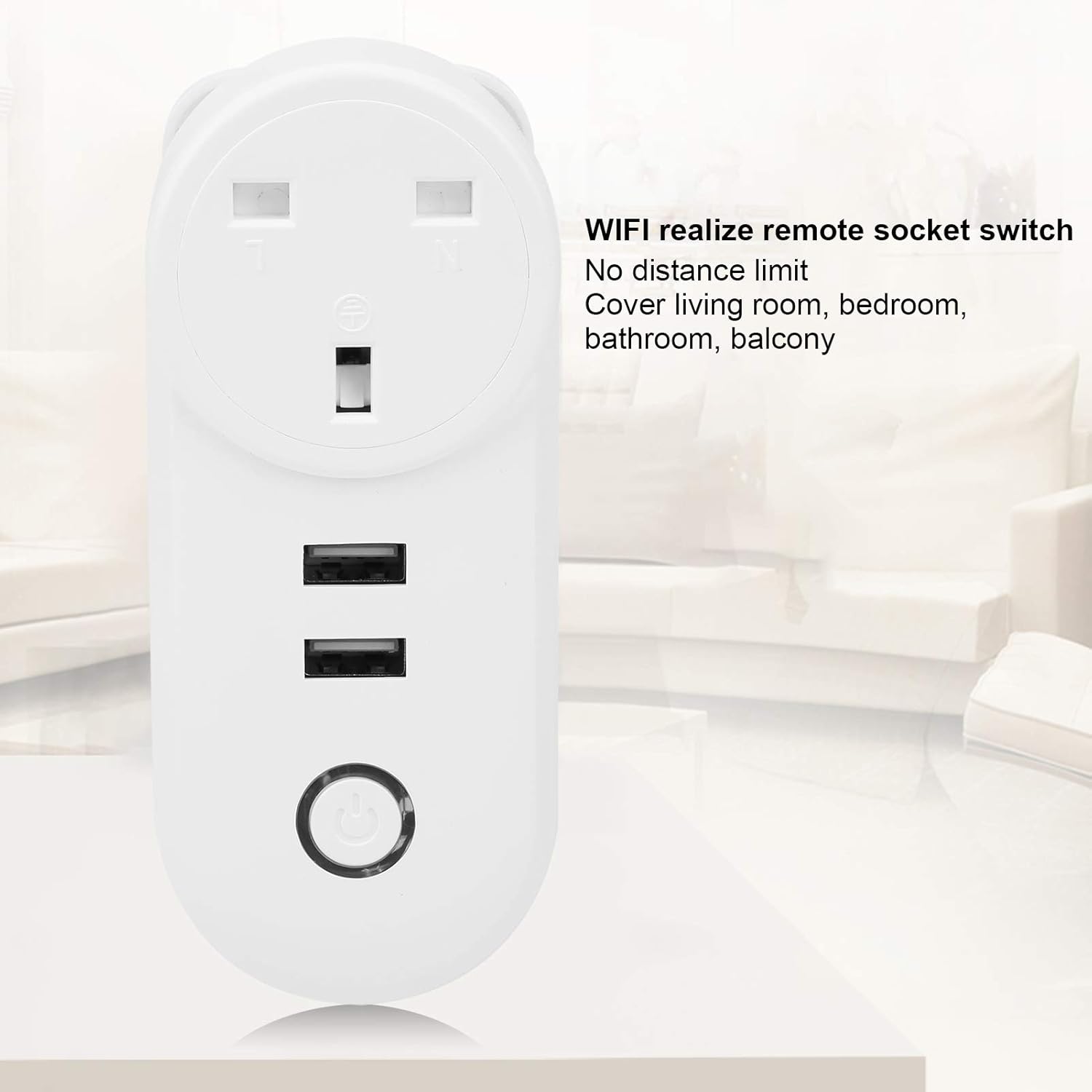
Image 4.1: The smart plug enables remote control of connected devices from any location with Wi-Fi access.
4.3 Voice Control
After linking your smart home account to a voice assistant, use voice commands to control the smart socket. Examples:
- "Alexa, turn on the living room lamp."
- "Hey Google, turn off the fan."
4.4 USB Charging Ports
The two integrated USB ports can be used to charge compatible devices. These ports are typically always on when the plug is powered, independent of the main socket's on/off state.
5. Maintenance
- Clean the smart socket with a dry, soft cloth. Do not use liquid cleaners.
- Ensure the plug is disconnected from the power outlet before cleaning.
- Regularly check for any signs of damage to the casing or plug pins.
6. Troubleshooting
- Device not powering on:
- Check if the wall outlet is functioning correctly.
- Ensure the smart socket is fully inserted into the wall outlet.
- Cannot connect to Wi-Fi:
- Verify your Wi-Fi network is 2.4GHz. 5GHz networks are not supported.
- Ensure the smart socket is within range of your Wi-Fi router.
- Confirm you have entered the correct Wi-Fi password.
- Try resetting the smart socket by unplugging it for 10 seconds and plugging it back in, then re-attempt pairing.
- Ensure the indicator light is blinking rapidly for pairing mode. If not, press and hold the power button until it does.
- Remote control not working:
- Check your internet connection on your smartphone and home Wi-Fi network.
- Ensure the smart socket is still connected to your Wi-Fi network (check indicator light status in the app).
- Restart the smart home application.
- Voice control issues:
- Confirm the smart home account is correctly linked to your voice assistant.
- Ensure the device name in the smart home app is recognized by the voice assistant.
- Try re-syncing devices in your voice assistant's app.
7. Specifications
| Feature | Specification |
|---|---|
| Model | GT-SS135 / LSPA2 |
| Input Voltage | 100-240VAC, 50/60Hz |
| Rated Current | 10A (Max. Load: 16A) |
| Number of Holes | 3 (UK Plug Type) |
| Material | ABS + PC (Fire Rating: 94-V0) |
| Shell Color | White |
| Working Temperature | -20°C to +50°C |
| Wireless Standard | IEEE802.11b/g/n, 2.4GHz |
| Compatibility | Alexa, Google Home, IFTTT, Siri |
| Product Dimensions | 7.48 x 3.15 x 2.36 inches |
| Weight | 5.82 ounces |

Image 7.1: Rear label of the smart socket displaying key specifications like model number and electrical ratings.
8. Warranty and Support
For warranty information or technical support, please refer to the documentation included with your purchase or contact FTVOGUE customer service through their official channels. You can often find support contact details on the product packaging or the seller's page on the platform where you purchased the item.
Visit the FTVOGUE Store for more information: FTVOGUE Official Store