
AMHVMU M22
AMHVMU M22 GPS HUD User Manual
Universal Heads-Up Display for All Vehicles
1. Introduction
This manual provides comprehensive instructions for the installation, operation, and maintenance of your AMHVMU M22 GPS Head-Up Display (HUD). Please read this manual thoroughly before using the device to ensure proper functionality and safety. The M22 HUD is designed to project essential driving information directly onto your windshield, allowing you to keep your eyes on the road.
2. Product Overview
The AMHVMU M22 is a versatile GPS-based Head-Up Display compatible with all vehicle types, including cars, vans, buses, and trucks. It provides real-time display of speed (KM/H or MPH), time, trip mileage, and other critical driving data.
2.1 Key Features
- GPS Speedometer: Accurate speed display using GPS satellite signals.
- Time Display: Shows current time.
- Trip Mileage: Tracks distance traveled.
- Universal Compatibility: Works with all vehicles.
- Automatic Light Sensor: Adjusts display brightness based on ambient light.
- Overspeed Alarm: User-configurable speed warning.
- Multiple Display Modes: Various interface options to suit user preference.
2.2 Product Components and Controls
Familiarize yourself with the main components and control buttons of the M22 HUD.
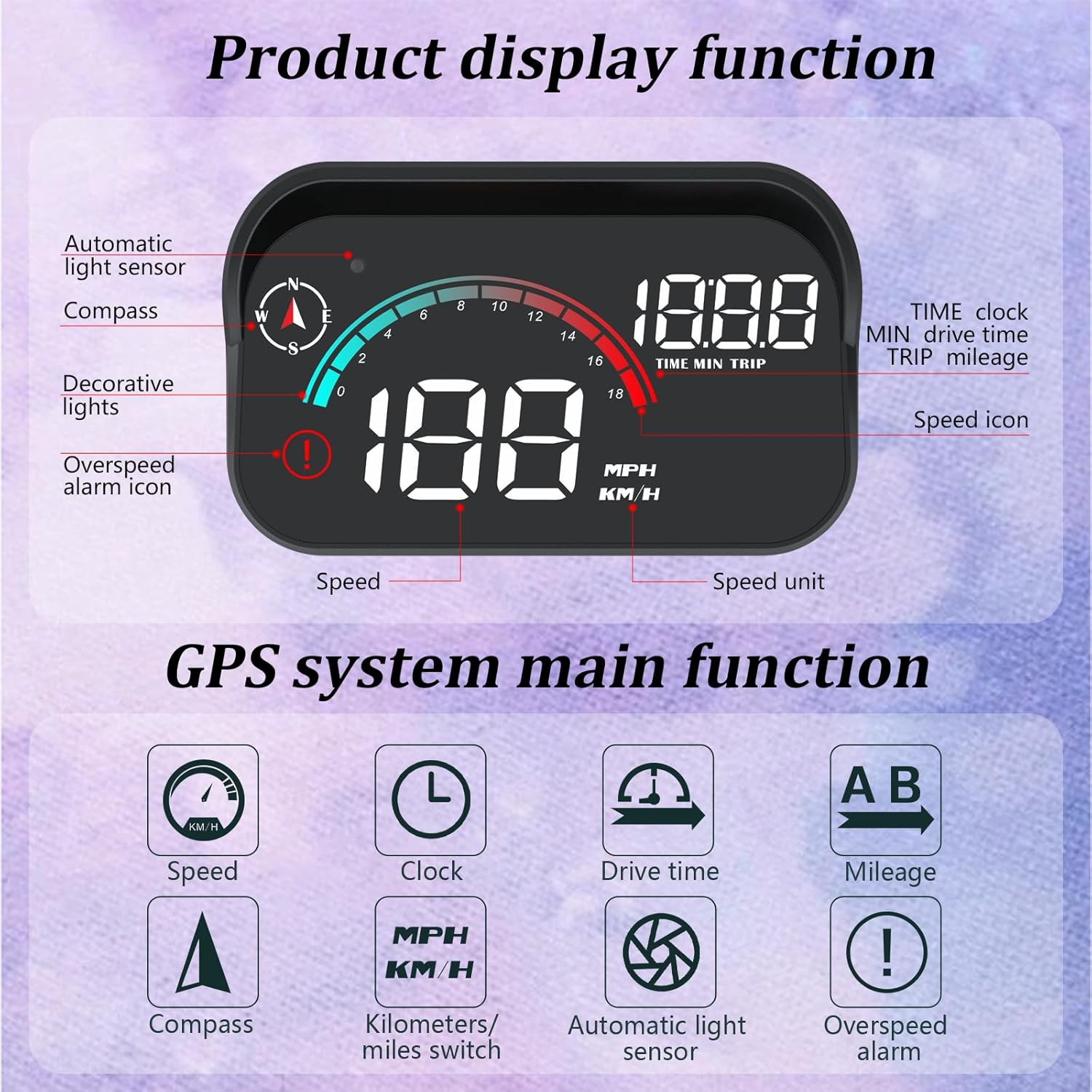
Figure 2.2.1: Diagram illustrating the M22 HUD's display functions, including speed, speed unit, time, trip mileage, compass, decorative lights, and overspeed alarm icon.

Figure 2.2.2: Illustration of the M22 HUD's integrated button design, showing the Power button, Add button, Reduce button, and Set button for one-click switching and configuration.
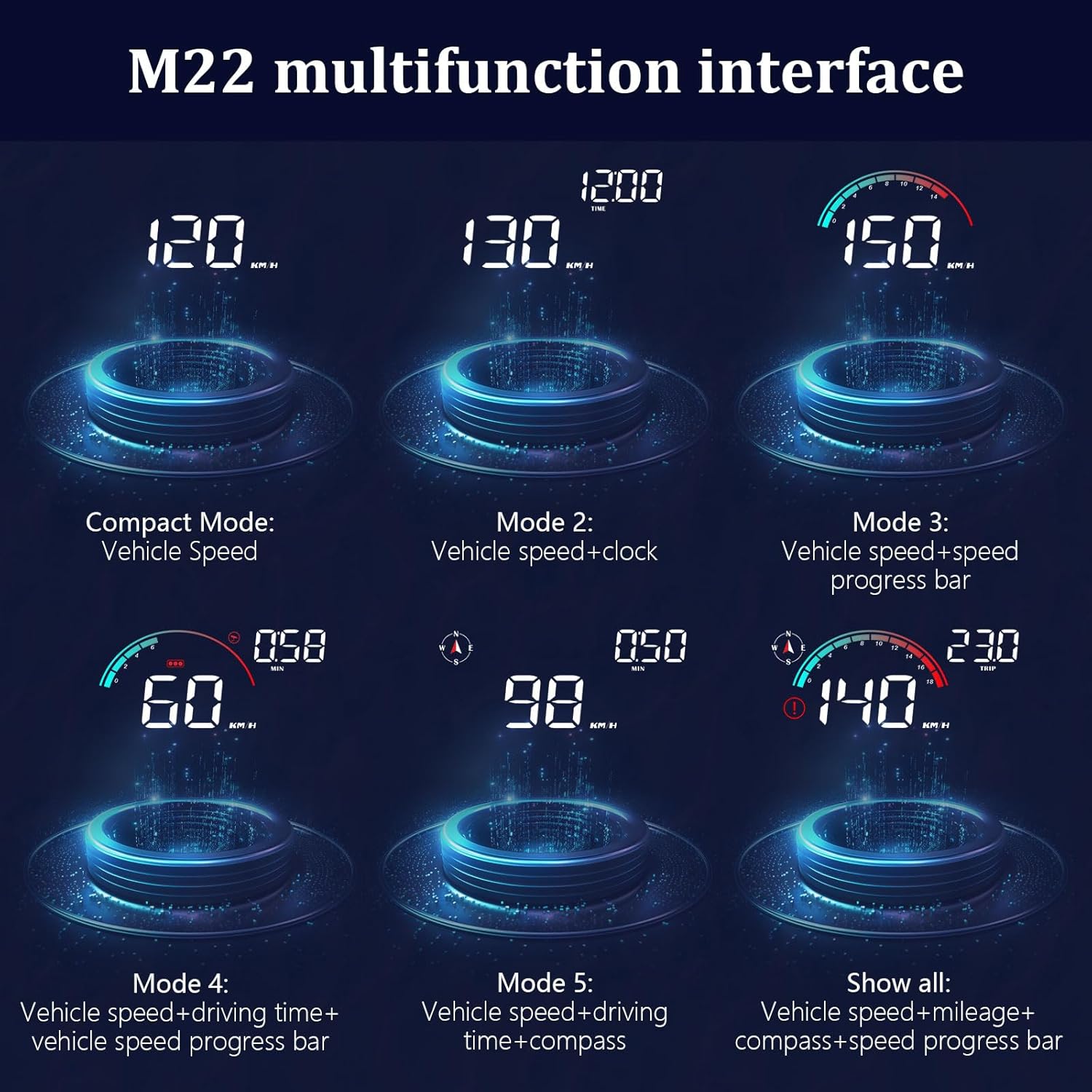
Figure 2.2.3: Examples of the M22 HUD's multifunction interfaces, including Compact Mode (Vehicle Speed), Vehicle Speed + Clock, Vehicle Speed + Speed Progress Bar, Vehicle Speed + Driving Time + Speed Progress Bar, Vehicle Speed + Driving Time + Compass, and Show All (Vehicle Speed + Mileage + Compass + Speed Progress Bar).
3. What's in the Box
Upon opening the package, please verify that all the following items are included:
- 1 x M22 HUD Unit
- 1 x USB Cable
- 1 x Reflective Film
- 1 x User Manual
- 1 x Non-slip Mat

Figure 3.1: Contents of the M22 HUD package, including the HUD unit, reflective film, manual, USB cable, and non-slip mat.
4. Setup and Installation
The M22 HUD features a non-destructive, plug-and-play installation process.
- Placement: Choose a suitable, flat position on your dashboard where the HUD will not obstruct your view of the road or interfere with driving controls. The non-slip mat can be used to secure the unit.
- Power Connection: Plug one end of the provided USB cable into the USB interface on the M22 HUD. Plug the other end of the USB cable into your vehicle's cigarette lighter port (using a USB adapter, if necessary) or a suitable USB power source in your vehicle.
- Cable Management: Carefully insert the USB wire into the A-pillar sealing strip or route it discreetly to avoid snagging and maintain a tidy appearance.
- Reflective Film (Optional): If you experience a double reflection on your windshield, apply the reflective film to the area where the HUD display is projected. Clean the windshield thoroughly before application.

Figure 4.1: Visual guide for the non-destructive installation of the M22 HUD, showing connection to the cigarette lighter port, cable routing, and placement of the HUD unit.
5. Operating Instructions
5.1 Powering On/Off
The M22 HUD will automatically power on when connected to a power source and the vehicle ignition is turned on. It will power off automatically when the vehicle ignition is turned off.
5.2 GPS Signal Acquisition
Upon powering on, the HUD will search for GPS satellite signals. This process usually takes a few seconds. Once a signal is acquired, the speed display will become active.
5.3 Button Functions
The M22 HUD features three main buttons for navigation and settings:
- Power Button (⏻): Short press to cycle through display modes. Long press to enter/exit settings menu.
- Add Button (▲): Short press to increase values or move up in menus.
- Reduce Button (▼): Short press to decrease values or move down in menus.
- Set Button (M): Short press to confirm selection in menus.
5.4 Changing Display Modes
Short press the Power button (⏻) to cycle through the available display interfaces. Refer to Figure 2.2.3 for examples of different display modes.
5.5 Accessing Settings Menu
Long press the Power button (⏻) to enter the settings menu. Use the Add (▲) and Reduce (▼) buttons to navigate through options, and the Set (M) button to confirm changes.
Common Settings:
- Speed Unit: Switch between KM/H and MPH.
- Overspeed Alarm: Set the speed threshold for the alarm.
- Brightness: Adjust display brightness (manual override for automatic sensor).
- Time Zone: Adjust time zone for accurate time display.
6. Maintenance
To ensure the longevity and optimal performance of your M22 HUD, follow these maintenance guidelines:
- Cleaning: Use a soft, dry, or slightly damp cloth to clean the display and casing. Avoid using abrasive cleaners, solvents, or strong chemicals, as they may damage the surface.
- Temperature: Do not expose the device to extreme temperatures (hot or cold) for prolonged periods.
- Moisture: Keep the device dry. Do not expose it to water or excessive humidity.
- Handling: Handle the device with care. Avoid dropping it or subjecting it to strong impacts.
- Cable Inspection: Periodically check the USB cable for any signs of wear or damage. Replace if necessary.
7. Troubleshooting
If you encounter issues with your M22 HUD, refer to the following common problems and solutions:
| Problem | Possible Cause | Solution |
|---|---|---|
| No Display / Device Not Powering On | No power supply; loose USB connection; faulty USB cable or power adapter. | Check if the USB cable is securely connected to both the HUD and the power source. Try a different USB port or power adapter. Ensure vehicle ignition is on. |
| No Speed Display / GPS Signal Lost | Weak or no GPS signal; device obstructed; vehicle in an area with poor satellite reception (e.g., tunnels, underground parking). | Move the vehicle to an open area with clear sky view. Ensure the HUD is not obstructed by other objects on the dashboard. Wait for GPS signal acquisition. |
| Double Reflection on Windshield | Windshield material causing multiple reflections. | Apply the provided reflective film to the windshield area where the display is projected. |
| Inaccurate Speed Reading | GPS signal interference; incorrect speed unit setting. | Ensure clear GPS signal. Check the speed unit setting (KM/H or MPH) in the device menu and adjust if necessary. |
| Buttons Not Responding | Temporary software glitch. | Disconnect and reconnect the power cable to restart the device. |
8. Specifications
Technical specifications for the AMHVMU M22 GPS HUD:
| Feature | Detail |
|---|---|
| Model Number | M22 |
| Brand | AMHVMU |
| Dimensions (L x W x H) | 3.54 x 2.13 x 1.02 inches (90 x 54 x 26 mm) |
| Weight | 5.29 ounces (150 Grams) |
| Power Source | USB (Vehicle Cigarette Lighter Port) |
| Display Type | High-definition LED |
| Speed Unit | KM/H, MPH |
| Compatibility | Universal for all vehicles (cars, vans, buses, trucks) |
| ASIN | B0CBK249BD |
| UPC | 743430814129 |
9. Warranty and Support
For warranty information or technical support, please refer to the contact details provided with your purchase or visit the official AMHVMU website. Keep your purchase receipt as proof of purchase for warranty claims.
Related Documents - M22
 |
AMHVMU M22 HUD Car Head Up Display User Manual User manual for the AMHVMU M22 HUD Car Head Up Display, detailing its functions, button operations, setting modes, and troubleshooting for GPS-related issues. Learn how to display speed, RPM, time, and more while keeping your eyes on the road. |
 |
G19 GPS Speedometer HUD - User Manual and Settings User manual for the G19 GPS Speedometer Head-Up Display (HUD). Learn about display functions, button operations, settings, and troubleshooting for your G19 GPS speedometer. |
 |
ACECAR G3 GPS Speedometer HUD User Manual and Troubleshooting Comprehensive guide to the ACECAR G3 GPS Speedometer HUD, covering display functions, button operations, settings adjustments, and troubleshooting common issues. Learn how to calibrate speed, set units, and understand all features. |
 |
GPS Speedometer G2 User Manual User manual for the ACECAR GPS Speedometer G2, detailing its display functions, button operations, setting adjustments, and troubleshooting tips for features like speed calibration, unit switching, and alarms. |
 |
G10 GPS Speed Meter User Manual and Features Comprehensive guide to the G10 GPS Speed Meter, detailing its display functions, button operations, settings configuration, and troubleshooting FAQs. Learn how to set up and use your G10 HUD for optimal driving information. |
 |
H2 Head-up Display User Manual User manual for the H2 Head-up Display (HUD), providing instructions on appearance, function description, first use, setting modes, and factory reset. Features include speed display, compass, and adjustable brightness. |
Ask a question about this manual
Ask about setup, troubleshooting, compatibility, parts, safety, or missing instructions. Manuals+ will review the question and use this page’s manual context to help answer it.