
NETUM E900
NETUM E900 Bluetooth 2D Barcode Scanner User Manual
Your comprehensive guide to setup, operation, and maintenance.
1. Introduction
The NETUM E900 is a highly versatile and portable 2D barcode scanner, engineered for seamless integration with various mobile and desktop platforms. Its compact design and multiple connectivity options make it an ideal tool for retail, warehouse, inventory management, and other business applications requiring efficient and accurate data capture.

Figure 1: A compact, portable 2D barcode scanner in a dark red finish, designed for efficient data capture.
2. Setup Guide
2.1 Package Contents
- NETUM E900 Barcode Scanner
- USB-C Charging Cable
- USB 2.4G Wireless Dongle
- Adhesive Mount for Mobile Devices (and spare)
- Retractable Clip
- Neck Lanyard
- User Manual
2.2 Charging the Device
Before first use, fully charge the scanner. Connect the USB-C charging cable to the scanner's power port and the other end to a USB power adapter (not included) or a computer's USB port. The indicator light will show charging status.
Figure 2: Highlighting the 1200mAh rechargeable battery, providing approximately 6 hours of continuous scanning, 2 hours charging time, and over 70 days of standby time.
2.3 Connection Modes
The NETUM E900 offers three flexible connection options:

Figure 3: An overview of the three connection methods: 2.4GHz Wireless Mode (up to 100m/330ft), Bluetooth Mode (up to 10m/33ft), and USB Wired Mode (Max 1.2M), compatible with Windows, Mac OS, Linux, iOS, and Android devices.
2.3.1 Bluetooth Pairing
To connect via Bluetooth, power on the scanner. Scan the 'Bluetooth Pairing' barcode (refer to the included quick start guide or full manual for specific barcode). On your device (smartphone, tablet, computer), enable Bluetooth and search for 'NETUM E900'. Select it to pair. The scanner will beep to confirm successful connection.
2.3.2 2.4GHz Wireless Connection
Insert the 2.4GHz USB dongle into an available USB port on your computer. Power on the scanner. Scan the '2.4GHz Wireless Mode' barcode (refer to the included quick start guide). The scanner will automatically connect to the dongle. This mode offers a longer range than Bluetooth.
2.3.3 USB Wired Connection
Connect the USB-C cable directly from the scanner to your computer's USB port. The scanner will function as a wired device and also charge simultaneously. No special drivers are typically required for basic scanning functionality.
3. Operating Instructions
3.1 Scanning Barcodes
Point the scanner's lens at the barcode you wish to scan. Ensure the entire barcode is within the scanning beam. Press the trigger button to activate the scan. A successful scan will be indicated by a beep and/or a green light. The decoded data will be transmitted to your connected device.

Figure 4: The NETUM E900 scanner targeting a barcode on a package, illustrating its high-precision scan engine with 1280H × 800V pixels (1M) CMOS sensor, capable of capturing various barcode types including PDF 417, Aztec Code, Maxi Code, and Data Matrix.
3.2 Trigger Modes
The NETUM E900 supports two primary trigger modes to suit different scanning needs:
- Manual Trigger Mode: The scanner will only activate the scan beam when the trigger button is pressed. This is ideal for precise, on-demand scanning.
- Continuous Scanning Mode: The scanner's beam remains active, automatically scanning any barcode that enters its field of view without requiring a trigger press. This mode is suitable for high-volume scanning environments.
Refer to the included manual for specific configuration barcodes to switch between these modes.
Figure 5: Illustrates the two available trigger modes: Manual Trigger and Continuous Scanning.
3.3 Advanced Features
The NETUM E900 includes several advanced features to enhance usability and data management:
- Timestamp Retrieval: Automatically adds a timestamp to scanned data.
- Customization: Configure various settings using specific setup barcodes.
- Storage Mode: Store scanned data internally when out of range, then upload later.
- Volume Adjustable: Adjust the scanner's beep volume.
- Multiple Languages: Support for different keyboard layouts/languages.
- Scanning Speed Adjustable: Modify the scanning speed to suit different barcode types or conditions.
- Add Prefix or Suffix: Automatically add custom characters before or after scanned data.
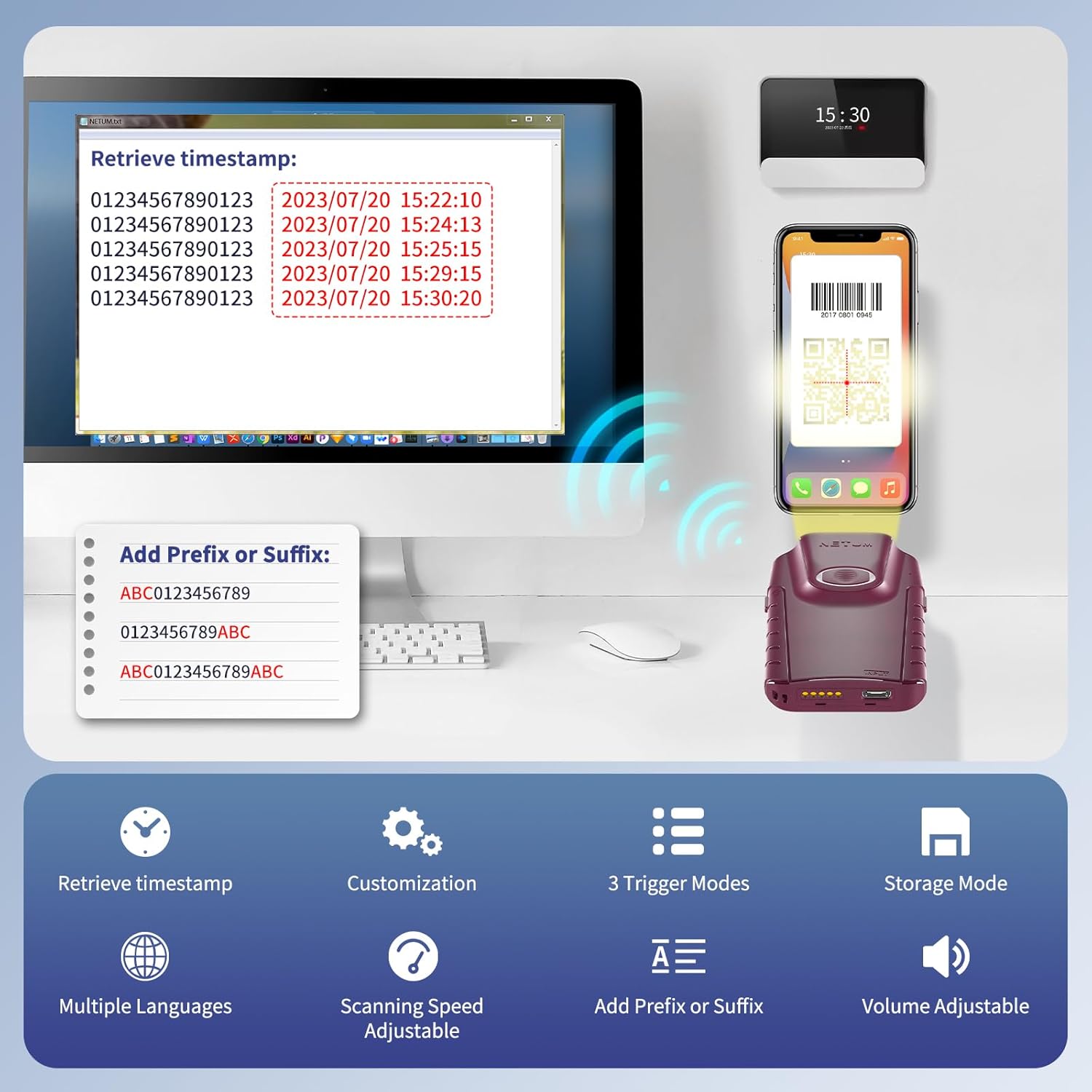
Figure 6: A visual representation of the scanner's advanced functions, including timestamp retrieval, customization options, three trigger modes, storage mode, multiple language support, adjustable scanning speed, and prefix/suffix addition.
3.4 Two Ways to Use
The E900 is designed for flexibility in use:
- Handheld: Use as a standalone, compact scanner.
- Clip-on: Attach to the back of your mobile phone using the provided adhesive mount for integrated scanning and data viewing.
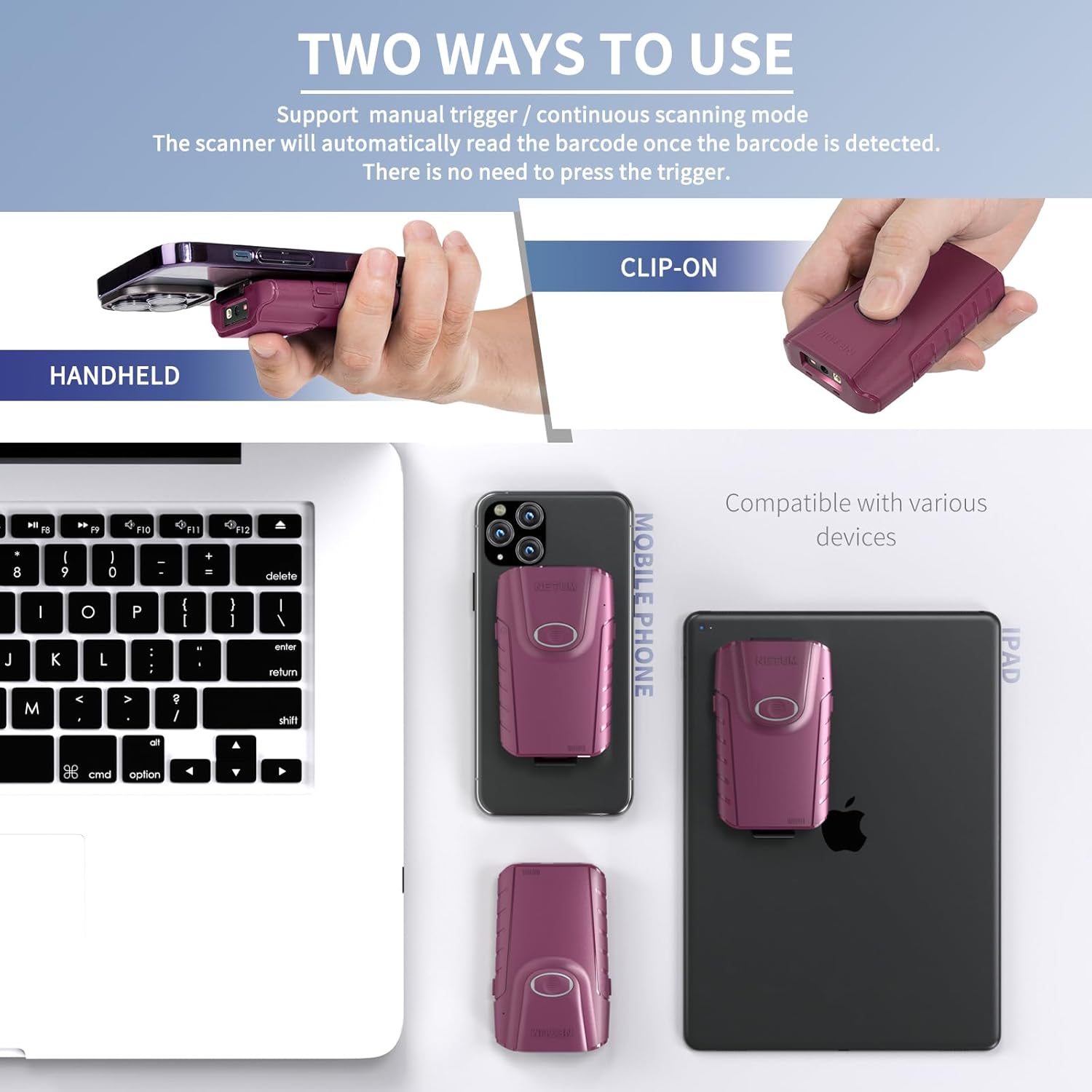
Figure 7: Depicts the two primary ways to use the NETUM E900: as a standalone handheld scanner and as a back-clip attachment for mobile phones.
4. Maintenance
4.1 Battery Care
To maximize battery life and performance:
- Avoid fully discharging the battery frequently.
- Charge the scanner regularly, even if not in constant use.
- Store the scanner in a cool, dry place when not in use for extended periods.
- Do not expose the battery to extreme temperatures.
4.2 Cleaning
To maintain optimal scanning performance, keep the scanner's lens clean. Use a soft, lint-free cloth, slightly dampened with water or a mild lens cleaning solution. Avoid abrasive materials or harsh chemicals that could scratch the lens or damage the casing.
5. Troubleshooting
If you encounter issues with your NETUM E900 scanner, refer to the table below for common problems and solutions:
| Problem | Possible Cause | Solution |
|---|---|---|
| Scanner does not power on | Low battery; Power switch off | Charge the scanner; Ensure power switch is in the 'ON' position. |
| Cannot connect via Bluetooth/2.4GHz | Not in pairing mode; Out of range; Interference; Device Bluetooth off | Scan the appropriate pairing barcode; Move closer to the host device; Reduce interference; Enable Bluetooth on your device. |
| Scanner not reading barcodes | Barcode damaged/unreadable; Lens dirty; Incorrect symbology enabled | Try scanning a different barcode; Clean the scanner lens; Refer to manual to enable/disable barcode symbologies. |
| Scanned data incorrect or incomplete | Incorrect keyboard layout; Data formatting issues | Ensure host device keyboard layout matches scanner settings; Adjust prefix/suffix settings if needed. |
| Short battery life | Frequent use; Battery degradation | Ensure full charge before use; Consider battery replacement if degradation is significant (contact support). |
If the problem persists after trying these solutions, please contact NETUM customer support for further assistance.
6. Specifications
Key technical specifications for the NETUM E900 Barcode Scanner:
| Feature | Detail |
|---|---|
| Model Number | E900 |
| Dimensions (L x W x H) | 3.3 x 2.1 x 0.7 inches (87 x 53 x 14.6 mm) |
| Weight | 7.4 ounces (53g) |
| Scan Engine | Newland Megapixel CMOS sensor (1280H × 800V pixels) |
| Resolution | ≥3mil |
| Barcode Compatibility | 1D (ISBN/UPC/EAN, Code39, Interleaved 2 of 5, Code 128, Codabar, GS1 Databar, etc.), 2D (QR, Data Matrix, DotCode, Aztec Code, Maxicode, PDF 417, etc.) |
| Connectivity | Bluetooth, 2.4G Wireless, USB Cable |
| Wireless Range | Bluetooth: Max 10m (33ft); 2.4G Wireless: Max 100m (330ft) |
| Battery | 1200mAh Lithium Polymer (included) |
| Operating Time | Approx. 6-8 hours continuous scanning |
| Charging Time | Approx. 2-4 hours |
| Standby Time | Over 70 days |
| Compatible OS | Windows, Mac OS, Linux, iOS, Android |
7. Warranty and Support
NETUM products are manufactured to high-quality standards. For specific warranty details, please refer to the warranty card included with your purchase or visit the official NETUM website. For technical support, troubleshooting assistance, or inquiries regarding repairs and parts, please contact NETUM customer service through the contact information provided on the product packaging or the official website. Please have your model number (E900) and purchase information ready when contacting support.
Ask a question about this manual
Ask about setup, troubleshooting, compatibility, parts, safety, or missing instructions. Manuals+ will review the question and use this page’s manual context to help answer it.