Introduction
This user manual provides comprehensive instructions for the safe and efficient operation of your Nubia Pad 3D. Please read this manual thoroughly before using the device and keep it for future reference.
The Nubia Pad 3D is an advanced tablet featuring a unique 12.4-inch 3D display, powerful processing capabilities, and high-resolution cameras, designed for an immersive visual experience.
Important Safety Information
To prevent injury or damage to your device, observe the following precautions:
- Do not expose the device to extreme temperatures, direct sunlight, or high humidity.
- Avoid dropping or subjecting the device to severe impact.
- Use only manufacturer-approved chargers and accessories.
- Do not attempt to disassemble or repair the device yourself. Refer to qualified service personnel.
- Keep the device away from water and other liquids.
Setup Guide
1. Unboxing and Initial Inspection
Carefully remove all components from the packaging. Verify that all items listed below are present and undamaged:
- Nubia Pad 3D Tablet
- USB-C Charging Cable
- Power Adapter
- Quick Start Guide

Figure 1: The Nubia Pad 3D tablet showcasing its immersive 3D display with an astronaut and floral scene.
2. Charging the Device
Before first use, fully charge the Nubia Pad 3D. Connect the USB-C cable to the tablet's charging port and the other end to the power adapter. Plug the adapter into a wall outlet.
- The charging indicator light will illuminate.
- A full charge typically takes approximately 2-3 hours.
- The device features a 9070 mAh battery for extended use.

Figure 2: An illustration highlighting the 9070 mAh battery capacity of the Nubia Pad 3D, indicating its long endurance.
3. Initial Power On and Setup Wizard
Press and hold the power button (located on the side of the tablet) until the Nubia logo appears. Follow the on-screen instructions to complete the initial setup, including language selection, Wi-Fi connection, and account setup.
Operating Instructions
1. Navigating the Interface
The Nubia Pad 3D runs on iOS (as per specifications). Use touch gestures to navigate:
- Tap: Select an item or open an app.
- Swipe: Scroll through pages or lists.
- Pinch-to-zoom: Zoom in or out on images and web pages.
2. Understanding the 3D Display
The Nubia Pad 3D features a 12.4-inch IPS display with 3D technology and a 120Hz refresh rate. It allows seamless switching between 2D and 3D modes.
To activate 3D mode, locate the dedicated 3D button or setting within the display options. For optimal 3D viewing, ensure you are positioned directly in front of the screen.
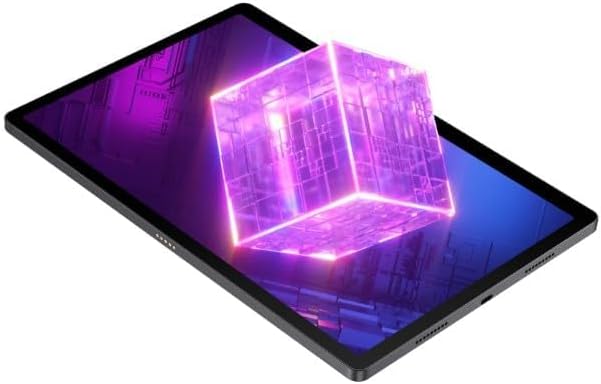
Figure 3: The Nubia Pad 3D screen displaying a vibrant 3D cube, illustrating its stereoscopic capabilities.
3. Camera Usage
The tablet is equipped with a 16 MP rear camera and 8 MP front cameras. Open the Camera application to capture photos and videos.
- Rear Camera: Ideal for high-resolution photos and scanning.
- Front Cameras: Suitable for video calls and selfies.

Figure 4: Rear view of the Nubia Pad 3D, highlighting the dual camera setup and the "3D" branding near the camera module.
4. Audio Features
The Nubia Pad 3D features quad stereo speakers with Dolby Atmos technology, providing an enhanced audio experience for media consumption.

Figure 5: A diagram illustrating the placement of the quad stereo speakers on the Nubia Pad 3D, emphasizing Dolby Atmos technology for superior sound.
Maintenance
1. Cleaning the Device
Use a soft, lint-free cloth to clean the screen and body of the tablet. For stubborn smudges, slightly dampen the cloth with water or a screen cleaner designed for electronics. Avoid using harsh chemicals or abrasive materials.
2. Software Updates
Regularly check for and install software updates to ensure optimal performance, security, and access to new features. Navigate to Settings > General > Software Update to check for available updates.
3. Battery Care
To prolong battery life:
- Avoid fully discharging the battery frequently.
- Do not leave the device charging for extended periods after it is fully charged.
- Store the device in a cool, dry place when not in use for long periods.
Troubleshooting
This section addresses common issues you might encounter with your Nubia Pad 3D.
| Problem | Possible Cause | Solution |
|---|---|---|
| Device does not power on. | Low battery; software crash. | Charge the device for at least 30 minutes. Perform a force restart by holding the power button for 10-15 seconds. |
| Screen is unresponsive. | Temporary software glitch. | Restart the device. Ensure the screen is clean and dry. |
| 3D effect is not visible or distorted. | Incorrect viewing angle; 3D mode not activated. | Ensure you are viewing the screen directly. Check display settings to confirm 3D mode is enabled. |
| Battery drains quickly. | Too many apps running in background; high screen brightness. | Close unused apps. Reduce screen brightness. Disable unnecessary features like Bluetooth/Wi-Fi when not in use. |
If the problem persists, please contact customer support.
Specifications
Below are the key technical specifications for the Nubia Pad 3D:
- Model Name: Nubia Pad 3D
- Display: 12.4 Inches, 3D IPS, 120Hz refresh rate
- Processor: Snapdragon 888 (Note: Product specifications also list Intel Processor Brand, but Snapdragon 888 is mentioned in the product description.)
- RAM: 12 GB
- Storage: 256 GB
- Operating System: iOS (Note: This is unusual for a Snapdragon device, but stated in provided data.)
- Rear Camera: 16 MP
- Front Camera: 8 MP
- Battery: 9070 mAh (up to 20 hours battery life)
- Audio: Quad Stereo Speakers with Dolby Atmos
- Connectivity: Cellular, 802.11g Wireless
- Weight: 1.3 Kilograms
- Dimensions: 31.5 x 22 x 4 cm (Package Dimensions)
Warranty and Support
For warranty information and customer support, please refer to the warranty card included with your product or visit the official Nubia website. Keep your proof of purchase for warranty claims.
Online Support: Visit the official Nubia Store on Amazon


