
1. Introduction
Thank you for choosing the Picun Wireless Gaming Headsets. This manual provides comprehensive instructions for setting up, operating, maintaining, and troubleshooting your new headset. Designed for an immersive audio experience, these headsets feature Active Noise Cancelling, 2.4Ghz and Bluetooth connectivity, a detachable boom mic, and 3D surround sound, making them ideal for PC, PS5/PS4, laptops, and cellphones.

Figure 1.1: Picun Wireless Gaming Headsets (Gold)
2. What's in the Box
Please check the package contents to ensure all items are present:
- 1 x Picun Wireless Gaming Headsets (Model P28S/UW05)
- 1 x USB-A Dongle (for 2.4Ghz wireless connection)
- 1 x Detachable 2.5mm Microphone
- 1 x USB-Micro Charging Cable
- 1 x 3.5mm Audio Cable
- 1 x User Manual (this document)
3. Product Overview
Familiarize yourself with the key features and components of your Picun headset.

Figure 3.1: 3D Virtual Spatial Surround Audio for immersive sound.
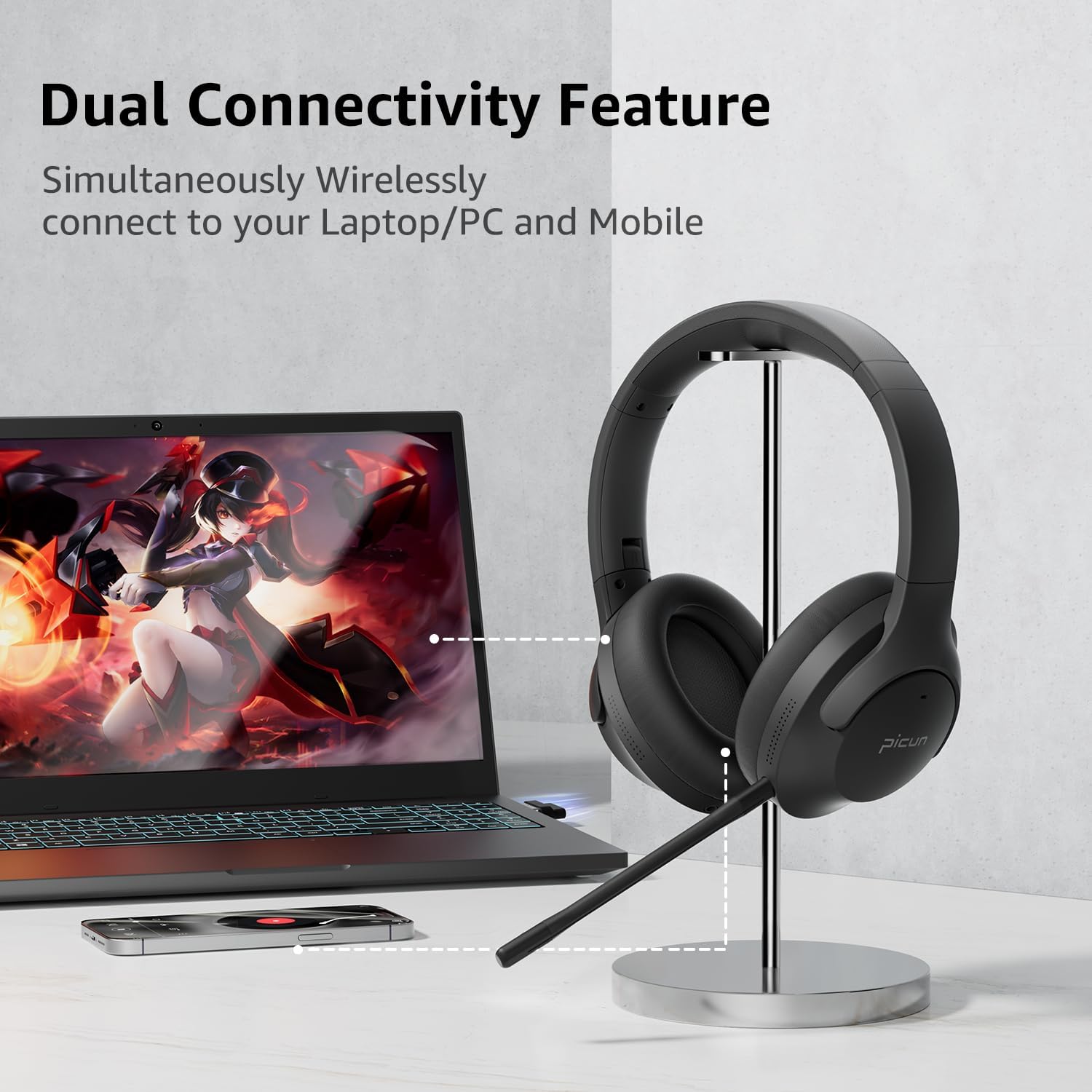
Figure 3.2: Dual Connectivity Feature allows simultaneous connection to PC/laptop and mobile devices.

Figure 3.3: Hybrid Active Noise Cancelling (ANC) with dual sensors for up to 95% ambient noise reduction.

Figure 3.4: ENC Noise Reduction Microphone for clear voice pickup, featuring a mute button and detachable design.

Figure 3.5: Multi-Platform Compatibility with various devices including PC, PS5, and laptops.
4. Setup
4.1 Charging the Headset
Before first use, fully charge your headset. Connect the provided USB-Micro Charging Cable to the headset's charging port and the other end to a 5V 1-2A USB power source. A full charge takes approximately 1.5 to 2 hours (120 minutes). The 4 LED battery indicators will show the remaining power level.
4.2 Connecting via Bluetooth
- Press and hold the Power/M button on the headset for 3-5 seconds. The indicator light (above the Power/M button) will flash red and blue, and you will hear an audible prompt "power on".
- On your device (phone, laptop, etc.), open the Bluetooth settings.
- Select "P28S" from the list of available devices. You will hear "Connected" once the pairing is successful.
- You can now listen to music or make calls wirelessly.
4.3 Connecting via 2.4Ghz Wireless (USB Dongle)
For PC or PS5/PS4, insert the USB-A dongle into an available USB port on your device. The headset should automatically connect to the dongle, providing a low-latency wireless connection for gaming.
4.4 Wired Connection (3.5mm Audio Cable)
To use the headset in wired mode, connect the 3.5mm audio cable to the headset's audio jack and to your device's 3.5mm audio output. Note that the detachable microphone only functions in wireless (Bluetooth or 2.4Ghz) mode.
4.5 Attaching the Detachable Microphone
Align the 2.5mm plug of the boom microphone with the microphone port on the headset and insert it firmly. The microphone is flexible and can be adjusted for optimal voice pickup. Ensure the microphone is attached for clear communication in wireless modes.
5. Operating Instructions
5.1 Power On/Off
- Power On: Press and hold the Power/M button for 3-5 seconds.
- Power Off: Press and hold the Power/M button until the indicator light turns off.
5.2 Volume Control
Use the volume buttons (V+ / V-) on the headset to adjust the audio volume.
5.3 EQ Mode Switch
To switch between different Equalizer (EQ) modes, short press the "V+" and "V-" buttons simultaneously. This allows you to optimize sound for various content types.
5.4 Active Noise Cancelling (ANC) / Transparency Mode
The headset features Hybrid Active Noise Cancelling to reduce ambient noise. It also includes a Transparency mode to allow you to hear your surroundings. The audio and sound quality remain consistent regardless of the selected mode (ANC ON, OFF, or TRANSPARENCY).
5.5 Microphone Mute
The detachable boom microphone includes a dedicated mute button for quick and easy muting during calls or gaming sessions.
5.6 Multi-point Connectivity
The headset supports multi-point connectivity, allowing you to connect to two devices simultaneously (e.g., a computer and a mobile phone) and seamlessly switch between them.
6. Maintenance
To ensure the longevity and optimal performance of your Picun Wireless Gaming Headsets, follow these maintenance guidelines:
- Cleaning: Use a soft, dry cloth to clean the headset. Avoid using abrasive cleaners, solvents, or strong chemicals.
- Storage: Store the headset in a cool, dry place away from direct sunlight and extreme temperatures. When not in use, it is recommended to store them in a protective case to prevent damage.
- Battery Care: Avoid fully discharging the battery frequently. For long-term storage, charge the headset to about 50% every few months to preserve battery health.
- Liquid Exposure: While the headset is water-resistant, avoid submerging it in water or exposing it to excessive moisture.
- Cable Care: Handle cables gently. Avoid sharp bends or excessive pulling that could damage the connectors or wiring.
7. Troubleshooting
If you encounter issues with your headset, refer to the following common solutions:
- Headset not powering on: Ensure the headset is fully charged. Connect it to a power source and try again.
- Cannot connect via Bluetooth:
- Ensure the headset is in pairing mode (indicator light flashing red and blue).
- Make sure Bluetooth is enabled on your device.
- Move the headset closer to your device.
- Forget the device from your phone's Bluetooth settings and try pairing again.
- Restart both the headset and your device.
- No sound or low volume:
- Check the volume levels on both the headset and your connected device.
- Ensure the headset is properly connected (Bluetooth, 2.4Ghz dongle, or 3.5mm cable).
- If using the 3.5mm cable, ensure it is fully inserted into both ports.
- Microphone not working:
- Ensure the detachable microphone is securely attached.
- Verify that the microphone is not muted.
- Remember, the microphone only works in wireless (Bluetooth or 2.4Ghz) mode, not when connected via the 3.5mm audio cable.
- Check microphone input settings on your computer or gaming console.
- Connection drops frequently:
- Ensure there are no significant obstacles between the headset and your device.
- Stay within the specified Bluetooth range (10 meters).
- Minimize interference from other wireless devices.
8. Specifications
| Feature | Specification |
|---|---|
| Model Name | UW05 |
| Connectivity Technology | Wireless (2.4Ghz, Bluetooth) |
| Wireless Communication Technology | Bluetooth 4.0 |
| Bluetooth Range | 10 Meters (33ft) |
| Battery Life | Up to 35 Hours (40 Hours from A+ content) |
| Charging Time | 1.5 - 2 Hours (120 minutes) |
| Charging Voltage | 5V 1-2A |
| Frequency Range | 20-20kHz |
| Noise Control | Active Noise Cancellation (Hybrid) |
| Ear Placement | Over Ear |
| Control Method | Touch, Buttons |
| Item Weight | 9.1 ounces (258 grams) |
| Product Dimensions | 8.66 x 8.26 x 3.53 inches |
| Water Resistance Level | Water Resistant |
| Compatible Devices | Bluetooth-enabled devices, PC, PS5/PS4, Laptop, Cellphones |
9. Warranty and Support
Picun products are designed for quality and reliability. For specific warranty information regarding your UW05 headset, please refer to the warranty card included in your original packaging or visit the official Picun website. If you encounter any issues or require technical assistance, please contact Picun customer support through their official channels. You can find more information and contact details on the Picun Store on Amazon.