
TENMOS M18
TENMOS M18 Triple Mode Wireless Mouse User Manual
Your comprehensive guide to setting up, operating, and maintaining your TENMOS M18 mouse.
Product Overview
The TENMOS M18 is a versatile triple-mode wireless mouse designed for seamless connectivity across multiple devices. It supports dual Bluetooth (BT5.1) and 2.4G USB connections, allowing you to switch between three different devices with ease. Featuring a silent click design and convenient USB-C rechargeable battery, the M18 offers a comfortable and efficient user experience for various computing environments.

Image: The TENMOS M18 wireless mouse in silver, showcasing its sleek, ergonomic design.
What's in the Box
- M18 Bluetooth Mouse
- USB Receiver
- Type C Adapter
- Type-C Charging Cable
- User Manual
Setup and Connection
The TENMOS M18 mouse offers three connection modes: 2.4G wireless via USB receiver, Bluetooth 1 (BT1), and Bluetooth 2 (BT2). You can easily switch between these modes using the mode switch button on the bottom of the mouse.

Image: The TENMOS M18 mouse demonstrating its ability to connect to three different devices simultaneously using 2.4G and dual Bluetooth modes.
2.4G Wireless Connection
- Locate the USB receiver, typically stored in the battery compartment of the mouse.
- Plug the USB receiver into an available USB-A port on your computer. If your device only has USB-C ports, use the provided Type C adapter by plugging the USB receiver into the adapter first, then the adapter into your device's USB-C port.
- Turn on the mouse using the power switch on the bottom.
- Press the mode switch button on the bottom of the mouse until the indicator light for 2.4G mode is active. The mouse should automatically connect to your device.
Bluetooth Connection (BT1 / BT2)
- Turn on the mouse using the power switch on the bottom.
- Press the mode switch button on the bottom of the mouse to select either BT1 or BT2 mode. The corresponding indicator light will flash slowly, indicating it's ready for pairing.
- On your device (laptop, tablet, smartphone), go to Bluetooth settings.
- Search for new devices. You should see "BT5.1 Mouse" or similar in the list of available devices.
- Select "BT5.1 Mouse" to pair. Once paired, the indicator light on the mouse will stop flashing and remain solid.
- Repeat steps 2-5 to connect a second Bluetooth device using the other Bluetooth channel (BT1 or BT2).
Note: For optimal performance, ensure your device's Bluetooth is enabled and within range.
Operating Instructions
Switching Between Devices
To switch between connected devices, simply press the mode switch button located on the bottom of the mouse. The indicator lights will show which mode (2.4G, BT1, or BT2) is currently active.
Silent Click Feature
The TENMOS M18 mouse features a silent click design for both left and right buttons, minimizing noise during use. This allows for a quiet working environment without disturbing others.
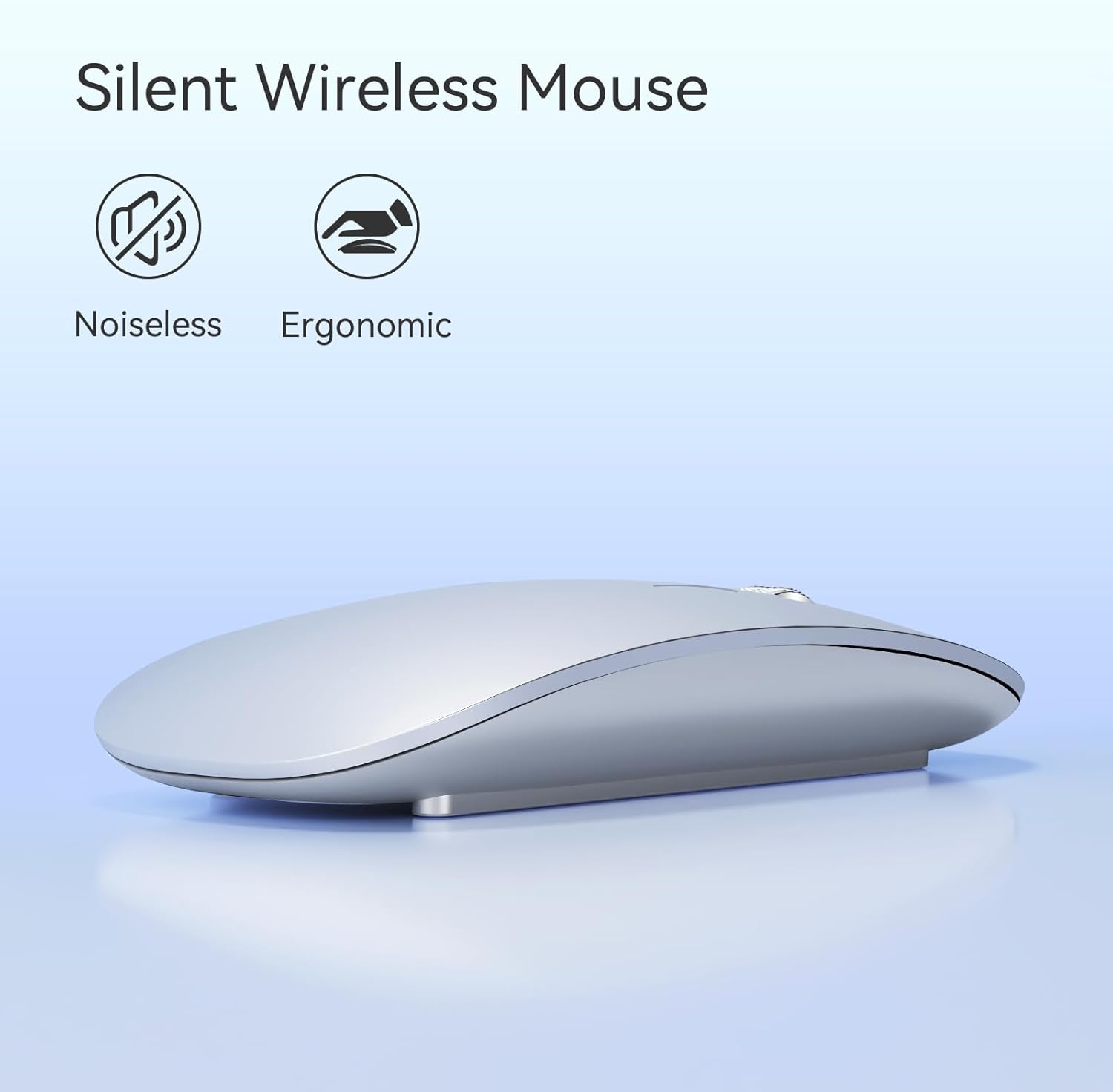
Image: The TENMOS M18 mouse, highlighting its silent click functionality for a quiet user experience.
Battery Indicator and Charging
The mouse is equipped with a built-in rechargeable battery and a battery indicator. When the battery is low, the indicator lights will signal the need for charging. Use the included Type-C charging cable to recharge the mouse. You can continue to use the mouse while it is charging.

Image: The underside of the TENMOS M18 mouse, showing the battery indicator lights and mode switch.
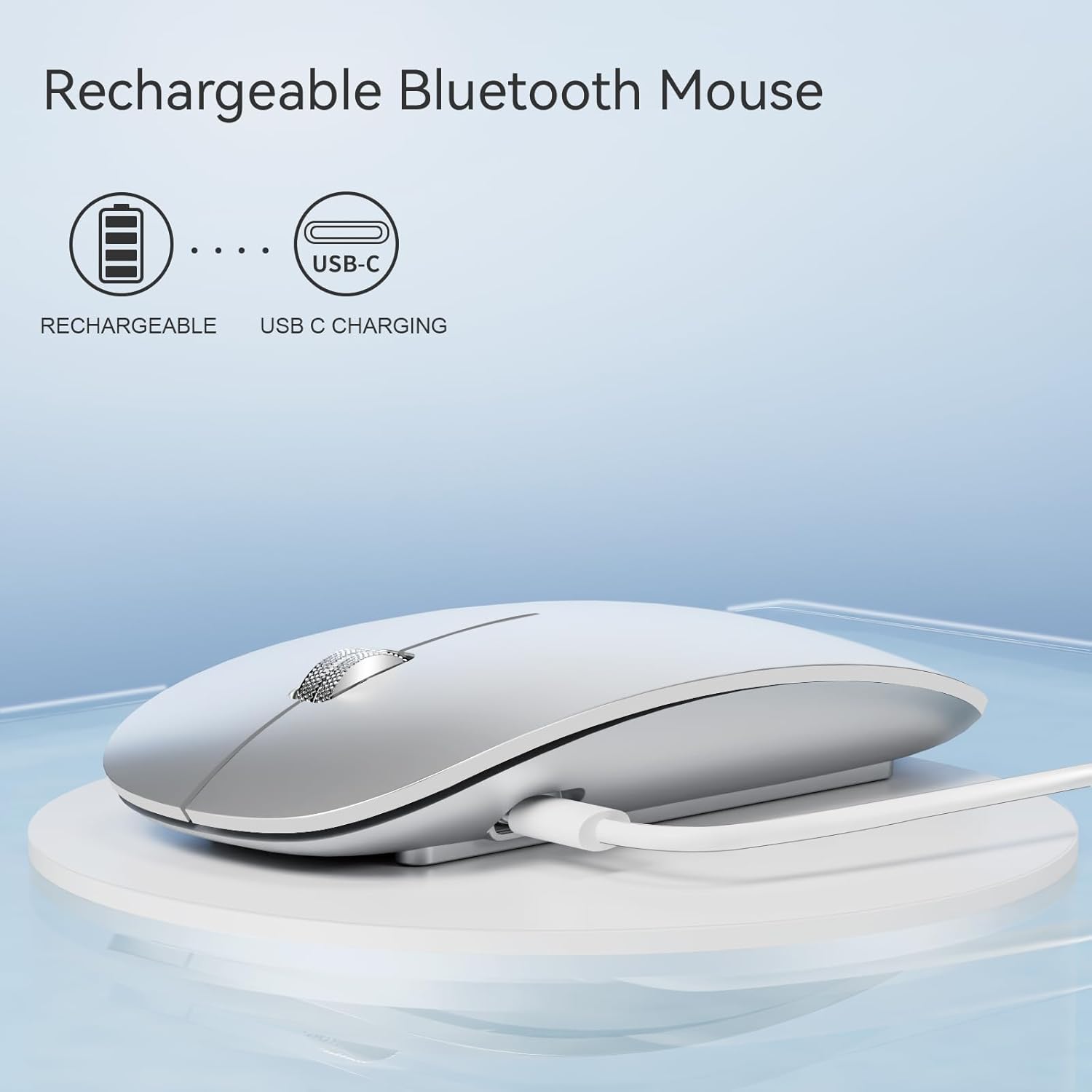
Image: The TENMOS M18 mouse being recharged via its USB-C port.
The mouse will automatically enter sleep mode after 8 minutes of inactivity to conserve battery. Click any button to wake it up.
Maintenance
- Cleaning: Use a soft, dry cloth to wipe the surface of the mouse. For stubborn dirt, slightly dampen the cloth with water or a mild electronic cleaner. Avoid using harsh chemicals or abrasive materials.
- Storage: When not in use for extended periods, turn off the mouse to preserve battery life. Store it in a cool, dry place away from direct sunlight and extreme temperatures.
- Charging: Charge the mouse regularly to maintain battery health. Avoid completely draining the battery frequently.
Troubleshooting
| Problem | Possible Solution |
|---|---|
| Mouse not connecting (2.4G) |
|
| Mouse not connecting (Bluetooth) |
|
| Cursor erratic or unresponsive |
|
| Mouse not charging |
|
Specifications
| Feature | Detail |
|---|---|
| Model Number | M18 |
| Connectivity Technology | Bluetooth 5.1 (BT1, BT2), 2.4G Wireless (USB) |
| Movement Detection | Optical |
| Special Features | Portable, Rechargeable, Soundless (Silent Click), Wireless |
| Battery Type | 1 Lithium Polymer battery (included) |
| Charging Port | USB-C |
| Item Weight | 3.84 ounces (approx. 109g) |
| Dimensions | 4.88 x 3.11 x 1.54 inches |
| Compatibility | Windows 7/8/10/XP, Vista, Mac OS X 10.10 or later, USB and USB-C devices, tablets, cellphones, Macbook, Chromebook. |
Warranty and Support
TENMOS products are designed for reliability and performance. For information regarding warranty coverage, technical support, or to contact customer service, please refer to the official TENMOS website or the contact information provided with your product packaging.
You can also visit the official TENMOS store on Amazon for more product information and support: TENMOS Amazon Store
Ask a question about this manual
Ask about setup, troubleshooting, compatibility, parts, safety, or missing instructions. Manuals+ will review the question and use this page’s manual context to help answer it.