
1. Introduction
The Liiiyuan M22 Heads Up Display (HUD) is a versatile GPS car speedometer designed to project essential driving information directly onto your car's windshield. This device enhances driving safety by allowing you to view speed, time, travel distance, and more without diverting your eyes from the road. Featuring a colorful gradient display and automatic power management, the M22 HUD is compatible with all car models via a simple USB connection.
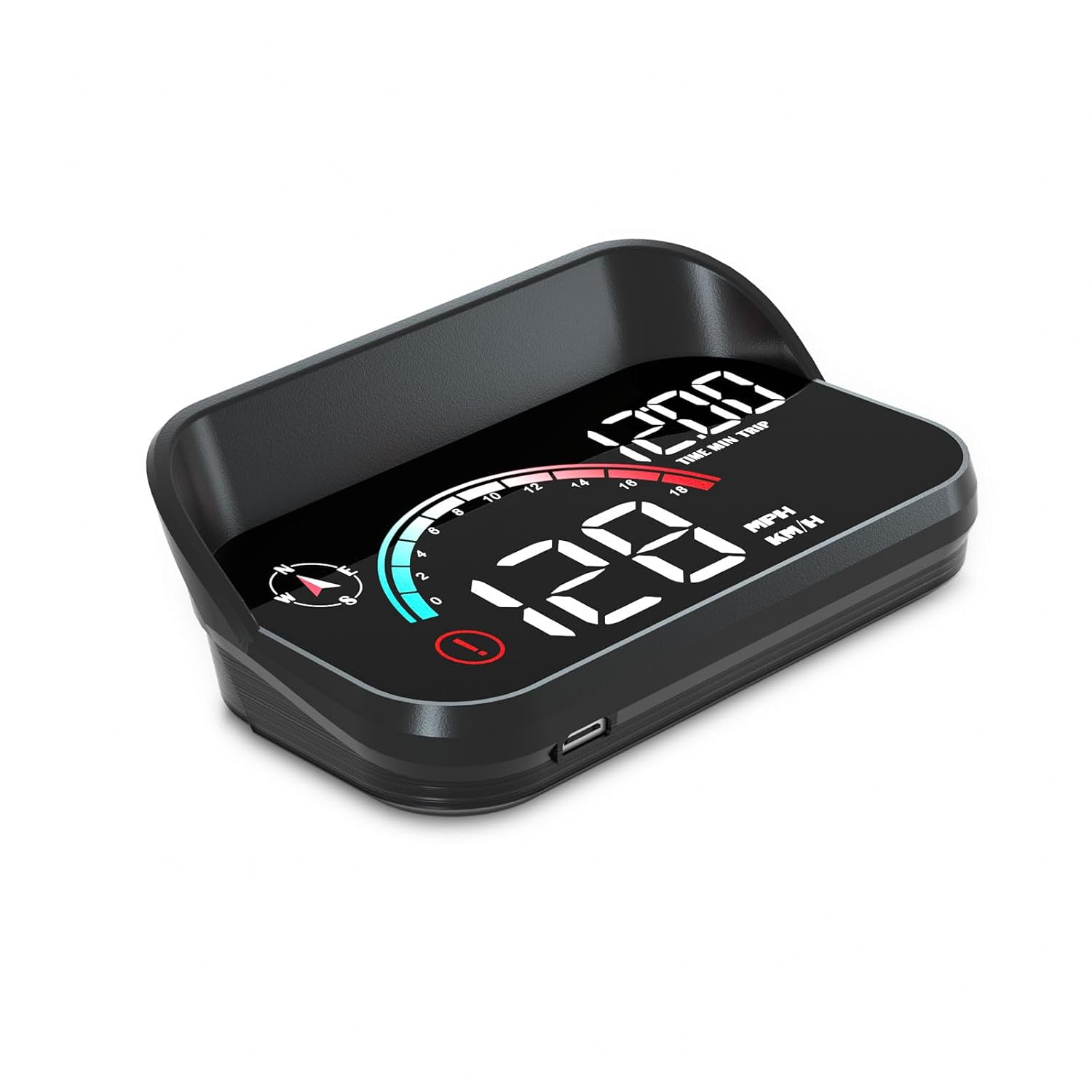
Figure 1.1: The Liiiyuan M22 Heads Up Display unit, showcasing its compact design and digital display.
2. Product Features
- Color Changing HUD: 3.5-inch screen with upgraded color digital display for improved visual experience. Designed to be placed on the center console without obstructing driver's view.
- Smooth Speed Display: Built-in high-brush chip ensures real-time speed display consistent with the car dashboard, with no delay. Digital display provides accurate readings.
- Comprehensive Information Display: Shows vehicle speed, current time, travel time, distance traveled, and compass direction.
- Unit Switching: Easily switch between Kilometers per Hour (KM/H) and Miles per Hour (MPH) to suit user preference.
- Speeding Reminder: Customizable speeding reminder function to help avoid traffic violations.
- Automated Operation: Automatically turns on when the car starts and turns off when the car is switched off, ensuring convenient use.

Figure 2.1: Overview of the M22 HUD's multifunctional display capabilities, including speed, time, and travel data.
3. Package Contents
Upon opening the package, please verify that all the following items are included:
- Liiiyuan M22 Heads Up Display Unit
- USB Cable
- Reflective Film
- Non-slip Mat
- User Manual (this document)

Figure 3.1: All components included in the Liiiyuan M22 HUD product package.
4. Setup Instructions
- Placement: Place the M22 HUD unit on your car's dashboard, ideally near the windshield, ensuring it does not obstruct your view of the road. The non-slip mat can be used to secure the device.
- Power Connection: Connect the provided USB cable to the M22 HUD unit and then to a USB power source in your car (e.g., a USB port, car charger adapter).
- Power On: Start your car's engine. The M22 HUD will automatically power on.
- Satellite Acquisition: Upon powering on, the device will begin searching for GPS satellites. A small flashing icon on the display indicates that the product is collecting satellite data. The speed display will become active once sufficient satellites are acquired.
- Reflective Film Installation (Optional): For clearer projection, especially in bright conditions, you may install the reflective film on your windshield.
- Clean the glass in the projection area of your windshield thoroughly.
- Paste the reflective film to the glass vertically.
- Remove any air bubbles by smoothing the film from the center outwards.
- Tear off the protective film (layer 1) from the reflective film, ensuring the surface remains clean.
- Remove the second protective film (layer 2) after application.

Figure 4.1: Visual instructions for applying the reflective film to the windshield.
5. Operating Instructions
5.1 Basic Operation
The M22 HUD is designed for plug-and-play operation. Once connected and powered on, it will automatically display information. The device features several buttons for configuration and display mode selection.

Figure 5.1: Location and function of the control buttons on the M22 HUD unit.
- Power Button: Used to manually turn the device on or off, though it typically operates automatically with vehicle ignition.
- Set Button: Enters the settings menu or confirms selections.
- Add Button (+): Navigates up in menus or increases values.
- Reduce Button (-): Navigates down in menus or decreases values.
5.2 Display Modes
The M22 HUD offers multiple screen options to display information according to your preference. Use the navigation buttons (Add/Reduce) to cycle through these modes.

Figure 5.2: Examples of the various display configurations available on the M22 HUD.
- Vehicle Speed: Displays current vehicle speed.
- Vehicle Speed + Clock: Shows speed along with the current time.
- Vehicle Speed + Speed Progress Bar: Visual representation of speed with a progress bar.
- Vehicle Speed + Driving Time + Compass: Combines speed, duration of travel, and directional compass.
- Vehicle Speed + Mileage + Compass + Speed Progress Bar: A comprehensive display including speed, total distance traveled, compass, and a speed progress bar.
- Vehicle Speed + Mileage + Speed Progress Bar: Displays speed, total distance traveled, and a speed progress bar.
5.3 Unit Switching (KM/H and MPH)
To switch between Kilometers per Hour (KM/H) and Miles per Hour (MPH), access the settings menu using the Set button and navigate to the unit selection option. Follow the on-screen prompts to change the unit.
5.4 Speeding Reminder
You can set a custom speed limit for the overspeed alarm. Enter the settings menu, locate the speeding reminder option, and use the Add/Reduce buttons to set your desired speed threshold. The device will alert you if you exceed this speed.
6. Maintenance
To ensure the longevity and optimal performance of your Liiiyuan M22 HUD, consider the following maintenance tips:
- Cleaning: Gently wipe the display screen and the unit's exterior with a soft, dry cloth. Avoid using abrasive cleaners or solvents that could damage the surface.
- Storage: If you do not plan to drive for more than one week, it is recommended to remove the M22 HUD from your car and store it in a cool, dry place, such as a drawer, to prevent potential battery drain or exposure to extreme temperatures.
- Cable Care: Handle the USB cable carefully. Avoid sharp bends or excessive pulling that could damage the cable or connectors.
7. Troubleshooting
| Problem | Possible Cause | Solution |
|---|---|---|
| Device does not power on. | No power supply; loose USB connection; car's USB port is off. | Ensure the USB cable is securely connected to both the HUD and the car's power source. Check if the car's ignition is on. Try a different USB port or car charger. |
| Speed display is not showing or flashing. | Device is acquiring satellite signals; poor GPS signal. | A flashing icon indicates satellite acquisition. Wait for the device to establish a stable GPS connection. Ensure the device has a clear view of the sky (not obstructed by tunnels, tall buildings, or dense foliage). Move the vehicle to an open area if necessary. |
| Inaccurate speed reading. | Initial GPS calibration; interference. | Allow the device a few minutes to fully calibrate with GPS satellites after initial power-on. Ensure no strong magnetic fields or electronic devices are interfering with the GPS signal. |
| Display is too dim or too bright. | Automatic photosensitivity adjustment; manual brightness setting. | The device has automatic photosensitivity. If manual adjustment is needed, refer to the operating instructions for brightness settings (if available via buttons). |
8. Specifications
| Specification | Value |
|---|---|
| Product Dimensions | 0.31 x 0.16 x 0.09 inches (L x W x H) |
| Item Weight | 1.92 ounces (0.12 Pounds) |
| Model Number | m22 |
| Brand | Liiiyuan |
| Material | Glass |
| Connectivity | USB Cable Connection |
| Display Type | Color Digital Display |
9. Warranty and Support
Specific warranty details for the Liiiyuan M22 Heads Up Display are not provided in this manual. For information regarding warranty coverage, returns, or technical support, please contact the seller or the manufacturer, Liiiyuan, directly through their official channels or the platform where the product was purchased.
You may visit the Liiiyuan Store on Amazon for more information: Liiiyuan Amazon Store