1. Introduction
The ROFAVEZCO 4K@60Hz HDMI Splitter 1 in 2 Out is designed to duplicate a single HDMI source to two displays simultaneously. This device supports 4K@60Hz resolution with 4:4:4 chroma subsampling and 18Gbps bandwidth, ensuring high-quality video and audio transmission. It features HDCP 2.2 bypass, EDID management, and a downscaling function, allowing 4K and 1080P displays to work in sync. This splitter is ideal for various applications, including home entertainment, gaming, and professional setups.
2. Product Overview
2.1 Key Features
- HDMI Splitter 1 in 2 Out: Duplicates one HDMI source to two displays.
- High Resolution Support: Supports 4K@60Hz (4:4:4), 1080p@120Hz/60Hz 3D, 3840x2160@60Hz, 1440p@60Hz.
- Advanced Video Formats: Compatible with HDR, Dolby Vision, HDCP2.2 bypass, IMAX DIGITAL (2K/4K).
- Audio Format Support: Supports Dolby Atmos, Digital 7.1CH, DTS:X, Dolby True HD, DTS-HD Master Audio. Soundbar compatible.
- EDID Management: Allows for flexible EDID settings (4K7.1, 4K5.1, Copy EDID from OUT1).
- Downscaler Function: Enables simultaneous display on 4K and 1080P TVs by downscaling 4K to 1080P on one output.
- Wide Compatibility: Works with UHD TVs, HDMI 2.0 HDCP 2.2 devices, gaming consoles (PS5, Xbox, Nintendo Switch), and streamers (Apple TV, Fire Stick, Roku).
2.2 Package Contents
- 1 x HDMI 2.0 Splitter 1x2
- 1 x USB Power Cable (Power adapter not included)
- 1 x User Manual
2.3 Product Diagram

Figure 1: Front and Rear Panels of the HDMI Splitter. The front panel includes HDMI IN, POWER/FW, UPDATE button, and EDID switches (4K7.1, 4K5.1, COPY1). The rear panel features HDMI OUT1, HDMI OUT2, and a SCALER switch (OFF/ON).
3. Setup Instructions
3.1 Basic Connection
- Connect your HDMI source device (e.g., Apple TV, PS5, Xbox) to the HDMI IN port on the splitter using a high-quality HDMI 2.0 cable.
- Connect your primary display (e.g., 4K TV) to the HDMI OUT1 port on the splitter using an HDMI 2.0 cable.
- Connect your secondary display (e.g., 1080P TV, soundbar) to the HDMI OUT2 port on the splitter using an HDMI 2.0 cable.
- Connect the provided USB power cable to the POWER/FW port on the splitter and then to a 5V USB power adapter (not included).

Figure 2: Example connection setup showing an Apple TV connected to the HDMI splitter, which then outputs to two separate televisions in different rooms.
3.2 Powering On
Once all connections are secure, plug the USB power adapter into a wall outlet. The splitter will power on automatically. Ensure all connected devices are also powered on and set to the correct HDMI input.
4. Operating Instructions
The ROFAVEZCO HDMI splitter features EDID management and a scaler function to optimize compatibility and display quality across different setups.
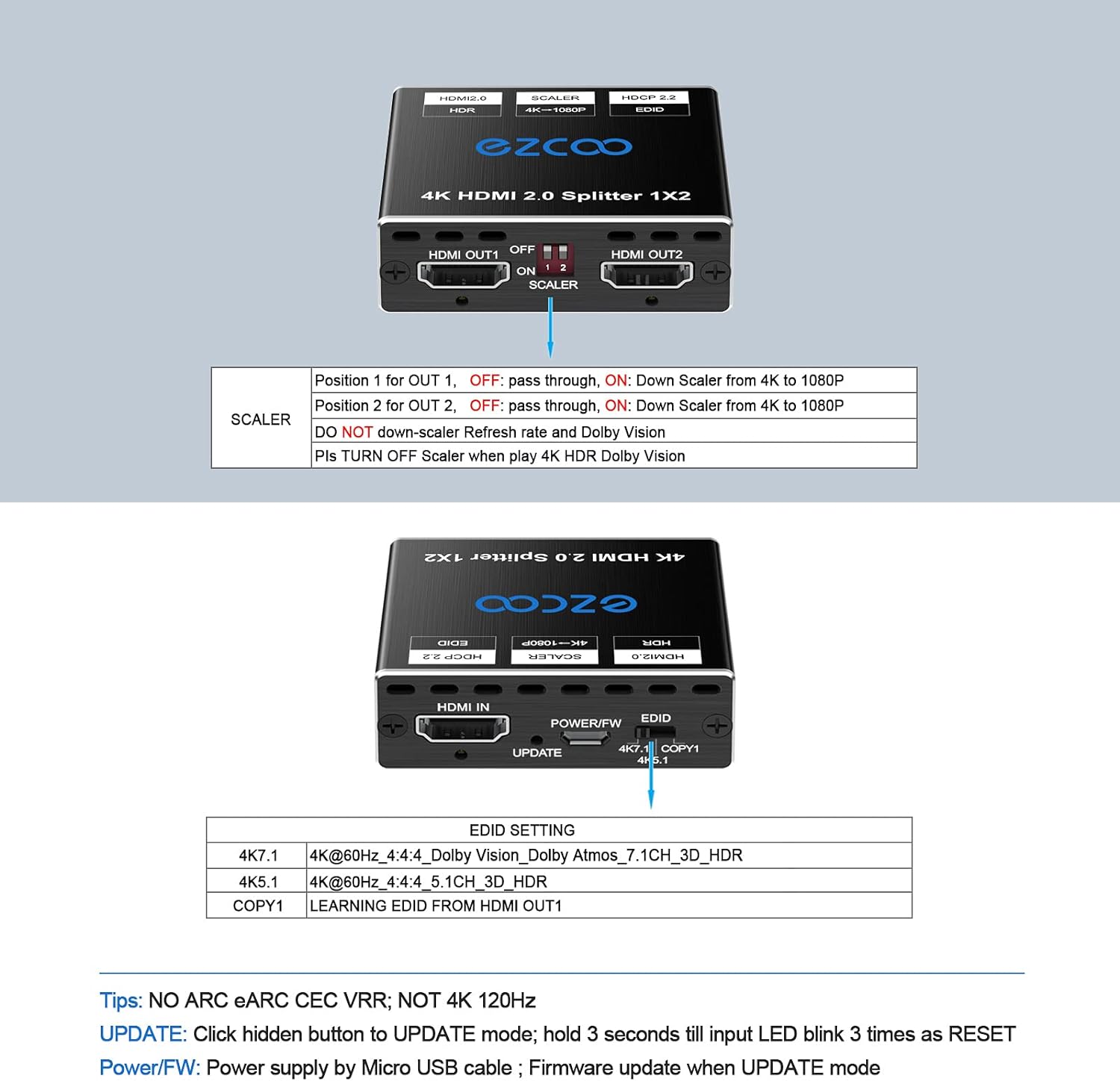
Figure 3: Detailed explanation of the EDID and Scaler switch positions and their functions.
4.1 EDID Settings
The EDID (Extended Display Identification Data) switch allows you to control the video and audio capabilities reported to the source device. This helps ensure optimal compatibility.
- 4K7.1: Sets EDID to 4K@60Hz 4:4:4, Dolby Vision, Dolby Atmos, 7.1CH audio, 3D, HDR.
- 4K5.1: Sets EDID to 4K@60Hz 4:4:4, 5.1CH audio, 3D, HDR.
- COPY1: Copies the EDID from the display connected to HDMI OUT1. This is useful when you want the source to detect the exact capabilities of your primary display.
4.2 Scaler Function
The SCALER switch on the rear panel controls the downscaling feature for HDMI OUT2.
- OFF: No downscaling. HDMI OUT2 will output the same resolution as HDMI OUT1.
- ON: Downscales 4K input to 1080P for HDMI OUT2. This allows a 4K source to be displayed on both a 4K TV (OUT1) and a 1080P TV (OUT2) simultaneously.
Note: The scaler does not downscale refresh rates or Dolby Vision. Please turn OFF the scaler when playing 4K HDR Dolby Vision content if both displays support it.
4.3 Usage Scenarios
- 4K & 1080P TV Working in Sync:
Set EDID to COPY1. Connect your 4K TV to OUT1 and your 1080P TV to OUT2. Set the SCALER switch to ON. This will allow the 4K source to display on both TVs, with OUT2 downscaled to 1080P. - 4K HDR and Soundbar Working in Sync:
Ensure your HDMI source video is 4K HDR/HDR10/Dolby Vision and audio bitstream out is Dolby Atmos. Set the splitter's EDID to 4K7.1. Connect your 4K TV to OUT1 and your soundbar to OUT2. This setup allows 4K 60Hz HDR video on the TV and 7.1ch audio on the soundbar simultaneously.
Figure 4: The HDMI splitter facilitating Dolby Atmos audio output to a soundbar while maintaining video output to a display.
- Two 1080P TVs Working in Sync:
Set EDID to 2K mode (if available, or use COPY1 from a 1080P display). Both outputs will display 1080P. - Gaming Console Setup (e.g., PS5):
Connect your PS5 to the HDMI IN. Connect your primary gaming monitor/TV to OUT1. If you need to capture gameplay or display on a secondary 1080P screen, connect your capture card or 1080P display to OUT2 and set SCALER to ON.
Figure 5: A PlayStation 5 connected to the HDMI splitter, demonstrating simultaneous output to a 4K Ultra HD display and a 1080P Full HD display.
5. Troubleshooting
- No Picture/Signal:
- Ensure all HDMI cables are securely connected and are HDMI 2.0 compliant.
- Verify the power adapter is connected and providing power to the splitter.
- Try different EDID settings (4K7.1, 4K5.1, COPY1) to match your display's capabilities.
- If using the scaler, try turning it OFF to see if the issue resolves.
- HDCP Issues or Picture Flashback:
Press the UPDATE button for 3 seconds. The input LED will blink 3 times as a RESET, which can often resolve HDCP handshake issues or picture flickering. - Audio Issues:
- Ensure your audio receiver/soundbar supports the selected audio format (e.g., Dolby Atmos, DTS:X).
- Check EDID settings to ensure the correct audio format is being reported to the source.
- Verify all audio connections are secure.
- No 4K HDR/Dolby Vision:
Ensure both your source device and display support 4K HDR/Dolby Vision. Set the EDID to 4K7.1 or 4K5.1. If using the scaler, ensure it is OFF when Dolby Vision is desired.
6. Specifications
| Attribute | Value |
|---|---|
| Model Number | EZ-SP12H2 |
| HDMI Version | HDMI 2.0 |
| HDCP Version | HDCP 2.2 (Bypass) |
| Max Resolution | 4K@60Hz (3840x2160@60Hz) |
| Chroma Subsampling | 4:4:4 8bit |
| Max Bandwidth | 18Gbps |
| Video Formats Supported | HDR, Dolby Vision, 3D |
| Audio Formats Supported | Dolby Atmos, Digital 7.1CH, DTS:X, Dolby True HD, DTS-HD Master Audio |
| Downscaler | 4K to 1080P (OUT2 only) |
| EDID Management | 4K7.1, 4K5.1, COPY1 |
| Power Supply | USB 5V (via Micro USB cable) |
| Item Weight | 3.17 ounces |
| Dimensions (L x W x H) | 4.69 x 2.52 x 0.94 inches |
7. Compatibility
The ROFAVEZCO HDMI Splitter offers broad compatibility with a variety of HDMI-enabled devices and displays.

Figure 6: The HDMI splitter's wide compatibility with various input and output devices, including gaming consoles, computers, and different display types.
- Source Devices: PS5, PS4, Xbox Series X/S, Nintendo Switch, Apple TV, Fire Stick, Roku, Blu-ray players, PCs, Laptops, Cable Boxes, Satellite Receivers.
- Display Devices: UHD TVs, HDTVs, Monitors, Projectors.
- Audio Devices: Soundbars, AV Receivers.
8. Important Notes and Limitations
- This splitter does NOT support ARC (Audio Return Channel), e-ARC/Sonos ARC, CEC (Consumer Electronics Control), or VRR (Variable Refresh Rate).
- It does NOT support 4K@120Hz or upscaling.
- This device is designed to duplicate/copy/mirror the screen; it can NOT extend the screen to create separate desktop spaces.
- The downscaler does NOT downscale to 4:2:2 chroma format.
9. Warranty and Support
ROFAVEZCO products are designed for reliability and performance. For any technical assistance, troubleshooting, or warranty inquiries, please contact ROFAVEZCO customer support through the retailer's platform or the official brand website. Please retain your proof of purchase for warranty claims.


