
1. Introduction
The UniFi Gateway Dream Wall (UDW) is an enterprise-grade UniFi OS Console designed for wall-mounted deployments. It integrates a high-performance security gateway, a UniFi Network Controller, and a multi-port switch with PoE capabilities, providing a comprehensive solution for managing and securing your network infrastructure. This manual provides essential information for the proper setup, operation, maintenance, and troubleshooting of your UDW device.
2. Safety Information
Please read, follow, and keep these instructions. Heed all warnings. Only use attachments/accessories specified by the manufacturer.
- Do not use this product near water.
- Do not disassemble the product. Refer all servicing to qualified service personnel.
- Do not block any ventilation openings.
- Use only the power supply provided by the manufacturer.
- Ensure proper grounding for safety.
- Protect the power cord from being walked on or pinched.
3. Package Contents
Verify that all items listed below are present in your package:
- UniFi Gateway Dream Wall (UDW)
- Power Cord (region-specific)
- Wall Mount Bracket
- Mounting Screws and Wall Anchors
- Quick Start Guide

Image: The UniFi Gateway Dream Wall device shown alongside its power cord, wall mount bracket, and mounting hardware.
4. Product Overview
The UDW features a robust design with various ports and indicators for comprehensive network management.

Image: Front view of the UniFi Gateway Dream Wall, showcasing its sleek white design and central display screen.

Image: Side view of the UniFi Gateway Dream Wall, highlighting its slim profile when mounted.

Image: The UniFi Gateway Dream Wall with its front cover opened, revealing internal components and the touchscreen display.
4.1 Front Panel
- 4.7" Touchscreen Display: Provides real-time status, network statistics, and allows for basic device management.
- LED Indicator: Indicates device status (e.g., booting, online, error).
4.2 Ports and Connectors
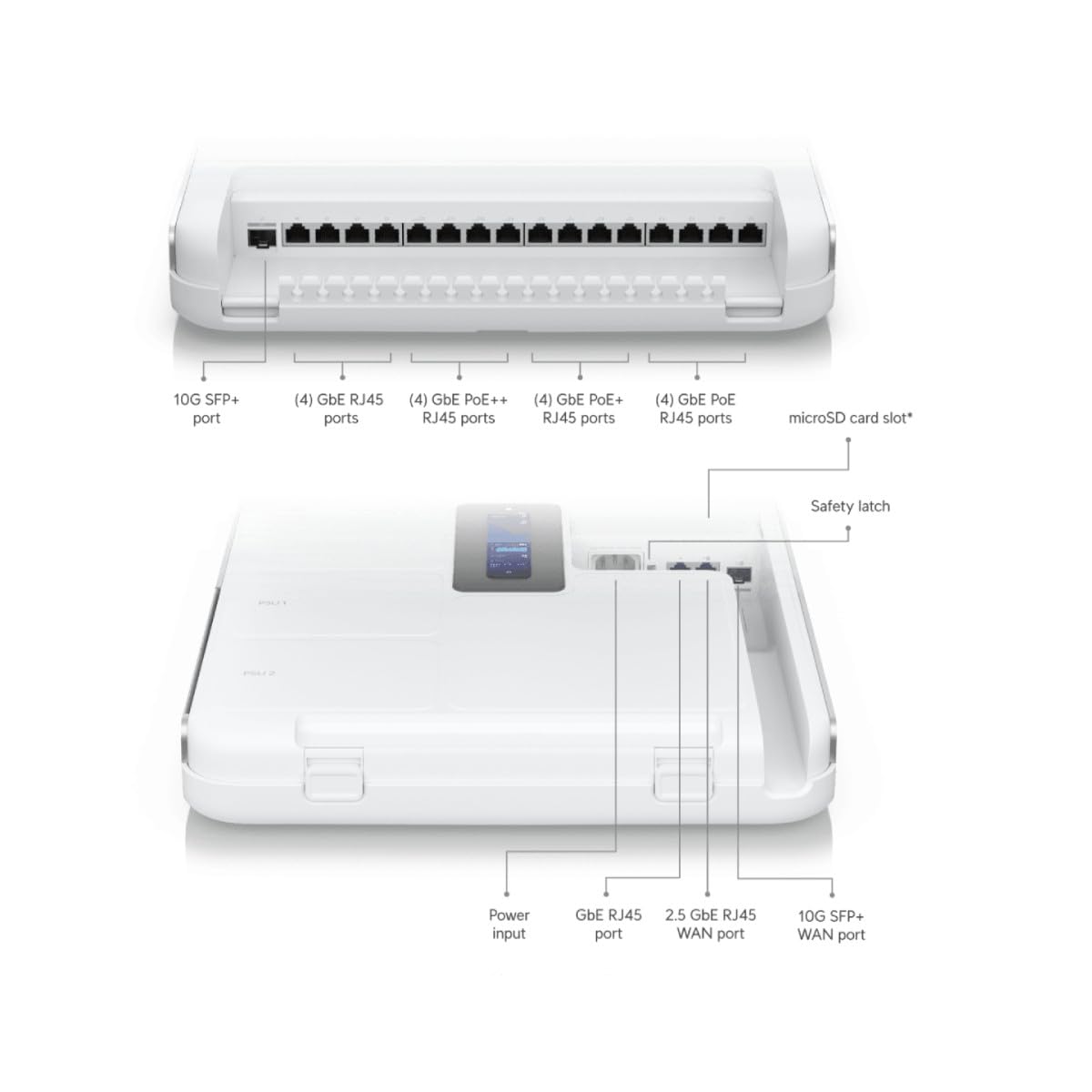
Image: Detailed diagram illustrating the various ports and connectors on the UniFi Gateway Dream Wall, including SFP+, RJ45, and power inputs.
| Port/Feature | Description |
|---|---|
| 10G SFP+ Port | High-speed fiber uplink/downlink. |
| (4) GbE RJ45 Ports | Gigabit Ethernet ports for general network connections. |
| (4) GbE PoE++ RJ45 Ports | Gigabit Ethernet ports with Power over Ethernet Plus Plus (802.3bt) for high-power devices. |
| (4) GbE PoE+ RJ45 Ports | Gigabit Ethernet ports with Power over Ethernet Plus (802.3at) for standard PoE devices. |
| (4) GbE PoE RJ45 Ports | Gigabit Ethernet ports with Power over Ethernet (802.3af) for basic PoE devices. |
| microSD Card Slot | For additional storage (e.g., UniFi Protect recordings). |
| Power Input | Connects to the included power cord. |
| GbE RJ45 WAN Port | Gigabit Ethernet port for Wide Area Network connection. |
| 2.5 GbE RJ45 WAN Port | 2.5 Gigabit Ethernet port for high-speed Wide Area Network connection. |
| 10G SFP+ WAN Port | 10 Gigabit SFP+ port for high-speed fiber WAN connection. |
| Reset Button | Used for factory reset or recovery mode. |
5. Setup
5.1 Mounting the Device
- Choose a suitable wall location, ensuring adequate ventilation and access to power outlets.
- Use the wall mount bracket as a template to mark drilling points.
- Drill pilot holes and insert wall anchors if necessary.
- Secure the wall mount bracket to the wall using the provided screws.
- Carefully align the UDW with the bracket and slide it into place until it clicks securely.

Image: The UniFi Gateway Dream Wall shown mounted on a wall, with its cover open to reveal the internal structure and mounting points.
5.2 Connecting Power
Connect the included power cord to the power input port on the UDW and then to a grounded electrical outlet. The device will power on automatically.
5.3 Network Connections
Connect your internet service provider's modem or router to one of the WAN ports (GbE RJ45 WAN, 2.5 GbE RJ45 WAN, or 10G SFP+ WAN) on the UDW. Connect your local network devices (e.g., computers, switches, UniFi Access Points) to the available LAN ports (GbE RJ45, GbE PoE, GbE PoE+, GbE PoE++).

Image: A network diagram illustrating how the UniFi Dream Wall integrates into a network, connecting to the internet, security cameras, access points, phone systems, and door access.
5.4 Initial Configuration
The UDW can be configured via the UniFi mobile app or a web browser.
- Using UniFi Mobile App: Download the UniFi Network application from your mobile app store. Ensure Bluetooth is enabled on your mobile device. The app should discover the UDW. Follow the on-screen prompts to complete the setup, including naming the device, setting up Wi-Fi, and creating an administrator password.
- Using Web Browser: Connect a computer directly to one of the UDW's LAN ports. Open a web browser and navigate to the default IP address (usually 192.168.1.1). Follow the setup wizard to configure your network.
6. Operating
6.1 Accessing the UniFi Interface
Once configured, you can manage your UDW and UniFi network through the UniFi Network Controller interface. Access it via the UniFi mobile app or by navigating to the UDW's IP address in a web browser from a device on your local network.
6.2 Network Management
The UniFi Network Controller provides a centralized dashboard for managing all aspects of your network, including:
- Monitoring network performance and connected devices.
- Configuring VLANs and firewall rules.
- Managing user access and guest networks.
- Adopting and managing other UniFi devices (e.g., access points, switches).
6.3 Wi-Fi Configuration
The UDW includes integrated Wi-Fi 6 capabilities. You can configure Wi-Fi networks (SSIDs), security settings, and advanced wireless features directly from the UniFi Network Controller.
7. Maintenance
Regular maintenance ensures optimal performance and longevity of your UDW.
- Firmware Updates: Regularly check for and install the latest firmware updates through the UniFi Network Controller. This ensures you have the latest features, security patches, and bug fixes.
- Cleaning: Keep the device clean and free of dust. Use a soft, dry cloth to wipe the exterior. Do not use liquid cleaners or aerosols.
- Ventilation: Ensure that the ventilation openings are not obstructed to prevent overheating.
- Backup Configuration: Periodically back up your UniFi Network Controller configuration to a safe location.
8. Troubleshooting
This section addresses common issues you might encounter with your UDW.
- Device Not Powering On: Ensure the power cord is securely connected to both the UDW and a working electrical outlet. Verify the outlet has power.
- "Check Connection" Message on Display: If the UDW is stuck on a "Check Connection" screen after initialization, ensure your WAN connection is active and properly connected. If using the UniFi mobile app for setup, ensure Bluetooth is enabled and the app can discover the device. Sometimes, a factory reset (see below) may be required if initial setup fails repeatedly.
- No Internet Access: Verify that your modem/ISP service is active. Check the WAN port connection on the UDW. Ensure proper network configuration within the UniFi Network Controller.
- Cannot Access UniFi Interface: Ensure your device is connected to the UDW's network. Try accessing the interface using the UDW's IP address. Restart the UDW.
- Slow Network Performance: Check for high network utilization in the UniFi Network Controller. Ensure firmware is up to date. Verify cable integrity.
- Factory Reset: To perform a factory reset, locate the reset button (often a small pinhole) on the device. With the UDW powered on, use a paperclip or similar thin object to press and hold the reset button for approximately 10-15 seconds until the device reboots. This will revert all settings to their factory defaults.
9. Specifications
Key technical specifications for the UniFi Gateway Dream Wall (UDW):

Image: An internal view of the UniFi Gateway Dream Wall with key features and dimensions highlighted, including integrated SSD, Wi-Fi 6, routing speed, and power supply units.
| Feature | Detail |
|---|---|
| Model Number | UDW |
| Dimensions (H x W x D) | 26.14 x 17.48 x 4.96 inches (approx. 664 x 444 x 126 mm) |
| Weight | 1.32 pounds (approx. 0.6 kg) |
| Integrated Storage | 128 GB SSD |
| Wi-Fi Standard | Wi-Fi 6 (Enterprise dual-radio) |
| Routing Throughput | 3.5+ Gbps |
| Power Supply | Integrated redundant power supply system |
| Display | 4.7" touchscreen for management |
| First Available | August 6, 2023 |
10. Warranty Information
Ubiquiti products are covered by a limited warranty. For detailed warranty terms and conditions, please refer to the official Ubiquiti website or the warranty card included with your product. Keep your proof of purchase for warranty claims.
11. Support
For technical support, product documentation, and community forums, please visit the official Ubiquiti support website:
You can also find additional resources and contact support directly through the UniFi Network Controller interface or the UniFi mobile app.


