1. Introduction
Thank you for choosing the MEETION Ergonomic Keyboard. This manual provides detailed instructions for setting up, operating, maintaining, and troubleshooting your new keyboard. Designed for enhanced comfort and productivity, this split wireless keyboard features a cushioned wrist rest and adjustable tilt legs to promote a natural typing position and reduce strain.
For optimal performance and longevity, please read this manual thoroughly before use and retain it for future reference.
2. Package Contents
- MEETION Ergonomic Keyboard (Director-W)
- USB-A 2.4G Wireless Receiver
- USB-C Adapter (for USB-A receiver)
- USB Charging Cable
- User Manual (this document)
3. Product Overview
The MEETION Director-W Ergonomic Keyboard is designed to provide a comfortable and efficient typing experience. Key features include:
- Enhanced Ergonomic Design: Curved, split-key layout promotes natural hand and wrist alignment.
- Memory Foam Wrist Rest: Integrated cushioned wrist rest for optimal support and reduced fatigue.
- Rechargeable Battery: Built-in rechargeable battery for extended wireless use.
- Adjustable Tilt Legs: Four adjustable feet allow customization of typing angle.
- 2.4G Wireless Connection: Stable and responsive wireless connectivity via USB-A receiver.
- USB-C Compatibility: Includes a USB-C adapter for broader device compatibility (Note: USB-C is an adapter, not a receiver).

Image: The MEETION Ergonomic Keyboard, showcasing its split design, integrated wrist rest, and the included USB-A wireless receiver and USB-C adapter.
4. Setup Guide
4.1. Charging the Keyboard
Before first use, it is recommended to fully charge the keyboard.
- Locate the USB charging port on the keyboard (typically at the top edge).
- Connect the provided USB charging cable to the keyboard's charging port.
- Plug the other end of the USB cable into a USB power source (e.g., computer USB port, USB wall adapter).
- The charging indicator light (usually red or orange) will illuminate during charging and turn off or change color when fully charged.

Image: Close-up of the keyboard showing the USB-C charging port and an illuminated charging indicator, demonstrating the charging process.
4.2. Connecting the Keyboard
The keyboard uses a 2.4G wireless connection via a USB receiver.
- Locate the USB-A wireless receiver. It might be stored in a compartment on the underside of the keyboard for safekeeping.
- For USB-A Port: Plug the USB-A wireless receiver directly into an available USB-A port on your computer or laptop.
- For USB-C Port: If your device only has USB-C ports, first plug the USB-A wireless receiver into the provided USB-C adapter, then plug the adapter into your device's USB-C port.
- Turn on the keyboard using the ON/OFF switch located on the underside of the keyboard.
- Your computer should automatically detect and install the necessary drivers. The keyboard is ready for use once detected.

Image: Illustration showing the USB-A receiver and the USB-C adapter, and how to connect them to a computer for wireless operation.
Video: Demonstrates the setup process of the MEETION Director-W Wireless Ergonomic Split Keyboard, including plugging in the USB receiver and turning on the keyboard.
4.3. Adjusting Tilt Legs
The keyboard features adjustable tilt legs to customize your typing angle for optimal comfort.
- Flip the keyboard over to access the adjustable feet on the underside.
- Extend or retract the front and rear legs to achieve your desired typing angle (e.g., 2 degrees or 4.3 degrees).
- Experiment with different angles to find the most comfortable position for your wrists and forearms.
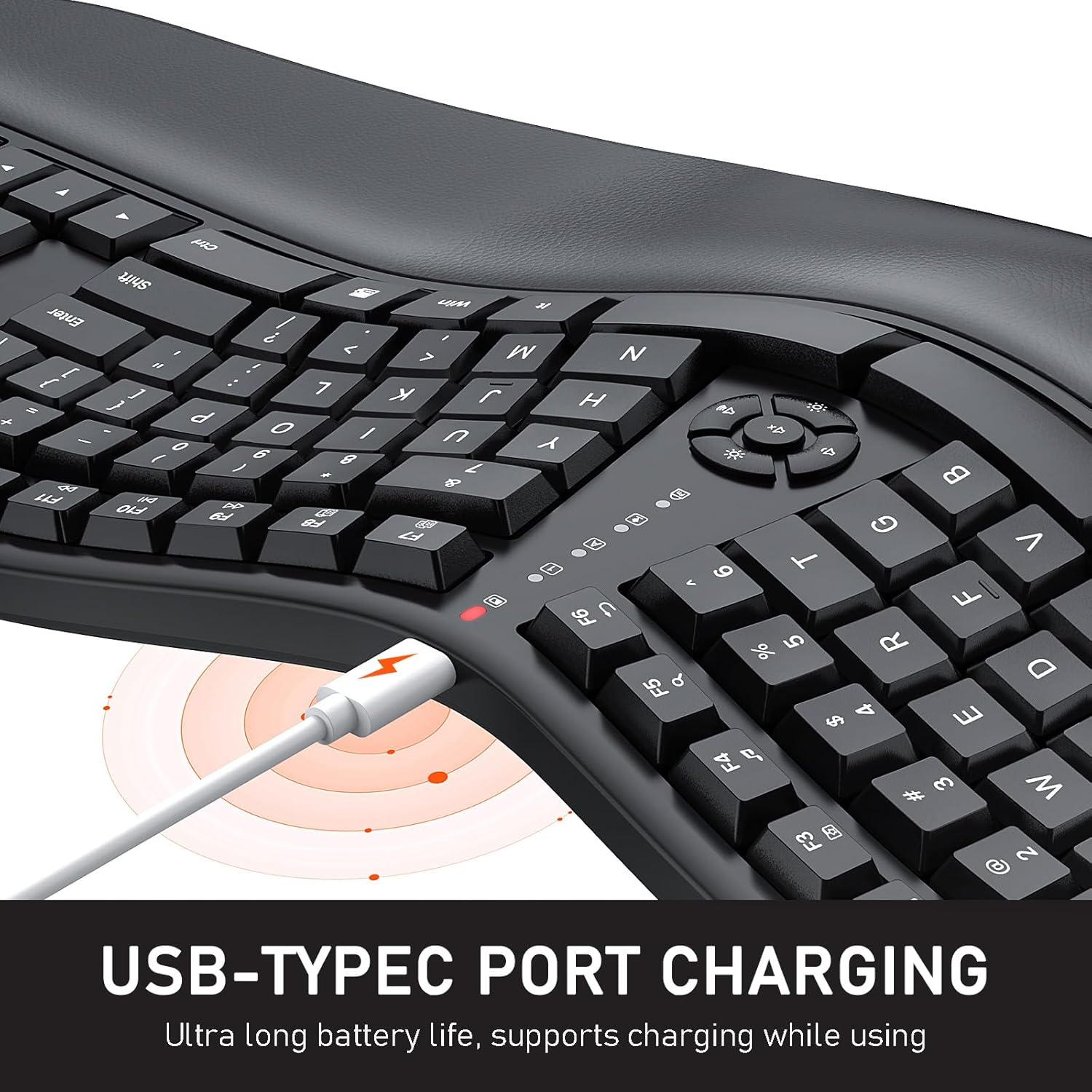
Image: Diagram illustrating the adjustable tilt angles of the keyboard (4.3° and 2°) to help users find their preferred ergonomic position.
5. Operating Instructions
5.1. Basic Typing
The keyboard operates like a standard full-size keyboard. The split and curved design is intended to naturally align your hands and wrists, reducing pronation and strain.

Image: Comparison showing proper hand placement on the split ergonomic keyboard versus a traditional flat keyboard, highlighting reduced wrist deviation.
5.2. Function Keys (Fn)
The keyboard features multimedia and shortcut functions accessible via the Fn key in combination with the F1-F12 keys and other designated keys.
| Key Combination | Function |
|---|---|
| Fn + Esc | Fn Lock/Unlock |
| Fn + F1 | Home Page |
| Fn + F2 | |
| Fn + F4 | Music |
| Fn + F5 | Search |
| Fn + F7 | Copy |
| Fn + F9 | Previous Track |
| Fn + F10 | Play/Pause |
| Fn + F12 | My Computer |
| Fn + PrtSc/SysRq | Switch Input Method |
| Fn + ScrLk | Switch Page |
| Fn + Pause Break | Calculator |
| Fn + Insert | Setup |
| Fn + Home | Lock Screen |
| Fn + Up Arrow | Brightness + |
| Fn + Down Arrow | Brightness - |
| Fn + Left Arrow | Volume - |
| Fn + Right Arrow | Volume + |
| Fn + Mute Button (on keyboard) | Mute/Unmute |
Video: Demonstrates various function key shortcuts on the MEETION Director-W Ergonomic Keyboard, including multimedia controls and system functions.
6. Maintenance and Care
- Cleaning: Use a soft, damp cloth to clean the keyboard surface. For keys, a cotton swab lightly dampened with rubbing alcohol can be used. Avoid excessive moisture.
- Wrist Rest Care: The memory foam wrist rest is designed to be stain-resistant. Wipe it gently with a clean, damp cloth if needed.
- Storage: When not in use for extended periods, turn off the keyboard to conserve battery life. Store in a cool, dry place away from direct sunlight and extreme temperatures.
- Battery Life: To maximize battery longevity, avoid fully discharging the keyboard frequently. Recharge when the low battery indicator appears.

Image: Detailed view of the memory foam wrist rest, highlighting its multi-layered construction for comfort and durability.
7. Troubleshooting
| Problem | Possible Solution |
|---|---|
| Keyboard not responding. |
|
| Typing lag or intermittent connection. |
|
| Keys are not working or sticky. |
|
8. Specifications
| Feature | Detail |
|---|---|
| Model Number | Director-W |
| Connectivity | 2.4G Wireless (USB-A receiver with USB-C adapter) |
| Keyboard Layout | Full-size, Ergonomic Split-key |
| Wrist Rest | Integrated Memory Foam |
| Power Source | Rechargeable Lithium Polymer Battery |
| Compatible Devices | PC, Laptop, Mac, Windows, macOS |
| Dimensions | 19.9 x 10.5 x 2.2 inches (approx.) |
| Weight | 3.09 pounds (approx.) |
9. Warranty and Support
MEETION products are designed and manufactured to the highest quality standards. For warranty information and technical support, please refer to the official MEETION website or contact their customer service directly.
Online Resources:
- Official MEETION Store: MEETION Amazon Store
- User Manual (PDF): Download PDF
For further assistance, please contact MEETION customer support with your product model number (Director-W) and purchase details.