
Introduction
This manual provides essential information for setting up, operating, maintaining, and troubleshooting your Samsung 58CU7700 58-inch UHD 4K Smart TV. Please read this manual carefully to ensure safe and optimal use of your television.
Important Safety Information
Always follow basic safety precautions when using this product to reduce the risk of fire, electric shock, and injury. Keep this manual for future reference.
- Do not expose the TV to rain or moisture.
- Do not open the TV casing; refer all servicing to qualified personnel.
- Ensure proper ventilation and avoid blocking ventilation openings.
- Use only the power cord supplied by the manufacturer.
- Keep the TV away from heat sources and direct sunlight.
Setup
What's in the Box
Before proceeding, verify that all components are present:
- Samsung 58CU7700 58-inch UHD 4K Smart TV
- SolarCell Remote Control
- Power Cable
- User Manual (this document)
- Warranty Card
- TV Stand Components (if applicable)

Image: This diagram illustrates the dimensions of the 58-inch TV and lists the items typically included in the box, such as the TV unit, SolarCell Remote, power cable, and documentation.
Physical Installation
You can install your TV on a stand or mount it on a wall. Ensure the TV is placed on a stable, level surface or securely mounted to a wall using a compatible VESA mount (sold separately).

Image: A side view of the Samsung 58CU7700 TV, showcasing its slim profile and the design of its stand.
Connecting Peripherals
Connect your external devices such as Blu-ray players, game consoles, or sound systems to the TV's ports. The TV features multiple HDMI and USB ports, along with an Ethernet port for wired network connectivity.
- HDMI: For high-definition audio and video.
- USB: For connecting USB storage devices.
- Ethernet: For wired internet connection.

Image: A detailed view of the rear connection panel of the Samsung TV, indicating the locations of HDMI, USB, and Ethernet ports for connecting various devices.
Initial Power On and Setup
After connecting the power cable, press the power button on the remote control. The TV will guide you through the initial setup process, including language selection, network connection, and channel scanning.
Operating Your TV
SolarCell Remote Control
Your Samsung TV comes with an innovative SolarCell Remote Control. This remote charges via ambient light, solar energy, or radio frequency waves, reducing the need for disposable batteries.
- Power Button: Turns the TV on or off.
- Volume Buttons: Adjusts the volume.
- Channel Buttons: Changes channels.
- Navigation Pad: For menu navigation.
- Smart Hub Button: Accesses the Smart Hub for apps and services.

Image: This image displays the SolarCell Remote Control and highlights its sustainable charging capabilities through ambient light and 2.4GHz radio frequency energy collection.
Smart Hub and Tizen OS
The Samsung 58CU7700 operates on the Tizen operating system, providing access to a wide range of applications, streaming services, and smart features through the Smart Hub interface.
Crystal Processor 4K
The integrated Crystal Processor 4K enhances picture quality, upscaling content to near 4K resolution for vivid and sharp images.
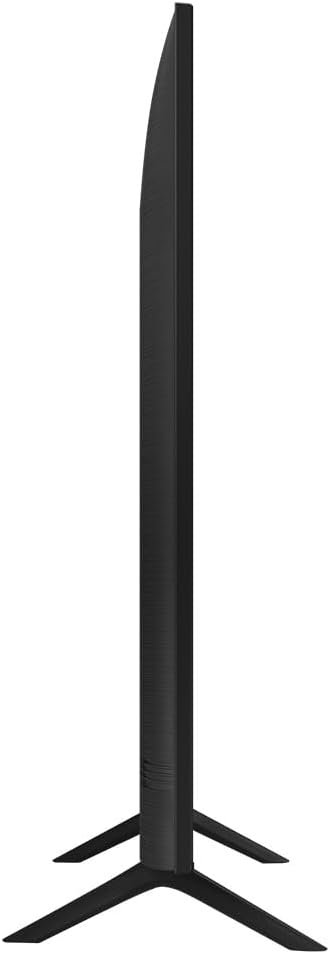
Image: A close-up of the Samsung Crystal Processor 4K, illustrating the core technology responsible for enhanced image processing and vibrant 4K visuals.
Gaming Hub
The Samsung Gaming Hub provides direct access to over 1000 games from various platforms like Xbox Game Pass and Nvidia GeForce Now, without the need for a console or downloads. You can also stream live content from Twitch.

Image: A screenshot of the Samsung Gaming Hub interface, displaying a selection of games and applications available directly on the TV.
Samsung TV Plus
Enjoy over 65 free channels with Samsung TV Plus, offering a variety of content including movies, news, and entertainment, ready to watch without additional subscriptions.

Image: A screenshot of the Samsung TV Plus interface, showcasing a selection of the more than 65 free channels available for streaming.
Alexa Built-in
Control your TV and other smart home devices using voice commands with Alexa built directly into the television.
Maintenance
Cleaning Your TV
To clean the screen, gently wipe it with a soft, dry microfiber cloth. For stubborn marks, lightly dampen the cloth with water or a screen-specific cleaning solution. Avoid using harsh chemicals or abrasive materials.
For the TV frame and stand, use a soft, dry cloth. Do not spray cleaners directly onto the TV.
Software Updates
Ensure your TV's software is up to date for optimal performance and access to the latest features. You can check for updates through the TV's settings menu (Settings > Support > Software Update).
Troubleshooting
If you encounter issues with your TV, refer to the following common solutions:
| Problem | Possible Solution |
|---|---|
| No Power | Check if the power cable is securely connected to both the TV and the power outlet. Ensure the outlet is functional. |
| No Picture / Distorted Picture | Verify that the correct input source is selected. Check all cable connections (HDMI, antenna). Try restarting the TV. |
| No Sound | Check the volume level and ensure the TV is not muted. Verify audio cable connections if using external speakers. |
| Remote Control Not Working | Ensure the remote is charged (expose SolarCell remote to light). Point the remote directly at the TV. |
| Cannot Connect to Wi-Fi | Check your router and modem. Restart the TV and your network equipment. Re-enter the Wi-Fi password. |
If the problem persists after trying these solutions, please contact Samsung customer support.
Specifications
| Feature | Detail |
|---|---|
| Model Series | 58CU7700 |
| Screen Size | 58 Inches |
| Display Technology | LED-LCD |
| Resolution | 4K UHD (3840 x 2160) |
| Aspect Ratio | 16:9 |
| Special Features | Flat Screen, Gaming Hub, Alexa Built-in, Cable-Free Design, Bezel-less Display |
| Connectivity Technology | Ethernet, HDMI |
| Total HDMI Ports | 1 (Note: This might be a data entry error, typically TVs have multiple HDMI ports. Please refer to product packaging for exact number.) |
| USB Ports | Available (number not specified) |
| Processor | Crystal Processor 4K |
| Operating System | Tizen |
| HDR Support | HDR |
| Audio Output Mode | Stereo |
| Control Method | Remote Control (SolarCell Remote) |
| Model Year | 2023 |
| Dimensions (W x H x D) with Stand | 129.1 cm x 82.4 cm x 25 cm (approx. 50.8 x 32.4 x 9.8 inches) |
| Dimensions (W x H x D) without Stand | 129.1 cm x 74.86 cm x 5.99 cm (approx. 50.8 x 29.5 x 2.4 inches) |
| Voltage | 220 VAC 50 Hz |
Warranty and Support
Warranty Information
Your Samsung 58CU7700 Smart TV is covered by a limited warranty. Please refer to the warranty card included in your product packaging for specific terms, conditions, and duration of coverage. Keep your proof of purchase for warranty claims.
Customer Support
For technical assistance, service requests, or further information, please visit the official Samsung support website or contact their customer service hotline. You can find contact details on the Samsung website or in your warranty documentation.
Official Samsung Support: www.samsung.com/support