1. Introduction
Thank you for choosing the iFFALCON 43-inch 4K Ultra HD Smart QLED Google TV, model iFF43Q73. This manual provides essential information for the safe and efficient use of your television. Please read it thoroughly before operating the device and retain it for future reference.
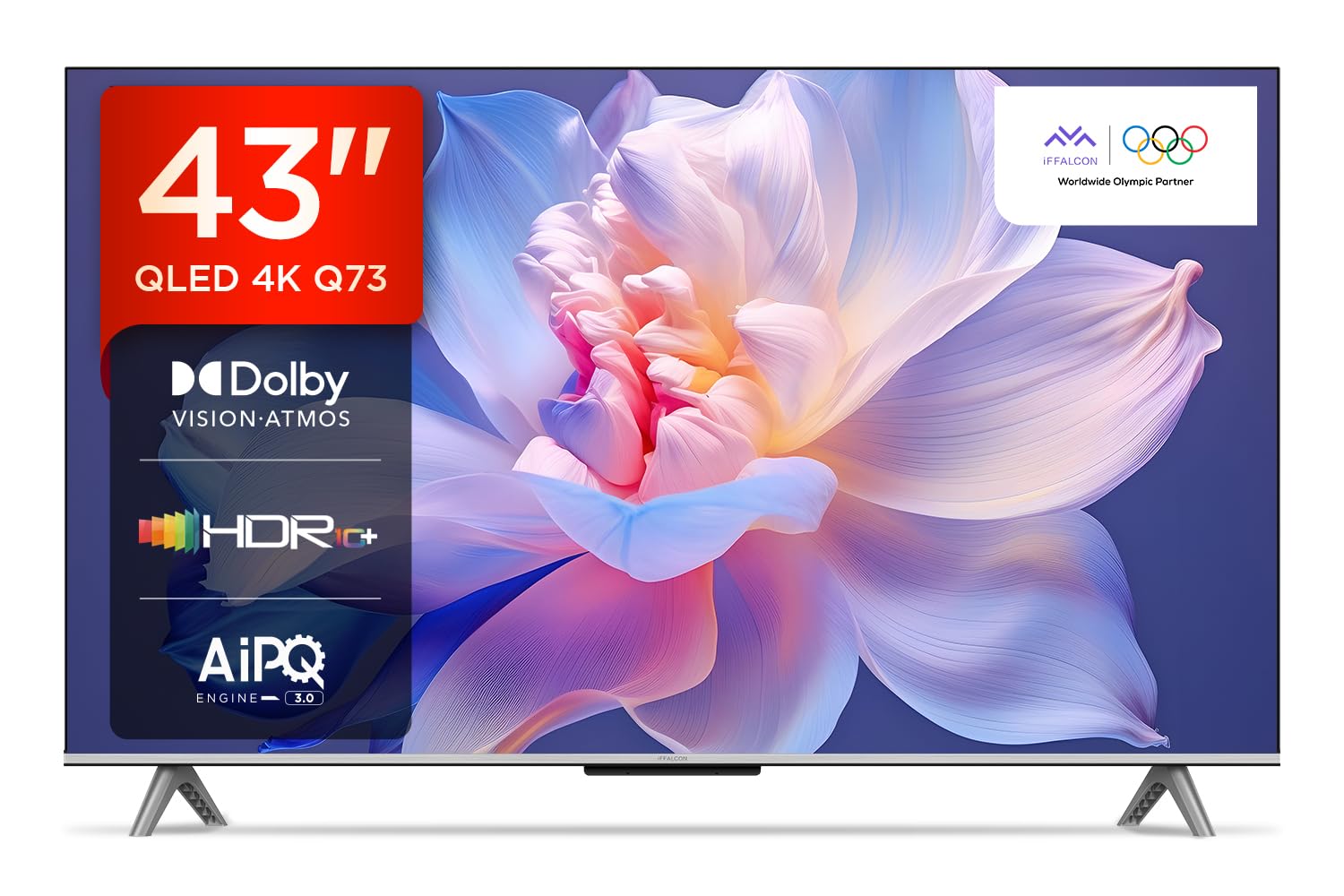
Image: Front view of the iFFALCON 43-inch 4K Ultra HD Smart QLED Google TV.
2. Safety Information
Always adhere to the following safety guidelines to prevent electric shock, fire, or damage to the television:
- Do not expose the TV to rain or moisture.
- Ensure proper ventilation; do not block ventilation openings.
- Use only attachments/accessories specified by the manufacturer.
- Unplug the TV during lightning storms or when unused for long periods.
- Refer all servicing to qualified service personnel.
3. What's in the Box
Upon unpacking, verify that all items are present:
- 1N LED TV
- 1N Audio Cable
- 1N Stand (for table mounting)
- 1N User Manual
- 1N Remote Control
- 1N Warranty Card
- 2N AAA Batteries (for remote control)
4. Setup
4.1 Physical Installation
Your iFFALCON TV can be installed on a table stand or wall-mounted. Ensure the installation surface is stable and can support the TV's weight.

Image: The iFFALCON TV placed on a media console, illustrating a typical table-top setup.
Table Mounting:
- Carefully place the TV face down on a soft, flat surface.
- Attach the provided stand legs to the designated slots on the bottom of the TV using the screws included.
- Ensure the stand is securely fastened before carefully lifting the TV to its upright position.
Wall Mounting:
For wall mounting, a compatible VESA wall mount kit (not included) is required. Follow the instructions provided with your wall mount kit. Professional installation is recommended.

Image: The iFFALCON TV displayed as wall-mounted in a modern living room setting.
4.2 Initial Power-On and Configuration
- Connect the power cord to the TV and then to a power outlet.
- Insert the provided AAA batteries into the remote control.
- Press the power button on the remote control or the TV to turn it on.
- Follow the on-screen instructions to complete the initial setup, including language selection, network connection (Wi-Fi or Ethernet), and Google account sign-in.
5. Operating Your TV
5.1 Remote Control
The smart remote control provides quick access to various functions and streaming services.

Image: The iFFALCON smart remote control, highlighting dedicated buttons for Netflix, Prime Video, YouTube, and TCL Channel, along with Google Assistant functionality.
5.2 Google TV Interface
Your TV runs on Google TV, offering a personalized experience with content recommendations and easy access to apps.

Image: The Google TV home screen displaying various streaming apps and content recommendations.

Image: A visual representation of the Google TV platform, emphasizing its user-friendly interface.
Key Features:
- Hands-Free Voice Control: Use "Ok Google" to search for content, control smart home devices, and get information.
- Google Watchlist: Add movies and TV shows to a unified watchlist from various services.
- Google Kids: Access curated content suitable for children.
- Google Meet: Conduct video calls directly from your TV (requires compatible camera, not included).

Image: A user interacting with the TV using the "Ok Google" voice command to check the weather.

Image: The Google Watchlist feature shown across both a mobile device and the TV screen.

Image: The Google Kids interface, displaying child-friendly content and shows.

Image: A video call in progress using Google Meet on the iFFALCON TV.
6. Connectivity
The iFFALCON iFF43Q73 offers multiple connectivity options for external devices and networks.

Image: A detailed view of the TV's side panel, illustrating the various input and output ports.
- HDMI Ports (3): Connect set-top boxes, Blu-ray players, and gaming consoles. HDMI 3 supports eARC/ARC for enhanced audio return.
- USB Port (1): For connecting USB storage devices to play media.
- LAN (Ethernet): For a wired internet connection.
- Headphone Output: For connecting headphones or external speakers.
- Digital Audio Out (Optical): For connecting to soundbars or home theater systems.
- Antenna/Cable In: For connecting an antenna or cable TV signal.
- AV In Adapter: For connecting older devices using composite video and stereo audio.
- Wi-Fi: Built-in for wireless internet access.
- Bluetooth: For connecting wireless accessories like headphones or game controllers.

Image: An illustration of an HDMI 2.1 cable connecting to the TV, highlighting its advanced capabilities.

Image: A laptop screen being cast to the iFFALCON TV, demonstrating low latency casting functionality.
7. Display Features
Experience stunning visuals with advanced display technologies.

Image: An overview of the iFFALCON TV's key display and audio features, including QLED, Dolby Vision Atmos, HDR10+, MEMC, High Brightness, DTS:X, Gaming in Dolby Vision, Game Master, and Edgeless Design.
- QLED Display: Quantum Dot technology delivers vibrant colors and improved brightness.
- 4K Ultra HD (3840 x 2160): Provides four times the resolution of Full HD for incredible detail.
- Dolby Vision & HDR10+: Advanced HDR formats for enhanced contrast, brightness, and color accuracy.
- 4K HDR Pro: Optimizes HDR content for a superior viewing experience.
- AIPQ 3.0 Engine: AI-powered picture quality engine for intelligent optimization of color, contrast, and clarity.
- MEMC (Motion Estimation, Motion Compensation): Reduces motion blur and makes fast-moving scenes smoother.
- High Brightness (300 nits): Ensures clear visibility even in well-lit rooms.
- 178 Degree Wide Viewing Angle: Consistent picture quality from various viewing positions.

Image: An illustration demonstrating the layers and technology behind a QLED display.

Image: The Dolby Vision logo displayed over a vibrant, colorful abstract image, representing enhanced visual quality.

Image: The HDR10+ logo positioned next to an image of a colorful, explosive visual effect, symbolizing dynamic range.

Image: A split image demonstrating the difference between standard and high brightness, showing a more vivid landscape on the right.

Image: A comparison showing a skier with motion blur (Without MEMC) versus a clear image (With MEMC), illustrating the motion compensation technology.
8. Audio Features
Immersive sound experience with integrated speaker boxes.
- 30 Watts Output: Powerful audio for clear sound.
- MS12Z with Dolby Atmos: Delivers multi-dimensional sound that moves around you.
- DTS Virtual:X: Creates an immersive audio experience without the need for additional speakers.
- Integrated Speaker Boxes (Bottom Side): Optimized speaker placement for enhanced sound delivery.

Image: An illustration of the Dolby Atmos sound experience, showing sound waves emanating from the TV and surrounding the viewer.

Image: A visual representation of Dolby Atmos audio filling a living room, with sound waves surrounding the TV.

Image: The DTS:X logo with an illustration of dolphins jumping out of water, depicting immersive sound.

Image: A visual representation of DTS:X audio, showing sound waves emanating from the TV and surrounding a viewer on a couch.
9. Gaming Features
Enhance your gaming experience with dedicated features.
- Game Master: A suite of features designed for gamers.
- Gaming in Dolby Vision: Experience games with enhanced visuals and dynamic range.
- ALLM (Auto Low Latency Mode): Automatically switches the TV to a low-latency mode when a game console is detected, reducing input lag.
- Game Bar: Quick access to game-related settings and information during gameplay.

Image: The Game Master feature displayed on the TV screen, showing icons for Game Bar, ALLM, and Aiming Aid.

Image: A gaming scene displayed on the TV with the 'Gaming in Dolby Vision' logo, indicating enhanced visual quality for games.

Image: The Game Master logo with icons for Game Bar, ALLM, and Aiming Aid, illustrating the gaming optimization features.

Image: The Game Bar interface displayed at the bottom of the TV screen during gameplay, showing options like HGIG, StatsBar, Boost, and Toolbox.

Image: A split screen comparison of a racing game with ALLM Mode OFF (left) and ALLM Mode ON (right), demonstrating reduced input lag.
10. Maintenance
Proper care ensures the longevity and performance of your TV.
- Cleaning the Screen: Use a soft, lint-free cloth specifically designed for electronics. Do not use abrasive cleaners or solvents.
- Cleaning the Frame: Wipe with a soft, dry cloth. For stubborn marks, a slightly damp cloth can be used, followed by a dry cloth.
- Ventilation: Ensure the TV's ventilation openings are clear of dust and obstructions.
- Power Cord: Regularly check the power cord for any damage.
11. Troubleshooting
Refer to this section for common issues and their solutions.
| Problem | Possible Cause | Solution |
|---|---|---|
| No power | Power cord disconnected, no power from outlet. | Check power cord connection. Test outlet with another device. |
| No picture, but sound is present | Incorrect input source, faulty cable. | Verify correct input source. Check HDMI/AV cable connections. |
| No sound, but picture is present | Volume muted, external audio device issue. | Unmute volume. Check audio settings. Ensure external audio devices are connected correctly. |
| Remote control not working | Dead batteries, obstruction, remote not paired. | Replace batteries. Remove obstructions. Re-pair Bluetooth remote if applicable. |
| Wi-Fi connection issues | Incorrect password, router issue, signal interference. | Re-enter Wi-Fi password. Restart router. Move TV closer to router or reduce interference. |
12. Specifications
Detailed technical specifications for the iFFALCON 43-inch 4K Ultra HD Smart QLED Google TV.

Image: A diagram illustrating the dimensions and weight of the iFFALCON 43-inch TV, both with and without the stand.
| Feature | Detail |
|---|---|
| Model | iFF43Q73 |
| Screen Size | 43 Inches (108 cm) |
| Display Technology | QLED |
| Resolution | 4K Ultra HD (3840 x 2160) |
| Refresh Rate | 60 Hz |
| Operating System | Google TV |
| Processor | 64-bit Quad Core Processor |
| RAM | 2 GB |
| Storage | 16 GB |
| Audio Output | 30 Watts |
| Sound Technology | Dolby Atmos, DTS Virtual:X |
| Connectivity | 3 HDMI Ports, 1 USB Port, Wi-Fi, Bluetooth, Ethernet |
| Power Consumption (On-mode) | 130 Watts |
| Product Dimensions (with stand) | 8 x 95.7 x 60.3 cm |
| Item Weight (with stand) | 6.7 kg |
13. Warranty and Support
Your iFFALCON TV comes with a 2-year warranty provided by the manufacturer from the date of purchase. For warranty claims, please use your Amazon e-invoice as proof of purchase.
For technical support or service inquiries, please refer to the contact information provided on the warranty card or visit the official iFFALCON support website.


