
ZEXMTE Z03
ZEXMTE 5.1 USB Bluetooth Adapter User Manual
Model: Z03
Introduction
This manual provides detailed instructions for the ZEXMTE 5.1 USB Bluetooth Adapter, Model Z03. This adapter is designed to add Bluetooth 5.1 connectivity to your Windows PC, offering an extended range, enhanced stability, and multi-device support. Please read this manual carefully before use to ensure optimal performance and proper operation.
Package Contents
- 1 x ZEXMTE 5.1 USB Bluetooth Adapter (Model Z03)
Setup Instructions
1. Driver Installation
The ZEXMTE 5.1 USB Bluetooth Adapter supports Plug and Play functionality for Windows 11, Windows 10, and Windows 8. For these operating systems, no manual driver installation is typically required.
For other Windows versions, or if the adapter is not recognized automatically, drivers may be required. Please visit the official ZEXMTE website to download the appropriate drivers for your system.
2. Connecting the Adapter
- Locate an available USB port on your desktop or laptop computer.
- Insert the ZEXMTE 5.1 USB Bluetooth Adapter firmly into the USB port. A blue LED indicator on the adapter will illuminate when it is successfully connected and powered.
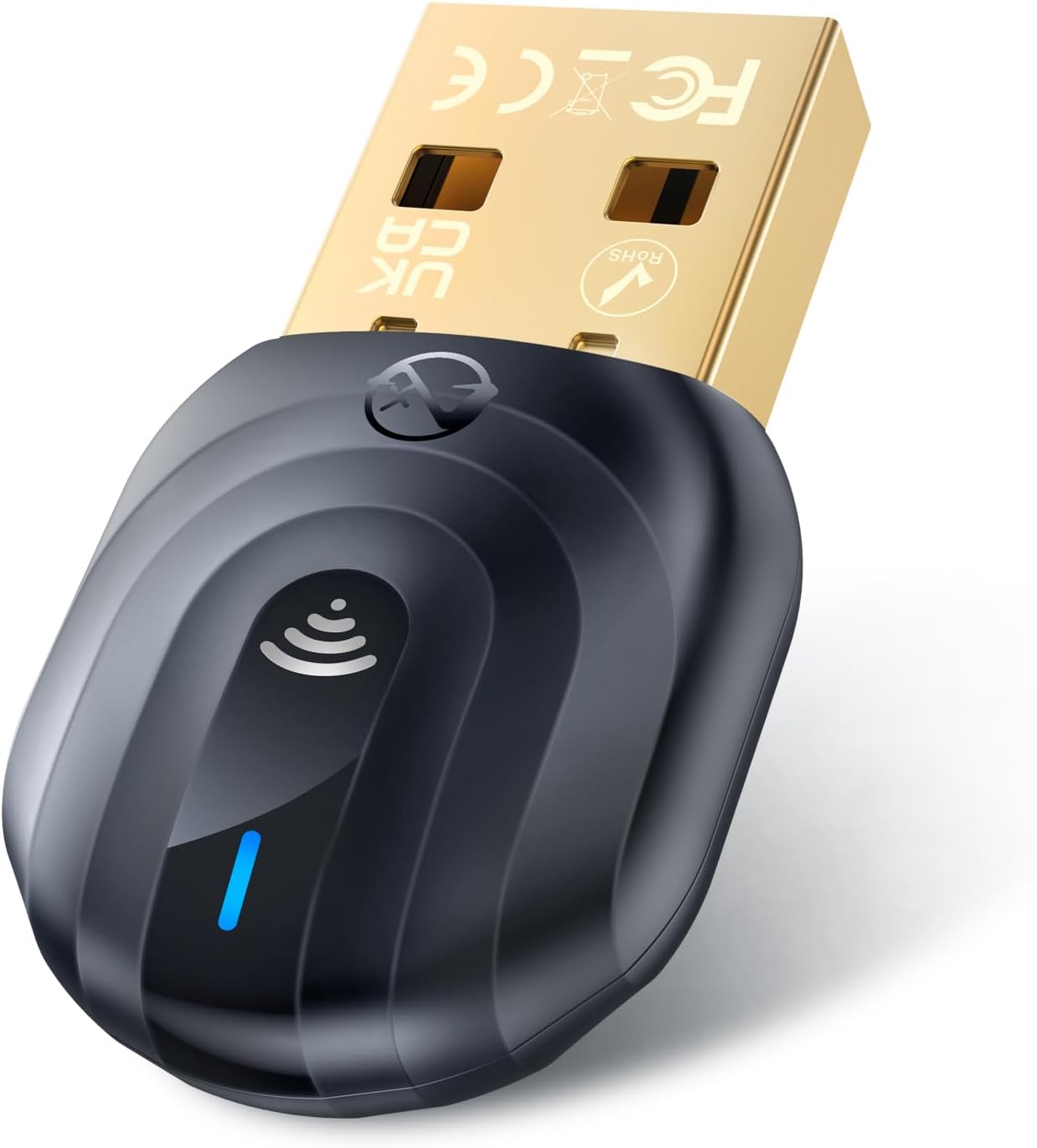
Image: The ZEXMTE 5.1 USB Bluetooth Adapter inserted into a laptop's USB port.

Image: A hand plugging the ZEXMTE 5.1 USB Bluetooth Adapter into a laptop, illustrating the 'Plug & Play' feature.
3. Initial Pairing Process
Once the adapter is connected and recognized by your system, you can begin pairing Bluetooth devices.
Video: This video demonstrates the plug-and-play setup and initial device pairing process for the ZEXMTE USB Bluetooth Adapter on a Windows PC.
Operating Instructions
1. Pairing Bluetooth Devices
- Ensure your Bluetooth device (e.g., headphones, mouse, keyboard) is in pairing mode. Refer to your device's manual for specific instructions.
- On your Windows PC, navigate to Settings > Bluetooth & devices.
- Click on 'Add device' and select 'Bluetooth'.
- Your PC will scan for nearby Bluetooth devices. Select your device from the list and follow any on-screen prompts to complete the pairing.
2. Multi-Device Connectivity
The ZEXMTE 5.1 USB Bluetooth Adapter supports simultaneous connection with up to 7 Bluetooth devices. This allows you to connect multiple peripherals like speakers, headphones, mice, keyboards, and printers to your PC at the same time.

Image: Illustration of the adapter enabling multi-device connectivity for a laptop, connecting to headphones, a speaker, a phone, a keyboard, and a mouse.
3. File Transfer
You can use the Bluetooth adapter to transfer files between your PC and other Bluetooth-enabled devices, such as smartphones or tablets. Once paired, use your operating system's Bluetooth file transfer utility to send or receive files.
Video: This video demonstrates various uses of the ZEXMTE USB Bluetooth Adapter, including file transfer from a phone to a PC and connecting to audio devices.
Key Features
- Extended Signal Coverage: Equipped with a built-in FPC antenna, the adapter provides a connection range of up to 50 meters (164 feet) in open environments. This significantly extends the connection distance and improves signal penetration through obstacles compared to standard adapters.
- Enhanced Stability: The combination of a Bluetooth 5.1 chip and FPC antenna improves connection stability and anti-interference capabilities. EDR (Enhanced Data Rate) technology supports transmission speeds up to 3Mbps, reducing interference from 2.4GHz signals.
- Plug and Play: Offers true driver-free operation on Windows 11, Windows 10, and Windows 8, allowing for quick connection and use.
- Mini Size: The compact design of the Bluetooth dongle makes it highly portable and convenient for use with laptops or desktops, without obstructing adjacent USB ports.

Image: A visual representation of the ZEXMTE adapter's 50-meter open environment range, showing coverage across multiple rooms.

Image: An internal view highlighting the Bluetooth 5.1 chip and FPC antenna, emphasizing stable and efficient Bluetooth transmission.

Image: The ultra-small and portable design of the ZEXMTE Bluetooth adapter, showing its dimensions (35mm x 18mm x 9mm) next to a mouse and a coin for scale.
Compatibility
The ZEXMTE 5.1 USB Bluetooth Adapter is compatible with:
- Operating Systems: Windows 11, Windows 10, Windows 8.1, Windows 8, Windows 7.
- Bluetooth Versions: Backwards compatible with Bluetooth V5.0, V4.0, V3.0, V2.0, and V1.1.
- Devices: Bluetooth speakers, headphones, mice, keyboards, printers, and other Bluetooth-enabled peripherals.
Note: This USB Bluetooth adapter is not suitable for Mac OS, Linux, TV, car stereo systems, or gaming consoles like Nintendo Switch, PS5, or PS4.

Image: A visual chart detailing the wide compatibility of the ZEXMTE Bluetooth adapter with various devices and Windows operating systems.
Specifications
| Feature | Specification |
|---|---|
| Brand | ZEXMTE |
| Model Number | Z03 |
| Bluetooth Version | 5.1 |
| Hardware Interface | Bluetooth, Bluetooth 5, USB |
| Data Link Protocol | Bluetooth, USB |
| Data Transfer Rate | 3 Megabits Per Second (Mbps) |
| Compatible Devices | Desktop, Laptop (Windows 11/10/8.1/8/7) |
| Item Weight | 0.704 ounces (0.02 Kilograms) |
| Package Dimensions | 3.9 x 3.39 x 0.75 inches |
Troubleshooting
1. Driver Conflicts or Connection Issues
If you experience issues with Bluetooth connections or device recognition, especially after Windows updates, consider the following steps:
- Turn off Bluetooth on your computer.
- Unplug the ZEXMTE adapter.
- In Windows Device Manager, select View > Show hidden devices. Uninstall all entries under the 'Bluetooth' group.
- Reboot your computer.
- If your computer has an integrated Bluetooth adapter, disable it in Device Manager (e.g., 'Realtek Bluetooth Adapter').
- Plug the ZEXMTE adapter into a USB 2.0 port (some users report better stability with USB 2.0 over 3.0 due to potential interference).
- In Device Manager, locate the new 'Generic Bluetooth Radio' entry. Right-click, select Properties, go to the Power Management tab, and uncheck 'Allow the computer to turn off this device to save power'.
- In Windows Bluetooth settings, select 'More Bluetooth options' and check 'Allow Bluetooth devices to find this PC'.
- Reboot your computer again.
- Attempt to pair your Bluetooth devices following the standard operating instructions.
2. Audio Quality Issues
While the adapter generally provides good audio quality, occasional distortion may occur with specific computer configurations. This is often related to system-level audio processing or other software conflicts rather than the adapter itself. Ensure your audio drivers are up to date and try adjusting audio settings in your operating system.
3. Linux Compatibility
The adapter is not officially supported on Linux. However, some users have reported success with certain Linux distributions, such as Linux Mint 20, where the adapter was recognized upon insertion. Functionality may vary and is not guaranteed.
Maintenance
The ZEXMTE 5.1 USB Bluetooth Adapter requires minimal maintenance. To ensure its longevity and optimal performance:
- Keep the adapter dry and away from liquids.
- Avoid exposing it to extreme temperatures or direct sunlight.
- Clean the exterior gently with a soft, dry cloth if necessary. Do not use harsh chemicals or abrasive materials.
- Store it in a safe place when not in use to prevent physical damage.
Warranty and Support
ZEXMTE is committed to providing quality products and customer satisfaction. For driver downloads, product support, or warranty information, please visit the official ZEXMTE website. You can also find more information and contact details through the ZEXMTE Store on Amazon.
Related documentsZ03


Ask a question about this manual
Ask about setup, troubleshooting, compatibility, parts, safety, or missing instructions. Manuals+ will review the question and use this page’s manual context to help answer it.