
1. Introduction
Thank you for choosing the ORICO 7-in-1 USB-C Docking Station. This device is designed to expand the connectivity of your USB-C enabled laptop, tablet, or smartphone, providing a versatile solution for various peripherals and display needs. This manual will guide you through the setup, operation, and maintenance of your docking station.

Figure 1: Overview of the ORICO 7-in-1 USB-C Docking Station, highlighting its various ports including PD 100W, HDMI 4K@60Hz, RJ45 1000MB, USB 3.2 10Gbps, USB 3.0 5Gbps, and 3.5mm Audio & Mic.
2. Product Features

Figure 2: The ORICO 7-in-1 Multiport USB-C Hub in use, demonstrating its connectivity to a laptop and an external display, showcasing its various functions.
The ORICO 7-in-1 USB-C Docking Station offers the following functionalities:
- 4K@60Hz HDMI Output: Connect to an external display for ultra-high-definition video output. Supports mirroring or extending your laptop screen.
- USB 3.2 (10Gbps) Port: One high-speed USB-A port for rapid data transfer.
- 2x USB 3.0 (5Gbps) Ports: Two additional USB-A ports for connecting peripherals and data transfer.
- 100W USB-C Power Delivery (PD) Port: Charge your host device (laptop, tablet) with up to 100W power delivery.
- Gigabit Ethernet (RJ45) Port: Provides a stable and fast wired network connection (10/100/1000Mbps).
- 3.5mm Audio & Microphone Jack: Connect headphones or speakers with microphone support.

Figure 3: Illustration of 10Gbps data transmission capability, showing the hub connected to a laptop and an external USB device, highlighting the speed advantage over USB 2.0.

Figure 4: Visual comparison of 4K@60Hz versus 4K@30Hz display quality, emphasizing the smoother experience provided by 60Hz output.

Figure 5: The docking station providing a stable 1000Mbps wired Ethernet connection for a gaming setup, ensuring reliable network performance.
3. Setup Instructions
- Compatibility Check: Ensure your host device (laptop, tablet, or smartphone) has a full-featured USB Type-C port that supports DisplayPort Alternate Mode (Alt Mode), Power Delivery, and data transfer protocols. Refer to your device's manual or manufacturer's website for confirmation.
Figure 6: Guide to identifying compatible USB-C ports on your device, distinguishing between charging-only, data-only, and fully functional ports.
- Connect the Docking Station: Plug the USB-C connector of the ORICO docking station into the compatible USB-C port on your host device.
- Connect Power (Optional but Recommended): For stable operation and to charge your host device, connect your original USB-C power adapter to the 100W PD port on the docking station.

Figure 7: Demonstrating the connection of a 100W power adapter to the USB-C PD port on the hub, providing power to a connected laptop.
- Connect Peripherals:
- HDMI Display: Connect an HDMI cable from your monitor to the HDMI port on the docking station.
- USB Devices: Plug your USB-A devices (e.g., mouse, keyboard, external hard drive) into the USB 3.2 or USB 3.0 ports.
- Ethernet Cable: Connect an Ethernet cable to the RJ45 port for a wired network connection.
- Audio Devices: Plug your headphones or speakers into the 3.5mm audio jack.
4. Operating Instructions
Once connected, your host device should automatically detect the docking station and its connected peripherals. No additional drivers are typically required for most operating systems (Windows, macOS, Linux, iOS).
- Display Settings: For HDMI output, you may need to adjust display settings on your host device to extend or mirror your screen. On Windows, press Windows Key + P. On macOS, go to System Preferences > Displays.
- Network Connection: The Gigabit Ethernet port provides a stable wired internet connection. Your operating system should automatically prioritize the wired connection over Wi-Fi when connected.
- Data Transfer: Use the USB 3.2 (10Gbps) and USB 3.0 (5Gbps) ports for connecting external storage devices, transferring files, or connecting other USB peripherals.
- Power Delivery: The 100W PD port allows your host device to receive power through the docking station, ensuring your laptop remains charged while using multiple peripherals.
- Audio Output: The 3.5mm audio jack will become the default audio output device. You can switch between audio outputs in your device's sound settings.
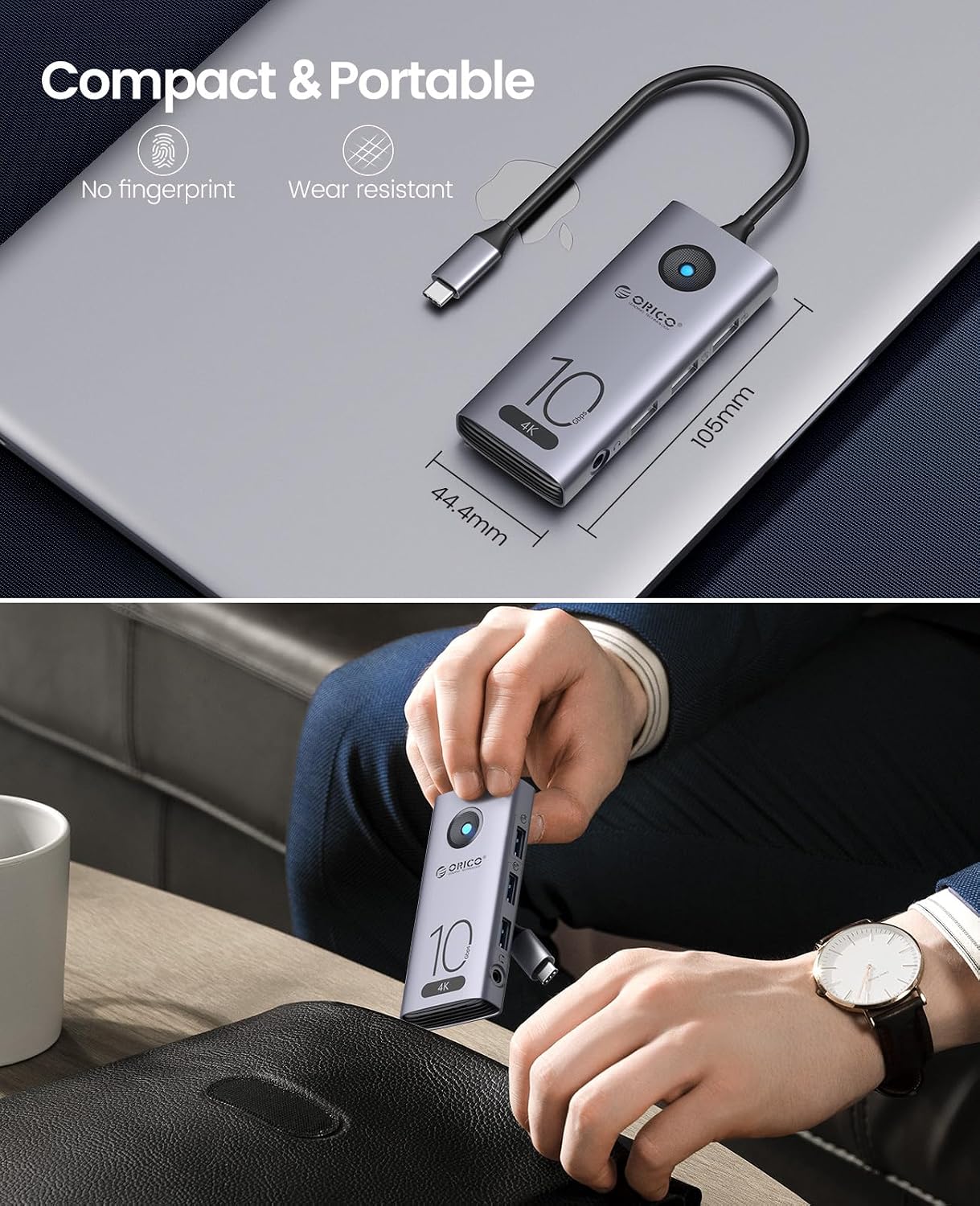
Figure 8: Demonstrating the wide compatibility of the ORICO docking station with different devices and operating systems, including laptops, iPads, Steam Deck, and smartphones.
5. Maintenance
- Keep the docking station away from water, fire, and corrosive liquids.
- Avoid dropping or subjecting the device to strong impacts.
- Clean the device with a soft, dry cloth. Do not use chemical cleaners.
- Store in a cool, dry place when not in use.

Figure 9: The compact and portable design of the docking station, emphasizing its ease of transport and durable, wear-resistant finish.
6. Troubleshooting
- Q: No display output via HDMI.
- A:
- Ensure your host device's USB-C port supports DisplayPort Alt Mode.
- Check the HDMI cable connection to both the docking station and the monitor.
- Verify the monitor input source is set correctly to HDMI.
- Try restarting your host device.
- Ensure the docking station is receiving sufficient power, especially if using high-resolution displays.
- Q: USB devices are not recognized or work slowly.
- A:
- Ensure the docking station is securely connected to your host device.
- Try connecting the USB device directly to your host device to rule out device issues.
- If connecting a high-power USB device (e.g., external HDD), ensure the docking station is connected to an external power source via its PD port.
- Q: My laptop is not charging.
- A:
- Confirm your host device's USB-C port supports Power Delivery.
- Ensure your power adapter is connected to the docking station's PD port and is functioning correctly.
- Check if your power adapter provides sufficient wattage for your laptop (e.g., 100W for a MacBook Pro).
- Q: No internet connection via Ethernet.
- A:
- Check the Ethernet cable connection to both the docking station and your router/modem.
- Verify that your network settings on your host device are configured for a wired connection.
- Ensure your router/modem is functioning correctly.
7. Specifications
| Feature | Detail |
|---|---|
| Model Number | ORICO-CX10-7P-GY-BP-CA-A |
| Ports | 1x HDMI (4K@60Hz), 1x USB 3.2 (10Gbps), 2x USB 3.0 (5Gbps), 1x USB-C PD (100W), 1x Gigabit Ethernet (RJ45), 1x 3.5mm Audio & Mic |
| HDMI Resolution | Up to 4K@60Hz |
| USB Data Transfer Rate | USB 3.2: 10Gbps; USB 3.0: 5Gbps |
| Power Delivery | Up to 100W (Input) |
| Ethernet Speed | 10/100/1000Mbps (Gigabit) |
| Compatible Devices | Laptops, Tablets, Smartphones with full-featured USB-C ports |
| Dimensions | 18.4 x 6.8 x 2.2 cm (approx.) |
| Weight | 120 g (approx.) |
| Manufacturer | SHENZHEN ORICO TECHNOLOGIES CO.,LTD |
8. Warranty and Support
ORICO products come with a standard manufacturer's warranty. For specific warranty terms, duration, and support, please refer to the warranty card included with your product or visit the official ORICO website. If you encounter any issues not covered in this manual, please contact ORICO customer support for assistance.
You can find more information and support on the ORICO Store on Amazon.
