
1. Introduction
The Mugast ASHATA3wdkhcfoby 4G LTE Mobile WiFi Hotspot provides reliable and portable internet access wherever you go. This device combines the functionality of a mobile hotspot with a built-in 10000mAh power supply, ensuring extended usage and connectivity for multiple devices. It supports 4G LTE networks and offers WiFi speeds up to 300Mbps, making it ideal for travel, parties, and remote work.
Key Features:
- Unlocked for various 4G LTE networks.
- Built-in 10000mAh portable power supply.
- Supports up to 8-10 users simultaneously.
- Compact and portable design with lanyard option.
- Intuitive display for network status, battery, SSID, and password.
2. Product Overview

Figure 1: Top view of the Mugast 4G LTE Mobile WiFi Hotspot, showing the 5G/4G MEFI Powerbank 10000mAh branding.
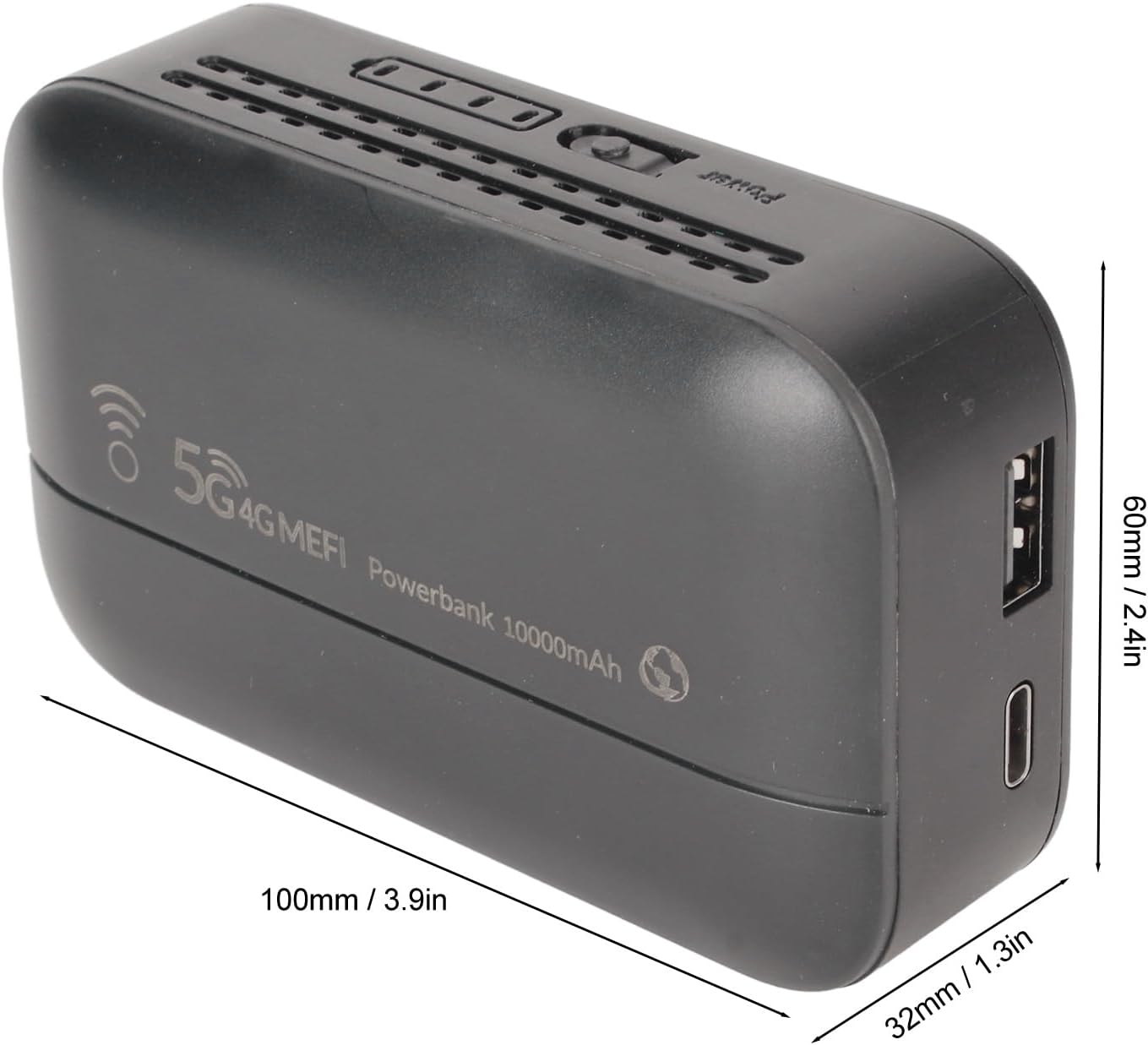
Figure 2: Side view of the device with dimensions: 100mm (3.9in) length, 60mm (2.4in) width, and 32mm (1.3in) thickness.
Device Components
- Display Screen: Shows network status, battery level, connected devices, SSID, and password.
- Power Button: To turn the device on/off.
- SIM Card Slot: For inserting a micro SIM card.
- Battery Compartment: Houses the removable 10000mAh Lithium-ion battery.
- Charging Port: USB-C port for charging the device.
- Lanyard Hole: For attaching a lanyard for easy carrying.
3. Setup
3.1 Inserting SIM Card and Battery
- Gently remove the back cover of the device.
- Locate the SIM card slot. This device supports a micro SIM card.
- Insert your activated micro SIM card into the designated slot, ensuring it is securely locked in place.
- Insert the 10000mAh Lithium-ion battery into its compartment.
- Replace the back cover, ensuring it clicks firmly into place.

Figure 3: Diagram illustrating the insertion of the micro SIM card and battery.
3.2 Powering On and Initial Configuration
- Press and hold the Power Button until the screen lights up and displays the welcome message.
- The device will automatically search for a network signal. Once connected, the display will show the 4G/5G network status, WiFi status, and battery level.
- The display will also show the WiFi network name (SSID) and password (Key).
- To access advanced settings or change the default password, connect a device (e.g., laptop, smartphone) to the hotspot's WiFi network. Open a web browser and navigate to the admin page, typically
192.168.0.1. Refer to the included mini-manual for specific login credentials if needed.
Video 1: Unboxing and initial setup guide for a similar 4G LTE Mobile WiFi Hotspot, demonstrating SIM card and battery installation, and powering on the device.
4. Operating the Device
4.1 Understanding the Display
The device's screen provides real-time information about its status:
- Network Signal: Indicates the strength of the 4G LTE signal.
- WiFi Status: Shows if WiFi is active and the number of connected devices.
- Battery Level: Displays the remaining battery charge.
- SSID & Password: The WiFi network name and password are shown for easy connection.

Figure 4: The device display showing network status, battery, and WiFi information.
4.2 Connecting Devices
- Ensure the hotspot is powered on and has an active network connection.
- On your smartphone, laptop, or other WiFi-enabled device, search for available WiFi networks.
- Select the SSID displayed on the hotspot's screen.
- Enter the password (Key) shown on the hotspot's screen.
- Your device should now be connected to the internet. The hotspot supports 8-10 users online at the same time.

Figure 5: Illustration of multiple users connecting to the mobile hotspot for various activities like business, travel, and meetings.
4.3 Portability and Convenience
The compact design and built-in battery make the Mugast hotspot highly portable. It features a lanyard design for easier carrying, though the lanyard itself needs to be purchased separately.

Figure 6: The device shown with an optional lanyard for convenient portability.
5. Maintenance
- Cleaning: Use a soft, dry cloth to clean the device. Avoid liquid cleaners or abrasive materials.
- Battery Care: To prolong battery life, avoid exposing the device to extreme temperatures. Charge the device regularly, but avoid overcharging for extended periods.
- Storage: Store the device in a cool, dry place away from direct sunlight and moisture when not in use.
6. Troubleshooting
- No Network Signal:
- Ensure your micro SIM card is correctly inserted and activated with a data plan.
- Check if you are in an area with network coverage.
- Restart the device.
- Unable to Connect to WiFi:
- Verify the SSID and password on the device's screen.
- Ensure your connecting device's WiFi is enabled.
- Restart both the hotspot and the connecting device.
- Slow Internet Speed:
- Check the network signal strength on the hotspot's display.
- Reduce the number of connected devices.
- Ensure your data plan has sufficient high-speed data remaining.
- Device Not Powering On:
- Ensure the battery is correctly inserted and charged.
- Connect the device to a power source using the provided USB-C cable and charger.
For further assistance, refer to the manufacturer's official support channels or the detailed user manual included in the packaging.
7. Specifications
| Feature | Specification |
|---|---|
| Brand | Mugast |
| Model Name | ASHATA3wdkhcfoby |
| Connectivity Technology | 5G, 4G LTE, 802.11B, 802.11G, 802.11N |
| Wireless Communication Standard | 802.11b, 802.11g, 802.11n |
| Frequency Band Class | Dual-Band |
| Special Feature | WPS |
| Security Protocol | WPS |
| Operating System | Linux |
| Control Method | Touch |
| Item Weight | 9.9 ounces |
| Package Dimensions | 4.96 x 2.68 x 1.61 inches |
8. Warranty and Support
For detailed warranty information, product registration, and technical support, please refer to the official documentation provided with your device or visit the Mugast official website. Keep your purchase receipt for warranty claims.