
1. Introduction
This user manual provides detailed instructions for the setup, operation, and maintenance of your DELUX M618C Wireless Vertical Ergonomic Mouse. Designed to reduce hand and wrist strain, this mouse features a unique vertical design and 2.4G wireless connectivity for comfortable and efficient use.
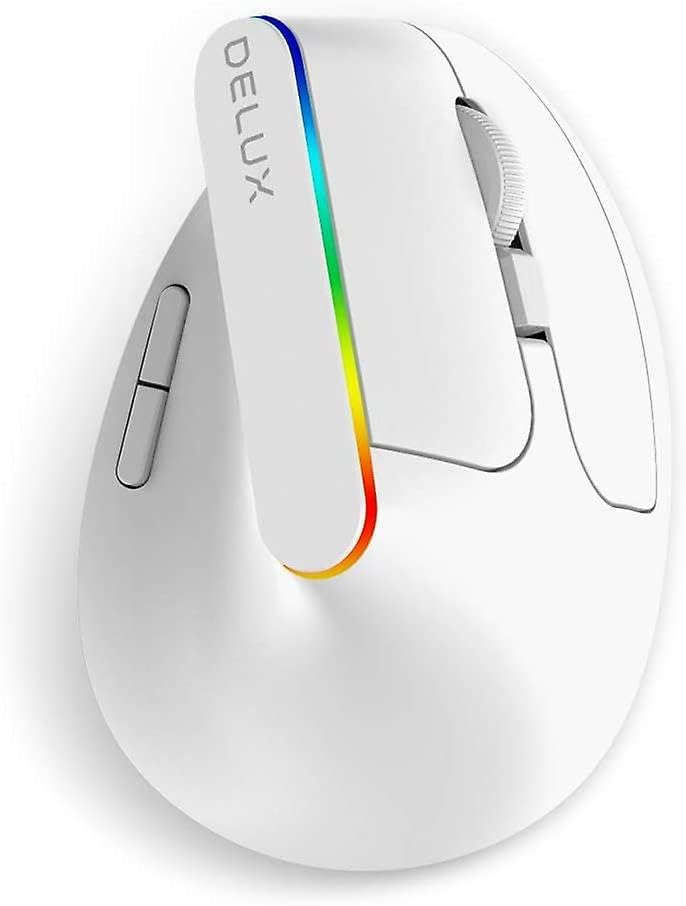
Image: The DELUX M618C White Wireless Vertical Ergonomic Mouse, showcasing its unique upright design.
2. Product Overview
2.1 Package Contents
- 1 x DELUX M618C Wireless Mouse
- 1 x USB Receiver (stored in the mouse's bottom battery compartment)
- User Manual (this document)
2.2 Mouse Components
Familiarize yourself with the various buttons and features of your DELUX M618C mouse:

Image: Diagram illustrating the button layout of the DELUX M618C mouse. Labels include Backward, Forward, Left Button, Scroll Wheel, Right Button, DPI Button, LED Light, ON/OFF switch, and Battery Compartment.
- Backward Button: Navigates back in web browsers or file explorers.
- Forward Button: Navigates forward in web browsers or file explorers.
- Left Button: Standard left-click function.
- Scroll Wheel: Scrolls content vertically. Can also be pressed for middle-click functionality.
- Right Button: Standard right-click function.
- DPI Button: Adjusts the mouse's sensitivity (DPI).
- LED Light: Indicates power status and DPI setting.
- ON/OFF Switch: Powers the mouse on or off.
- Battery Compartment: Houses the AA battery and the USB receiver.
3. Setup
3.1 Battery Installation
The DELUX M618C mouse requires one AA battery (not included).
- Locate the battery compartment on the bottom of the mouse (labeled 9 in the Product Overview diagram).
- Slide open the battery compartment cover.
- Insert one AA battery, ensuring the polarity (+/-) matches the diagram inside the compartment.
- Close the battery compartment cover securely.
3.2 Connecting the USB Receiver
The mouse connects wirelessly via a 2.4G USB Nano Receiver.
- The USB receiver is stored inside the battery compartment of the mouse for safekeeping during transport. Open the battery compartment and carefully remove the small USB receiver.
- Plug the USB receiver into an available USB port on your computer (PC, Laptop, Desktop, Mac).
- Turn on the mouse using the ON/OFF switch (labeled 8) on the bottom of the mouse.
- Your computer should automatically detect and install the necessary drivers. The mouse is now ready for use.

Image: The DELUX M618C mouse shown alongside its compact USB receiver.

Image: A diagram illustrating the "Plug and Play" setup, showing the USB receiver being inserted into a laptop and a note indicating the receiver's storage location.
4. Operating Instructions
4.1 Ergonomic Design and Hand Position
The DELUX M618C mouse is designed with a 57-degree vertical angle to promote a natural handshake position, which helps to reduce wrist pronation and muscle strain. To use, simply rest your hand on the mouse, allowing your forearm muscles to remain in a relaxed, natural state.

Image: A hand comfortably gripping the DELUX M618C vertical mouse, demonstrating the ergonomic hold.

Image: A diagram illustrating the 57-degree ergonomic angle of the DELUX M618C mouse, comparing it to a traditional mouse and highlighting reduced hand and wrist pressure.
For optimal comfort, it is important to choose a vertical mouse that fits your hand size. The M618C is generally suitable for palm sizes between Small and Medium (S-M).

Image: A chart recommending different DELUX vertical mouse models based on palm size, indicating the M618C is suitable for S-M palm sizes.
4.2 General Usage
Once connected, the mouse provides smooth and precise tracking for your daily computing tasks.

Image: The DELUX M618C mouse being used alongside a laptop, demonstrating its practical application.
4.3 Adjusting DPI Sensitivity
The DPI (Dots Per Inch) button allows you to change the mouse's sensitivity, affecting how quickly the cursor moves across the screen. The M618C offers three adjustable DPI settings:
- 800 DPI: Lower sensitivity, ideal for precise tasks.
- 1200 DPI (Default): Medium sensitivity, suitable for general use.
- 1600 DPI: Higher sensitivity, for faster cursor movement.
To change the DPI, press the DPI button (labeled 6) located behind the scroll wheel. Each press will cycle through the available DPI settings.
4.4 Side Buttons (Forward/Backward)
The side buttons (labeled 1 and 2) provide convenient navigation in web browsers and file explorers. The top button typically functions as "Backward" and the bottom button as "Forward".
Note: For Mac operating systems, the functionality of the side buttons may be limited or require third-party software for customization.
5. Maintenance
To ensure optimal performance and longevity of your DELUX M618C mouse, follow these simple maintenance guidelines:
- Cleaning: Use a soft, dry, lint-free cloth to wipe the surface of the mouse. For stubborn dirt, slightly dampen the cloth with water or a mild cleaning solution. Avoid using harsh chemicals or abrasive materials.
- Sensor: Keep the optical sensor on the bottom of the mouse clean and free from dust or debris to ensure accurate tracking.
- Storage: When not in use for extended periods, turn off the mouse using the ON/OFF switch to conserve battery life. Store the USB receiver inside the battery compartment to prevent loss.
- Battery: Replace the AA battery when the mouse's performance degrades or the LED indicator suggests low power.
6. Troubleshooting
If you encounter issues with your DELUX M618C mouse, refer to the following common problems and solutions:
| Problem | Possible Cause | Solution |
|---|---|---|
| Mouse not responding |
|
|
| Cursor movement is erratic or jumpy |
|
|
| Side buttons not working on Mac |
|
|
7. Specifications
| Feature | Detail |
|---|---|
| Model | M618C |
| DPI Settings | 800 / 1200 (Default) / 1600 |
| Dimensions (L×W×H) | 115 × 80.7 × 75.2 mm (4.52 × 3.18 × 2.96 inches) |
| Weight | 95g (3.35oz) |
| Number of Keys | 6 |
| Color | White |
| Connection Type | 2.4G RF Wireless with USB Receiver |
| Polling Rate | 125Hz |
| Power Source | 1 x AA Battery (not included) |
| Device Compatibility | PC, Laptop, Computer, Desktop |
| System Compatibility | Windows 7/8/10, Mac (limited side button support) |
| Hand Orientation | Left |
Note on Hand Orientation: While specifications may list "Left", this model is typically designed for right-handed ergonomic use. Please refer to product images for visual confirmation of the ergonomic shape.
8. Warranty and Support
All DELUX products include a 12-month warranty and free lifetime technical support.
For technical assistance, troubleshooting beyond this manual, or warranty claims, please contact DELUX customer support through the official channels provided at the point of purchase or on the manufacturer's website.