1. Introduction
This manual provides essential information for the installation, operation, and maintenance of your Gigastone 32GB (2x16GB) DDR5 5600MHz UDIMM Desktop Memory Module. This high-performance memory kit is designed to enhance the speed and efficiency of compatible desktop personal computers.

Image 1.1: Gigastone DDR5 5600MHz UDIMM Desktop Memory Module. This image displays the memory module with icons indicating Built-in PMIC, 5600MHz speed, Power Efficiency, and On Die ECC.
2. Safety Information
Please read and follow these safety guidelines to prevent damage to the memory modules or your computer system, and to ensure personal safety.
- Static Electricity: Always discharge static electricity from your body before handling memory modules. Touch a grounded metal object, such as the computer case, before touching any internal components. Consider using an anti-static wrist strap.
- Power Off: Ensure your computer is completely powered off and unplugged from the wall outlet before opening the case or installing/removing any components.
- Handle with Care: Hold the memory modules by their edges. Avoid touching the gold connectors or the integrated circuits (chips) on the module.
- Ventilation: Ensure adequate ventilation around your computer to prevent overheating, which can affect memory performance and lifespan.
3. Package Contents
The Gigastone 32GB (2x16GB) DDR5 5600MHz UDIMM Desktop Memory Module package includes:
- Two (2) Gigastone 16GB DDR5 5600MHz UDIMM Memory Modules
4. Specifications
Refer to the following specifications for your Gigastone DDR5 5600MHz UDIMM Memory Kit:
| Feature | Specification |
|---|---|
| Capacity | 32GB Kit (2 x 16GB) |
| Memory Type | DDR5 UDIMM |
| Speed | 5600MHz (PC5-44800) |
| CAS Latency | CL46 (46-46-46-90) |
| Voltage | 1.1V |
| ECC Type | Non-ECC |
| Form Factor | Unbuffered, 288 Pin |
| Compatible Devices | Desktop PCs |
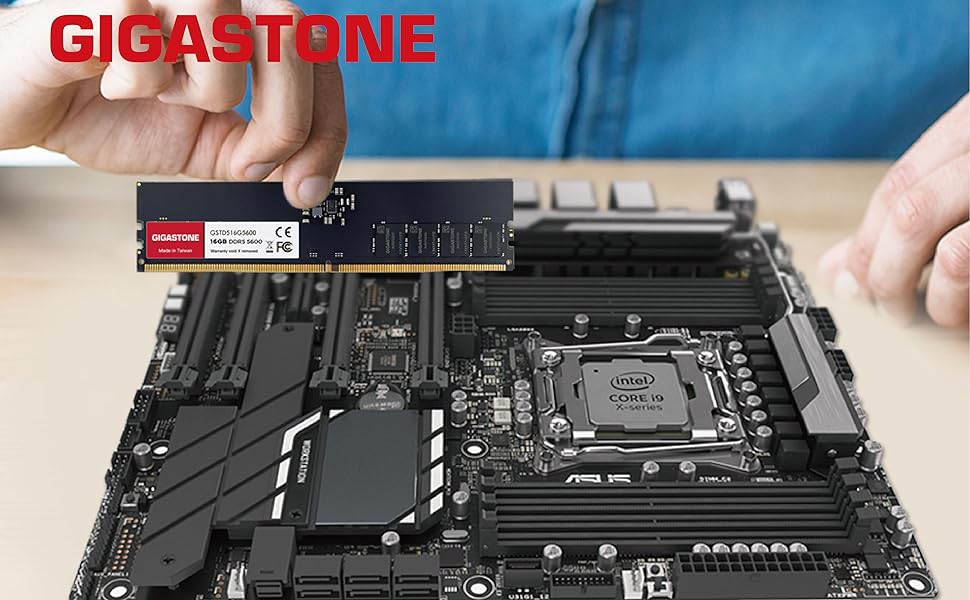
Image 4.1: Power Efficiency. This image illustrates the 1.1V operating voltage and integrated power management (PMIC) for efficient energy use.
5. Setup (Installation)
Follow these steps to install your Gigastone DDR5 memory modules into your desktop PC:
- Preparation:
- Ensure your motherboard supports DDR5 UDIMM memory and the specified speed (5600MHz). Consult your motherboard's manual for compatibility and recommended slot population.
- Power off your computer completely and unplug the power cable from the wall outlet.
- Open your computer case.
- Discharge any static electricity by touching a grounded metal object.
- Locate DIMM Slots: Identify the DDR5 DIMM slots on your motherboard. These are typically long slots with retention clips on each end.
- Open Retention Clips: Gently push the retention clips on both ends of the DIMM slot outwards to open them.
- Align Memory Module: Hold the memory module by its edges. Align the notch on the bottom edge of the memory module with the key in the DIMM slot. The module will only fit one way. Do not force it.
- Insert Module: Place the module into the slot and apply firm, even pressure to both ends of the module until it seats fully and the retention clips snap into place. You may hear a click.
- Install Second Module: Repeat steps 3-5 for the second memory module, ensuring it is installed in the correct dual-channel slot as indicated by your motherboard manual.
- Close Case and Power On: Close your computer case, reconnect the power cable, and power on your computer.
- Verify Installation: During boot-up, enter your system's BIOS/UEFI settings to confirm that the new memory is recognized and operating at the correct speed.

Image 5.1: Memory Module Installation. This image shows a hand carefully inserting a Gigastone DDR5 memory module into a motherboard's DIMM slot.
6. Operating
Once installed correctly, your Gigastone DDR5 memory modules will operate automatically with your system. Modern operating systems and applications will utilize the available memory to improve performance.
- BIOS/UEFI Settings: For optimal performance, ensure your motherboard's BIOS/UEFI is updated to the latest version. You may need to enable XMP (Extreme Memory Profile) or EXPO (Extended Profiles for Overclocking) in your BIOS/UEFI settings to achieve the advertised 5600MHz speed, as some systems may default to a lower JEDEC standard speed. Refer to your motherboard manual for specific instructions on accessing and configuring these settings.
- System Monitoring: You can use system monitoring tools provided by your operating system or third-party software to check memory usage and ensure stable operation.
7. Maintenance
Gigastone DDR5 memory modules are designed for long-term reliability and require minimal maintenance. However, following these general PC maintenance tips can help ensure their longevity:
- Dust Removal: Periodically clean the interior of your computer case to prevent dust buildup on components, including memory modules. Use compressed air to gently remove dust from the modules and surrounding areas.
- Temperature Management: Ensure your computer's cooling system is functioning correctly to maintain optimal operating temperatures. Excessive heat can degrade memory performance and lifespan.
- Physical Handling: Avoid unnecessary removal or re-installation of memory modules to minimize the risk of physical damage or static discharge.
8. Troubleshooting
If you encounter issues after installing your Gigastone DDR5 memory, consider the following troubleshooting steps:
- System Not Booting / No Display:
- Re-seat Modules: Power off and unplug your PC. Open the case and firmly re-seat both memory modules in their slots. Ensure the retention clips are fully engaged.
- Single Module Test: If the issue persists, try booting with only one memory module installed. Test each module individually in the primary DIMM slot (consult your motherboard manual for the primary slot).
- Check Motherboard Manual: Verify that the memory modules are installed in the correct slots for dual-channel operation, as specified by your motherboard's manual. Incorrect slot population can prevent booting.
- Clear CMOS: Refer to your motherboard manual for instructions on how to clear the CMOS (Complementary Metal-Oxide-Semiconductor) settings. This can reset BIOS settings that might be preventing boot-up.
- System Instability / Crashes:
- Memory Diagnostic: Run a memory diagnostic tool (e.g., Windows Memory Diagnostic, MemTest86) to check for errors in the memory modules.
- BIOS/UEFI Update: Ensure your motherboard's BIOS/UEFI is updated to the latest version. BIOS updates often include improved memory compatibility and stability.
- XMP/EXPO Settings: If you enabled XMP/EXPO, try disabling it in the BIOS/UEFI to see if the system becomes stable at JEDEC speeds. If stable, gradually adjust memory timings or voltage if you wish to achieve higher speeds, or consult your motherboard's Qualified Vendor List (QVL) for compatible XMP/EXPO profiles.
- Incorrect Speed Detected:
- Check BIOS/UEFI: As mentioned in the Operating section, you may need to manually enable XMP/EXPO in your BIOS/UEFI settings to achieve the rated 5600MHz speed.

Image 8.1: Data Integrity and Error Correction. This image highlights the On Die ECC feature, which helps detect and correct errors within the memory chip itself, contributing to system stability.
9. Warranty and Support
Gigastone products are manufactured to high-quality standards and come with a warranty. For detailed information regarding the warranty period and terms for your memory module, please visit the official Gigastone website or refer to the warranty card included with your purchase.
If you require technical assistance or have questions not covered in this manual, please contact Gigastone Customer Support:
- Gigastone Official Website: Visit the Gigastone Store on Amazon (for general product information and support links)
- Refer to your product packaging for specific contact information or support channels.