
DockCase Grey-DSWC1M
DOCKCASE Pocket M.2 2230 NVMe SSD Enclosure User Manual
Model: Grey-DSWC1M
Introduction
The DOCKCASE Pocket M.2 2230 NVMe SSD Enclosure is a compact and intelligent device designed to house M.2 2230 NVMe SSDs, transforming them into portable external storage solutions. It features a unique HD display screen that provides real-time information about your SSD's health, performance, and status. This enclosure supports USB 3.2 Gen 2 Type-C (10 Gbps) for high-speed data transfer and includes Power Loss Protection (PLP) to safeguard your data.

Image: The DOCKCASE Pocket M.2 2230 NVMe SSD Enclosure, a small, grey device with a display screen, is shown held in a person's hand, highlighting its compact size.
What's in the Box
Please verify that all components are present upon unboxing:
- SSD enclosure x1
- USB-C Data Cable x1
- Screwdriver (for SSD installation)
- Extra mounting screw (for SSD)
Setup Guide
Follow these steps to install your M.2 2230 NVMe SSD into the enclosure:
- Step 1: Loosen the back cover screw.
Using the provided screwdriver, carefully loosen the screw located on the back cover of the enclosure.

Image: A four-panel image illustrating the installation process. Panel 1 shows loosening the back cover screw.
- Step 2: Insert the SSD.
Gently slide your M.2 2230 NVMe SSD into the PCB slot at a 30-degree angle until it is fully seated.
Note: This enclosure is exclusive to M.2 2230 size NVMe PCIe SSDs. Ensure your SSD is compatible (M-Key and B+M Key supported).

Image: An internal view of the DOCKCASE enclosure, highlighting the M.2 2230 slot and compatible key types (M-Key, B+M Key) for SSD installation.
- Step 3: Secure the SSD.
Press down the SSD and use the provided screw to secure it in place. An extra mounting screw is included for convenience.
- Step 4: Tighten the back cover.
Replace the back cover and tighten the screw to secure it firmly.
- Step 5: Connect to a device.
Connect the enclosure to your computer, smartphone, or game console using the supplied USB-C data cable. The device is plug-and-play compatible with Windows, MacOS 10+, iPad OS 12.0.1+, Linux, Android, and ChromeOS.
Operating Instructions
Real-time Monitoring Display
The DOCKCASE enclosure features an HD display screen that provides critical information about your SSD. The main page displays SSD health, power-on times, remaining capacity, and current read/write speeds.

Image: The DOCKCASE enclosure's display screen showing various real-time data points such as SSD controller temperature, working status, PLP charging status, SSD info, health status, and total read/write data.
- Navigation: Double-click the button to rotate the display 90 degrees clockwise. Long press to switch to other function pages.
- Function Pages: Short press to return to the main page or switch options in the "About Me" page. Long press for 3 seconds to apply/modify options.
Live Transfer Readout
Monitor your data transfer speeds in real-time directly on the enclosure's screen. This feature allows you to quickly identify transfer performance and ensure optimal operation.

Image: The DOCKCASE enclosure connected to a laptop via USB-C, with its screen displaying live read and write transfer rates in MB/s and total data transferred in GB.
Read-Only Mode
Activate Read-Only Mode to prevent accidental deletion or modification of important data. This provides an extra layer of security for sensitive information.
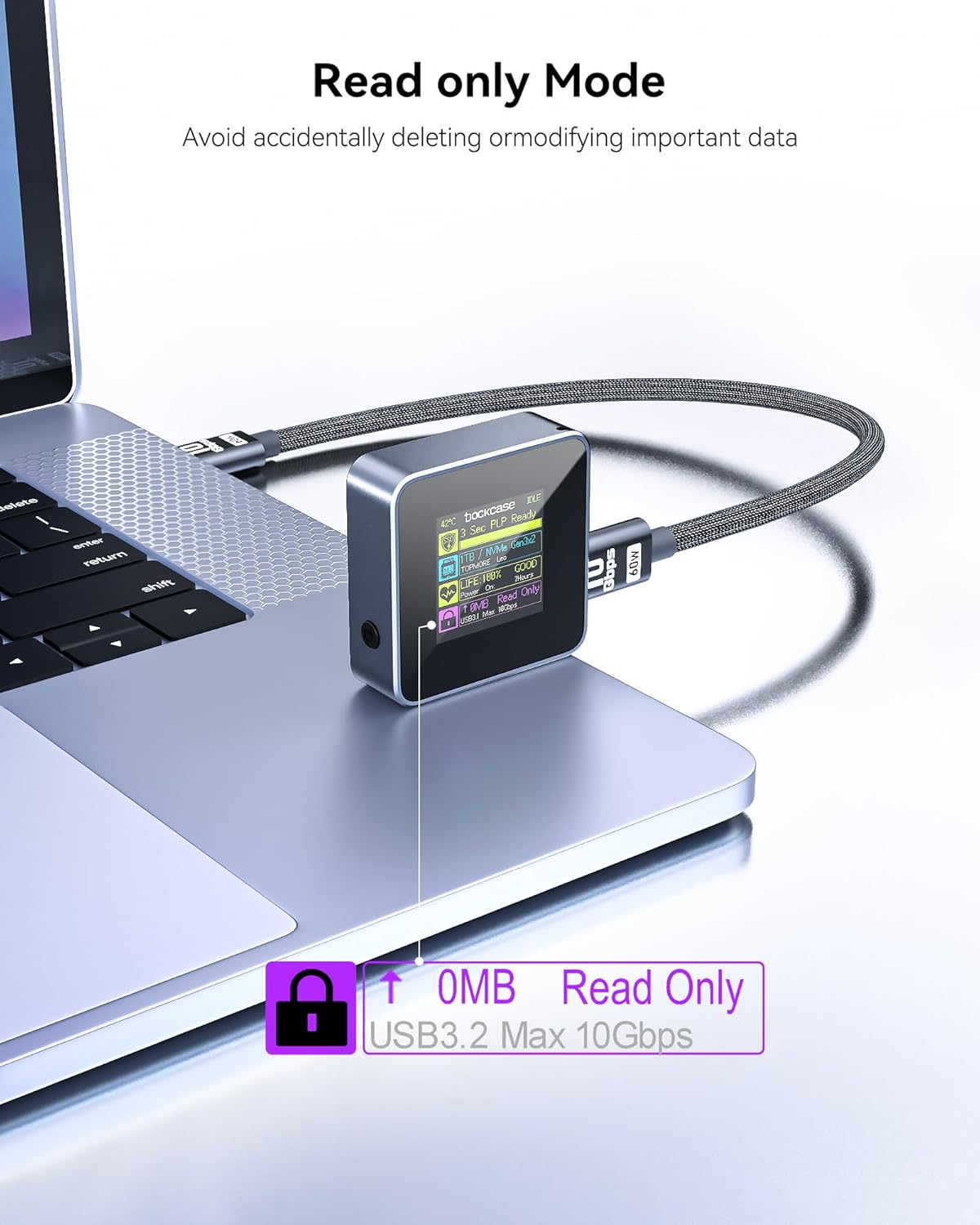
Image: The DOCKCASE enclosure connected to a laptop, displaying "Read Only" on its screen, indicating that write protection is active.
Key Features
- 3-Second Power Loss Protection (PLP):
The enclosure is equipped with Power Loss Protection, providing approximately 3 seconds of writing time after an unexpected power failure. This feature helps prevent data loss and disk damage during sudden disconnections or power outages.

Image: A hand connecting a USB-C cable to the DOCKCASE enclosure, with the screen displaying "Power Protection Ready" and a lightning bolt icon, indicating the 3-second PLP feature.
- SSD Life Prediction & Authenticity Check:
The smart display can detect and show the SSD's health status, remaining life, and power-on times, helping you identify potential issues and avoid inferior disks.
- Exquisite and Compact Design:
Designed for portability, the enclosure is small enough to fit in your pocket, making it ideal for on-the-go data storage. Its dimensions are 1.65 x 0.55 x 1.57 inches.

Image: The DOCKCASE enclosure positioned next to an iPhone, illustrating its small and compact design, with dimensions of 43.5mm x 15.0mm.
- Wide Compatibility:
Supports M-Key and B+M Key NVMe PCIe SSDs up to 2TB capacity. Compatible with iPhone 15, PS5, Steam Deck, and various operating systems including Windows, MacOS 10+, iPad OS 12.0.1+, Linux, Android, ChromeOS, and HarmonyOS.
- Superior Heat Dissipation:
The aluminum alloy shell and internal design contribute to efficient heat dissipation, reducing SSD heat by up to 20% to ensure stability and longevity.

Image: An exploded view diagram of the DOCKCASE enclosure, illustrating how aluminum fins and a graphite pad work together to dissipate heat from the SSD.
Maintenance
To ensure optimal performance and longevity of your DOCKCASE SSD Enclosure:
- Keep the enclosure clean and free from dust. Use a soft, dry cloth for cleaning.
- Avoid exposing the device to extreme temperatures or humidity.
- Ensure proper ventilation when in use, especially during prolonged high-speed transfers, to aid in heat dissipation.
- Always safely eject the device from your operating system before disconnecting to prevent data corruption.
Troubleshooting
If you encounter issues with your DOCKCASE Pocket M.2 2230 NVMe SSD Enclosure, please refer to the following common solutions:
- SSD Not Recognized:
- Check Compatibility: Ensure your SSD is an M.2 2230 NVMe PCIe SSD (M-Key or B+M Key). Some SSD models may be incompatible. Refer to the manufacturer's compatibility list if available.
- Initialization and Formatting: For new SSDs, they must be initialized and formatted before they can be recognized by your operating system. Use Disk Management (Windows) or Disk Utility (macOS) to perform this action.
- Secure Installation: Re-open the enclosure and ensure the SSD is fully seated and securely screwed into the PCB slot.
- Cable Connection: Try using a different USB-C port or cable to rule out connection issues.
- Device Runs Warm:
It is normal for the enclosure to become warm during high-speed data transfers or prolonged use due to efficient heat dissipation from the SSD. If it feels excessively hot, ensure it is placed on a surface that allows for airflow and is not covered. The built-in display can show the SSD controller temperature for monitoring.
- Slow Transfer Speeds:
- USB Port Type: Ensure you are connecting the enclosure to a USB 3.2 Gen 2 (10Gbps) compatible port on your host device for maximum performance. Older USB ports will result in slower speeds.
- SSD Performance: The actual transfer speed is also dependent on the performance of the installed SSD.
- Cable Quality: Use the provided high-quality USB-C cable or another certified 10Gbps USB-C cable.
- Display Issues / Freezing:
If the display freezes or shows incorrect information, try disconnecting and reconnecting the enclosure. Ensure the firmware is up to date if updates are available from the manufacturer.
Specifications
| Feature | Detail |
|---|---|
| Product Dimensions | 1.65 x 0.55 x 1.57 inches |
| Item Weight | 4.2 ounces |
| Item Model Number | Grey-DSWC1M |
| Digital Storage Capacity | Up to 2 TB (SSD not included) |
| Hard Disk Interface | NVMe PCIe (M-Key, B+M Key) |
| Connectivity Technology | USB 3.2 Gen 2 Type-C (10 Gbps) |
| Read Speed | Up to 1024 Megabytes Per Second (10Gbps) |
| Special Feature | Portable, HD Display, 3s PLP, Read Only Mode |
| Compatible Devices | Laptop, iPhone 15, PS5, Steam Deck, PC, Mobile Game Console, Smart Phone |
| Installation Type | External Hard Drive Enclosure |
| Manufacturer | Tmd Touch |
Warranty and Support
For product support, technical assistance, or warranty inquiries, please refer to the official DockCase website or contact their customer service directly. A detailed user guide in PDF format is also available for download from the product's Amazon listing page.
Link to User Guide: DOCKCASE User Guide (PDF)
Related documentsGrey-DSWC1M


Ask a question about this manual
Ask about setup, troubleshooting, compatibility, parts, safety, or missing instructions. Manuals+ will review the question and use this page’s manual context to help answer it.