
HOWWOO 4K Projector User Manual (Model F5)
This manual provides detailed instructions for setting up, operating, maintaining, and troubleshooting your HOWWOO 4K Projector.
Product Overview

The HOWWOO 4K Projector (Model F5) offers a native 1080P Full HD resolution with 12000Lux brightness and a 12000:1 contrast ratio.
The HOWWOO 4K Projector (Model F5) is designed to deliver a superior viewing experience with its crystal-clear native 1080P Full HD resolution, astonishing 12000Lux brightness, and a dynamic 12000:1 contrast ratio. It supports 4K content and features 2.4+5G dual-band WiFi and Bluetooth 5.1 for seamless connectivity, making it ideal for both indoor and outdoor entertainment.

Experience superior clarity with 12000 Lux brightness.
Package Contents
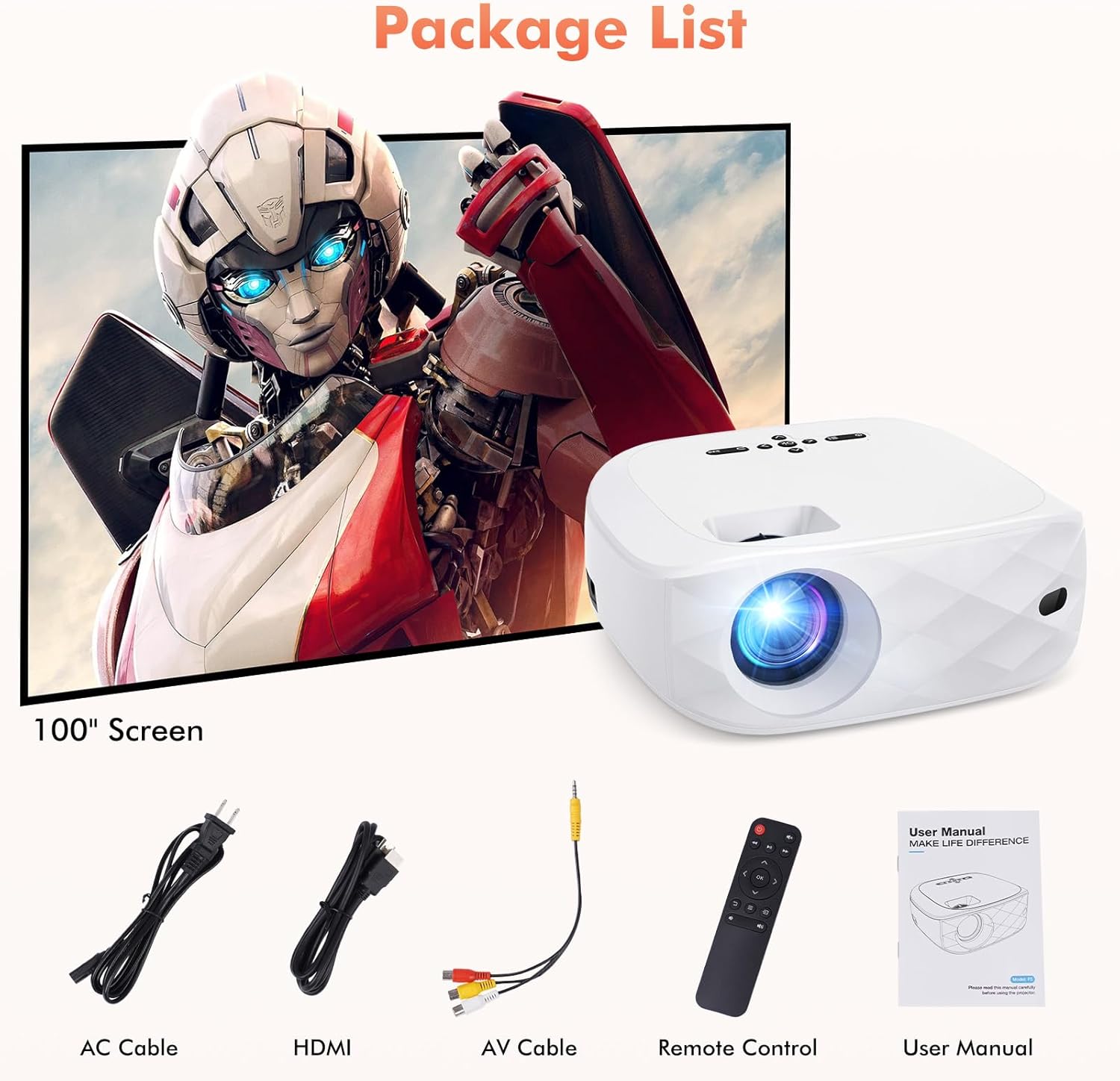
All items included in your HOWWOO Projector package.
- Power Cable
- 100-inch Projector Screen
- HDMI Cable
- 3-in-1 AV Cable
- Remote Control
- Portable Projector Lens Cover
- User Manual
Technical Specifications
| Feature | Specification |
|---|---|
| Brand | HOWWOO |
| Model Number | F5 |
| Display Resolution | 1920 x 1080 (Native 1080P) |
| Brightness | 12000Lux |
| Contrast Ratio | Up to 12000:1 |
| Connectivity Technology | Wireless (2.4+5G WiFi, Bluetooth 5.1) |
| Special Features | One-step Screen Mirroring, 4K Supported, Diffused Reflection |
| Product Dimensions | 9.45 x 7.8 x 3.7 inches |
| Item Weight | 0.634 ounces |
| Visible Screen Diagonal | 100" / 254 cm (included screen) |
Getting Started
Physical Setup
Place the projector on a stable, flat surface. Adjust the distance from the projection surface to achieve your desired screen size (40 to 200 inches). The projector includes a screw part at the bottom to adjust the projection angle.

Recommended projection distances and corresponding screen sizes.
Powering On
Connect the power cable to the projector's power input and plug it into a wall outlet. Press the power button on the projector or the remote control to turn it on.
Screen Mirroring (Wireless Connection)
The HOWWOO F5 projector supports one-step screen mirroring for iOS and Android phones, as well as Windows and MacBook laptops.
iOS & Android Phone Mirroring

Seamless one-step screen mirroring from your mobile device.

Detailed steps for connecting iOS and Android devices.
Official HOWWOO F5 projector connection guide for mobile devices.
Laptop (Windows & MacBook) Mirroring

Guide for connecting Windows and MacBook devices wirelessly.
Bluetooth Connection
Connect your projector to external Bluetooth speakers or headphones for an enhanced audio experience. The integrated 5W dual stereo speakers and SRS sound system also provide powerful, clear sound directly from the projector.

Connect to Bluetooth audio devices for a cordless experience.

Hassle-free Bluetooth connectivity for immersive audio.
Operating Your Projector
Basic Controls
Use the control panel on top of the projector or the included remote control to navigate menus, adjust settings, and control playback. The remote allows for power on/off, volume control, input source selection, and menu navigation.
Adjusting the Display
Customize your viewing experience with the 50% zoom function and the freedom to choose screen sizes from 40 to 200 inches. Adjust the focus ring on the projector lens for a clear image.

Enjoy a grand cinematic display beyond your TV.

Adjust screen size effortlessly with seamless zoom (50%-100%).
Multimedia Compatibility
The HOWWOO projector supports various devices for versatile entertainment. Connect streaming channels, TV sticks, laptops, game consoles, smartphones, tablets, and USB sticks.

Wide compatibility with various multimedia devices.

Note: Due to HDCP, copyrighted videos from services like Netflix, Amazon Prime Video, and Hulu must be played through a Fire/Roku Stick, computer, or laptop.
Care and Maintenance
- Cleaning the Lens: Use a soft, lint-free cloth specifically designed for optical lenses. Avoid abrasive materials or harsh chemicals.
- Cleaning the Projector Body: Wipe the exterior with a soft, dry cloth. For stubborn marks, a slightly damp cloth can be used, followed by a dry one.
- Ventilation: Ensure the projector's ventilation openings are clear and unobstructed to prevent overheating. Do not place the projector on soft surfaces that might block airflow.
- Storage: When not in use, store the projector in a cool, dry place, away from direct sunlight and extreme temperatures. Use the provided lens cover to protect the lens from dust.
Troubleshooting Common Issues
| Issue | Possible Solution |
|---|---|
| No picture/blurry image | Adjust the focus ring on the lens. Ensure the projector is within the recommended projection distance. Check input source selection. |
| No sound | Check volume settings on both the projector and the connected device. Ensure external speakers are properly connected or Bluetooth is paired correctly. Some streaming services may block audio due to copyright (HDCP). |
| Screen mirroring issues | Ensure both devices are on the same WiFi network (if applicable). Re-enter the PIN code. For streaming services, use a TV stick or connect via HDMI. |
| Remote control not working | Check and replace batteries (requires 2 AAA batteries, not included). Ensure no obstructions between the remote and the projector's IR receiver. |
| Overheating | Ensure ventilation vents are clear. Do not operate in enclosed spaces. Allow adequate space around the projector for airflow. |
Warranty and Customer Support

HOWWOO's commitment to customer satisfaction.
HOWWOO is committed to providing a sharper focus on a bigger picture. We offer a 2-year customer service and free replacement policy for your peace of mind. Our dedicated support team provides quick responses within 24 hours, a 30-day return policy with no reason required, 12-month exchange, and lifetime technical customer support.
For any inquiries or support needs, please refer to the contact information provided in your product's service card or visit the official HOWWOO store online.
