
1. Introduction
This manual provides detailed instructions for the setup, operation, maintenance, and troubleshooting of your ATOZEE 10-inch Tablet YQ10SMAX. Please read this manual thoroughly to ensure proper use and to maximize the performance and longevity of your device.
2. Getting Started
2.1 Package Contents
Verify that all items are present in your package:
- 1 x ATOZEE 10-inch Tablet
- 1 x Wireless Bluetooth Keyboard
- 1 x Wireless Bluetooth Mouse
- 1 x Vertical Protective Case
- 1 x Flexible Stylus Pen
- 1 x USB Type-C Cable

Image: The ATOZEE 10-inch Tablet shown with its complete accessory set, including the Bluetooth keyboard, mouse, stylus, and protective case.
2.2 Charging the Tablet
Before first use, fully charge your tablet. Connect the provided USB Type-C cable to the tablet's charging port and the other end to a compatible 5V2A power adapter (not always included) or a computer's USB port. The tablet features a 6000mAh battery, providing extended usage time.
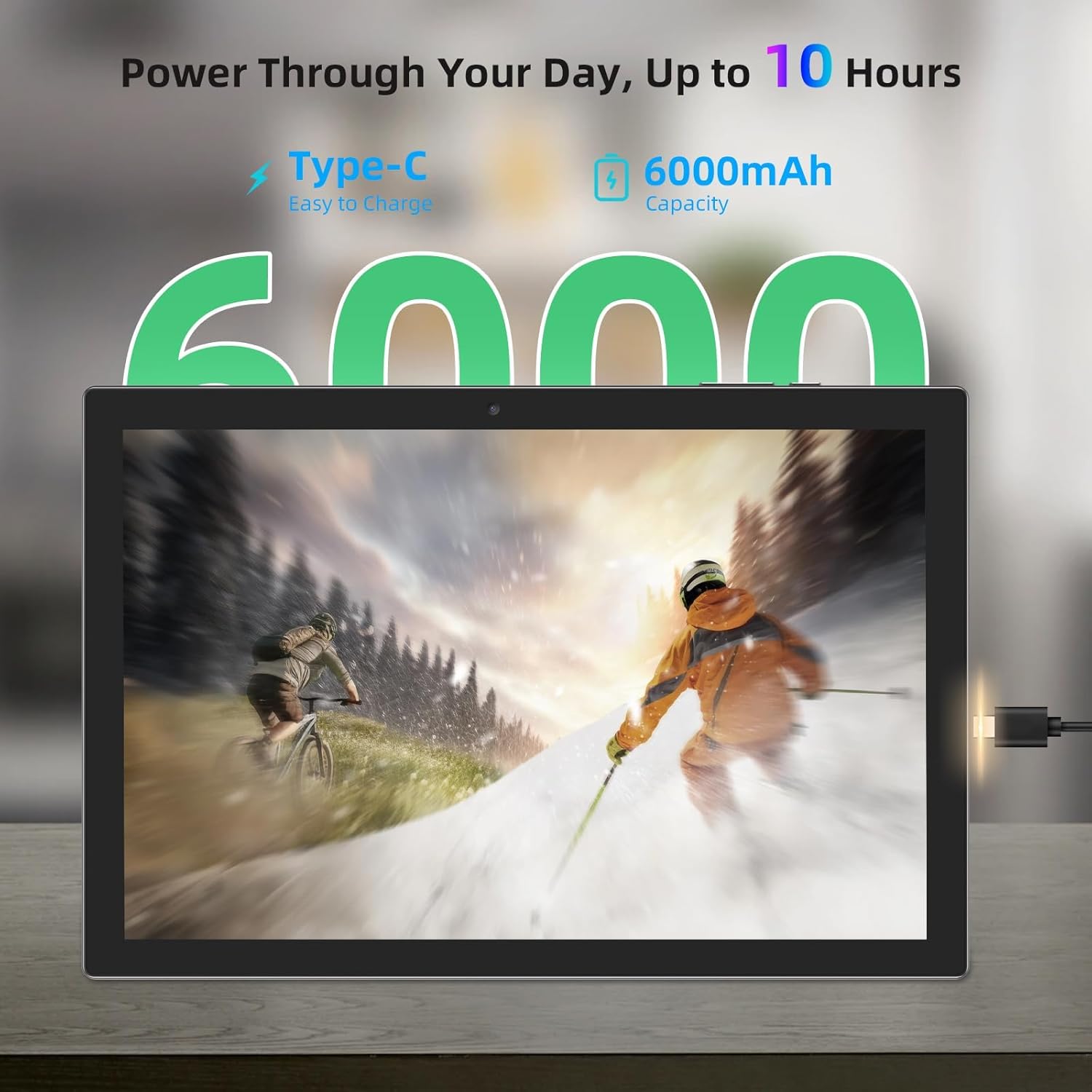
Image: A visual representation of the tablet's 6000mAh battery capacity and the convenience of Type-C charging.
2.3 Attaching the Protective Case
The included vertical protective case is designed to safeguard your tablet and can also function as a stand. Carefully align the tablet with the case and secure it in place. The case allows for various viewing angles, converting your tablet into a laptop or computer mode when combined with the keyboard and mouse.
3. Operating Your Tablet
3.1 Powering On/Off
- To Power On: Press and hold the power button until the screen illuminates.
- To Power Off: Press and hold the power button, then select 'Power Off' from the on-screen options.
- To Restart: Press and hold the power button, then select 'Restart' from the on-screen options.
3.2 Initial Setup and Wi-Fi Connection
Upon first power-on, follow the on-screen prompts to complete the initial Android 15 setup. This includes selecting your language, connecting to a Wi-Fi network, and setting up your Google account. The tablet supports dual-band 2.4G+5G Wi-Fi and the latest Wi-Fi 6 technology for efficient data transmission.
3.3 Connecting Bluetooth Accessories
Your tablet comes with a Bluetooth keyboard and mouse. To pair them:
- Ensure the keyboard and mouse are charged and powered on.
- On your tablet, go to Settings > Connected devices > Bluetooth.
- Turn on Bluetooth. The tablet will scan for available devices.
- Select the keyboard or mouse from the list of available devices and follow any on-screen pairing instructions.
3.4 Using the Stylus Pen
The flexible stylus pen allows for precise input, drawing, and navigation on the tablet's sensitive 10.1-inch IPS display. Simply touch the stylus to the screen as you would with your finger.
3.5 Storage Expansion
The tablet includes 128GB of internal storage (ROM) and supports expansion up to 2TB via a microSD card (not included). Insert a compatible microSD card into the designated slot to expand your storage for applications, media, and documents.
3.6 Camera Functionality
The tablet is equipped with an 8MP rear camera and a 2MP front camera, suitable for capturing photos, videos, and participating in video calls.

Image: A user engaged in a video conference call, demonstrating the tablet's functionality with connected keyboard and mouse.
3.7 Android 15 Features
Your tablet runs on the Android 15.0 operating system, offering enhanced performance, refined design, and stronger security. Key features include:
- Split Screen Function: Convenient multitasking by running two apps side-by-side.
- Privacy Protection: Advanced privilege management for enhanced data security.
- GMS Certification: Access to thousands of popular apps via Google Mobile Services.
- Improved Accessibility: More user-friendly features for diverse needs.

Image: The tablet's display showcasing the Android 15 interface and highlighting its core features.
4. Maintenance and Care
4.1 Battery Management
To prolong battery life:
- Avoid extreme temperatures.
- Charge the tablet before the battery is completely depleted.
- Disconnect the charger once the tablet is fully charged.
- Adjust screen brightness and close unused applications to conserve power.
4.2 Cleaning the Device
Use a soft, lint-free cloth to clean the screen and body of the tablet. Avoid using harsh chemicals or abrasive materials.
4.3 Software Updates
Regularly check for and install system updates to ensure optimal performance, security, and access to the latest features. You can usually find this option in Settings > System > System update.
5. Troubleshooting
This section addresses common issues you might encounter with your ATOZEE tablet.
5.1 Wi-Fi Connectivity Issues
- Ensure Wi-Fi is enabled in Settings.
- Restart your Wi-Fi router and the tablet.
- Forget the network and reconnect, entering the password again.
- Check if other devices can connect to the same Wi-Fi network.
5.2 Bluetooth Pairing Problems
- Ensure Bluetooth is enabled on both the tablet and the accessory.
- Place the devices close to each other during pairing.
- Make sure the accessory is in pairing mode.
- Restart both devices and attempt pairing again.
5.3 Slow Performance
- Close unused applications running in the background.
- Clear cache data for frequently used apps.
- Ensure sufficient storage space is available.
- Restart the tablet periodically.
5.4 Battery Drains Quickly
- Reduce screen brightness.
- Disable Wi-Fi, Bluetooth, and GPS when not in use.
- Limit background app refresh.
- Check battery usage in Settings to identify power-hungry apps.
5.5 Device Reset
If issues persist, you may consider performing a factory reset. Warning: This will erase all data on your tablet. Back up important data before proceeding. Go to Settings > System > Reset options > Erase all data (factory reset).
6. Product Specifications
| Feature | Specification |
|---|---|
| Model Name | YQ10SMAX |
| Operating System | Android 15 |
| Screen Size | 10.1 Inches |
| Screen Resolution | 1280 x 800 Pixels (1080P FHD IPS Display) |
| Processor | 2.0GHz Quad-Core |
| RAM | 18GB (including 12GB expansion) |
| Internal Storage (ROM) | 128GB |
| Expandable Storage | Up to 2TB via MicroSD card |
| Wireless Connectivity | Dual-band 2.4G+5G WiFi, WiFi 6, Bluetooth 5.0 |
| Battery Capacity | 6000mAh |
| Battery Life (Average) | Up to 8 hours (reading/browsing), 12 hours (standby) |
| Cameras | 8MP Rear, 2MP Front |
| Dimensions (LxWxH) | 10 x 7.5 x 0.4 inches |
| Item Weight | 1 pound |
7. Warranty and Support
7.1 Warranty Information
Your ATOZEE tablet comes with a 365-day warranty from the date of purchase, covering manufacturing defects. This warranty does not cover damage caused by misuse, accidents, unauthorized repairs, or normal wear and tear.
7.2 Technical Support
We offer lifetime technical support for your ATOZEE tablet. If you encounter any issues or have questions not covered in this manual, please contact our customer support team. Refer to your product packaging or purchase documentation for specific contact details.

