1. Introduction
Welcome to your Mars Gaming MNBC23 Laptop Cooling Pad. This manual provides essential information for setting up, operating, and maintaining your device. Please read it thoroughly to ensure proper use and to maximize the lifespan of your cooling pad.
2. Product Overview
Key Features
- Optimized Design: Foldable structure for portability, robust steel frame, aluminum grid, and ABS casing for durability and stability. Supports laptops up to 16 inches.
- Maximum Cooling: Six fans with blue LED lighting and adjustable speed control for efficient cooling.
- Total Ergonomics: 6-position adjustable stand for ergonomic posture.
- LED Lighting: Each of the 6 fans features blue LED lighting.
- Smartphone Support and Connectivity: Integrated smartphone holder and two USB 2.0 ports for external devices.
Components
- Mars Gaming MNBC23 Laptop Cooling Pad Unit
- Integrated Smartphone Holder
- USB-A to USB-A Cable (for power and data)
Product Views
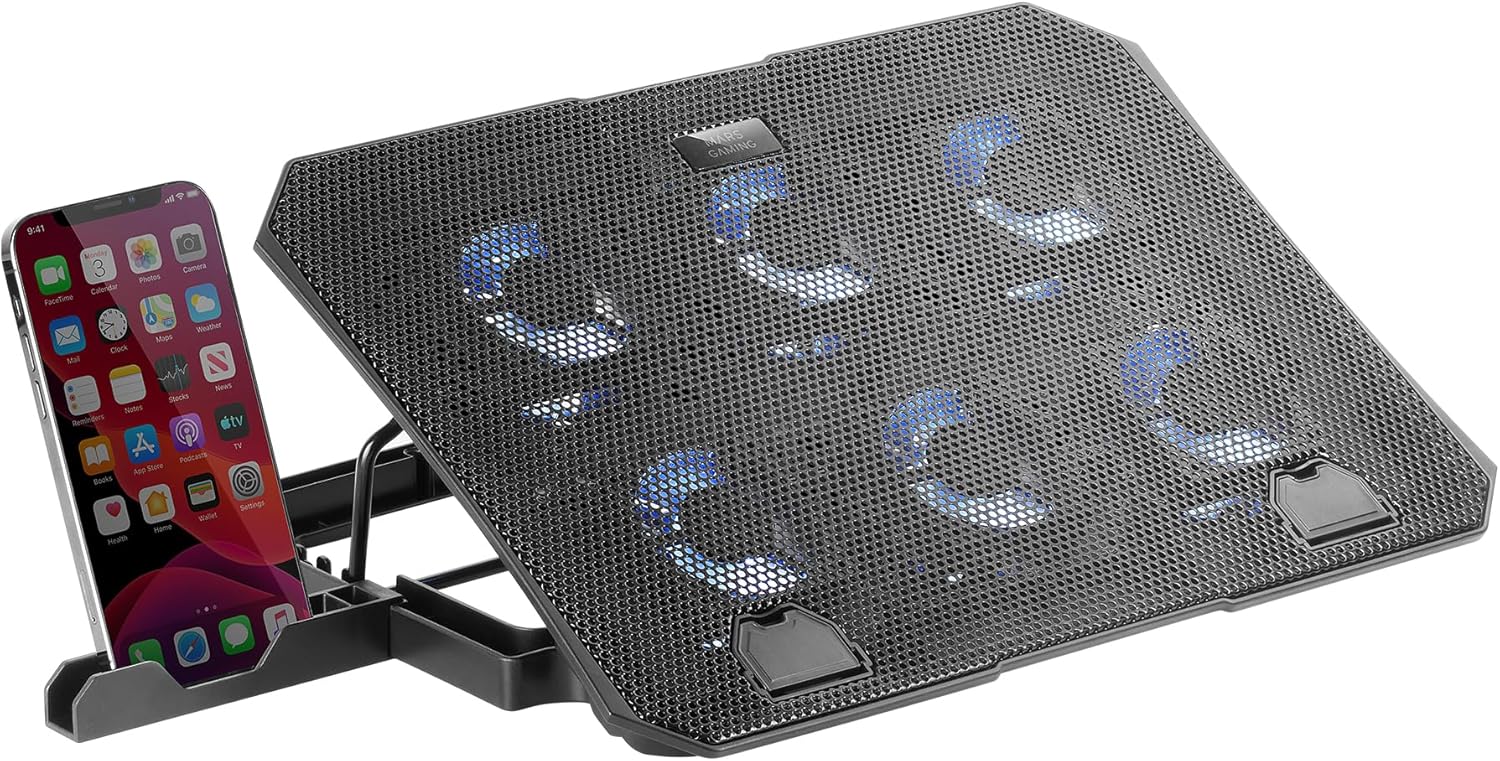
Figure 2.1: Mars Gaming MNBC23 Laptop Cooling Pad with an integrated smartphone holder, showcasing its overall design and blue LED fan lights.

Figure 2.2: Close-up view of the Mars Gaming MNBC23 cooling pad's six controllable fans with blue LED illumination, positioned next to a gaming keyboard.

Figure 2.3: Top-down view of the Mars Gaming MNBC23 cooling pad, highlighting its design as a laptop stand suitable for notebooks up to 16 inches.

Figure 2.4: Detailed view of the integrated smartphone holder on the side of the Mars Gaming MNBC23 cooling pad, designed to securely hold a mobile device.

Figure 2.5: Side view of the Mars Gaming MNBC23 cooling pad, showing the two USB 2.0 ports and the fan speed control dial.
3. Setup Instructions
3.1 Unpacking
- Carefully remove the cooling pad from its packaging.
- Ensure all components listed in the "Components" section are present.
3.2 Connecting to Your Laptop
- Place the Mars Gaming MNBC23 cooling pad on a stable, flat surface.
- Extend the adjustable stand to your desired height (refer to "Adjusting the Stand" for details).
- Place your laptop securely on the cooling pad.
- Connect the provided USB-A to USB-A cable from the cooling pad's USB IN port to an available USB port on your laptop. This supplies power to the fans and LEDs, and enables the additional USB ports on the cooling pad.
3.3 Adjusting the Stand
The cooling pad features a 6-position adjustable stand. Gently lift the laptop support frame and select one of the six available notches to set the desired ergonomic angle.

Figure 3.1: Side view of the Mars Gaming MNBC23 cooling pad demonstrating its 6-position adjustable stand, with a laptop placed on top at an elevated angle.
4. Operating Instructions
4.1 Fan Control
The cooling pad is equipped with a fan speed control dial located on the side, near the USB ports. Rotate the dial to adjust the fan speed from off to maximum. This allows you to regulate cooling performance and noise levels.
4.2 LED Lighting Control
The blue LED lighting on the fans activates automatically when the cooling pad is powered on. The lighting can be turned off by rotating the fan speed control dial to the 'off' position.
4.3 Using the USB Ports
The cooling pad includes two USB 2.0 ports. One port is used to connect the cooling pad to your laptop for power. The second port can be used to connect other USB peripherals, such as a mouse, keyboard, or external storage device.
4.4 Smartphone Holder
An integrated smartphone holder is located on the side of the cooling pad. Extend it to place your smartphone for convenient viewing while working or gaming.
5. Maintenance
5.1 Cleaning
To maintain optimal performance, regularly clean the cooling pad. Disconnect the cooling pad from your laptop before cleaning.
- Use a soft, dry cloth to wipe down the surfaces.
- For dust accumulation on the fan blades or grilles, use compressed air or a soft brush.
- Do not use liquid cleaners or abrasive materials, as these can damage the device.
6. Troubleshooting
6.1 Fans Not Spinning / LEDs Not Lighting Up
- Ensure the USB cable is securely connected to both the cooling pad and your laptop.
- Verify that your laptop's USB port is functioning correctly by testing it with another device.
- Check the fan speed control dial; ensure it is not in the 'off' position.
6.2 Insufficient Cooling
- Increase the fan speed using the control dial.
- Ensure there are no obstructions blocking the airflow to or from the fans.
- Clean any dust accumulation on the fans or grilles.
- Confirm your laptop's vents are not blocked.
6.3 Unstable Laptop
- Ensure the laptop is centered and properly seated on the cooling pad.
- Verify that the adjustable stand is securely locked into one of the positions.
- Ensure the anti-slip stoppers at the bottom front of the cooling pad are extended and supporting the laptop.
7. Specifications
| Feature | Detail |
|---|---|
| Brand | Mars Gaming |
| Model | MNBC23 |
| Color | Black |
| Material | Steel Alloy, Aluminum, ABS |
| Cooling Method | Air |
| Number of Fans | 6 |
| LED Lighting | Blue LED |
| Adjustable Positions | 6 |
| Laptop Compatibility | Up to 16 inches |
| Connectivity | 2 x USB 2.0 ports |
| Item Weight | 731 Grams |
| Product Dimensions | 25.1L x 33W x 3H centimeters |
| International Article Code | 08435693103417 |
8. Warranty and Support
8.1 Warranty Information
This product is covered by the standard manufacturer's warranty. Please refer to the warranty card included in your product packaging for specific terms and conditions. Keep your proof of purchase for warranty claims.
8.2 Customer Support
For technical assistance or further inquiries, please visit the official Mars Gaming website or contact their customer support for your region.


