Introduction
Thank you for choosing the Pettliant Automatic Pet Feeder, Model PF303. This advanced feeder is designed to provide a convenient and reliable feeding solution for your beloved cats and dogs. With its dual food bin and dual bowl design, APP control, and customizable feeding schedules, you can ensure your pets receive proper nutrition even when you are away. This manual will guide you through the setup, operation, and maintenance of your new pet feeder.
For optimal performance and longevity of your device, please read these instructions carefully before use and retain them for future reference.
Product Overview and Components
The Pettliant Automatic Pet Feeder features a thoughtful design for ease of use and pet health. Familiarize yourself with the main components:
- Main Feeder Unit: Houses the dispensing mechanism and control panel.
- Dual Food Bins: Transparent containers with a removable partition, allowing storage of two different food types. Total capacity 5L.
- Stainless Steel Bowls: Two food-grade stainless steel bowls for hygienic feeding.
- Lid with Desiccant Bag Compartment: Keeps food fresh and crunchy.
- Control Panel: Buttons for manual feeding and WiFi reset.
- Power Port: For connecting the DC power adapter.
- Battery Compartment: For backup power using 4*AA 1.5V alkaline batteries (not included).

Figure 1: Pettliant Automatic Pet Feeder with dual bowls and two cats. This image shows the overall design of the feeder, including the transparent food bins and the two stainless steel bowls.

Figure 2: Detailed view of the dual food bin and dual bowl design. The image highlights how two different types of pet food can be stored and dispensed separately into the two stainless steel bowls.

Figure 3: Illustration of the dual power supply modes. The diagram shows the DC power supply input and the battery compartment for 4*AA 1.5V alkaline batteries, ensuring uninterrupted operation.
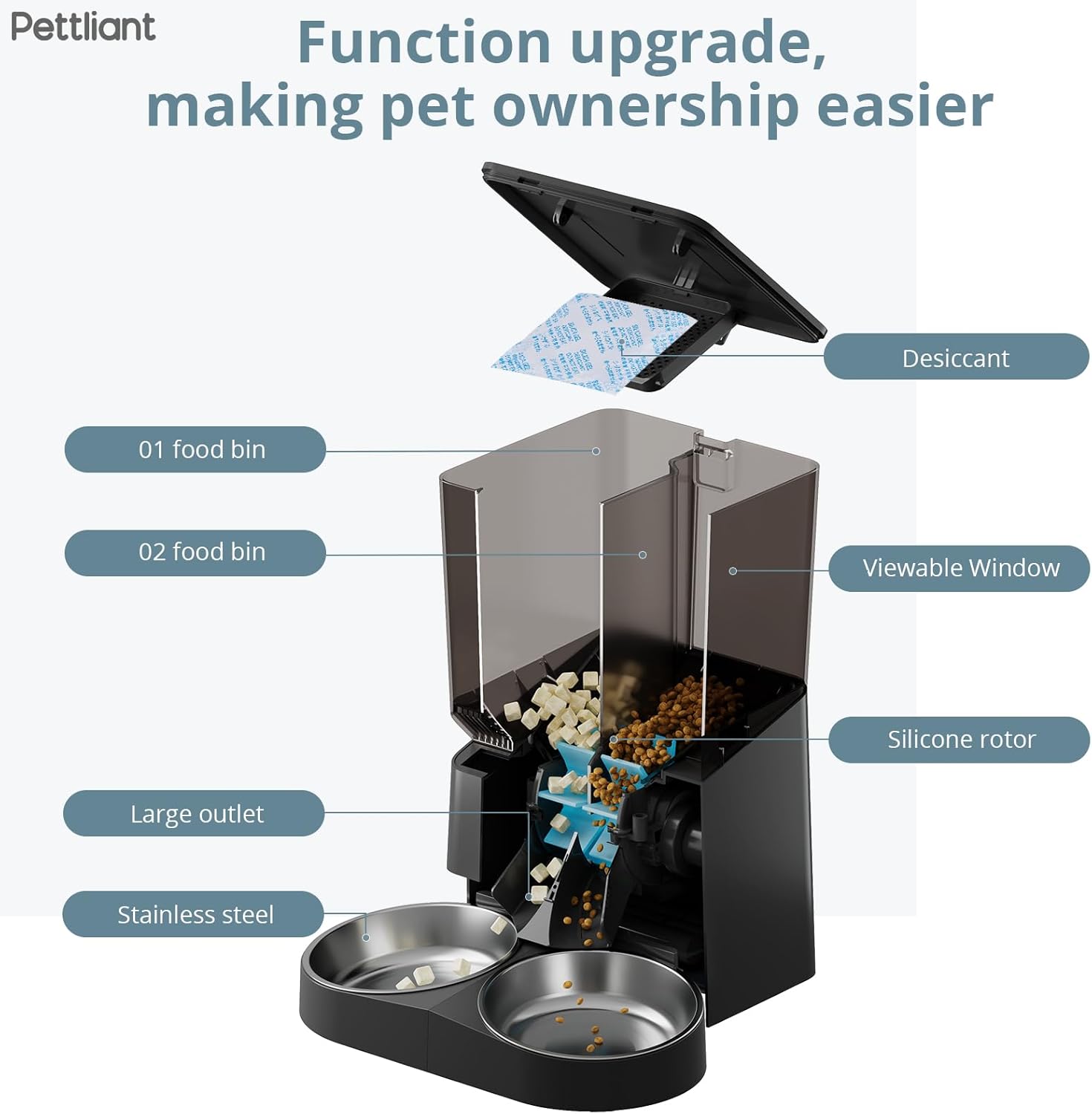
Figure 4: Exploded view of the feeder highlighting key components such as the desiccant, food bins, viewable window, silicone rotor, large outlet, and stainless steel bowls.
Setup Instructions
- Unpack and Assemble:
Carefully remove all components from the packaging. Ensure you have the main feeder unit, two stainless steel bowls, and the power adapter. Insert the stainless steel bowls into their designated slots on the feeder base.
- Power Supply:
Connect the DC power adapter to the power port on the back of the feeder and plug it into a wall outlet. For backup power during outages, install 4*AA 1.5V alkaline batteries (not included) into the battery compartment at the bottom of the unit. Ensure correct polarity.
- Download the APP:
Scan the QR code provided in the quick start guide (or search for the specified app name, e.g., "Tuya Smart" or "Smart Life" if not specified, I'll use a generic instruction) on your smartphone to download the companion mobile application. The app is available for both iOS and Android devices.
- Connect to Wi-Fi:
- Ensure your Wi-Fi network is 2.4GHz. The feeder does not support 5GHz Wi-Fi.
- Open the app and follow the on-screen instructions to add a new device.
- Press and hold the Wi-Fi reset button on the feeder (refer to the feeder's control panel for exact button location) until the indicator light flashes rapidly, indicating it's in pairing mode.
- Enter your Wi-Fi network name (SSID) and password in the app.
- Once connected, the indicator light will become solid, and the app will confirm successful pairing.
- Fill Food Bins:
Open the lid and fill the food bins with dry pet food. You can use the removable partition to separate two different types of food. Ensure the kibble size is between 2mm and 19mm for optimal dispensing. Do not use coarse grains larger than 22mm or wet grains to prevent clogging.

Figure 5: The voice recording feature allows you to record a 30-second message to call your pet at feeding time.

Figure 6: The app interface demonstrates independent control for "Container 1" and "Container 2", allowing separate feeding schedules for each food type.

Figure 7: Example of customizable feeding schedules, showing multiple meals and portions throughout the day for healthier pet feeding practices.
Operating Instructions
- Setting Feeding Schedules (via APP):
- Open the Pettliant app and select your feeder device.
- Navigate to the "Schedule" or "Feeding Plan" section.
- Add new feeding times. For each entry, you can specify:
- Time: The exact time of day for the meal.
- Container: Select "Container 1" or "Container 2" if using two food types.
- Portion Size: Adjust the number of portions (typically 1-20 servings) to dispense.
- Frequency: Set the number of meals per day (1-10 meals).
- Save your settings. The feeder will automatically dispense food according to your programmed schedule.
- Manual Feeding:
To dispense food instantly, press the manual feed button on the feeder's control panel or use the "Feed Now" option within the app. This will dispense one portion from the selected container (if applicable) or default container.
- Voice Recording:
Use the app to record a personalized 30-second voice message. This message will play automatically at each scheduled feeding time to call your pet to eat.
Maintenance and Cleaning
Regular cleaning ensures hygiene for your pets and extends the life of your feeder. The detachable design makes cleaning easy.
- Disassembly:
Unplug the feeder from the power outlet and remove any batteries. Detach the food bins and stainless steel bowls from the main unit.
- Cleaning Bowls and Bins:
Wash the stainless steel bowls and the transparent food bins with mild soap and water. Rinse thoroughly and dry completely before reassembling. Ensure no water enters the main feeder unit.
- Cleaning Main Unit:
Wipe the exterior of the main feeder unit with a soft, damp cloth. Do not immerse the main unit in water or expose it to excessive moisture. Use a dry brush or cloth to clean any food residue from the dispensing mechanism.
- Desiccant Bag:
Check the desiccant bag located in the lid. Replace it periodically (e.g., every 1-2 months) to maintain food freshness, especially in humid environments.
- Reassembly:
Once all parts are dry, reassemble the feeder. Ensure the food bins are securely clipped into place and the bowls are properly seated.
Troubleshooting
If you encounter issues with your Pettliant Automatic Pet Feeder, please refer to the following common problems and solutions:
| Problem | Possible Cause | Solution |
|---|---|---|
| Feeder not connecting to Wi-Fi / Wi-Fi indicator flashing. | Incorrect Wi-Fi password, 5GHz network, distance from router, temporary network issue. |
|
| Food not dispensing or jamming. | Kibble size too large/small, wet food, foreign object, dispensing mechanism obstruction. |
|
| Feeder unstable or easily toppled. | Lightweight design, active pets. |
|
| Dual chambers dispensing simultaneously when only one is selected. | Potential design issue or specific kibble interaction. |
|
| Feeder not powering on with AC adapter. | Faulty adapter, loose connection, power outlet issue. |
|
If the problem persists after trying these solutions, please contact Pettliant customer support for further assistance.
Specifications
| Feature | Detail |
|---|---|
| Model Number | PF303 |
| Brand | Pettliant |
| Capacity | 5 Liters (Dual Food Bins) |
| Dimensions | 30.5 x 16 x 34.7 cm |
| Weight | 2.07 kg |
| Material | Stainless Steel, Silicone |
| Target Species | Cat, Dog, Small pet |
| Power Supply | DC Power Adapter, 4*AA 1.5V Alkaline Batteries (backup) |
| Connectivity | 2.4G WiFi (APP Control) |
| Feeding Frequency | 1-10 meals per day |
| Portion Size | 1-20 servings per meal |
| Recommended Kibble Size | 2-19 mm |
Warranty and Support
For information regarding product warranty, please refer to the warranty card included with your purchase or contact the retailer where you purchased the Pettliant Automatic Pet Feeder.
If you require technical support, have questions about operation, or need assistance with troubleshooting beyond what is covered in this manual, please contact Pettliant customer service. Contact details can typically be found on the product packaging, the official Pettliant website, or through your purchase platform.
Please have your model number (PF303) and purchase details ready when contacting support.