
MiLESEEY NV20
MILESEEY NV20 Night Vision Monocular User Manual
Model: NV20 | Brand: MiLESEEY
1. Introduction
Thank you for choosing the MILESEEY NV20 Night Vision Monocular. This device is designed to provide clear observation in low-light and complete darkness conditions, making it ideal for various outdoor activities such as hunting, wildlife observation, camping, and security monitoring. Equipped with advanced infrared technology and a high-resolution sensor, the NV20 allows for both photo and video recording, capturing your experiences with exceptional clarity.
Please read this manual thoroughly before using the device to ensure proper operation and to maximize its performance and lifespan.
2. What's in the Box

Figure 2.1: Package Contents
The image displays all items included in the MILESEEY NV20 Night Vision Monocular package: the monocular device, a black carrying case, a black wrist strap, a USB-C charging cable, an 8GB SD card, and the user manual.
- MILESEEY NV20 Night Vision Monocular
- 8GB SD Card
- USB-C Charging Cable
- Grippy Strap
- Lens Cloth Cleaner
- User Manual
- Carrying Case
3. Product Overview

Figure 3.1: MILESEEY NV20 Front View
This image shows the main body of the MILESEEY NV20 Night Vision Monocular, highlighting the objective lens at the front, the infrared illuminator below it, and the control buttons on the top surface.
3.1 Key Components
- Objective Lens: 35mm lens for light gathering.
- Infrared (IR) Illuminator: Provides invisible light for night vision.
- Eyepiece: 52mm for comfortable viewing.
- Focusing Handwheel: Adjusts focus for clear images.
- Control Buttons: Power, IR level adjustment, Zoom, Record/Capture.
- TFT Color LCD Screen: 1.54-inch display for viewing and playback.
- USB-C Port: For charging and data transfer.
- Micro SD Card Slot: For storage of photos and videos.
- Tripod Mount: Standard 1/4-inch thread for tripod attachment.
4. Setup
4.1 Charging the Battery
The NV20 is equipped with a built-in 3000mAh rechargeable battery. Before first use, fully charge the device.
- Locate the USB-C port on the side of the monocular, usually protected by a rubber flap.
- Connect the provided USB-C charging cable to the port.
- Connect the other end of the cable to a compatible USB power adapter (e.g., 5V/1A).
- The charging indicator on the device will show charging status. A full charge typically takes about 4 hours.
Important: Please DO NOT use an adapter above 5.5V to charge the device to prevent damage.
4.2 Inserting the Micro SD Card
The device supports Micro SD cards for storing photos and videos. An 8GB SD card is included.
- Open the rubber flap covering the USB-C port and SD card slot.
- Insert the Micro SD card into the designated slot with the gold contacts facing down, until it clicks into place.
- To remove the card, gently push it in until it clicks again, and it will spring out.
5. Operating Instructions
5.1 Power On/Off
- Power On: Press and hold the Power button (usually the central button on top) for approximately 3-5 seconds until the screen illuminates and the MILESEEY logo appears.
- Power Off: Press and hold the Power button again for 3-5 seconds until the screen turns off.
5.2 Adjusting Focus

Figure 5.1: Adjusting Focus
The image illustrates the focusing handwheel on the monocular, with an arrow indicating rotation to adjust the focus from a blurry to a clear image. Insets show blurry and clear examples.
- Eyepiece Focus: Rotate the eyepiece ring to adjust the diopter for your individual vision, ensuring the on-screen display is sharp.
- Objective Focus: Rotate the focusing handwheel near the objective lens to bring distant objects into sharp focus. Adjust until the image on the screen is clear.
5.3 Night Vision Modes and IR Levels
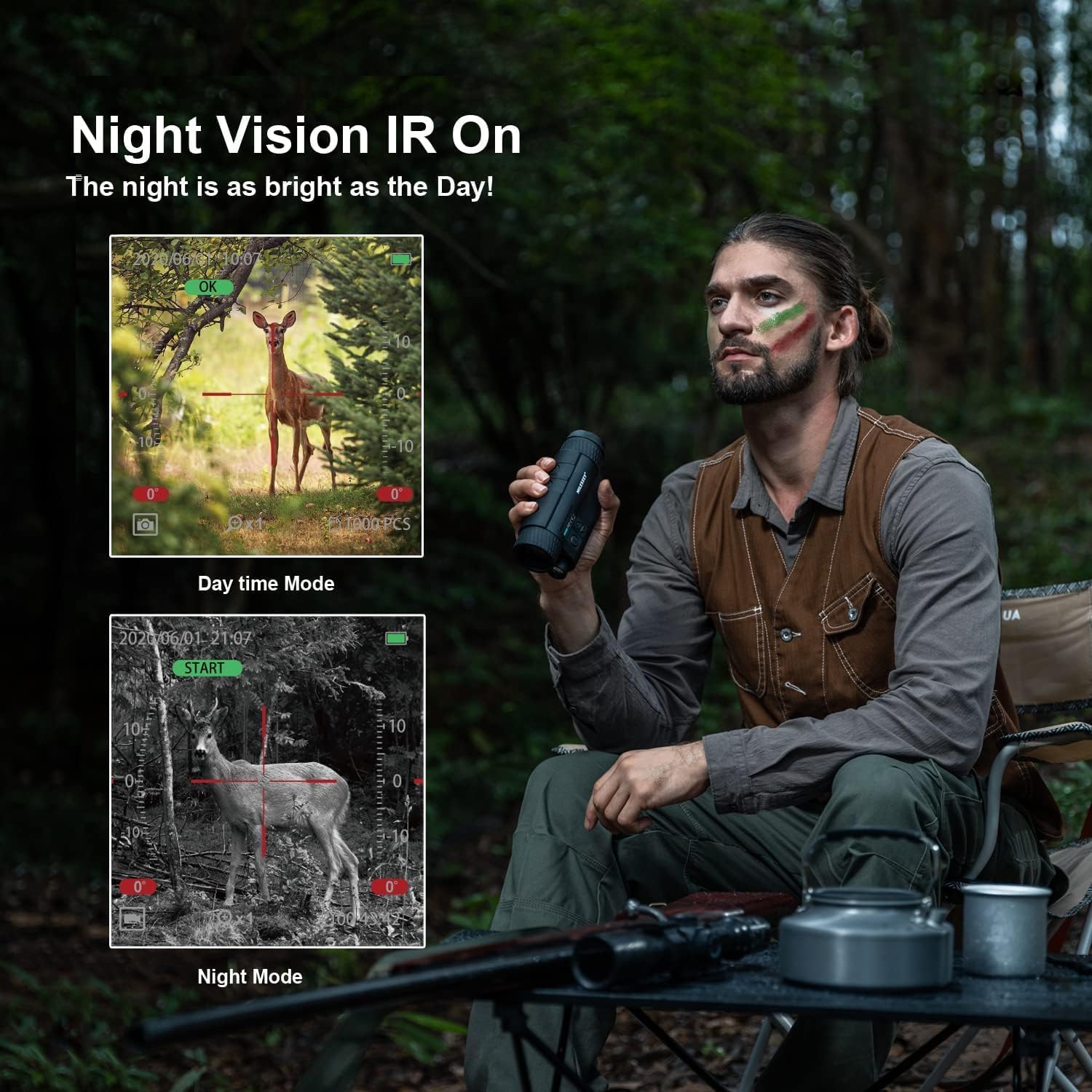
Figure 5.2: Day Mode vs. Night Vision IR On
This image demonstrates the difference between Day Time Mode (color) and Night Mode (black and white with IR activated) when observing a deer, showcasing the monocular's capability to provide clear vision in darkness.
The NV20 operates in both day and night modes. In night mode, the infrared illuminator can be activated and adjusted.
- Day Mode: The device displays images in full color. IR is off.
- Night Mode: The device displays images in black and white. The IR illuminator can be activated.
- Adjusting IR: Press the IR button (often labeled with a light bulb or sun icon) to cycle through 5 levels of infrared brightness. Higher levels provide more illumination in complete darkness but consume more battery.
5.4 Zoom Function
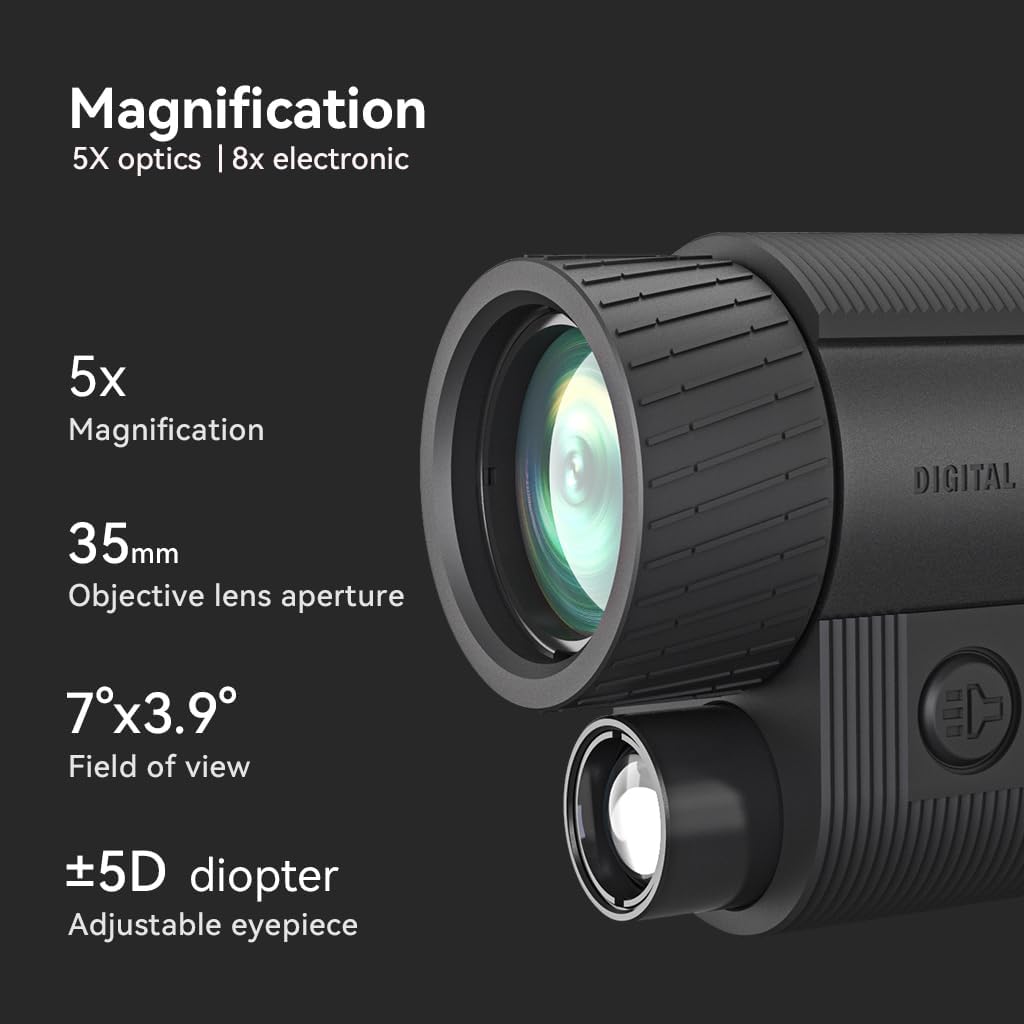
Figure 5.3: Magnification Details
This image highlights the optical and electronic magnification features of the monocular, showing 5x optical magnification and 8x electronic magnification, along with the 35mm objective lens aperture, 7°x3.9° field of view, and ±5D diopter adjustable eyepiece.
The NV20 offers both optical and digital zoom capabilities.
- Optical Zoom: The device has a fixed 6X optical magnification.
- Digital Zoom: Use the Up/Down arrow buttons to digitally zoom in or out, up to 8X.
5.5 Photo and Video Recording

Figure 5.4: Recording Photos and Videos
This image shows a user holding the monocular, with insets displaying the device's screen interface for capturing photos and recording videos, indicating the ability to record and play back moments.
- Take a Photo: While in observation mode, press the Record/Capture button (often marked with a camera icon) once to take a still photo.
- Record Video: Press and hold the Record/Capture button for a few seconds to start video recording. Press again to stop recording.
5.6 Playback and File Transfer
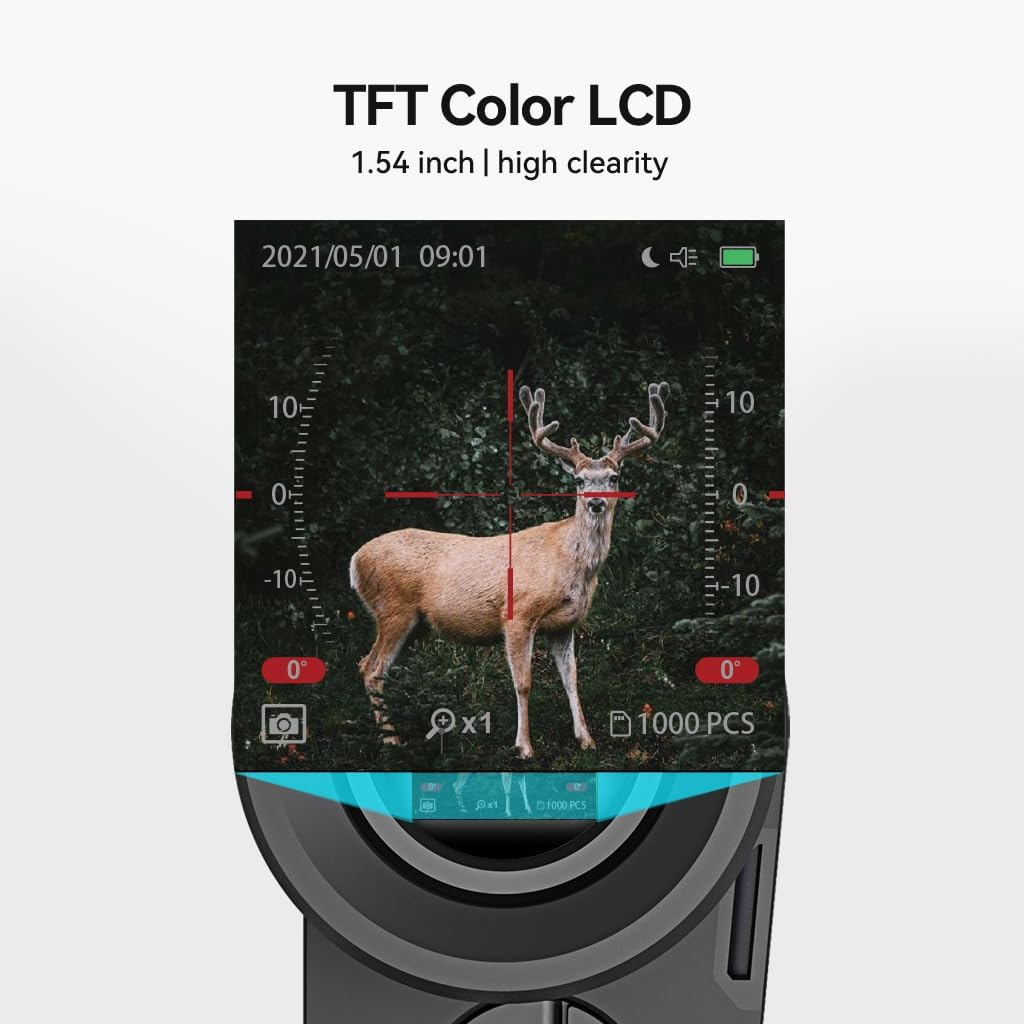
Figure 5.5: TFT Color LCD Display
This image provides a close-up view of the 1.54-inch TFT Color LCD screen of the monocular, showing a clear, detailed image of a deer, demonstrating the high clarity of the display.
- Playback on Device: Enter playback mode via the menu. Use the arrow buttons to navigate through your recorded photos and videos.
- File Transfer: Connect the monocular to a computer using the USB-C cable. The device will appear as a removable disk, allowing you to copy files directly.
5.7 Menu Navigation
Access the device settings and options through the menu. The menu allows adjustment of brightness, contrast, date/time, resolution, and other parameters.
- Press the Menu button (often marked with 'M' or a gear icon) to enter the menu.
- Use the Up/Down arrow buttons to navigate through menu options.
- Press the Record/Capture button to select an option or confirm a setting.
- Press the Menu button again to exit the menu.
5.8 Official Product Video
Video 5.1: NV20 Night Vision Introduction
This video provides an official introduction to the MILESEEY NV20 Night Vision Monocular, demonstrating its key features and capabilities in various scenarios. It highlights the device's performance in both day and night conditions, showcasing its optical and digital zoom, and the clarity of its display.
6. Maintenance
- Cleaning: Use the provided lens cloth cleaner to gently wipe the lenses. For the body, use a soft, dry cloth. Avoid abrasive materials or harsh chemicals.
- Storage: Store the monocular in its carrying case in a cool, dry place when not in use. Avoid extreme temperatures and high humidity.
- Battery Care: To prolong battery life, avoid fully discharging the battery frequently. If storing for extended periods, charge the battery to about 50% every few months.
- Water Resistance: The device is designed for outdoor use but is not fully waterproof. Avoid submerging it in water or exposing it to heavy rain.
7. Troubleshooting
| Problem | Possible Cause | Solution |
|---|---|---|
| Device does not power on. | Low battery; Power button not held long enough. | Charge the battery fully; Press and hold the Power button for 3-5 seconds. |
| Image is blurry. | Improper focus; Dirty lens. | Adjust both eyepiece and objective focus; Clean the lenses with the provided cloth. |
| Poor night vision performance. | IR illuminator off or too low; Insufficient ambient light. | Increase IR level; Ensure there is some ambient light for optimal performance (if not in complete darkness). |
| Cannot record photos/videos. | SD card full or not inserted correctly; Device in wrong mode. | Check/reinsert SD card, delete old files; Ensure device is in photo/video mode. |
| Short battery life. | High IR level usage; Frequent recording; Old battery. | Reduce IR level if possible; Limit continuous recording; Consider battery replacement if very old. |
8. Specifications
| Feature | Detail |
|---|---|
| Model Name | NV20 |
| Objective Lens Diameter | 35 mm |
| Optical Magnification | 6X |
| Digital Zoom | Up to 8X |
| Infrared Levels | 5 Levels |
| Viewing Range (Complete Dark) | Up to 380 yards |
| Viewing Range (Moonlight) | Up to 550 yards |
| Sensor | Dedicated Sony IMX Sensor |
| Display Screen | 1.54-inch TFT Color LCD |
| Battery Capacity | 3000mAh (Built-in) |
| Charging Port | USB-C |
| Storage | Micro SD Card (8GB included) |
| Material | Nylon |
| Color | BLACK |
| Item Weight | 0.78 Kilograms (Package Weight) |
9. Warranty and Support
MILESEEY provides excellent after-sales service for the NV20 Night Vision Monocular. For specific warranty details, including coverage period and terms, please refer to the warranty card included with your product or visit the official MiLESEEY website.
If you encounter any issues or have questions regarding the operation, maintenance, or troubleshooting of your device, please contact MILESEEY customer support through the contact information provided in your product packaging or on their official website. Please have your product model and purchase information ready when contacting support.
Online Resources:
- Visit the MiLESEEY Store on Amazon: MiLESEEY Amazon Store
Ask a question about this manual
Ask about setup, troubleshooting, compatibility, parts, safety, or missing instructions. Manuals+ will review the question and use this page’s manual context to help answer it.