1. Introduction
Thank you for choosing the AVATTO N-CSM01-2 Smart Curtain Switch Module. This module allows you to control your motorized curtains or blinds remotely via Wi-Fi using the Tuya Smart Life application, or through voice commands when integrated with compatible smart home assistants. Please read this manual carefully before installation and use to ensure proper operation and safety.
2. Safety Information
- Ensure power is disconnected before installation or maintenance to prevent electric shock.
- Installation should be performed by a qualified electrician or a person with electrical knowledge.
- Do not exceed the maximum load specified for the device.
- Operate the device within the specified voltage range.
- Keep the device away from water and high humidity environments.
3. Product Overview and Specifications
The AVATTO N-CSM01-2 is a compact Wi-Fi module designed to convert traditional curtain switches into smart controls. It supports two channels for independent control of two curtain motors or one motor with open/close functionality.
3.1 Technical Specifications
- Model: N-CSM01-2
- Input Voltage: AC100-240V, 50/60Hz
- Max. Load: 2x3A
- Wireless Protocol: Wi-Fi (2.4GHz)
- Control App: Tuya Smart / Smart Life
- ASIN: B0C9YN2K3P
- Manufacturer Reference: 2829
3.2 Wiring Diagram
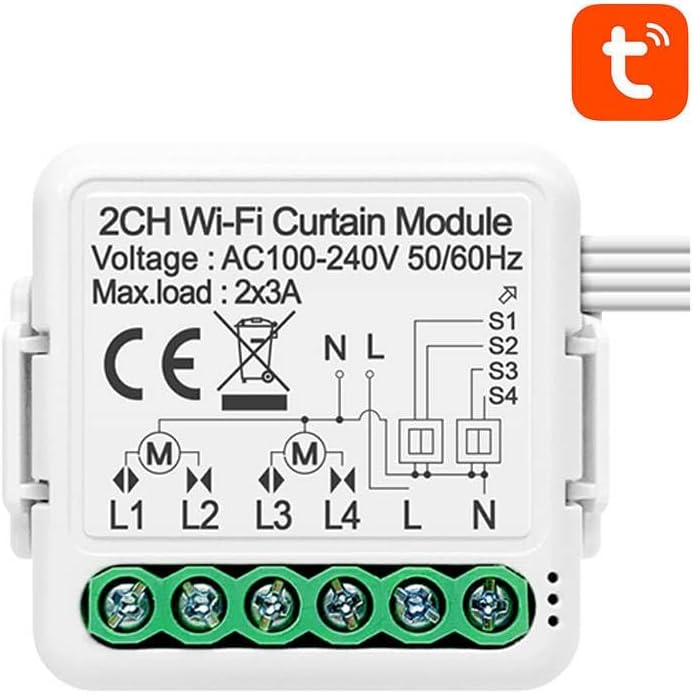
Figure 1: Front view of the AVATTO N-CSM01-2 module showing input voltage, max load, and detailed wiring terminals (L1, L2, L3, L4 for motor connections, L, N for power input, and S1, S2, S3, S4 for external switch connections).
3.3 Module Dimensions

Figure 2: Back view of the AVATTO N-CSM01-2 module, illustrating its compact design suitable for integration behind existing switches or within junction boxes.
4. Setup and Installation
4.1 Electrical Installation
- Disconnect Power: Before starting, ensure the main power supply to the circuit is turned off at the circuit breaker.
- Identify Wires: Locate the Live (L) and Neutral (N) wires for power input, and the motor control wires (typically Open, Close, and Common/Neutral for the motor).
- Connect Power Input: Connect the Live (L) wire from your power supply to the 'L' terminal on the module and the Neutral (N) wire to the 'N' terminal on the module.
- Connect Motor:
- For a single motor with Open/Close: Connect the motor's 'Open' wire to L1, 'Close' wire to L2, and the motor's Neutral/Common to L. (Refer to Figure 1 for L, N, L1, L2, L3, L4 connections).
- For two independent motors: Connect Motor 1's Open to L1, Close to L2. Connect Motor 2's Open to L3, Close to L4. Ensure both motors share a common Neutral connected to the 'L' terminal on the module (as per diagram, 'L' is common for motor outputs).
- Connect External Switches (Optional): If using traditional physical switches, connect them to S1, S2, S3, S4 terminals as per your desired configuration. S1/S2 typically control L1/L2, and S3/S4 control L3/L4.
- Secure Module: Place the module securely within the switch box or junction box, ensuring no wires are pinched.
- Restore Power: Turn the main power supply back on.
4.2 App Pairing (Tuya Smart / Smart Life)
- Download App: Download the "Tuya Smart" or "Smart Life" app from your smartphone's app store (iOS or Android).
- Register/Login: Open the app and register for a new account or log in to an existing one.
- Enter Pairing Mode: After powering on the module, it should automatically enter pairing mode (indicated by a rapidly blinking indicator light, if present). If not, press and hold the reset button (if available, or the connected physical switch for 5-10 seconds) until the indicator blinks rapidly.
- Add Device: In the app, tap the '+' icon in the top right corner to add a device. Select "Curtain Switch" or "Curtain Module" from the device list.
- Confirm Blinking: Confirm that the indicator light is blinking rapidly in the app.
- Connect to Wi-Fi: Enter your 2.4GHz Wi-Fi network name and password. The module does not support 5GHz Wi-Fi.
- Pairing: The app will begin searching for and connecting to the device. Once connected, you can rename the device and assign it to a room.
5. Operating the Module
5.1 App Control
- Open the Tuya Smart or Smart Life app and select your curtain module.
- You will see controls for "Open", "Close", and "Stop" for each connected curtain.
- You can also set schedules, timers, and create scenes for automated operation.
- Adjust the opening percentage for precise control (if supported by your motor and app calibration).
5.2 Voice Control (with compatible assistants)
Once integrated with Amazon Alexa or Google Assistant (via the Tuya Smart/Smart Life app settings), you can use voice commands:
- "Alexa, open [Curtain Name]"
- "Hey Google, close [Curtain Name]"
- "Alexa, stop [Curtain Name]"
- "Hey Google, set [Curtain Name] to 50%" (if percentage control is calibrated)
5.3 Manual Control (via connected physical switches)
If you have connected traditional physical switches, you can still operate your curtains manually by pressing the corresponding switch buttons.
6. Maintenance
- Cleaning: Gently wipe the module with a dry, soft cloth if necessary. Do not use liquid cleaners or solvents.
- Firmware Updates: Periodically check the Tuya Smart/Smart Life app for available firmware updates to ensure optimal performance and security.
- Environmental Conditions: Ensure the module is kept within its operating temperature and humidity ranges.
7. Troubleshooting
| Problem | Possible Cause | Solution |
|---|---|---|
| Module not powering on. | No power supply; incorrect wiring. | Check circuit breaker. Verify L and N wiring connections. |
| Cannot pair with app. | Incorrect Wi-Fi password; 5GHz Wi-Fi network; module not in pairing mode. | Ensure 2.4GHz Wi-Fi. Re-enter password. Put module into pairing mode (rapid blinking). |
| Curtain motor not responding. | Incorrect motor wiring; motor fault; module fault. | Verify L1/L2/L3/L4 and motor common wiring. Test motor independently if possible. |
| Curtain moves in wrong direction. | Motor wires reversed (Open/Close). | Swap L1 and L2 (or L3 and L4) connections for the affected motor. |
| App shows "Offline". | Wi-Fi signal weak; router issues; module lost connection. | Check Wi-Fi signal strength. Restart router. Re-pair module if necessary. |
8. Warranty and Support
For warranty information and technical support, please refer to the documentation provided by the retailer or manufacturer at the time of purchase. General return policies are subject to the retailer's terms and conditions.
For further assistance, you may contact AVATTO customer support or consult the Tuya Smart / Smart Life app's help section.


