1. Introduction
This manual provides comprehensive instructions for the setup, operation, maintenance, and troubleshooting of your Sonnet Echo 20 Thunderbolt 4 SuperDock. Please read this manual thoroughly before using the device to ensure proper functionality and safety.
The Sonnet Echo 20 Thunderbolt 4 SuperDock is a versatile docking station designed to expand the connectivity of your computer, offering a wide array of ports for peripherals, displays, and network connections, along with power delivery and internal storage expansion capabilities.
2. Product Overview
2.1 Key Features
- Extensive Connectivity: Features three Thunderbolt 4 ports, four USB 3.2 Gen 2 Type-A ports, four USB 3.2 Gen 2 Type-C charging ports, an HDMI port, RJ45 2.5 Gigabit Ethernet, 3.5mm combo audio, 3.5mm microphone, line-level R+L RCA audio out, SD 4.0 card slot, and an M.2 SSD slot.
- High-Resolution Display Support: Supports single displays up to 8K @60Hz, or dual displays up to 6K @60Hz.
- Power Delivery: Provides up to 100W of power to charge your connected laptop via the Thunderbolt 4 cable.
- Internal Storage Expansion: Includes an M.2 NVMe SSD slot, allowing for up to 8TB of additional storage with data transfer speeds up to 800MB/s (SSD sold separately).
- Broad Compatibility: Compatible with Apple M-series Macs, Thunderbolt 3 Intel Macs, Thunderbolt 3 and 4 Windows computers, Thunderbolt 4/USB4 Chromebooks, and M-series iPad Pro.
2.2 Port Layout
The Sonnet Echo 20 SuperDock features a comprehensive array of ports on its front and rear panels to accommodate various devices and connections.

Figure 2.2.1: Overview of the Sonnet Echo 20 Thunderbolt 4 SuperDock with labeled ports and typical connections.

Figure 2.2.2: Detailed diagram illustrating the front and rear panel ports of the SuperDock.
- Front Panel:
- Combo Audio Jack (3.5mm): For headphones or headsets.
- USB 3.2 Gen 2 Type-A Ports (x2): For connecting USB-A devices.
- USB 3.2 Gen 2 Type-C Charging Ports (x2): For connecting and charging USB-C devices.
- SD 4.0 Card Slot: For reading SD cards.
- Rear Panel:
- 20VDC 7.5A Power Input: Connect the included power adapter here.
- HDMI 2.1 Port: For connecting an external display.
- Thunderbolt 4 Computer/100W Charging Port: Connects to your host computer and provides power delivery.
- Thunderbolt 4 Peripheral Ports (x2): For connecting additional Thunderbolt devices or displays.
- 2.5 Gigabit Ethernet Port: For wired network connection.
- USB 3.2 Gen 2 Type-A Ports (x2): For connecting USB-A devices.
- USB 3.2 Gen 2 Type-C Charging Ports (x2): For connecting and charging USB-C devices.
- Audio Line Out Jacks (R+L RCA): For connecting to external speakers or audio systems.
- Microphone Jack (3.5mm): For connecting an external microphone.
- Bottom Panel:
- M.2 SSD Slot: Accessible via the bottom panel cover for installing an NVMe SSD.
3. Setup
3.1 What's in the Box

Figure 3.1.1: Included items in the Sonnet Echo 20 Thunderbolt 4 SuperDock package.
Verify that all components are present:
- Sonnet Echo 20 Thunderbolt 4 SuperDock unit
- Power Adapter
- Power Cord
- Thunderbolt 4 Cable
- User's Guide (this manual)
3.2 Initial Connection
- Connect Power: Plug the power adapter into the 20VDC 7.5A input port on the rear of the SuperDock, then connect the power cord to a wall outlet.
- Connect to Host Computer: Use the included Thunderbolt 4 cable to connect the Thunderbolt 4 Computer/100W Charging Port on the SuperDock to a Thunderbolt 4, Thunderbolt 3, or USB4 port on your computer. This connection also provides up to 100W of power to charge your laptop.
- Install M.2 NVMe SSD (Optional):
- Unscrew and remove the bottom panel cover of the SuperDock.
- Carefully insert your M.2 NVMe SSD into the designated slot.
- Secure the SSD with the provided screw or retention mechanism.
- Replace the bottom panel cover and secure it.
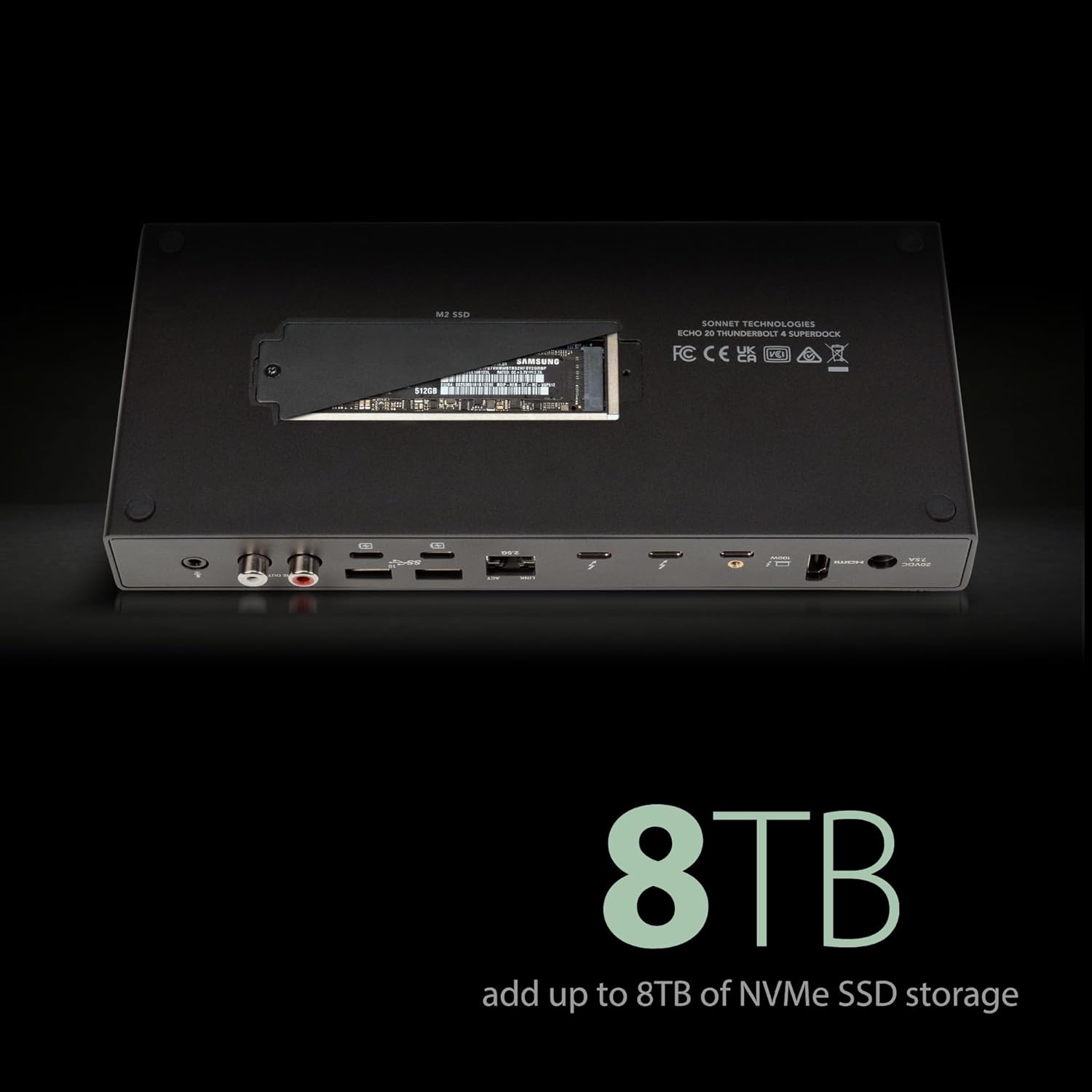
Figure 3.2.1: Location of the M.2 NVMe SSD slot on the bottom of the SuperDock.
- Connect Peripherals: Connect your desired peripherals such as external displays, USB devices, Ethernet cable, audio devices, and SD cards to the appropriate ports on the SuperDock.
4. Operating Instructions
4.1 Power On/Off
The Sonnet Echo 20 SuperDock does not have a dedicated power button. It powers on automatically when connected to a powered host computer and turns off when the host computer is shut down or disconnected.
4.2 Connecting Displays
The SuperDock supports various display configurations:
- Single Display: Connect a single display to the HDMI 2.1 port for resolutions up to 8K @60Hz. Alternatively, use one of the Thunderbolt 4 peripheral ports with a compatible USB-C to DisplayPort/HDMI adapter for resolutions up to 8K @60Hz.
- Dual Displays: Connect two displays to the Thunderbolt 4 peripheral ports using compatible USB-C to DisplayPort/HDMI adapters for resolutions up to 6K @60Hz each.

Figure 4.2.1: The SuperDock supports various high-resolution display configurations, including single 8K or dual 6K displays.
4.3 Using USB Devices
Connect your USB-A and USB-C devices to the respective ports on the front and rear panels. The USB 3.2 Gen 2 ports offer data transfer speeds up to 10Gbps. The USB-C charging ports provide power for charging compatible devices.
4.4 Network Connection
Connect an Ethernet cable from your router or network switch to the 2.5 Gigabit Ethernet port on the rear panel for a high-speed wired network connection.

Figure 4.4.1: The 2.5 Gigabit Ethernet port provides a stable and fast network connection.
4.5 Audio Connections
Use the 3.5mm combo audio jack on the front for headphones or headsets. The rear panel features a dedicated 3.5mm microphone jack and line-level R+L RCA audio output jacks for connecting to external speakers or audio systems.
4.6 SD Card Usage
Insert your SD 4.0 compatible memory cards into the front SD card slot for fast data transfer. The slot supports various SD card formats, including SDHC and SDXC.

Figure 4.6.1: The SD 4.0 card slot supports high-speed data transfer from compatible memory cards.
4.7 Internal SSD Usage
After installing an M.2 NVMe SSD (as described in Section 3.2), the SSD will appear as an external drive on your computer. You may need to format the SSD before use, depending on your operating system and prior usage. This slot provides speeds up to 800MB/s, ideal for backups or additional storage.

Figure 4.7.1: The internal M.2 SSD slot allows for significant storage expansion.
5. Maintenance
5.1 Cleaning
To clean the SuperDock, disconnect it from power and all connected devices. Use a soft, dry, lint-free cloth. Do not use liquid cleaners or aerosol sprays, as these may damage the device.
5.2 Storage
When not in use for extended periods, store the SuperDock in a cool, dry place away from direct sunlight and extreme temperatures.
5.3 Firmware Updates
Periodically check the Sonnet Technologies website for any available firmware updates for your Echo 20 Thunderbolt 4 SuperDock. Firmware updates can improve performance, add features, or resolve compatibility issues.
6. Troubleshooting
If you encounter issues with your Sonnet Echo 20 Thunderbolt 4 SuperDock, refer to the following common troubleshooting steps:
| Problem | Possible Cause | Solution |
|---|---|---|
| Dock not recognized by computer. | Loose connection, incompatible port, driver issue. |
|
| No display output. | Incorrect cable, display settings, incompatible resolution. |
|
| USB devices not working. | Power issue, faulty device, driver issue. |
|
| M.2 SSD not detected. | Improper installation, unformatted drive. |
|
If the problem persists after attempting these steps, please contact Sonnet Technologies customer support.
7. Specifications
| Feature | Detail |
|---|---|
| Model Number | ECHO-DK20-T4 |
| Interfaces | 3x Thunderbolt 4, 4x USB 3.2 Gen 2 Type-A, 4x USB 3.2 Gen 2 Type-C (charging), 1x HDMI 2.1, 1x RJ45 2.5 Gigabit Ethernet, 1x 3.5mm Combo Audio, 1x 3.5mm Microphone, 1x Line-level R+L RCA Audio Out, 1x SD 4.0 Card Slot, 1x M.2 NVMe SSD Slot |
| Display Support | Single display up to 8K @60Hz, Dual displays up to 6K @60Hz |
| Power Delivery | Up to 100W to host computer |
| M.2 SSD Support | Up to 8TB NVMe SSD (800MB/s transfer speed) |
| Compatibility | Apple M-series Macs, Thunderbolt 3 Intel Macs, Thunderbolt 3/4 Windows computers, Thunderbolt 4/USB4 Chromebooks, M-series iPad Pro |
| Dimensions (L x W x H) | 9.63 x 4.25 x 1.38 inches (24.46 x 10.80 x 3.51 cm) |
| Weight | 1.75 pounds (0.79 kg) |
| Manufacturer | Sonnet Technologies |
8. Warranty and Support
For warranty information and technical support, please visit the official Sonnet Technologies website or contact their customer service department. Keep your purchase receipt as proof of purchase for warranty claims.
Sonnet Technologies Website: www.sonnettech.com


