
Introduction
The TUNAI AutoCast is a wireless adapter designed to convert your wired Android Auto system into a wireless one. This device allows you to connect your Android smartphone to your car's infotainment system wirelessly, providing seamless access to navigation, music, and other Android Auto features without the need for a USB cable. It ensures automatic reconnection and hands-free operation for an optimized driving experience.

Image: The TUNAI AutoCast adapter, a compact black device with a textured surface, shown alongside a USB-C to USB-A cable.
Package Contents
- TUNAI AutoCast Unit
- USB Cable
- USB A to C Adapter
Setup Instructions
- Verify Car Compatibility: Ensure your car supports wired Android Auto. The AutoCast uses the CarPlay channel for data transmission, so your car must be compatible with CarPlay. You can check compatibility at apple.com/ios/carplay/available-models/ if you are unsure.
- Connect the Adapter: Plug the TUNAI AutoCast adapter into your car's USB port that supports wired Android Auto. Use the provided USB cable and adapter if necessary.
- Pair with Your Smartphone:
- On your car's infotainment screen, select the Android Auto option.
- On your Android smartphone, enable Bluetooth and Wi-Fi.
- Search for the AutoCast device in your phone's Bluetooth settings and pair with it.
- Follow any on-screen prompts on your car's display or smartphone to complete the connection.
- Initial Connection: The first connection may take a moment as the system establishes the wireless link.

Image: The TUNAI AutoCast adapter connected via a USB cable to a car's infotainment system, with a smartphone displaying the Android Auto logo nearby.

Image: A car's dashboard showing the infotainment screen displaying a navigation map, with a smartphone wirelessly connected to the TUNAI AutoCast adapter.
Operating Instructions
Automatic Reconnection
Once paired, the AutoCast will automatically reconnect to your smartphone each time you start your vehicle, provided your phone's Bluetooth and Wi-Fi are enabled.
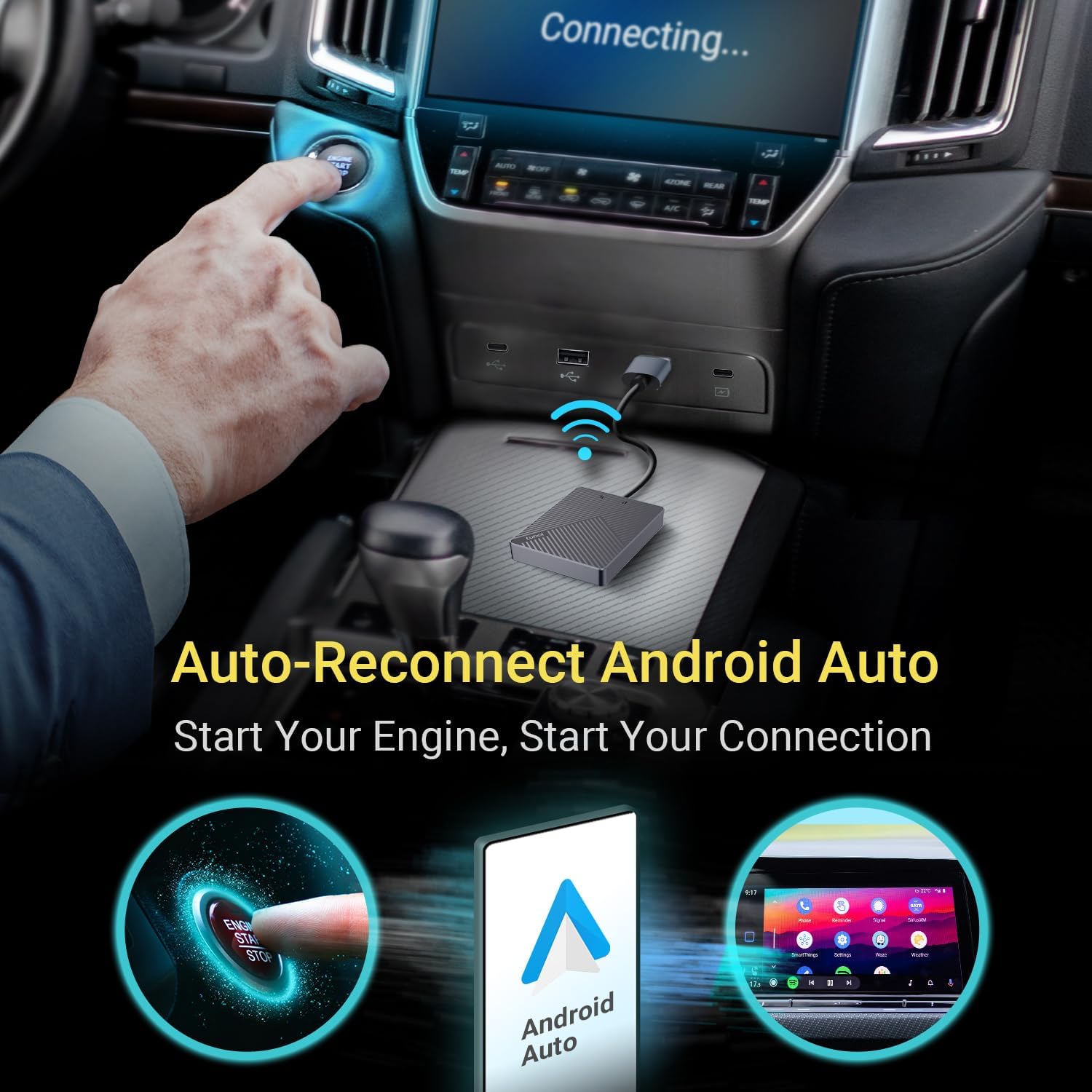
Image: A visual representation of a car's engine start button and a smartphone connecting wirelessly to Android Auto, illustrating the automatic reconnection feature.
Hands-Free Control
Manage your Android Auto experience safely using your car's original controls, including:
- Steering wheel controls
- Touchscreen interface (if available)
- Rotary knob controls
- Voice commands via "Ok Google"

Image: A collage showing a car's steering wheel controls, a touchscreen display with Android Auto, and a rotary knob controller, demonstrating various ways to interact with the system.
Compatibility
The TUNAI AutoCast is designed for broad compatibility:
- Smartphone OS: Android 8.0 or higher.
- Vehicle Models: Compatible with over 500 car models that support wired Android Auto.

Image: The TUNAI AutoCast adapter shown with various Android phone models and logos of multiple car manufacturers, indicating wide compatibility.
Firmware Updates
The AutoCast supports online firmware self-upgrades to ensure optimal performance and access to the latest features. When an update is available, you will be prompted to install it through a connected device or application.

Image: The TUNAI AutoCast adapter connected to a power adapter, with a smartphone screen showing a "Firmware updating" progress bar and an "Online Update" notification.
Maintenance
The TUNAI AutoCast requires minimal maintenance. Keep the device clean and dry. Avoid exposing it to extreme temperatures or direct sunlight for prolonged periods. Do not attempt to disassemble the device, as this will void the warranty.
Troubleshooting
- No Connection:
- Ensure your car supports wired Android Auto and CarPlay.
- Check that the AutoCast is securely plugged into the correct USB port.
- Verify Bluetooth and Wi-Fi are enabled on your smartphone.
- Restart your car's infotainment system and your smartphone.
- Intermittent Connection:
- Ensure there are no other strong wireless signals interfering with the connection.
- Try a different USB cable or port if available.
- Update the AutoCast firmware to the latest version.
- Audio Issues:
- Check your car's audio settings and volume levels.
- Ensure your phone's media volume is up.
- Restart the Android Auto application on your phone.
- Performance Issues:
- Close unnecessary applications on your smartphone.
- Ensure your smartphone's operating system is up to date.
- Perform a firmware update on the AutoCast if available.
Specifications
| Feature | Detail |
|---|---|
| Brand | TUNAI |
| Manufacturer | TUNAI CREATIVE INC. |
| Operating System | Android |
| Hardware Interface | Bluetooth, USB |
| Compatible Devices | Smartphone |
| Special Features | Bluetooth |
| Mounting Accessories | Main unit, USB cable, USB A to C adapter |
| Voltage | 5 Volts |
| Power Source | USB-powered (from car's USB port) |
| Wireless Connection Type | Bluetooth |
| Supported Standards | Bluetooth, 5.8GHz Wi-Fi |
| Human Interface Input | Car's original controls (buttons, touchscreen, voice) |
| Media Type | Audio |
| Package Dimensions | 12.8 x 10.79 x 3.2 cm; 100 g |
Warranty and Support
The TUNAI AutoCast Wireless Android Auto Adapter is backed by a one-year warranty, ensuring consistent performance and durability. For technical support or warranty claims, please refer to the contact information provided with your product packaging or visit the official TUNAI website.


