
1. Introduction
Thank you for choosing the BPXX PPT20 Thermal Label Holder. This manual provides essential information for the safe and efficient use of your new label holder. Designed to support both fanfold and rolling labels, this accessory helps organize your workspace and ensures smooth label feeding for your desktop thermal printer. Please read these instructions carefully before use and retain them for future reference.
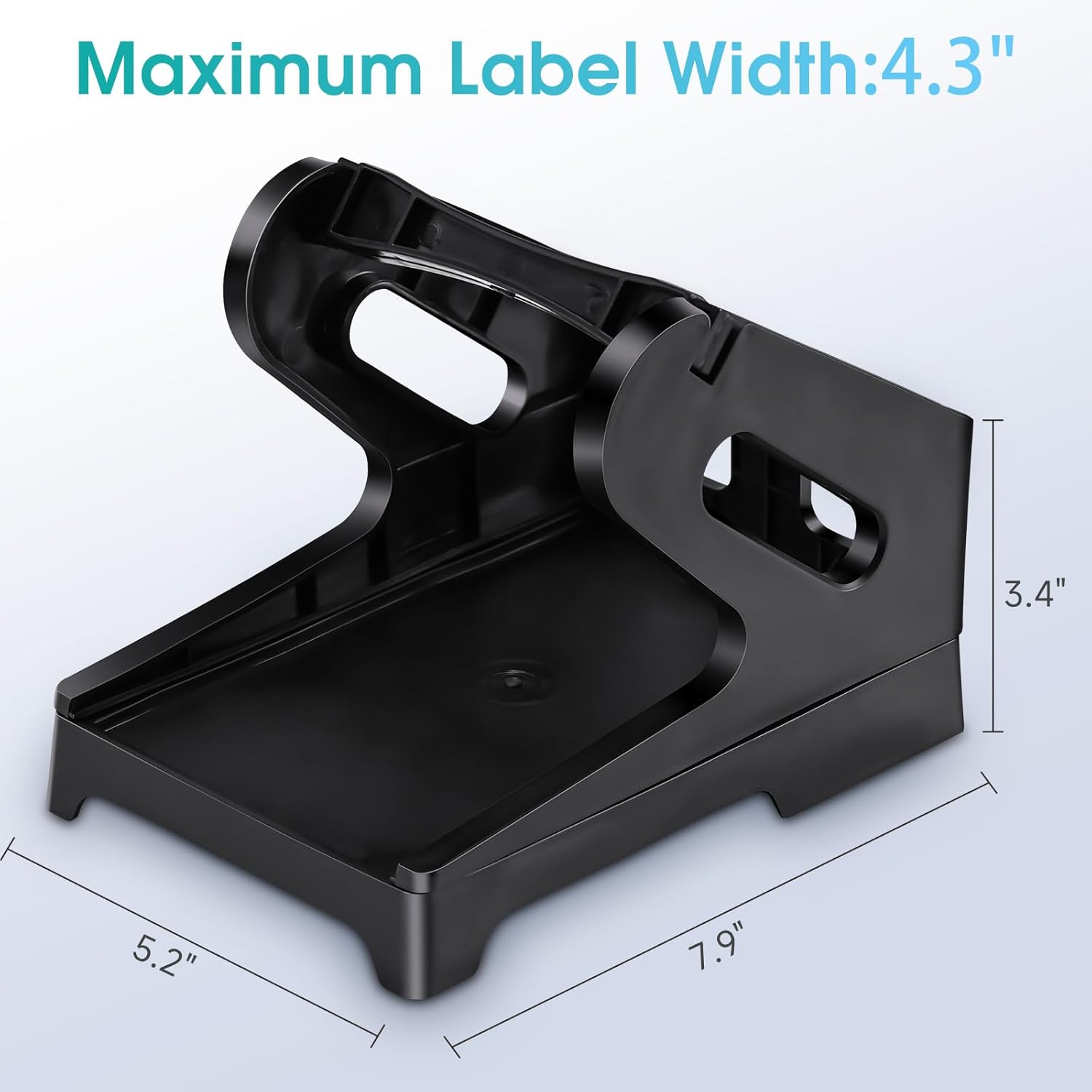
Figure 1: BPXX PPT20 Thermal Label Holder with indicated dimensions (5.2" width, 7.9" length, 3.4" height).
2. Safety Information
To ensure safe operation and prolong the life of your label holder, please observe the following:
- Keep the label holder on a stable, flat surface to prevent tipping.
- Do not place heavy objects on top of the label holder.
- Avoid exposing the product to extreme temperatures or direct sunlight.
- Keep out of reach of children and pets.
- Use only with compatible thermal labels as specified in this manual.
3. Package Contents
Verify that all components are present and undamaged:
- 1x Base Unit
- 2x Side Support Panels
- 1x Label Roll Bar
4. Setup and Assembly
The BPXX PPT20 Label Holder is designed for easy, tool-free assembly. Follow these steps:
- Step 1: Attach Side Supports to Base. Align the slots on the bottom of the side support panels with the corresponding pegs on the base unit. Gently push down until they snap securely into place. Ensure both side supports are firmly attached.
- Step 2: Insert Label Roll Bar. If using rolling labels, insert the label roll bar into the designated holes on the upper part of the side support panels.

Figure 2: Visual guide for assembling the label holder. Steps show attaching side panels and inserting the roll bar.
5. Operating Instructions
The label holder supports both fanfold and rolling labels. Position the label holder directly behind your desktop thermal printer.
5.1 Loading Fanfold Labels
- Place the stack of fanfold labels directly onto the base of the label holder, between the two side support panels.
- Ensure the labels are aligned and feed smoothly towards your thermal printer's input slot.

Figure 3: Top image shows fanfold labels being fed into a thermal printer. Bottom image shows rolling labels on the holder.
5.2 Loading Rolling Labels
- Place the roll of labels onto the label roll bar.
- Feed the leading edge of the label roll over the bar and into your thermal printer's input slot.
- Ensure the roll unwinds freely and the labels feed smoothly.
5.3 Cable Management
The design of the label holder includes space underneath the base to route printer cables, helping to maintain a tidy workspace.

Figure 4: The label holder's elevated design allows for cables to pass underneath, improving desk organization.

Figure 5: The label holder positioned behind a thermal printer, feeding labels from a fanfold stack.
6. Maintenance
The BPXX PPT20 Thermal Label Holder requires minimal maintenance:
- Cleaning: Wipe the surface with a soft, damp cloth. Avoid using abrasive cleaners or solvents.
- Storage: Store in a cool, dry place away from direct sunlight when not in use for extended periods.
7. Troubleshooting
If you encounter issues with your label holder, consider the following common solutions:
- Labels not feeding smoothly:
- Ensure labels are properly aligned within the holder and not snagging on any edges.
- Check that the label roll bar (if used) is securely in place and the roll can rotate freely.
- Verify that the label size is compatible with the holder's internal dimensions (up to 4.33" x 7.2").
- Holder unstable:
- Confirm that all side support panels are securely snapped into the base unit.
- Ensure the holder is placed on a flat, level surface.
8. Specifications
| Model Number | PPT20 |
| Brand | BPXX |
| Material | Polypropylene (PP) |
| Color | Black |
| Product Dimensions (L x W x H) | 8.66 x 5.51 x 1.57 inches |
| Internal Label Space (W x L) | Up to 4.33 x 7.2 inches |
| Item Weight | 7.8 ounces (0.22 kg) |
| Operation Mode | Manual |
9. Warranty and Support
For warranty information or technical support, please refer to the documentation provided with your purchase or contact BPXX customer service through their official website or the retailer where the product was purchased. Please have your model number (PPT20) and purchase date available when contacting support.


