
1. Introduction
This manual provides essential information for setting up, operating, maintaining, and troubleshooting your VIBOX VIII-100 Gaming PC. This high-performance system is designed for gaming, photo editing, and video editing, featuring an Intel Core i9-12900KF processor, Nvidia GeForce RTX 5060 graphics card, 16GB DDR4 RAM, and a 1TB SSD, running on Windows 11 Home.

The VIBOX VIII-100 Gaming PC, highlighting its internal components and vibrant RGB lighting.
2. Setup
2.1 Unpacking and Initial Inspection
Carefully remove all components from the packaging. Ensure the following items are present:
- VIBOX VIII-100 PC Tower
- 23-inch Monitor
- Gaming Keyboard
- Gaming Mouse
- Headset
- LED Mouse Pad
- USB Wi-Fi 6 AX900 and Bluetooth 5.4 Adapter
- Power Cables
- Display Cables (HDMI/DisplayPort)
2.2 Connecting Peripherals
Connect your monitor, keyboard, mouse, and headset to the appropriate ports on the rear and front of the PC tower. The PC features versatile connectivity options.
- Monitor: Use the HDMI or DisplayPort outputs on the graphics card.
- Keyboard & Mouse: Connect to any available USB ports (USB 2.0 or USB 3.0).
- Headset: Connect to the audio jacks (headphone and microphone) or a USB port if it's a USB headset.
- Power: Connect the power cable to the PC and a wall outlet.
- Network: Connect an Ethernet cable for wired internet or use the provided USB Wi-Fi adapter for wireless connectivity.

Front panel connectivity ports, including USB 3.0, USB 2.0, headphone jack, RGB control, and power.
2.3 First Power On
Press the power button on the front of the PC tower. The system will boot into Windows 11 Home. Follow the on-screen instructions for initial Windows setup, including language, region, and user account creation.
3. Operating Instructions
3.1 Windows 11 Home
Your VIBOX VIII-100 PC comes pre-installed with Windows 11 Home, optimized for gaming. Key features include:
- DirectStorage: For faster game loading times.
- Auto HDR: Enhances visuals for supported games.
- Xbox Game Pass Integration: Seamless access to a library of games.
- Optimized CPU Performance: For a smoother gaming experience.
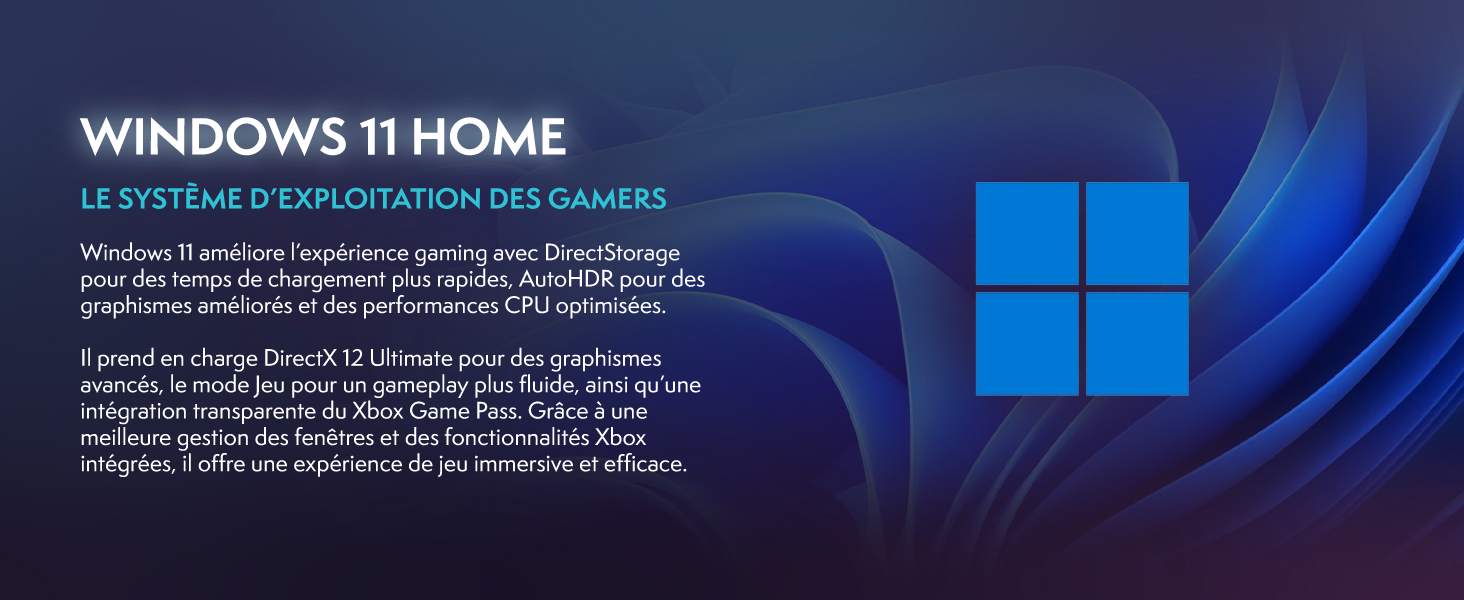
Windows 11 Home, the operating system designed for gamers.
3.2 Gaming and Performance
The Intel Core i9-12900KF processor and Nvidia GeForce RTX 5060 graphics card provide excellent performance for demanding games and applications. The 16GB DDR4 RAM ensures smooth multitasking.
For optimal gaming performance, ensure your graphics drivers are up to date. You can manage RGB lighting effects using the dedicated button on the front panel or through compatible software.
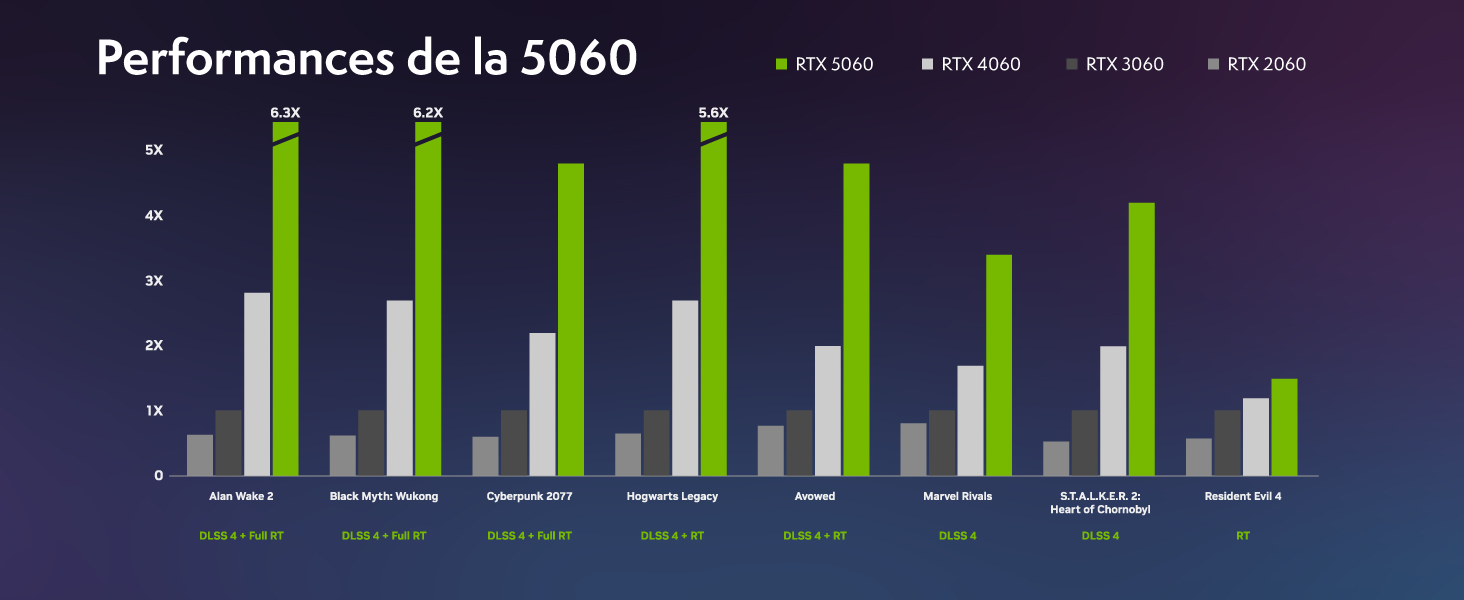
Performance benchmarks for the RTX 5060 in popular games.
4. Maintenance
4.1 Cooling System
Your VIBOX VIII-100 PC features an advanced cooling system, including a 120mm AIO liquid cooler for the CPU and Hex RGB Infinity 120mm fans for optimal airflow. The mesh design of the ATX gaming case ensures excellent ventilation.
- AIO Liquid Cooler: Provides efficient and quiet CPU cooling.
- Hex RGB Fans: Enhance airflow and allow for customizable aesthetics.
- Mesh Design: Promotes superior air intake and exhaust.

The VIBOX AIO 120mm liquid cooler ensures stable CPU temperatures.
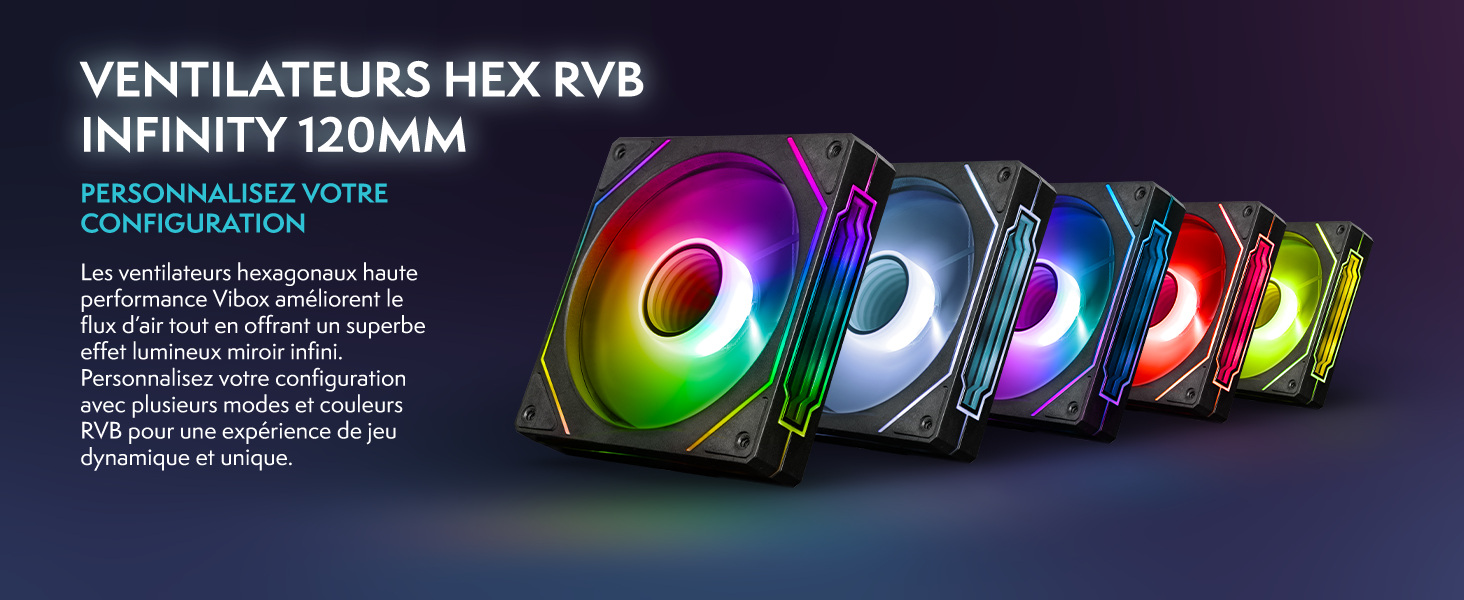
Hex RGB Infinity 120mm fans for personalized aesthetics and improved airflow.
4.2 Cleaning
Regular cleaning helps maintain optimal performance and extends the lifespan of your PC. The VTX-3 case features a magnetic, hinged tempered glass side panel for easy access to components for cleaning and maintenance.
- Exterior: Wipe the exterior surfaces with a soft, damp cloth. Avoid harsh chemicals.
- Interior: Periodically open the side panel and use compressed air to remove dust from fans, heatsinks, and other components. Ensure the PC is powered off and unplugged before cleaning the interior.

The modern ATX gaming case with mesh design and tempered glass side panel for easy access.
4.3 Software Updates
Keep your operating system and drivers updated to ensure stability, security, and optimal performance. Windows Update will handle OS updates, and graphics drivers can be updated via NVIDIA's official website or GeForce Experience software.
5. Troubleshooting
If you encounter issues with your VIBOX VIII-100 PC, consider the following common troubleshooting steps:
- No Power: Ensure all power cables are securely connected to the PC and the wall outlet. Check the power switch on the power supply unit (PSU) at the back of the PC.
- No Display: Verify that the monitor is connected to the graphics card's output (HDMI or DisplayPort), not the motherboard's integrated graphics ports. Ensure the monitor is powered on and set to the correct input source.
- Fan Noise: While the cooling system is designed for efficiency, high fan speeds can occur under heavy load. Ensure the PC has adequate ventilation and is not obstructed. If noise is excessive or unusual, check for dust buildup in fans and heatsinks.
- System Instability/Crashes: Ensure all drivers are up to date. Check for Windows updates. Monitor component temperatures using software utilities.
- Peripheral Issues: Try connecting the keyboard, mouse, or headset to different USB ports. Ensure drivers for specialized peripherals are installed.
For persistent issues, refer to the official VIBOX support resources or contact customer service.
6. Specifications
Detailed technical specifications for your VIBOX VIII-100 Gaming PC:
| Component | Specification |
|---|---|
| Brand | VIBOX |
| Model Name | VIII-100 |
| Operating System | Windows 11 Home |
| CPU Model | Intel Core i9-12900KF |
| CPU Speed | 3.2 GHz (Max 5.2 GHz) |
| CPU Cores | 16 |
| Graphics Coprocessor | Nvidia GeForce RTX 5060 |
| Graphics RAM | 8 GB GDDR7 |
| RAM Installed | 16 GB DDR4 |
| Max RAM Supported | 128 GB |
| Storage Capacity | 1 TB SSD |
| Connectivity | Ethernet, HDMI, USB, Wi-Fi 6 AX900, Bluetooth 5.4 |
| Video Output Interface | HDMI, DisplayPort |
| Cooling Method | Water Cooling (AIO 120mm) |
| Dimensions (L x W x H) | 40 x 21 x 45 cm |
| Included Monitor Size | 23 Inches |
| Monitor Resolution | 1920x1080 Pixels |
| Keyboard Layout | AZERTY |

Overview of the VIBOX VIII-100's core components.
7. Warranty and Support
7.1 Warranty Information
Your VIBOX VIII-100 Gaming PC comes with a 2-year parts warranty and lifetime labor warranty. Please retain your proof of purchase for warranty claims.
7.2 Customer Support
For technical assistance, warranty inquiries, or any other support needs, please contact VIBOX customer service. You can also refer to the official user guide PDF for more detailed information.
Official User Guide (PDF): Download Here


