
1. Introduction
This manual provides detailed instructions for the setup, operation, maintenance, and troubleshooting of your Phomemo 241BT Wireless Thermal Label Printer. Please read this manual thoroughly before using the printer to ensure proper function and longevity.

Image 1.1: Phomemo 241BT Thermal Label Printer in operation, showing various label types and mobile app connectivity.
2. Package Contents
Verify that all items listed below are included in your package:
- Phomemo 241BT Thermal Label Printer
- Power Adapter
- Type C Adapter
- USB Cable
- Power Cord
- 30 sheets of 4x6 Label Paper
- User Guide (this manual)

Image 2.1: All components included in the Phomemo 241BT product package.
3. Setup
3.1. Loading Labels
- Open the printer cover.
- Insert the thermal labels with the printable side facing up.
- Adjust the label guides to fit the width of your labels.
- Close the printer cover. The printer will automatically calibrate the label size.
3.2. Power Connection
- Connect the power cord to the power adapter.
- Plug the power adapter into the printer's power port.
- Plug the power cord into a wall outlet.
- Turn on the printer using the power button.
3.3. Connectivity Options
The Phomemo 241BT printer supports both wireless (Bluetooth) and wired (USB) connections.
3.3.1. Wireless Setup (iOS/Android)
- Download the App: Search for "Labelife" in the Apple App Store (for iOS) or Google Play Store (for Android) and install the application.
- Enable Bluetooth: Ensure Bluetooth is enabled on your mobile device.
- Connect in App: Open the "Labelife" app. Tap the 'Printer' icon to search for the "241BT" printer. Select it to connect via Bluetooth within the app.
- Select Paper Size: Within the app, select the appropriate paper size and file type before printing.

Image 3.1: Visual guide for both USB and Bluetooth setup processes.
3.3.2. Wired Setup (PC/Mac/Chrome OS/Linux)
- Download Driver: Visit labelife.net/pm241 to download and install the correct driver for your operating system (Windows, Mac OS, Chrome OS, or Linux).
- For Chrome OS, you may need to add the "Labelife" extension from the Chrome web store.
- Connect USB: Use the provided USB cable to connect the 241BT printer to your computer.
- Select Printer: When printing, select "241BT" from your computer's list of available printers.

Image 3.2: The printer supports both Bluetooth and USB connections for various devices.
4. Operating Instructions
4.1. Printing Labels
Once connected and drivers/app are installed, you can proceed with printing:
- Ensure labels are properly loaded and the printer is powered on.
- Open the document or label file you wish to print on your computer or mobile device.
- Initiate the print command from your application.
- Select the "Phomemo 241BT" printer from the list.
- Adjust print settings (e.g., paper size, orientation, print quality) as needed.
- Confirm and start printing.

Image 4.1: Example of print settings interface on both computer and mobile devices.
4.2. Supported Label Types and Sizes
The Phomemo 241BT printer is designed for thermal labels with widths ranging from 1 to 4.6 inches. It supports various label applications:
- Shipping Labels (e.g., 4x6 inches)
- Product Labels (e.g., 2x2 inches)
- Barcode Labels (e.g., 2.25x1.25 inches)
- QR Code Labels (e.g., 4x3 inches)
- Document Labels (e.g., 3x2 inches)
- Custom Labels
Note: The printer supports black-and-white printing only. For color labels, compatible thermal color label paper must be purchased separately.

Image 4.2: Diverse applications for the Phomemo 241BT printer, from shipping to organization.
4.3. Platform Compatibility
The printer is compatible with major shipping and e-commerce platforms:
- eBay
- Shopify
- Amazon
- Etsy
- UPS
- USPS
- FedEx
- DHL
- Royal Mail
- Vinted
- Mercari
- Poshmark
- PayPal
- EVRi
- Yodel
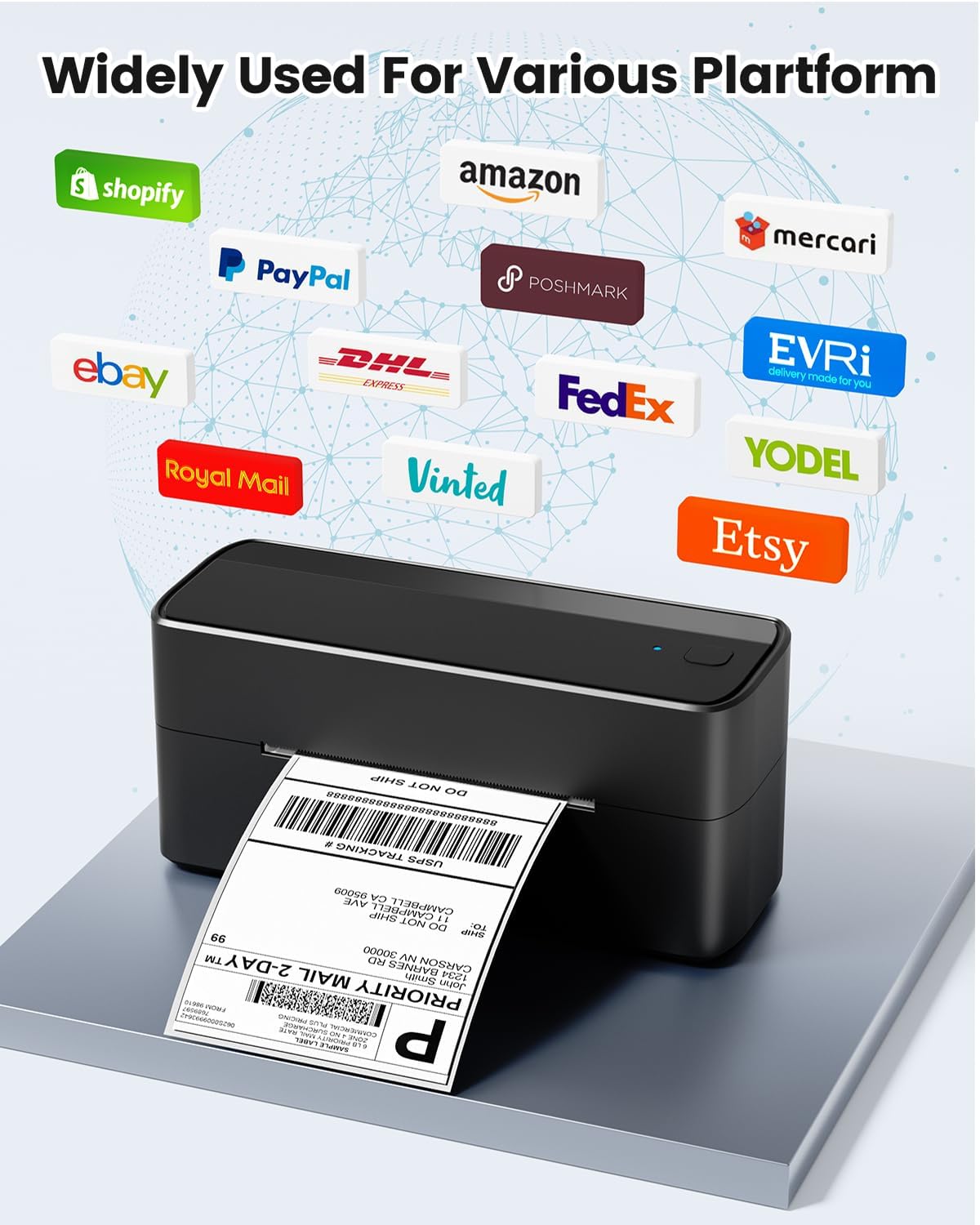
Image 4.3: The Phomemo 241BT printer integrates with numerous online platforms.
5. Maintenance
Regular maintenance ensures optimal performance and extends the life of your printer.
- Cleaning the Print Head: Use a cotton swab lightly dampened with isopropyl alcohol to gently wipe the print head. Ensure the printer is off and cooled down before cleaning.
- Cleaning the Roller: Use a soft, lint-free cloth to wipe the rubber roller to remove any dust or adhesive residue.
- Dust Removal: Keep the printer free from dust by wiping its exterior with a dry, soft cloth. Avoid using harsh chemicals.
- Storage: When not in use for extended periods, store the printer in a cool, dry place away from direct sunlight.
6. Troubleshooting
If you encounter issues with your Phomemo 241BT printer, refer to the following common solutions:
- Printer Not Responding:
- Ensure the power cable is securely connected and the printer is turned on.
- Check the USB cable connection to your computer or verify Bluetooth connection in the "Labelife" app.
- Restart the printer and your device.
- Poor Print Quality:
- Ensure you are using high-quality thermal labels.
- Clean the print head as described in the Maintenance section.
- Check print density settings in the "Labelife" app or printer driver.
- Ensure labels are loaded correctly with the printable side facing up.
- Labels Not Feeding Correctly:
- Verify that labels are loaded straight and the label guides are adjusted snugly against the label edges.
- Ensure there are no obstructions in the label path.
- The printer should automatically calibrate; if not, try restarting it.
- Bluetooth Connection Issues:
- Ensure Bluetooth is enabled on your mobile device and the printer.
- Make sure you are connecting through the "Labelife" app, not directly through your device's Bluetooth settings.
- Try forgetting the device in your phone's Bluetooth settings and reconnecting through the app.
- Driver Installation Problems:
- Ensure you downloaded the correct driver for your operating system from labelife.net/pm241.
- Temporarily disable antivirus software during installation if it interferes.
- Restart your computer after installation.
7. Specifications
| Feature | Detail |
|---|---|
| Model Name | PM2-241BT |
| Printing Technology | Thermal |
| Connectivity Technology | Bluetooth, USB |
| Maximum Media Size | 4 x 6 inch (supports 1 to 4.6 inch width) |
| Print Resolution | 203 DPI |
| Max Print Speed (Monochrome) | 150 mm/s (approx. 72 sheets of 4x6 labels per minute) |
| Printer Output | Monochrome (Black) |
| Controller Type | Android, iOS |
| Compatible OS | Windows, Mac OS, Chrome OS, Linux, iOS, Android |
| Product Dimensions | 8.66 x 6.3 x 4.41 inches |
| Item Weight | 2.97 pounds (1.35 Kilograms) |
| Memory Storage Capacity | 8 MB |
8. Warranty Information
The Phomemo 241BT Thermal Label Printer comes with a Limited Warranty. For specific terms and conditions, please refer to the warranty card included in your product packaging or contact Phomemo customer support.
9. Customer Support
Phomemo provides comprehensive technical support for its products. If you have any questions, concerns, or require assistance, please contact the support team through the following channels:
- Phone Support: (9:00 AM - 5:00 PM EST, Monday - Friday)
- Email Support: Available (19:30 - 4:30 EST, Monday - Friday)
- Live Chat: Available (19:30 - 4:30 EST, Monday - Friday)
- Remote desktop operation assistance is also available if needed.
For the most up-to-date contact information, please visit the official Phomemo website or refer to the "Labelife" app.


