
1. Introduction and Overview
The RSH Air Tracker Tag is a compact and efficient item finder designed to help you keep track of your valuable belongings. Utilizing Apple's extensive Find My network, this tracker allows you to locate items such as keys, luggage, wallets, bags, and backpacks with ease. It is exclusively compatible with Apple iOS devices (iPhone, iPad, Mac) and offers features like 'Left Behind' reminders, nearby finding with sound, remote tracking, and a 'Lost Mode' for enhanced security. The device is IP67 waterproof and features a user-replaceable battery for long-term use.
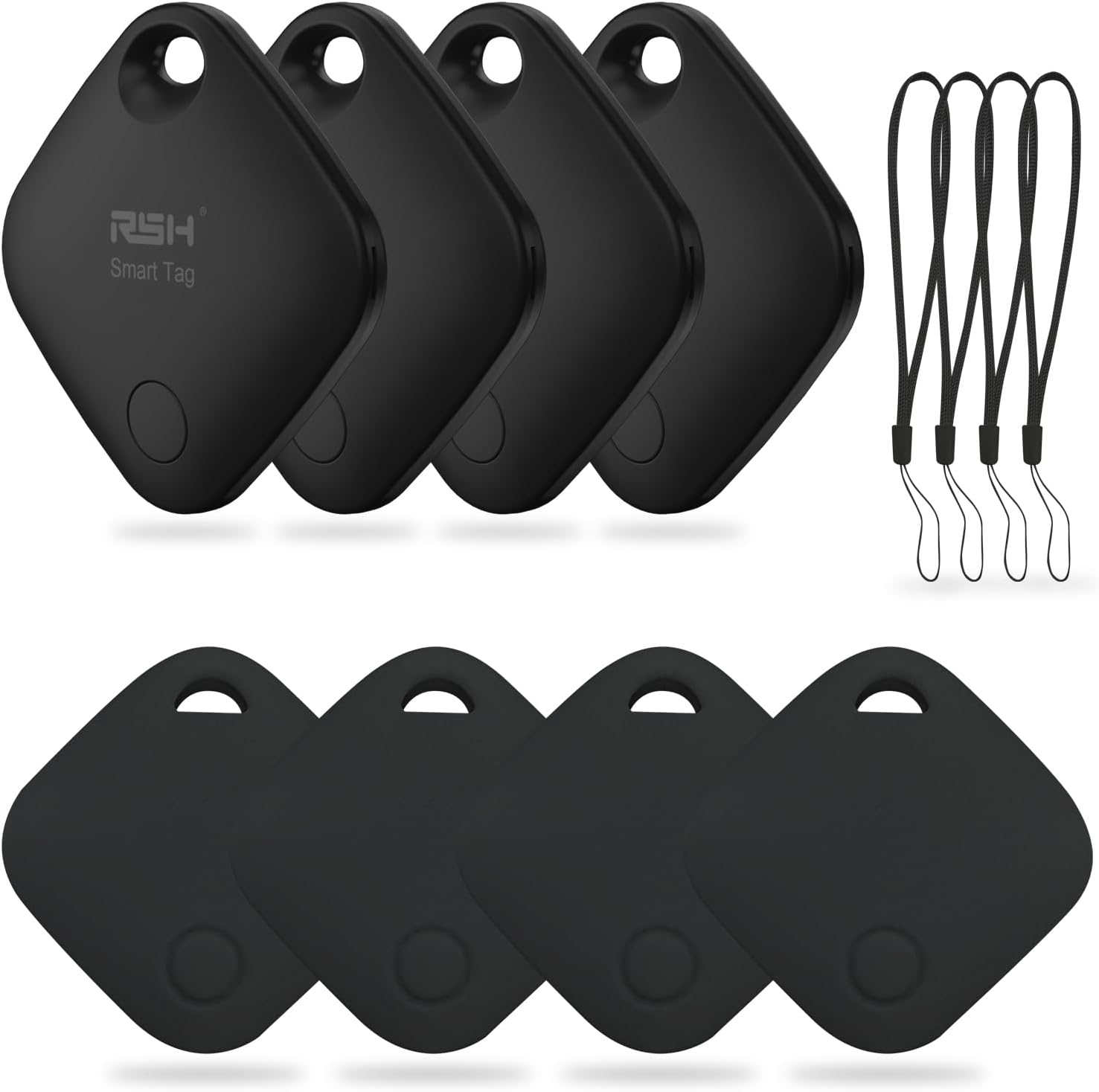
Image: A set of four RSH Air Tracker Tags, black in color, accompanied by four black lanyards. These tags are designed to be attached to various items for tracking.
2. Setup and Pairing
Follow these steps to set up your RSH Air Tracker Tag with your Apple device:
- Enable Find My and Bluetooth: Ensure that the 'Find My' feature and Bluetooth are enabled on your iPhone, iPad, or Mac.
- Activate the Tag: Gently pull out the battery insulator (baffle) from the RSH Air Tracker Tag. The tag will emit a sound indicating it is ready for pairing.
- Open Find My App: On your Apple device, open the 'Find My' application.
- Add New Item: Navigate to the 'Items' tab and tap on 'Add New Item'.
- Select 'Other Supported Item': Choose the option to add an 'Other Supported Item'.
- Search for Smart Tag: Your device will begin searching for nearby compatible smart tags. Select the RSH Air Tracker Tag when it appears.
- Name Your Connection: Assign a descriptive name to your tag (e.g., "My Keys," "Travel Bag").
- Choose an Emoticon: Select an emoticon to visually represent your item in the app.
- Agree to Register: Review and agree to the registration terms.
- Complete Registration: Follow any on-screen prompts to finalize the registration process. Your tag is now connected and ready to use.

Image: A visual representation of the 10-step setup process for the RSH Air Tracker Tag, showing screenshots of the Apple Find My app interface for pairing and configuration.
3. Operating Instructions
3.1 Finding Items Nearby
When your RSH Air Tracker Tag is within Bluetooth range, you can easily locate it by making it play a sound. Open the 'Find My' app, select your tag from the 'Items' tab, and tap 'Play Sound'. The tag will emit an audible beep, guiding you to its location. You can also ask Siri, "Hey Siri, where is my [item name]?"

Image: An illustration of the 'Find your things nearby' feature, showing a smartphone screen with the Find My app open, indicating the ability to play a sound to locate the tracker within Bluetooth range (up to 250ft/75m).
3.2 Remote Tracking (Find Far Away)
If your RSH Air Tracker Tag is outside of your Bluetooth range, you can still locate it using the Apple Find My network. The 'Find My' app will display the last known location of your tag on a map, leveraging the network of millions of Apple devices to anonymously relay its position. This allows you to track your item even when it's far away.
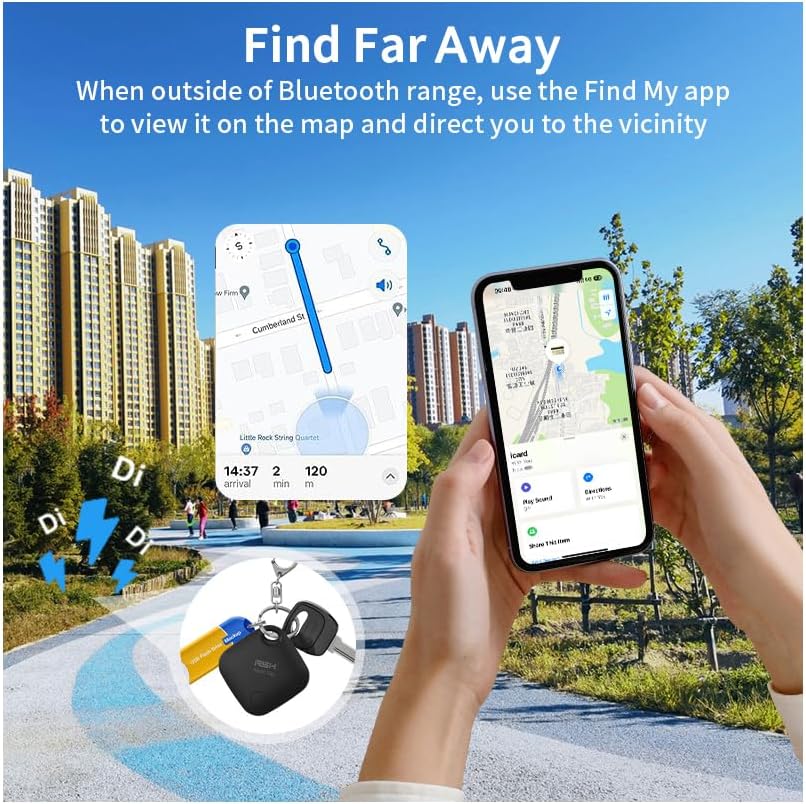
Image: The 'Find Far Away' feature demonstrated, showing a smartphone displaying the Find My map with directions to the last known location of the RSH Air Tracker Tag, even when outside of Bluetooth range.
3.3 Left Behind Reminders
The RSH Air Tracker Tag can notify you if you leave an item behind. When the tag disconnects from your Apple device's Bluetooth range, you will receive an immediate notification on your phone. This feature helps prevent accidental loss of your belongings, whether you forget your keys at the office or a bag at the gym.

Image: An example of the 'Lost Remind' feature, showing a smartphone notification indicating that the RSH Air Tracker Tag (attached to keys) has been left behind and is no longer detected.
3.4 Activating Lost Mode
If you lose your RSH Air Tracker Tag, you can activate 'Lost Mode' in the Find My app. This allows you to enter your contact information (email or phone number). If someone finds your tag, they can use their Apple device to view your contact details through the Find My app, enabling them to return your item. The tag is linked to your Apple ID and cannot be paired by others while in Lost Mode.

Image: The 'Set Lost Mode' screen in the Find My app, demonstrating how users can input contact information to be displayed to anyone who finds their RSH Air Tracker Tag.
3.5 Sharing with Family and Friends
The 'Find My' app allows you to share the location of your RSH Air Tracker Tag with trusted family members and friends. This is useful for shared items or for family safety, enabling multiple individuals to view the tag's location.
4. Maintenance
4.1 Battery Replacement
The RSH Air Tracker Tag uses a replaceable CR2032 coin cell battery, which typically lasts up to one year. You can check the battery status within the 'Find My' app. When the battery is low, replace it promptly to ensure continuous tracking functionality. To replace the battery, gently open the tag's casing, remove the old CR2032 battery, and insert a new one with the positive (+) side facing up. Close the casing securely.

Image: A detailed view of the RSH Air Tracker Tag's replaceable battery compartment, highlighting the CR2032 battery and its placement within the device.
4.2 Water Resistance
The RSH Air Tracker Tag is rated IP67 for water resistance. This means it can withstand immersion in up to 1 meter (3 feet) of water for up to 30 minutes. While it is resistant to splashes and brief immersion, it is not recommended for prolonged underwater use or exposure to high-pressure water jets.
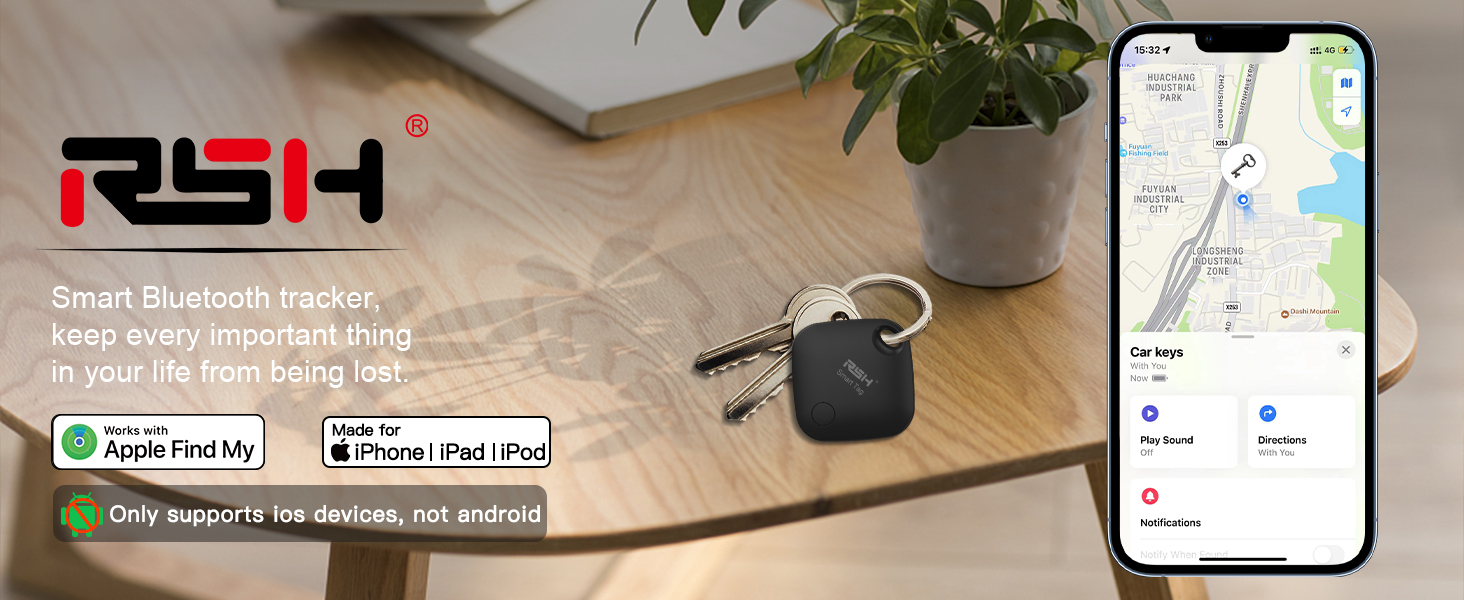
Image: The RSH Air Tracker Tag partially submerged in water, illustrating its IP67 waterproof capability, which protects it from splashes and temporary immersion.
5. Troubleshooting
- Tag Not Connecting/Found:
- Ensure Bluetooth is enabled on your Apple device.
- Check if the 'Find My' app is updated to the latest version.
- Verify the tag's battery status in the 'Find My' app. Replace if low.
- Try restarting your Apple device.
- If the tag was recently activated, ensure the battery insulator tab has been fully removed.
- Sound Not Playing:
- Ensure the tag is within Bluetooth range of your device.
- Check the tag's battery level.
- Confirm your device's volume is turned up.
- 'Left Behind' Reminders Not Working:
- Verify that 'Notify When Left Behind' is enabled for the tag in the 'Find My' app settings.
- Check your device's notification settings for the 'Find My' app.
- Location Not Updating:
- Ensure your Apple device has an active internet connection (Wi-Fi or cellular data).
- The Find My network relies on other Apple devices. In remote areas, updates may be less frequent.
6. Specifications
| Feature | Detail |
|---|---|
| Model | RSH-ITag03 |
| Dimensions | 3.56 x 3.56 x 0.76 cm (1.42 x 1.42 x 0.31 inches) |
| Weight | 11 grams |
| Battery Type | CR2032 (replaceable) |
| Battery Life | Up to 1 year |
| Connectivity | Bluetooth, NFC |
| Compatibility | Apple iOS devices only (iPhone, iPad, Mac) |
| Water Resistance | IP67 (up to 1m for 30 minutes) |
| Material | Plastic |

Image: A close-up of the RSH Air Tracker Tag held in a hand, displaying its compact size and precise dimensions (36x36x7.8 mm / 1.42x1.42x0.31 inches).
7. Warranty and Support
For information regarding warranty coverage and customer support for your RSH Air Tracker Tag, please refer to the documentation included with your purchase or visit the official RSH website. Contact details for support may also be available on the product packaging or the retailer's website where the product was purchased.
8. Common Use Cases
The RSH Air Tracker Tag is versatile and can be used to track a variety of personal items:
- Keys: Attach to your house keys, car keys, or office keys to easily locate them.
- Bags & Backpacks: Secure to your backpack, handbag, or gym bag to prevent loss.
- Luggage: Ideal for tracking checked luggage during travel.
- Wallets: Slip into your wallet or purse for added security.
- Pets: Attach to a pet's collar to help locate them if they wander off (ensure secure attachment).
- Bicycles: Discreetly attach to your bicycle for tracking.
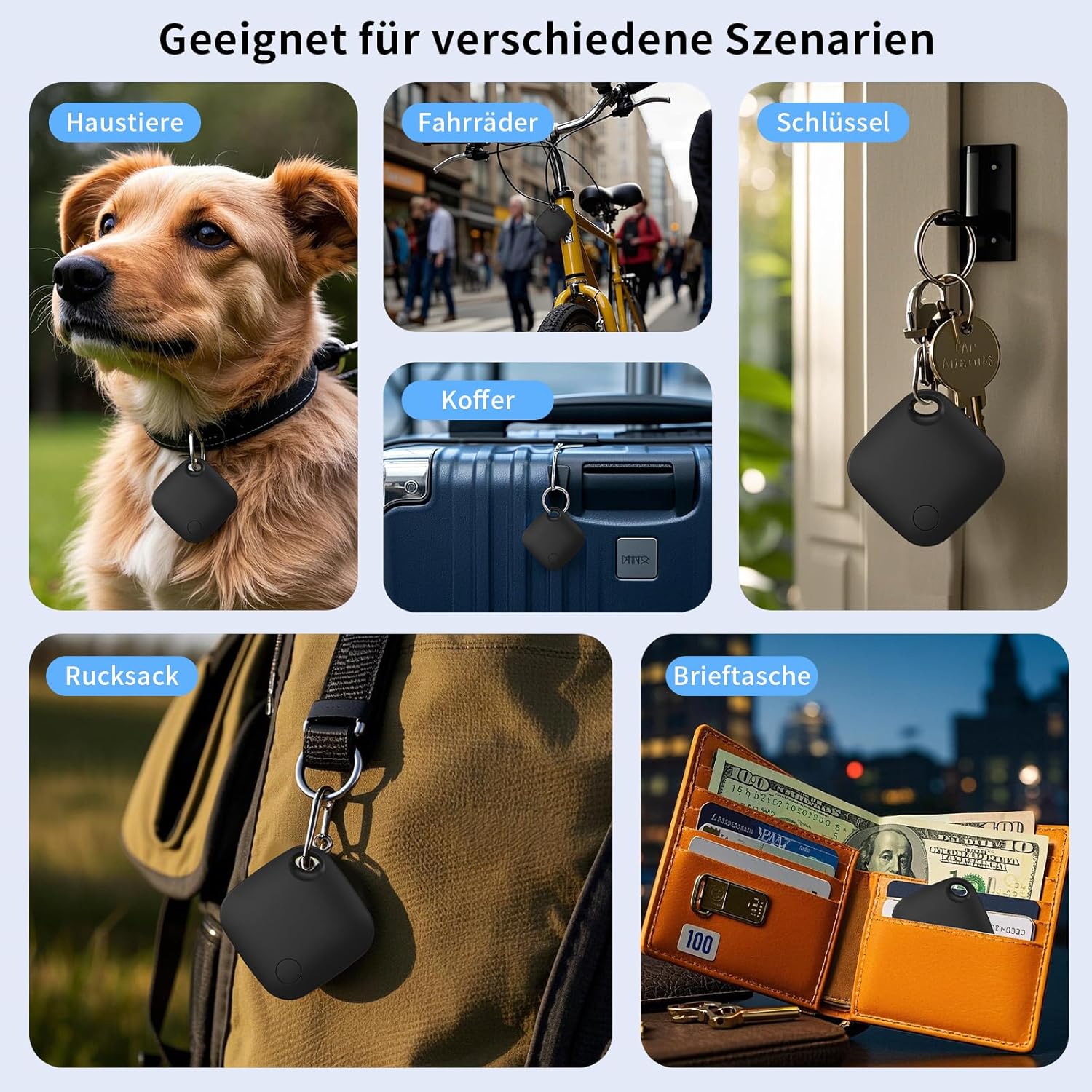
Image: A collage demonstrating various scenarios where the RSH Air Tracker Tag can be used, including attachment to pets, bicycles, keys, suitcases, backpacks, and wallets, highlighting its versatility.


