
1. Introduction
The ROADOM KC-806 Desktop Portable CD Player is a versatile audio device designed for home use, offering multiple playback options and high-fidelity stereo sound. This manual provides detailed instructions for setting up, operating, and maintaining your CD player.
Key features include:
- CD Playback (CD, CD-R, CD-RW, MP3, WMA formats)
- Bluetooth Transmission and Reception
- FM Radio (76.0-108.0MHZ)
- USB Disk Playback and Charging
- AUX Input/Output
- Timer Function
- Repeat Playback Modes
- Remote Control Operation
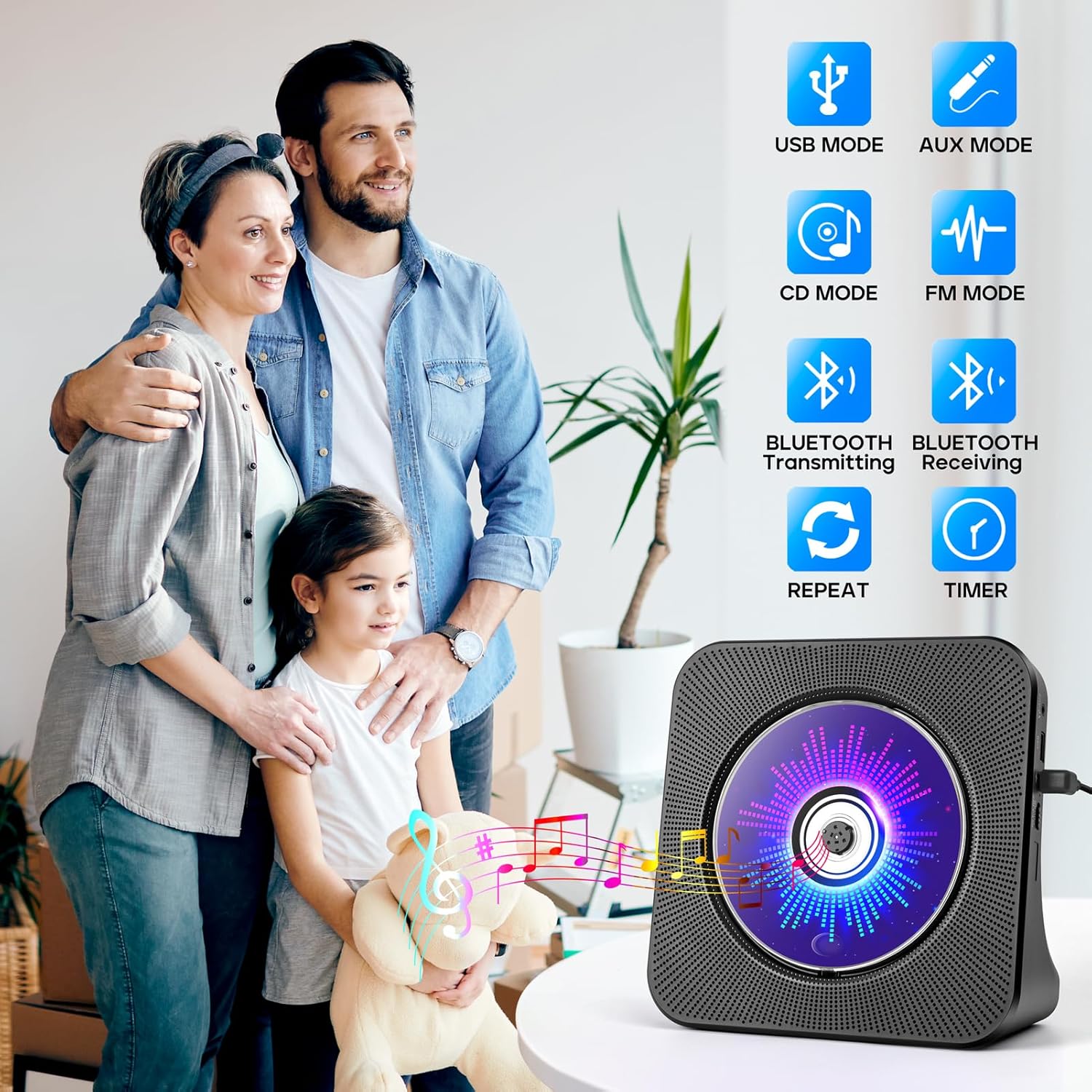
Figure 1.1: The ROADOM KC-806 CD Player highlighting its versatile 8-in-1 functionality.
2. What's in the Box
Please check the package contents upon unboxing to ensure all items are present:
- ROADOM CD Player × 1
- Remote Control × 1
- 5V/2A Power Adapter × 1
- USB - Type C Power Cable × 1
- User Manual × 1
- 3.5mm AUX Cable × 1 (not listed in product.whats_in_the_box but shown in image)

Figure 2.1: All items included in the ROADOM KC-806 CD Player package.
3. Product Overview
3.1 Front and Side View

Figure 3.1: Front view of the ROADOM KC-806 CD Player and its remote control.

Figure 3.2: Detailed view of the ports and controls on the ROADOM KC-806 CD Player.
3.2 Controls and Ports
- AUX Port: For connecting external audio devices or outputting audio to headphones/speakers.
- USB Port (U Disk): For playing music from a USB flash drive and charging devices.
- Type-C Port (Power Input): Connect the provided power adapter here.
- Power (ON/OFF) Switch: To turn the device on or off.
- Status Screen (LED): Displays time, mode, and track information.
- Mode Button: Switches between CD, Bluetooth, FM, USB, and AUX modes.
- Volume Buttons (Vol-, Vol+): Adjusts the playback volume.
- Previous/Next Buttons: Skips tracks or tunes FM radio frequencies.
- Play/Pause Button: Starts or pauses playback.
4. Setup
4.1 Power Connection
- Connect the USB-C end of the power cable to the Type-C Port (Power Input) on the CD player.
- Connect the USB-A end of the power cable to the 5V/2A Power Adapter.
- Plug the power adapter into a standard wall outlet.
- Alternatively, you can power the device using a power bank by connecting the USB-A end of the cable to the power bank.
- Flip the Power (ON/OFF) switch to the 'ON' position. The LED screen will light up.

Figure 4.1: Powering the CD player using either a wall adapter or a power bank.
5. Operating Instructions
5.1 CD Playback
- Gently open the protective dust cover on the front of the CD player.
- Carefully place a CD (CD, CD-R, CD-RW, MP3, or WMA format) onto the spindle, ensuring it is seated correctly.
- Close the dust cover. The player will automatically detect the CD and begin playback.
- If playback does not start, press the 'Mode' button to select 'CD' mode, then press the 'Play/Pause' button.
- Use the 'Previous' and 'Next' buttons to skip tracks.
- Adjust volume with 'Vol-' and 'Vol+' buttons.

Figure 5.1: Opening the protective cover to insert a CD.

Figure 5.2: The CD player supports multiple CD formats.
5.2 Bluetooth Connectivity
5.2.1 Bluetooth Receiving (Connect to Phone/Tablet/PC)
- Press the 'Mode' button until 'BLUE' appears on the LED screen, indicating Bluetooth receiving mode.
- On your Bluetooth-enabled device (phone, tablet, computer), search for available Bluetooth devices.
- Select 'ROADOM KC-806' from the list to pair.
- Once connected, you can play audio from your device through the CD player's speakers.

Figure 5.3: Connecting external devices to the CD player via Bluetooth receiving mode.
5.2.2 Bluetooth Transmitting (Connect to Bluetooth Headphones/Speakers)
- Ensure the CD player is in CD, USB, or AUX mode.
- Activate pairing mode on your Bluetooth headphones or external speaker.
- Press and hold the 'Bluetooth' button on the remote control or the 'Mode' button on the unit until the Bluetooth icon flashes on the LED screen, indicating transmitting mode.
- The CD player will automatically search for and connect to nearby Bluetooth audio devices.
- Once connected, audio from the CD player will be transmitted to your Bluetooth headphones or speaker.

Figure 5.4: Transmitting audio from the CD player to Bluetooth headphones or speakers.
5.3 FM Radio
- Press the 'Mode' button until 'FM' appears on the LED screen.
- Press the 'Play/Pause' button to initiate an automatic scan for FM stations. The player will save found stations.
- Use the 'Previous' and 'Next' buttons to navigate through the saved stations.
- For manual tuning, press and hold the 'Previous' or 'Next' button to fine-tune the frequency.

Figure 5.5: Enjoying FM radio on the CD player.
5.4 USB Playback and Charging
- Insert a USB flash drive (U Disk) containing audio files into the USB Port.
- Press the 'Mode' button until 'USB' appears on the LED screen.
- The player will automatically detect and begin playing audio files from the USB drive.
- Use the 'Previous' and 'Next' buttons to navigate tracks.
- The USB port can also be used to charge small electronic devices.

Figure 5.6: USB functionality for playback and charging.
5.5 AUX Mode
- Connect one end of the 3.5mm AUX cable to the AUX Port on the CD player.
- Connect the other end to the audio output of an external device (e.g., phone, computer, MP3 player) or to external headphones/speakers.
- Press the 'Mode' button until 'AUX' appears on the LED screen.
- Audio from the connected external device will play through the CD player's speakers (if used as an input) or be output to your headphones/speakers (if used as an output).

Figure 5.7: AUX input and output connections.
5.6 Timer Function
- While playing audio, press the 'Timer' button on the remote control.
- Repeatedly press the 'Timer' button to cycle through available sleep timer settings (e.g., 30, 60, 90, 120, 150, 180 minutes).
- The player will automatically stop playback after the selected time duration.

Figure 5.8: Setting the sleep timer for automatic playback stop.
5.7 Repeat Function
- During CD or USB playback, press the 'Repeat' button on the remote control.
- Repeatedly press the 'Repeat' button to cycle through the following modes:
- ONE: Repeats the current track.
- ALL: Repeats all tracks on the CD/USB.
- SFL (Shuffle): Plays tracks in a random order.
- A-B: Repeats a specific section of a track (set start point 'A' and end point 'B').

Figure 5.9: Understanding the repeat playback modes.
5.8 Remote Control Operation
The included remote control allows for convenient operation of all functions from a distance. Ensure the remote has working batteries and is pointed towards the front of the CD player.

Figure 5.10: Operating the CD player with the remote control.
6. Maintenance
- Cleaning: Use a soft, dry cloth to clean the exterior of the CD player. Do not use liquid cleaners or abrasive materials.
- CD Care: Handle CDs by their edges. Clean dirty CDs with a soft, lint-free cloth, wiping from the center outwards.
- Dust Cover: Keep the protective dust cover closed when not in use to prevent dust accumulation in the CD compartment.
- Storage: Store the CD player in a cool, dry place away from direct sunlight and extreme temperatures.
7. Troubleshooting
| Problem | Possible Cause | Solution |
|---|---|---|
| Player does not power on. | No power connection; Power switch off. | Ensure power adapter is securely plugged in and the power switch is ON. |
| CD does not play or skips. | CD is dirty, scratched, or inserted incorrectly; Dust cover open. | Clean or replace CD. Ensure CD is seated correctly and dust cover is closed. |
| No sound. | Volume too low; Incorrect mode selected; External speakers/headphones not connected properly. | Increase volume. Select correct mode. Check AUX cable connections. |
| Bluetooth pairing fails. | Device too far; Incorrect Bluetooth mode; Device not in pairing mode. | Ensure devices are close. Select correct Bluetooth mode (receiving or transmitting). Put external device in pairing mode. |
| Remote control not working. | Batteries dead or inserted incorrectly; Obstruction between remote and player. | Replace batteries. Ensure correct polarity. Remove obstructions. |
8. Specifications
| Feature | Detail |
|---|---|
| Model Number | KC-806 |
| Product Dimensions | 7.4 x 2.7 x 7.4 inches |
| Item Weight | 1.98 pounds |
| Connectivity Technology | Auxiliary, Bluetooth, USB |
| Supported CD Formats | CD, CD-R, CD-RW, MP3, WMA |
| FM Radio Frequency | 76.0-108.0MHZ |
| Power Input | 5V/2A via Type-C Port |

Figure 8.1: Physical dimensions and weight of the CD player.
9. Warranty & Support
ROADOM provides a 12-month product warranty for the KC-806 CD Player. For any questions or support needs, please contact ROADOM customer service. Details for contacting support are typically found in the included user manual or on the official ROADOM website.
Additional benefits may include:
- 30 Days Free Returns
- 24 Hours After-sale Service
