
1. Introduction
This manual provides detailed instructions for the installation, operation, and maintenance of the Fanvil i16SV Video Intercom. The i16SV is an outdoor-rated SIP intercom system designed for secure entry and communication, featuring HD audio and video capabilities.
Please read this manual thoroughly before using the device to ensure proper functionality and safety.
2. Product Overview
2.1 Key Features
- Built-in HD camera with infrared night vision (H.264 codec).
- IP65 waterproof and dustproof rating for outdoor use.
- IK10 anti-collision rating with a robust die-cast aluminum frame.
- Anti-tamper alarm system, reporting to a control center if the cover is removed.
- HD voice quality with a built-in 3W speaker and Acoustic Echo Canceller (AEC).
- Supports 2 SIP lines for communication.
- Power over Ethernet (PoE) support for simplified installation.
2.2 Device Components
The Fanvil i16SV features a durable aluminum casing designed for outdoor environments. Key components include:
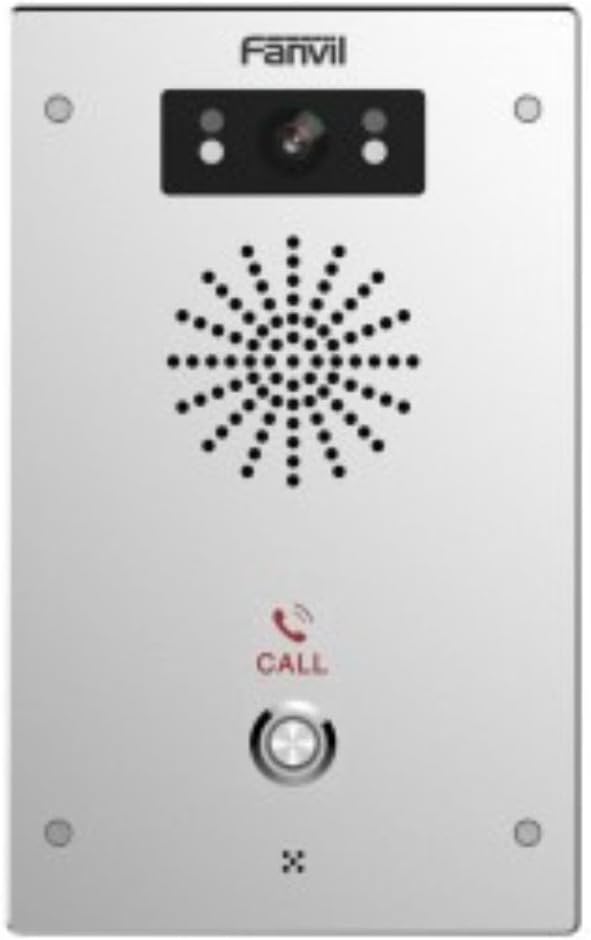
Figure 1: Front view of the Fanvil i16SV Video Intercom. The device features a central speaker grille, a camera module with infrared sensors at the top, and a prominent call button with a phone icon below the speaker. The Fanvil logo is visible at the top.
- Camera Module: Located at the top, includes the 1080p HD camera and infrared sensors for night vision.
- Speaker Grille: Central perforated area for audio output.
- Call Button: A prominent, illuminated button for initiating calls.
- Microphone: Integrated for two-way audio communication (not explicitly visible but implied by intercom function).
- Mounting Points: Four screw holes, one in each corner, for secure wall mounting.
3. Setup
3.1 Installation
- Site Selection: Choose an outdoor location for wall mounting that provides clear visibility for the camera and is within reach of network and power connections. Ensure the location is suitable for an IP65/IK10 rated device.
- Mounting: Securely attach the intercom to a wall using appropriate screws and anchors for the chosen surface. Refer to the included mounting template (if provided) for precise hole placement.
3.2 Wiring and Connectivity
- Power over Ethernet (PoE): Connect a standard Ethernet cable from a PoE-enabled switch or injector to the intercom's Ethernet port. This provides both power and network connectivity.
- Alternative Power (Corded Electric): If PoE is not available, connect a compatible 12V DC power adapter (not included) to the device's power input.
- Network Connection: The device supports Wi-Fi connectivity. For initial setup or if Wi-Fi is not preferred, use a wired Ethernet connection.
3.3 Initial Configuration
The Fanvil i16SV operates as a VoIP system. Initial configuration typically involves:
- Network Settings: Configure IP address, subnet mask, gateway, and DNS settings.
- SIP Account Registration: Register the intercom with your SIP server (e.g., 3CX, Asterisk, Broadsoft). This involves entering SIP server address, user ID, password, and other SIP parameters.
- Video and Audio Settings: Adjust camera resolution (1080p/720p), frame rate, and audio volume as needed.
- Call Button Destination: Program the phone number or SIP URI that the call button will dial.
- Access Control Integration: If integrating with an access control system, configure the necessary relays or protocols.
Refer to the detailed administrator guide (available from Fanvil's website) for advanced configuration options.
4. Operating Instructions
4.1 Making a Call
- To initiate a call, press the CALL button on the front panel of the intercom.
- The intercom will dial the pre-programmed destination (e.g., an indoor station, a phone number, or a softphone client).
- Once the call is answered, two-way audio communication will be established. If the receiving device supports video, the 1080p camera feed will also be transmitted.
4.2 Receiving a Call (Access Control)
When a call is initiated from the intercom, the receiving party can:
- Communicate: Speak with the visitor via the intercom's HD audio system.
- View Video: If using a video-enabled receiving device, view the live video feed from the intercom's camera.
- Grant Access: If configured, the receiving party can remotely unlock a connected door or gate by dialing a specific DTMF code or using a dedicated button on their device.
4.3 Night Vision
The i16SV automatically activates its infrared night vision in low-light conditions, ensuring clear video surveillance and communication even in complete darkness.
5. Maintenance
- Cleaning: Regularly clean the exterior of the intercom with a soft, damp cloth. Do not use abrasive cleaners or solvents. Ensure the camera lens and speaker grille are free from dust and debris.
- Firmware Updates: Periodically check the Fanvil website for firmware updates. Keeping the firmware updated ensures optimal performance and security.
- Connection Check: Periodically inspect all cable connections (Ethernet, power) for wear or damage, especially in outdoor environments.
- Anti-Tamper Alarm: Ensure the anti-tamper alarm is functional and configured to report to the appropriate control center.
6. Troubleshooting
| Problem | Possible Cause | Solution |
|---|---|---|
| No power to the device. | Loose power connection, faulty PoE switch/injector, or power adapter. | Check all power connections. Verify PoE functionality or test the power adapter. |
| Cannot make or receive calls. | Network connectivity issue, incorrect SIP registration, or firewall blocking. | Verify network cable connection or Wi-Fi signal. Check SIP account settings and firewall rules. |
| No video feed. | Camera settings, network bandwidth, or receiving device incompatibility. | Ensure camera is enabled in settings. Check network bandwidth. Verify receiving device supports H.264 video. |
| Poor audio quality. | Environmental noise, network latency, or speaker/microphone obstruction. | Ensure speaker and microphone are clear. Check network quality. Adjust audio settings. |
| Anti-tamper alarm triggers unexpectedly. | Loose mounting, physical impact, or sensor malfunction. | Ensure the device is securely mounted. Inspect for physical damage. Contact support if issues persist. |
For further assistance, consult the Fanvil i16SV administrator guide or contact Fanvil technical support.
7. Specifications
| Feature | Detail |
|---|---|
| Model | i16SV |
| Brand | Fanvil |
| Indoor/Outdoor Usage | Outdoor |
| Connectivity Technology | Wireless (Wi-Fi), Wired (Ethernet/PoE) |
| Power Source | Corded Electric, Power over Ethernet (PoE) |
| Controller Type | VoIP System |
| Mounting Type | Wall Mount |
| Video Capture Resolution | 1080p, 720p |
| Video Capture Format | MP4 (H.264 codec) |
| Low Light Technology | Night Color (Infrared Night Vision) |
| International Protection Rating | IP65 (Waterproof and Dustproof) |
| Impact Protection Rating | IK10 (Anti-collision) |
| Material | Aluminum |
| Wattage | 3 watts |
| Item Dimensions (L x W x H) | 7.68 x 4.72 x 1.57 inches |
| Item Weight | 2.07 pounds |
| Compatible Devices | 3CX, Asterisk, Avaya, Broadsoft, Epygi, Huawei, Jabra gn, Metaswitch, NEC, New Rock, Open Vox, Phonism, Plantronics, Porta One, Senheiser, Yeastar, ZTE, Zycoo |
| UPC | 889837001882 |
8. Safety Information
- Ensure all electrical connections are made by qualified personnel and comply with local electrical codes.
- Do not open the device casing unless instructed by Fanvil support, as this may void the warranty and expose you to electrical hazards.
- Avoid installing the device in locations with extreme temperatures, direct sunlight for prolonged periods, or excessive vibration.
- Keep the device away from strong electromagnetic fields.
- Use only manufacturer-approved accessories and power supplies.
9. Warranty and Support
Information regarding the specific warranty terms for the Fanvil i16SV Video Intercom was not provided in the product data. Please refer to the official Fanvil website or contact your point of purchase for detailed warranty information.
For technical support, firmware downloads, and additional documentation, please visit the official Fanvil support website or contact their customer service department.
10. Official Product Videos
No official product videos from the seller were provided in the available product data for this manual.


