
TTfone TT220
TTfone TT220 Mobile Phone User Manual
Model: TT220 | Brand: TTfone
Introduction
This manual provides essential instructions for setting up, operating, maintaining, and troubleshooting your TTfone TT220 mobile phone. Please read it carefully to ensure proper use and to maximize the phone's features.
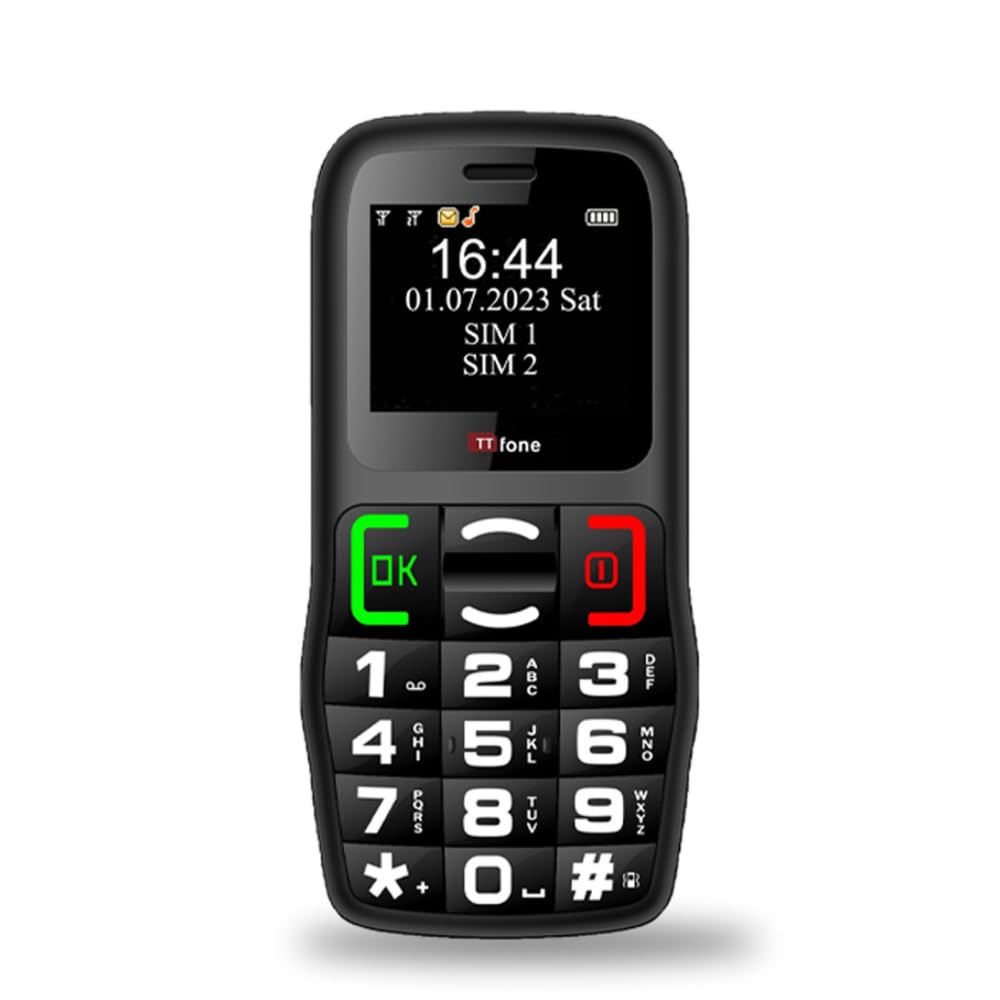
Figure 1: TTfone TT220 Mobile Phone
1. Setup
1.1 Package Contents
Verify that your package contains the following items:
- TTfone TT220 Mobile Phone
- Rechargeable Lithium-ion Battery
- USB Charging Cable
- User Manual (this document)
1.2 Battery Installation
- Remove the back cover of the phone by gently prying it open from the notch.
- Insert the Lithium-ion battery into the compartment, ensuring the gold contacts align with the phone's terminals.
- Replace the back cover, pressing firmly until it clicks into place.
1.3 SIM Card Installation
The TTfone TT220 is unlocked and compatible with all 2G networks. It will not work with 3G-only networks such as Three, Smarty, and ID Mobile.
- With the battery removed, locate the SIM card slot(s).
- Insert your 2G compatible SIM card(s) into the designated slot(s) with the gold contacts facing down and the cut corner aligned as shown in the diagram (refer to phone for specific orientation).
- Reinstall the battery and back cover.
1.4 Charging the Phone
Before first use, fully charge the phone's battery. The TT220 comes with a USB charging cable. You can use this cable with any existing USB wall charger or by connecting it to a PC or laptop.
- Connect the small end of the USB cable to the phone's charging port.
- Connect the larger end of the USB cable to a USB power adapter (not included) or a computer's USB port.
- The battery indicator on the screen will show charging status.

Figure 2: TTfone TT220 with optional Dock Charger (sold separately)
A dock charger can be purchased separately for convenient charging.
2. Operating Instructions
2.1 Power On/Off
- To power on: Press and hold the Call/OK button until the screen lights up.
- To power off: Press and hold the End Call/Power button until the phone shuts down.
2.2 Making and Receiving Calls
The TT220 features large, clear, backlit buttons for easy dialing.
- Making a Call: Dial the number using the keypad and press the Call/OK button.
- Receiving a Call: When the phone rings, press the Call/OK button to answer.
- Ending a Call: Press the End Call/Power button.

Figure 3: Large Buttons and Clear Display for Easy Readability
2.3 Sending and Receiving Text Messages
Use the keypad to type messages. The phone supports basic text messaging functions.
- Navigate to the "Messages" menu.
- Select "Write Message" to compose a new text.
- Enter the recipient's number and your message.
- Press the appropriate key (usually OK or a soft key) to send.
2.4 Keypad Lock Switch
The TT220 features a dedicated keypad lock switch on the side of the phone to prevent accidental calls or messages.
- To lock the keypad: Slide the switch downwards. The screen will display "Keypad locked".
- To unlock the keypad: Slide the switch upwards.

Figure 4: Dedicated Keypad Lock Switch
2.5 Emergency Assistance Button (SOS)
The TT220 includes an emergency SOS button on the back. This feature can be programmed to send a text message and call up to five emergency contacts when pressed and held for 1.5 seconds.
- Programming SOS Contacts: Access the "SOS Settings" menu to add up to five emergency contact numbers.
- Activating SOS: In an emergency, press and hold the SOS button on the back of the phone for 1.5 seconds.
- The phone will automatically send a pre-set emergency text message to the programmed contacts and then begin calling them in sequence until one answers.

Figure 5: Emergency Assistance Button (SOS)
2.6 Special Features
The TT220 offers several additional features for convenience:
- Torch: Activate the built-in torch for illumination in dark environments.
- 0.3 Megapixel Camera: Capture basic photos.
- Bluetooth: Connect to compatible Bluetooth devices such as headsets.
- Speed Dial: Assign frequently called numbers to specific keys for quick dialing.

Figure 6: Special Features Overview
3. Maintenance
- Cleaning: Use a soft, dry cloth to clean the phone's exterior. Avoid liquid cleaners.
- Battery Care:
- Avoid extreme temperatures, which can reduce battery life.
- Do not leave the phone uncharged for extended periods.
- Use only the provided USB cable for charging.
- Storage: Store the phone in a cool, dry place when not in use.
4. Troubleshooting
| Problem | Possible Cause | Solution |
|---|---|---|
| Phone does not power on. | Battery is depleted or not installed correctly. | Charge the battery. Ensure the battery is correctly inserted. |
| Cannot make or receive calls. | No SIM card, incorrect SIM card, or no network signal. | Ensure SIM card is correctly inserted and is 2G compatible. Check for network coverage. |
| Keypad is unresponsive. | Keypad lock is active. | Slide the keypad lock switch upwards to unlock. |
| Short ringing time before voicemail. | Network provider setting. | Contact your service provider to adjust the ringing duration settings. |
| Phone not charging. | Faulty cable, charger, or connection. | Check cable and charger connections. Try a different USB power source. |
5. Specifications
| Feature | Detail |
|---|---|
| Brand | TTfone |
| Model Name | TT220 |
| Color | Black |
| Operating System | TTfone OS |
| Screen Size | 1.8 Inches |
| Connectivity | Bluetooth, Cellular (2G) |
| Cellular Technology | 2G (GSM 900/1800 MHz) |
| Memory (RAM) | 32 MB |
| Special Features | Camera, Bluetooth, Emergency SOS Button, Text/Messaging, Torch, Basic Phone Functions |
| Battery Composition | Lithium-ion (1 included) |
| Dimensions (Approx.) | 11.7cm (H) x 5.7cm (W) x 1.5cm (D) |

Figure 7: TTfone TT220 Dimensions
6. Warranty Information
The TTfone TT220 comes with a manufacturer's warranty of 2 Years. Please retain your proof of purchase for warranty claims.

Figure 8: 2-Year Manufacturer's Warranty
7. Support and Contact
For further assistance, technical support, or warranty inquiries, please contact TTfone customer service. Refer to the packaging or the official TTfone website for the most up-to-date contact information.
Website: www.ttfone.com (Example link, actual link may vary)
Related documentsTT220


Ask a question about this manual
Ask about setup, troubleshooting, compatibility, parts, safety, or missing instructions. Manuals+ will review the question and use this page’s manual context to help answer it.