1. Introduction
This manual provides essential information for setting up, operating, maintaining, and troubleshooting your Dell Latitude 5430 14-inch business laptop. Designed for productivity and reliability, this laptop features a 12th Gen Intel Core i5-1235U processor, 16GB DDR4 RAM, a 512GB PCIe SSD, and comes pre-installed with Windows 11 Pro.
2. Product Overview
The Dell Latitude 5430 is a sleek and powerful 14-inch laptop designed for business use. Below are images highlighting its key physical features and connectivity options.

Figure 2.1: Front view of the Dell Latitude 5430 laptop, showcasing its display and keyboard.
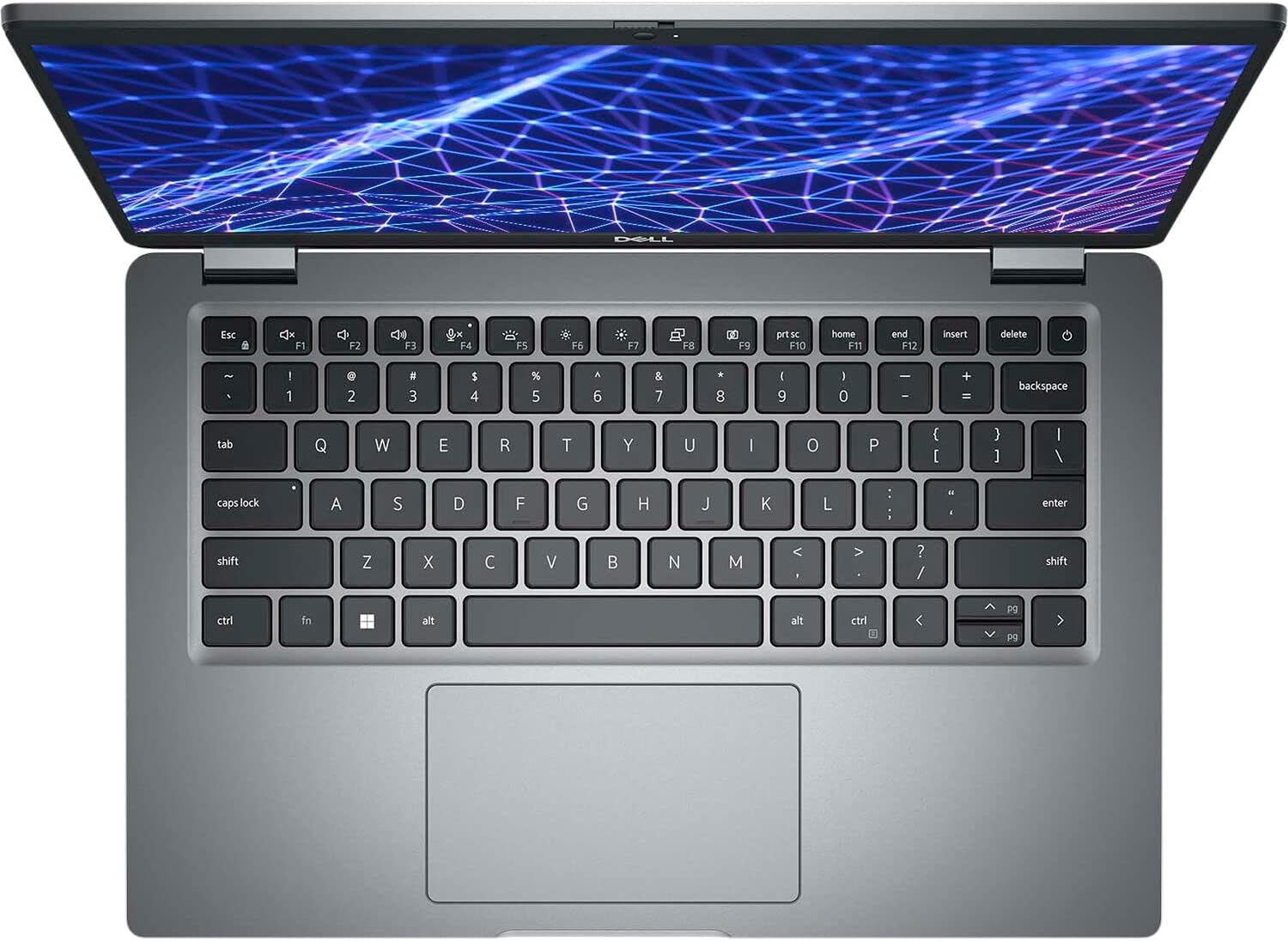
Figure 2.2: Top-down view of the Dell Latitude 5430 keyboard and trackpad. The keyboard is backlit for improved visibility in various lighting conditions.

Figure 2.3: Diagram illustrating the various ports and slots available on the Dell Latitude 5430. These include USB Type-A, USB Type-C with Thunderbolt 4, HDMI, Ethernet, and a universal audio port.

Figure 2.4: Left side view of the Dell Latitude 5430, showing some of its ports and ventilation.

Figure 2.5: Right side view of the Dell Latitude 5430, displaying additional ports and the wedge-shaped locking slot.
3. Setup
3.1 Initial Power On
- Connect Power: Plug the 65W Type-C adapter into a power outlet and then into one of the USB Type-C ports on your laptop.
- Power On: Open the laptop lid and press the power button, typically located on the top-right of the keyboard.
- Follow On-Screen Prompts: Windows 11 Pro will guide you through the initial setup process, including language selection, network connection, and user account creation.
3.2 Dell Optimizer
Your Dell Latitude 5430 comes with Dell Optimizer, an intelligent software designed to enhance your PC experience by dynamically adapting to your usage patterns. It optimizes application performance, audio settings, network connectivity, and power management.
Video 3.1: This video demonstrates the Dell Latitude 5430's touchscreen functionality and highlights its port configuration, including USB Type-C Thunderbolt ports, HDMI, Ethernet, and a 3.5mm audio jack.
4. Operating Instructions
4.1 Keyboard and Trackpad
- The US English backlit keyboard provides comfortable typing. Use the function keys (F1-F12) for quick access to system controls like volume, brightness, and keyboard backlight.
- The precision trackpad supports multi-touch gestures for navigation and interaction with the operating system.
4.2 Connectivity
- Wi-Fi: Connect to wireless networks using Intel Wi-Fi 6 AX211 (802.11ax) for high-speed internet access.
- Bluetooth: Pair with Bluetooth 5.2 compatible devices such as headphones, mice, or external keyboards.
- Wired Network: Use the RJ-45 Ethernet port for a stable wired network connection.
- External Displays: Connect to external monitors or projectors via the HDMI 2.0 port or the USB Type-C 3.2 Gen2 ports with DisplayPort High/Power Delivery mode.
4.3 Camera and Audio
- The laptop features a 1080p at 30 fps widescreen FHD RGB IR camera with dual array microphones, suitable for video conferencing.
- Stereo speakers with Realtek Waves MaxxAudio Pro provide clear audio output.
5. Maintenance
5.1 Battery Care
- The 4-cell rechargeable lithium-ion battery (54 Wh) provides power. To maximize battery lifespan, avoid extreme temperatures and fully discharging the battery frequently.
- Use only the provided 65W Type-C adapter for charging.
5.2 Cleaning
- Use a soft, lint-free cloth dampened with water or a screen cleaner to clean the display.
- For the keyboard and chassis, use a soft cloth and a mild cleaning solution. Avoid spraying liquids directly onto the laptop.
5.3 Software Updates
Regularly check for and install operating system and driver updates to ensure optimal performance and security. Dell Optimizer can assist in managing these updates.
6. Troubleshooting
If you encounter issues with your Dell Latitude 5430, consider the following general troubleshooting steps:
- No Power: Ensure the power adapter is securely connected and the power outlet is functional. Try a different outlet or adapter if available.
- Display Issues: If the screen is blank, try adjusting the brightness settings or connecting an external monitor to check if the display hardware is at fault.
- Slow Performance: Close unnecessary applications, check for malware, and ensure your system has sufficient free storage space. Running Dell Optimizer can help identify and resolve performance bottlenecks.
- Connectivity Problems: For Wi-Fi issues, restart your router and laptop. For wired connections, check the Ethernet cable and port.
- Audio Problems: Check volume settings, ensure headphones are properly connected, and update audio drivers.
For more detailed troubleshooting or persistent issues, refer to Dell's official support website or contact customer service.
Video 6.1: This video provides a comparison between the Dell Latitude 5420 and 5430 models, highlighting differences in features such as trackpad size, processor generation, and camera capabilities, including the privacy shutter on the 5430.
7. Specifications
| Feature | Specification |
|---|---|
| Processor | Intel Core i5-1235U (12th Gen, 10C/12T, up to 4.4 GHz) |
| Operating System | Windows 11 Professional (64-bit) |
| Graphics | Integrated Intel Iris Xe Graphics |
| Display | 14.0" FHD (1920x1080) Anti-Glare, Non-Touch, WVA, 250 nits |
| Memory (RAM) | 16 GB DDR4 at 3200 MHz |
| Storage | 512GB PCIe NVMe M.2 SSD |
| Keyboard | US English Backlit Keyboard, 79 keys |
| Ports | 1x RJ-45 Ethernet, 1x USB 3.2 Gen 1 Type-A, 1x USB 2.0, 1x USB Type-C 3.2 Gen2 (DisplayPort/Power Delivery), 1x USB 3.2 Gen 1 Type-A PowerShare, 1x HDMI 2.0, 1x Universal Audio Port |
| Slots | 1x microSD card slot, 1x Wedge-shaped locking slot |
| Camera | 1080p at 30 fps, Widescreen FHD RGB IR Camera, Dual Array Microphones |
| Audio | Stereo speakers with Realtek Waves MaxxAudio Pro (2 W x 2 W = 4 W total) |
| Wireless | Intel Wi-Fi 6 AX211, 2x2, 802.11ax, Bluetooth 5.2 |
| Battery | 4-cell Rechargeable Lithium-Ion (54 Wh) |
| Power Adapter | 65 W Type-C |
| Dimensions (LxWxH) | 12.83 x 8.89 x 0.69 inches |
| Weight | 3.37 pounds |
8. Warranty and Support
For information regarding your product's warranty, technical support, and service options, please refer to the documentation included with your Dell Latitude 5430 or visit the official Dell support website. Dell offers various protection plans, including 2-year and 4-year options, to safeguard your investment.


