1. Introduction
Welcome to the user manual for your Hoppstar Expert Digital Camera. This manual provides essential information on how to set up, operate, and maintain your camera, ensuring a fun and creative experience for young photographers. Please read this manual carefully before using the camera and keep it for future reference.
The Hoppstar Expert is designed specifically for children, offering a user-friendly interface, durable construction with interchangeable silicone covers, and a range of exciting features including a selfie camera, video recording, picture frames, photo filters, and face detection.
2. Safety Information
- This product is intended for children aged 3 years and older. Adult supervision is recommended during use.
- Do not expose the camera to water or excessive moisture.
- Avoid dropping the camera or subjecting it to strong impacts, even with the protective silicone cover.
- Keep small parts, such as memory cards, out of reach of very young children to prevent choking hazards.
- Use only the charging cable provided or a compatible USB charger.
- Do not attempt to disassemble or repair the camera yourself. Contact customer support if issues arise.
3. Package Contents
Please check the box for the following items:
- Hoppstar Expert Digital Camera
- Instruction Manual
- USB Charging Cable
- Lanyard/Strap
- USB-C to USB-A Adapter
- USB-C to Micro-USB Adapter
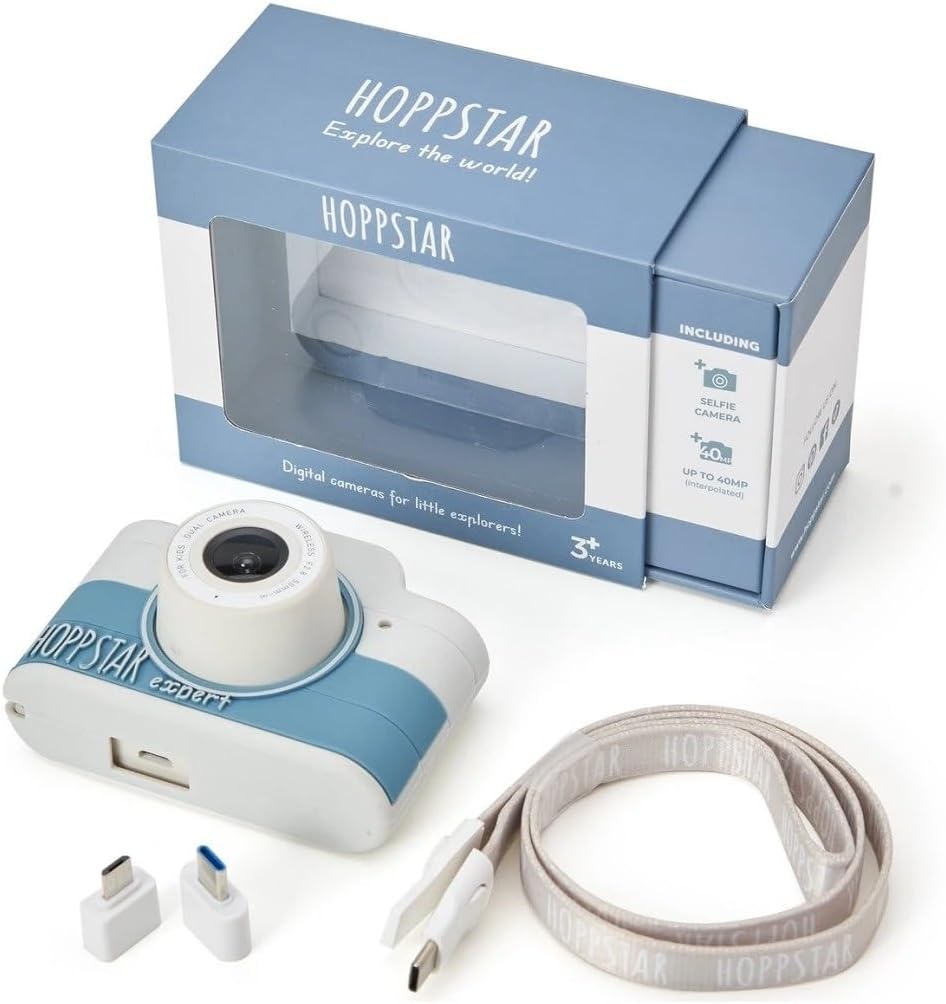
Image: Hoppstar Expert camera shown with its retail packaging, USB charging cable, lanyard, and two USB adapters.
4. Product Overview
Front View

Image: The front of the Hoppstar Expert camera, featuring the main lens, flash, and the 'Hoppstar Expert' branding on the blue and white body.
- Main Lens: For taking standard photos and videos.
- Flash/Light: Provides illumination in low-light conditions.
- Microphone: Captures audio during video recording.
Rear View

Image: The back of the Hoppstar Expert camera, displaying the LCD screen and the control buttons on either side.
- LCD Screen: Displays menus, live view, and playback.
- Selfie Camera: Located above the screen for self-portraits.
- Control Buttons: Navigation, OK, Menu, and other function buttons.
5. Setup
5.1 Charging the Camera
Before first use, fully charge the camera's internal battery. Connect the provided USB charging cable to the camera's USB port and to a USB power source (e.g., computer, wall adapter). The charging indicator light will show the charging status and turn off when fully charged.
5.2 Inserting a Memory Card
The Hoppstar Expert comes with 16 GB of internal storage. If you wish to expand storage, locate the memory card slot (usually on the side or bottom) and insert a compatible microSD card (not included) until it clicks into place. Ensure the camera is powered off before inserting or removing the card.
5.3 Powering On/Off
Press and hold the Power button (usually located on the top or side) for a few seconds to turn the camera on or off.
6. Operating Instructions
6.1 Basic Controls
- OK Button: Confirms selections in menus, takes photos, or starts/stops video recording.
- Navigation Buttons: Used to move through menu options (Up, Down, Left, Right).
- Menu Button: Accesses the camera's settings and feature options.
- Mode Button: Switches between photo, video, and playback modes.
6.2 Taking Photos
In photo mode, frame your shot using the LCD screen. Press the OK button to capture a photo. The camera supports both front and selfie cameras. To switch between cameras, navigate to the camera settings in the menu or use a dedicated button if available.
6.3 Recording Videos
Switch to video mode. Press the OK button once to start recording and press it again to stop. Videos are saved to the internal memory or inserted memory card.
6.4 Using Creative Features
The Hoppstar Expert includes several creative features:
- Picture Frames: Apply fun borders to your photos. Access this feature through the camera's menu.
- Photo Filters: Change the look and feel of your photos with various color and effect filters.
- Face Detection: The camera can automatically detect faces in the frame, assisting with focus.
Explore these options within the camera's menu settings to enhance your photos and videos.
7. Maintenance
- Cleaning: Use a soft, dry cloth to clean the camera body and screen. For the lens, use a specialized lens cleaning cloth. Do not use liquid cleaners.
- Silicone Cover: The interchangeable silicone cover can be removed and cleaned with mild soap and water if necessary. Ensure it is completely dry before reattaching.
- Battery Care: To prolong battery life, avoid fully discharging the battery frequently. Charge the camera regularly, even if not in use for extended periods.
- Storage: Store the camera in a cool, dry place away from direct sunlight and extreme temperatures.
8. Troubleshooting
Camera Not Turning On
- Ensure the battery is charged. Connect the camera to a power source and try again.
- Press and hold the Power button for a longer duration (5-10 seconds).
Poor Image/Video Quality
- Ensure the lens is clean and free from smudges or dust.
- Check lighting conditions. Optimal results are achieved in well-lit environments.
- Ensure the camera is held steady during capture.
Camera Freezes/Unresponsive
- Try resetting the camera by pressing the reset button (if available, often a small pinhole) or by holding the Power button until it turns off and then restarting.
Cannot Save Photos/Videos
- Check if the internal memory or inserted memory card is full. Delete unnecessary files or insert a new card.
- Ensure the memory card is properly inserted and not corrupted.
If you encounter issues not listed here or if troubleshooting steps do not resolve the problem, please contact Hoppstar customer support.
9. Specifications
| Feature | Specification |
|---|---|
| Brand Name | Hoppstar |
| Model Name | Hoppstar Expert Yale |
| Model Number | 76893 |
| Color | Yale |
| Package Dimensions | 14.3 x 8.7 x 5.1 cm |
| Continuous Shooting Speed | 30 fps |
| Built-in Components | Camera + Instruction Manual |
| Model Year | 2023 |
| Film Color | Color |
| Exposure Control Type | Automatic |
| Shutter Type | Electronic |
10. Warranty and Support
The Hoppstar Expert Digital Camera comes with a standard manufacturer's warranty. Please refer to the warranty information provided with your purchase or visit the official Hoppstar website for details regarding warranty terms and conditions.
For technical support, product inquiries, or warranty claims, please contact Hoppstar customer service through their official website or the contact information provided in your purchase documentation.


