1. Introduction
The ECOWITT HP2550 is a 7-inch TFT color display console designed for use with various ECOWITT wireless weather sensors. It provides comprehensive monitoring of weather conditions, displaying data such as indoor and outdoor temperature, humidity, atmospheric pressure, wind speed and direction, precipitation, UV index, and solar radiation. The console supports Wi-Fi connectivity for data upload to cloud services and allows for viewing historical sensor data and diagrams directly on the screen.
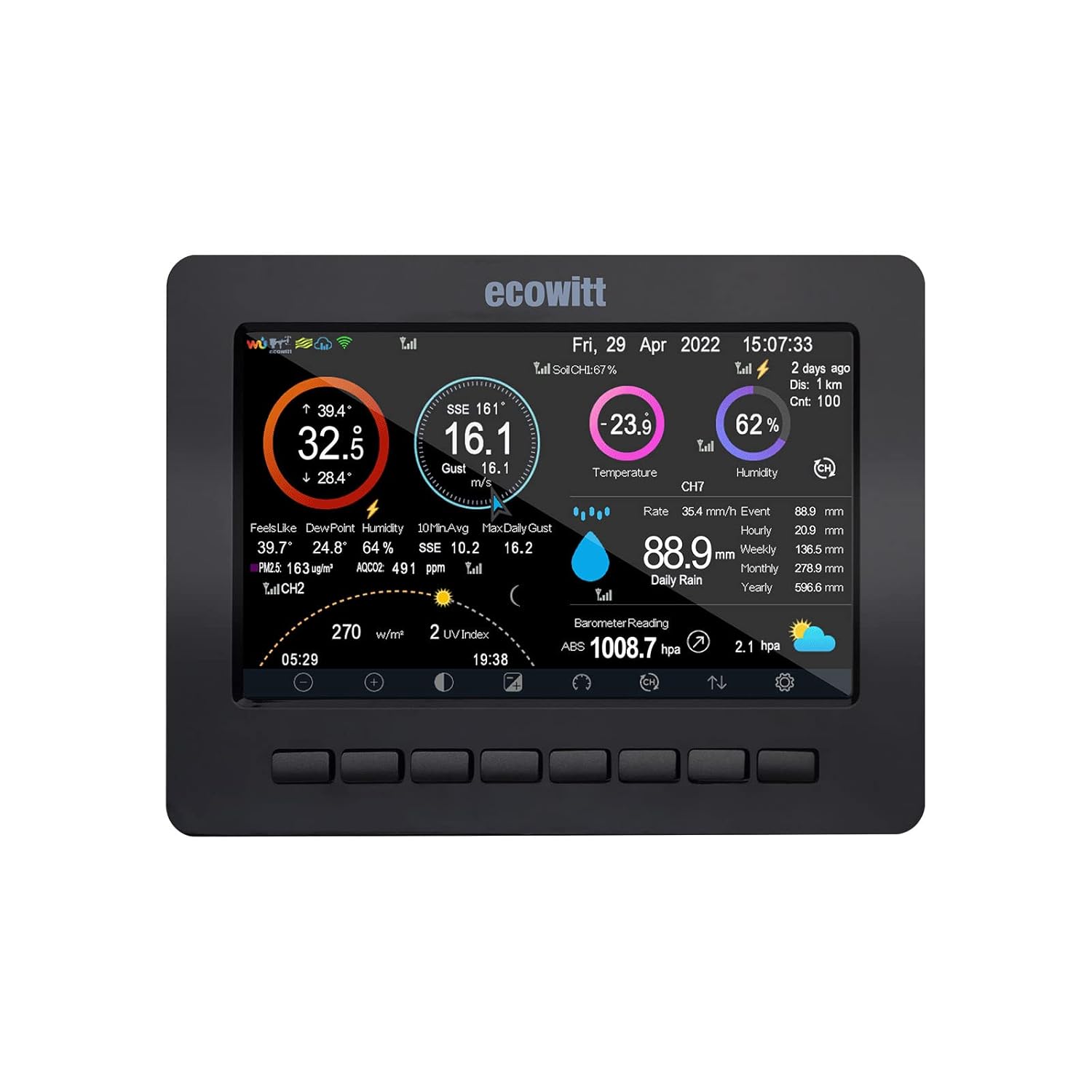
Figure 1.1: ECOWITT HP2550 Console
This manual provides detailed instructions for setting up, operating, and maintaining your HP2550 console to ensure accurate and reliable weather monitoring.
2. Key Features
- 7-inch TFT Color Display: High-resolution screen for clear data visualization.
- Extensive Weather Monitoring: Displays indoor temperature, humidity, absolute and relative atmospheric pressure, wind speed, wind direction, precipitation, outdoor temperature, humidity, UV, dew point, wind chill, heat index, moon phase, and sunrise/sunset times.
- Wi-Fi Connectivity: Supports automatic or manual firmware upgrades and data transfer to Ecowitt cloud or personal weather station networks.
- Broad Sensor Compatibility: Collects data from various Ecowitt wireless sensors (e.g., WS90, WS69, WS80, WS68, WH51, WH31, WN30, WN34, WH55, WH41, WH43, WH57, WH45).
- Adjustable Brightness: Screen brightness can be freely adjusted to suit viewing conditions.
- Multi-language Support: Supports 8 languages for user interface.
- Historical Data & Graphs: View sensor history and diagrams directly on the console.
3. Setup and Installation
3.1 Powering the Console
The HP2550 console is powered by an AC adapter (included). Connect the adapter to the console's power input and plug it into a standard electrical outlet. The console does not operate on batteries.
3.2 Sensor Pairing
The console automatically pairs with compatible Ecowitt outdoor sensors such as WS90, WS69, WS80, and WS68. Ensure your outdoor sensor is powered on and within range of the console. For additional sensors (e.g., WH51, WH31, WN30, WN34, WH55, WH41, WH43, WH57, WH45), the console will automatically detect and display their data once they are powered on and within range.

Figure 3.1: Console and Outdoor Sensor Setup
3.3 Wi-Fi Configuration
To enable data upload and firmware updates, configure the console's Wi-Fi settings. Refer to the on-screen menu for Wi-Fi setup. The console can transfer data to the Ecowitt cloud or your personal weather station network.
4. Operation
4.1 Display Overview
The 7-inch TFT display presents various weather parameters. The layout is designed for easy readability. You can navigate through different screens using the buttons located at the bottom of the console.
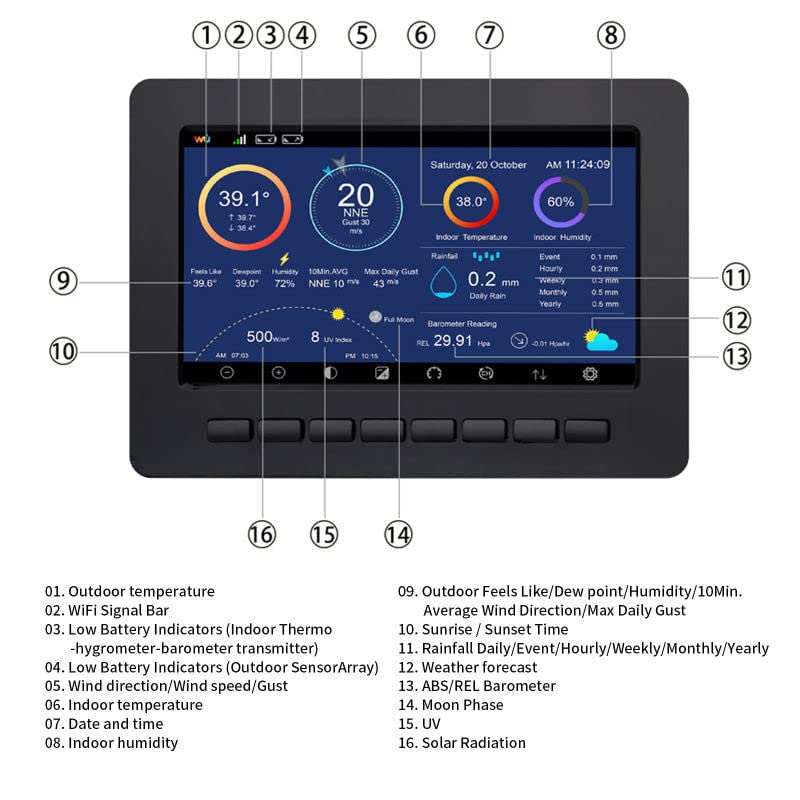
Figure 4.1: Console Display Layout with Key Indicators
- Outdoor temperature
- Wi-Fi Signal Bar
- Low Battery Indicators (Indoor Thermo-hygrometer-barometer transmitter)
- Low Battery Indicators (Outdoor SensorArray)
- Wind Direction/Wind speed/Gust
- Indoor temperature
- Date and time
- Indoor humidity
- Outdoor Feels Like/Dew point/Humidity/10Min. Average Wind Direction/Max Daily Gust
- Sunrise / Sunset Time
- Rainfall Daily/Event/Hourly/Weekly/Monthly/Yearly
- Weather forecast
- ABS/REL Barometer
- Moon Phase
- UV
- Solar Radiation
4.2 Adjusting Display Settings
The console allows you to adjust the screen brightness and switch between different background themes (dark blue and light grey) for optimal viewing comfort.

Figure 4.2: Switching Between Display Themes
Use the dedicated button on the console to toggle between the dark and light background themes. Brightness adjustments can typically be found within the console's settings menu.
5. Sensor Compatibility
The HP2550 console is designed to work seamlessly with a wide range of ECOWITT wireless sensors, allowing you to customize your weather monitoring system. The console can receive data from multiple types of sensors simultaneously.

Figure 5.1: HP2550 Console Sensor Compatibility Chart
Supported Sensors:
- Integrated Outdoor Sensors: WS90, WS69, WS80, WS68 (7-in-1 sensors).
- Multi-channel Temperature & Humidity Sensors: Up to 8 x WN31, WH31.
- Multi-channel Temperature Sensors: Up to 8 x WN30, WN34S/L.
- Soil Moisture Sensors: Up to 8 x WH51.
- PM2.5 Air Quality Sensors: Up to 4 x WH41, WH43.
- Water Leak Sensors: Up to 4 x WH55.
- Lightning Sensor: 1 x WH57.
- All-in-one PM2.5/PM10/CO2/Temp/Humidity Sensor: 1 x WH45.
- Rain Gauge: WH40.
- Indoor Thermo-Hygrometer-Barometer: WN32 (Note: The HP2550 console itself does not include built-in indoor temperature, humidity, or atmospheric pressure sensors. A separate WN32 sensor is required to display this information.)
6. Maintenance
6.1 Firmware Updates
Firmware updates for the HP2550 console are performed using a micro SD card (up to 32GB, formatted as FAT32). The USB port on the console is for firmware updates only and not for data communication. Regularly check the ECOWITT website for the latest firmware versions to ensure optimal performance and access to new features.
6.2 Cleaning
Wipe the console's screen and body with a soft, dry cloth. Avoid using abrasive cleaners or solvents that could damage the display or casing.
7. Troubleshooting
- No Indoor Temperature/Humidity/Pressure Display: The HP2550 console does not have built-in indoor sensors. You must purchase and pair a separate WN32 indoor sensor to display these parameters.
- Sensor Data Not Displaying:
- Ensure the sensor is powered on and its batteries are not depleted.
- Verify the sensor is within the console's wireless range (typically up to 100 meters / 328 feet in open air). Obstacles like walls can reduce range.
- Check for strong interference sources nearby.
- Try re-pairing the sensor if applicable (refer to sensor-specific manual).
- Wi-Fi Connection Issues:
- Ensure your Wi-Fi network is 2.4GHz (5GHz networks are not supported).
- Verify the Wi-Fi password is entered correctly.
- Move the console closer to your Wi-Fi router.
- Restart your router and the console.
- Display Not Responding: Try unplugging the AC adapter, waiting a few seconds, and plugging it back in to restart the console.
8. Specifications
| Feature | Detail |
|---|---|
| Model Number | HP2550 |
| Display Type | 7-inch TFT Color Screen |
| Power Source | AC Adapter (no batteries included or required for console operation) |
| Dimensions (L x W x H) | 4.98 x 3.81 x 1.98 cm (approx. 1.96 x 1.50 x 0.78 inches) |
| Weight | 360 grams (approx. 0.79 lbs) |
| Wi-Fi Support | Yes (2.4GHz only) |
| Firmware Update | Via Micro SD Card (up to 32GB, FAT32) |
| Supported Sensors | WS90, WS69, WS80, WS68, WH51, WH31, WN30, WN34, WH55, WH41, WH43, WH57, WH45, WH40, WN32 |


