
1. Introduction
This manual provides comprehensive instructions for the Olvy Wireless Android Auto Dongle W-28. This device enables wireless Android Auto connectivity in compatible vehicles, allowing you to access your smartphone's features on your car's display without a physical cable connection.
Important Note: To use this dongle, your vehicle must have a factory-integrated Android Auto system that also supports wired CarPlay. This is typically found in 98% of cars manufactured after 2017. The dongle supports Android phones running Android 10 or higher.

Image 1.1: The Olvy dongle facilitating wireless Android Auto, eliminating cable clutter.
2. Safety Information
- Do not attempt to disassemble or modify the device.
- Keep the device away from water, moisture, and extreme temperatures.
- Ensure the device is securely connected to prevent accidental disconnection during driving.
- Operate your vehicle responsibly. Do not interact with the device or your smartphone in a way that distracts you from driving.
3. Package Contents
Please check the package for the following items:
- Olvy Wireless Android Auto Dongle W-28
- USB-C to USB-A Cable
- USB-C to USB-C Cable
4. Product Overview
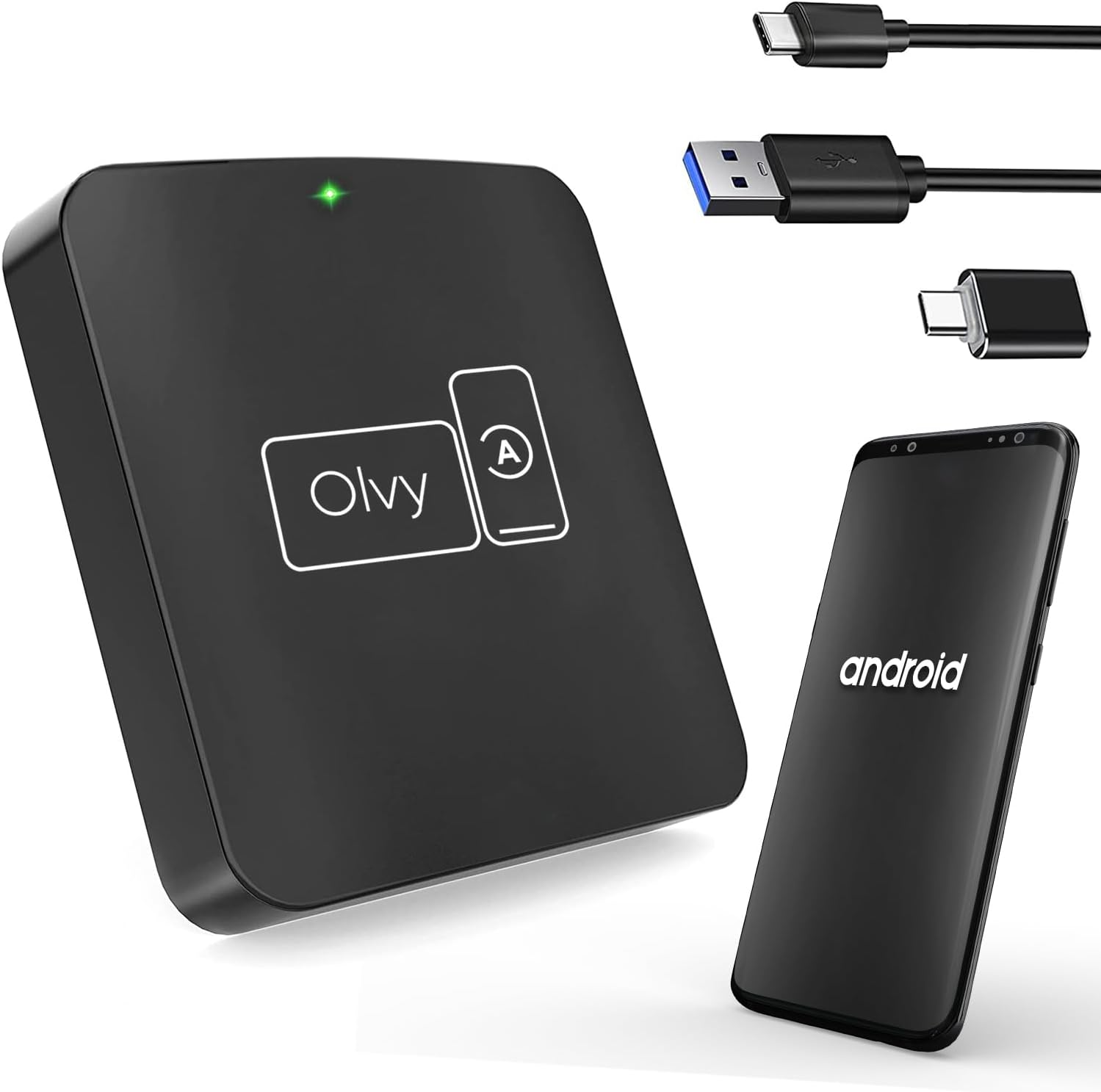
Image 4.1: Olvy Wireless Android Auto Dongle and connectivity options.
The Olvy Wireless Android Auto Dongle is a compact device designed to provide a seamless wireless connection between your Android smartphone and your car's infotainment system. It features a 5.8GHz chip for faster and more stable connections.

Image 4.2: Compact design and dimensions of the Olvy dongle (55mm x 55mm x 12mm).

Image 4.3: Key features of the Olvy dongle, including Plug & Play functionality and a 5.8GHz chip.
5. Setup Instructions
Follow these steps for a quick and easy setup:
- Step 1: Connect the Dongle to your Car. Use the provided USB-C to USB-A or USB-C to USB-C cable to connect the Olvy dongle to your car's USB port. Ensure the port supports data transfer for Android Auto.
- Step 2: Pair your Smartphone via Bluetooth. On your smartphone, enable Bluetooth and search for available devices. Select the device named "Smart-box..." (or similar) and pair with it.
- Step 3: Establish Wireless Connection. Once paired, the dongle will automatically connect your phone to the car's Android Auto system wirelessly. The initial setup typically takes about 15 seconds. Subsequent connections should occur within 5 seconds automatically.
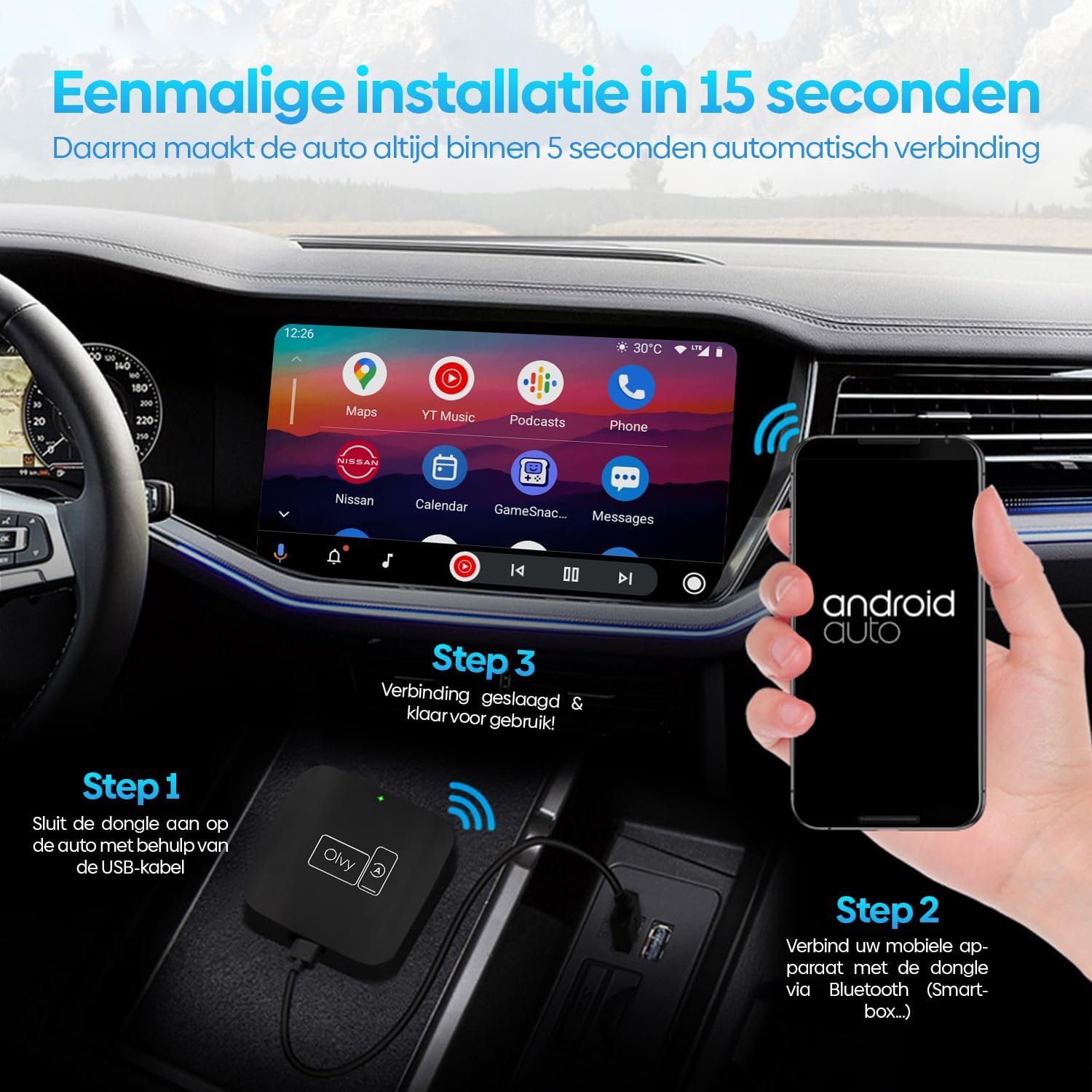
Image 5.1: Visual guide for the 3-step installation process.
6. Operating Instructions
6.1. Using Android Auto
Once connected, your car's display will show the Android Auto interface. You can navigate through apps, maps, music, and calls directly from your car's screen.
6.2. Control Methods
The Olvy dongle supports various control methods available in your vehicle:
- Steering Wheel Controls: Use your car's built-in steering wheel buttons for audio, calls, and navigation.
- OEM Knob Controls: Utilize the original equipment manufacturer (OEM) control knobs for menu navigation.
- Voice Control: Activate voice commands through your car's system or by saying "Hey Google" to control Android Auto hands-free.
- Touchscreen Operation: Interact directly with the car's touchscreen display.

Image 6.1: Supported control methods for Android Auto.
6.3. Day and Night Mode
The dongle supports automatic switching between day and night modes to optimize screen visibility and protect driver's vision. It detects ambient light conditions or car headlight status to adjust the display accordingly.

Image 6.2: Android Auto display in day and night modes.
7. Maintenance
- Keep the dongle clean and free from dust. Use a soft, dry cloth for cleaning.
- Avoid exposing the device to direct sunlight for extended periods.
- Store the device in a cool, dry place when not in use.
8. Troubleshooting
| Problem | Possible Cause | Solution |
|---|---|---|
| Device does not connect automatically. | Bluetooth not paired or connection interrupted. | Ensure Bluetooth is enabled on your phone and paired with "Smart-box...". Reconnect manually if necessary. |
| Android Auto does not launch. | Car's USB port not providing data, or car does not support wired Android Auto/CarPlay. | Try a different USB port in your car. Verify your car supports factory-wired Android Auto and CarPlay. Ensure your phone runs Android 10 or higher. |
| Intermittent connection. | Interference or weak signal. | Ensure no other Bluetooth devices are causing interference. Try restarting both the dongle (by unplugging and replugging) and your phone. |
9. Specifications
- Model: W-28
- Brand: Olvy
- Connectivity Technology: Bluetooth, USB, Wi-Fi
- Connector Type: USB-C, USB-A
- Special Feature: Wireless Android Auto
- Compatible Devices: Android Smartphones (Android 10+)
- Resolution: 1080p (supported by Android Auto)
- Dimensions: Approximately 55mm x 55mm x 12mm
10. Warranty and Support
For warranty information and technical support, please refer to the official Olvy website or contact your retailer. Keep your purchase receipt as proof of purchase.
Manufacturer: Olvy
Date of Release: June 27, 2023


