
1. Introduction
The NETGEAR Nighthawk Tri-Band WiFi 7 Router (RS700S) represents a significant advancement in wireless networking technology. Designed to deliver speeds up to 19 Gbps, this router is engineered for demanding applications such as real-time gaming, 4K/8K streaming, UHD video conferencing, and immersive AR/VR experiences. It offers 2.4 times faster speeds than WiFi 6, leveraging 320 MHz channels for enhanced performance. The RS700S features a refined design with a 3D antenna system, providing extensive WiFi coverage up to 3,500 sq. ft. It includes a 10 Gig Internet port and multiple LAN ports to support the fastest internet plans available today and in the future. This manual provides essential information for setting up, operating, maintaining, and troubleshooting your Nighthawk RS700S router.

This image illustrates the NETGEAR Nighthawk WiFi 7 RS700S Router, emphasizing its core capabilities: up to 19Gbps streaming speed, up to 3,500 sq. ft. WiFi coverage, support for up to 200 concurrent devices, and the inclusion of 10 Gig internet and LAN ports.
2. What's in the Box
Verify that your package contains all the following items:
- One (1) WiFi 7 Tri-Band Router (RS700S)
- One (1) 2m Ethernet cable
- One (1) 19V/3.16A power adapter
- Quick start guide
3. Physical Overview
3.1 Front Panel Indicators
The front panel of the Nighthawk RS700S features several LED indicators that provide status information about the router's operation. These indicators help you quickly assess the network status and identify potential issues.

This image displays the front of the NETGEAR Nighthawk RS700S Router, showcasing its sleek design and the vertical array of LED indicators that provide real-time status updates for power, internet connectivity, WiFi bands, and other functions.
3.2 Rear Panel Ports
The rear panel of the router houses all the necessary ports for connecting to your internet service and local network devices.
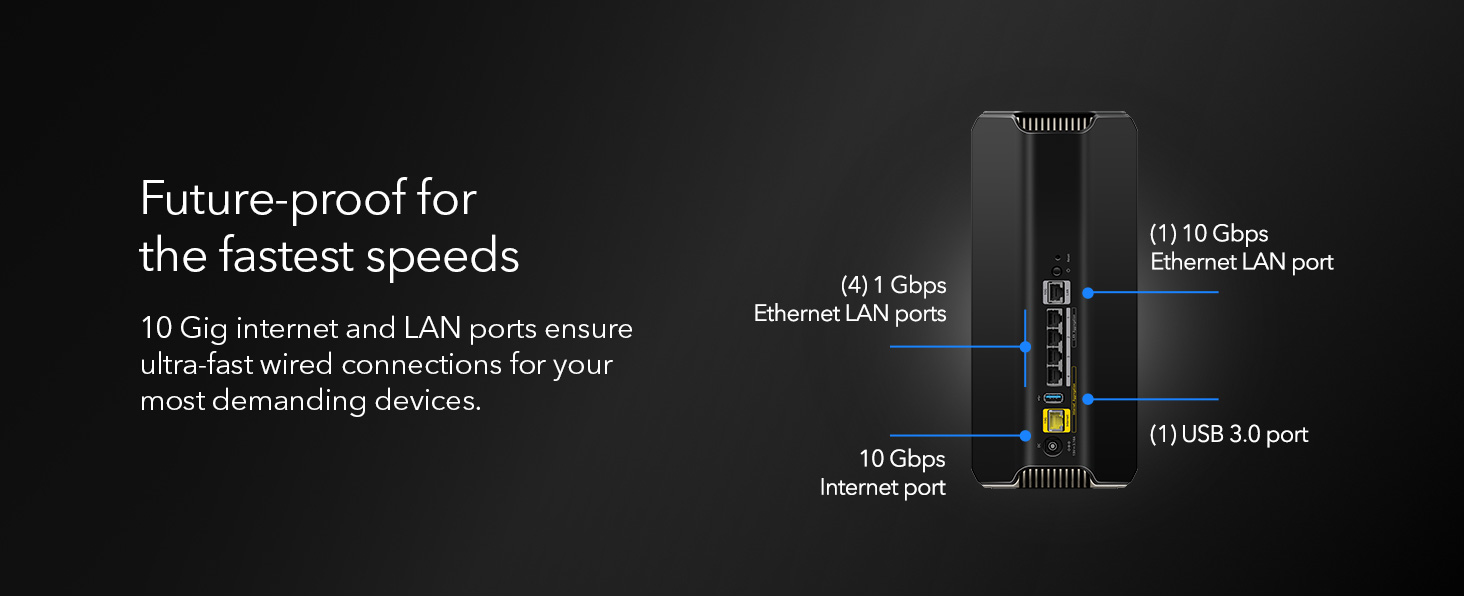
This diagram illustrates the rear panel of the Nighthawk RS700S Router, clearly labeling its connectivity options: one (1) 10 Gbps Ethernet LAN port, four (4) 1 Gbps Ethernet LAN ports, one (1) USB 3.0 port, and one (1) 10 Gbps Internet port.
- 10 Gig Internet Port: Connects to your modem for internet access.
- 10 Gig Ethernet LAN Port: Provides ultra-fast wired connection for high-bandwidth devices.
- 1 Gig Ethernet LAN Ports (x4): Standard Gigabit Ethernet ports for wired network devices.
- USB 3.0 Port: For connecting external storage devices to share files over the network.
- Power Connector: Connects to the provided power adapter.
- Reset Button: Used to restore factory default settings.
4. Installation and Setup
Follow these steps to set up your NETGEAR Nighthawk RS700S Router:
- Unpack and Place: Remove the router from its packaging. Place the router in a central location in your home, away from obstructions and electronic devices that might cause interference. The router's sleek design and 3D antenna system are optimized for 360-degree WiFi coverage.
- Connect to Modem: Power off your modem. Connect one end of the provided Ethernet cable to the 10 Gig Internet port (yellow) on the back of your RS700S router and the other end to your modem's Ethernet port.
- Power On: Connect the power adapter to the router's power connector and plug it into a power outlet. Power on your modem, then power on your router. Wait for the router's Power LED and Internet LED to turn solid white, indicating a successful connection.
- Connect Devices: You can connect devices wirelessly or via Ethernet. For wireless setup, locate the default WiFi network name (SSID) and password on the router's label.
- Install Nighthawk App: For the easiest setup and management, download the NETGEAR Nighthawk app on your mobile device. The app will guide you through the remaining setup steps, including customizing your WiFi network name and password, and configuring security settings.
- Web Browser Setup (Alternative): If you prefer not to use the app, open a web browser on a computer connected to the router (either wirelessly or via Ethernet). Type
routerlogin.netor192.168.1.1into the address bar and follow the on-screen instructions.
Note: This is a router, not a modem. A separate modem is required for your internet service. The RS700S is compatible with any internet service provider.
5. Operating Your Router
5.1 WiFi 7 Performance
The Nighthawk RS700S leverages WiFi 7 technology to provide unparalleled performance:
- Tri-Band Connectivity: Operates on 2.4 GHz, 5 GHz, and 6 GHz bands for optimal device allocation and reduced congestion.
- BE19000 Wireless Speed: Achieves speeds up to 19 Gbps, significantly faster than previous WiFi standards.
- 320 MHz Channels: Provides wider channels for increased data capacity and throughput.
- Lower Latency: Critical for real-time applications like gaming and AR/VR, ensuring a responsive experience.

This image visually compares WiFi 7 with previous generations (WiFi 6 and WiFi 5), highlighting WiFi 7's advantages such as 2.4x faster speeds, 2x maximum bandwidth with 320 MHz high-capacity channels, significantly lower latency, and 20% more data transmission through 4K QAM modulation.
5.2 Enhanced Coverage
The router's advanced antenna design provides robust and widespread WiFi coverage, extending up to 3,500 sq. ft. This ensures a strong signal throughout your home, minimizing dead zones.

This image depicts the Nighthawk RS700S Router centrally located in a home, illustrating its patented antenna design that provides enhanced WiFi performance and extensive coverage across the entire living space.
5.3 NETGEAR Armor Security
Your Nighthawk RS700S includes NETGEAR Armor powered by Bitdefender, a comprehensive cybersecurity solution. This service provides advanced protection against online threats for all connected devices on your network. A 1-year subscription is included with your purchase.

This image highlights the benefits of NETGEAR Armor, a powerful suite of tools designed to keep users safe online. Key features shown include cybersecurity, VPN, extended warranty, and priority support, all managed via a mobile app interface.
5.4 Nighthawk App Management
The NETGEAR Nighthawk app allows you to manage your router and network settings from your smartphone. You can customize WiFi settings, monitor connected devices, run speed tests, and prioritize bandwidth for specific devices or applications to ensure peak performance.
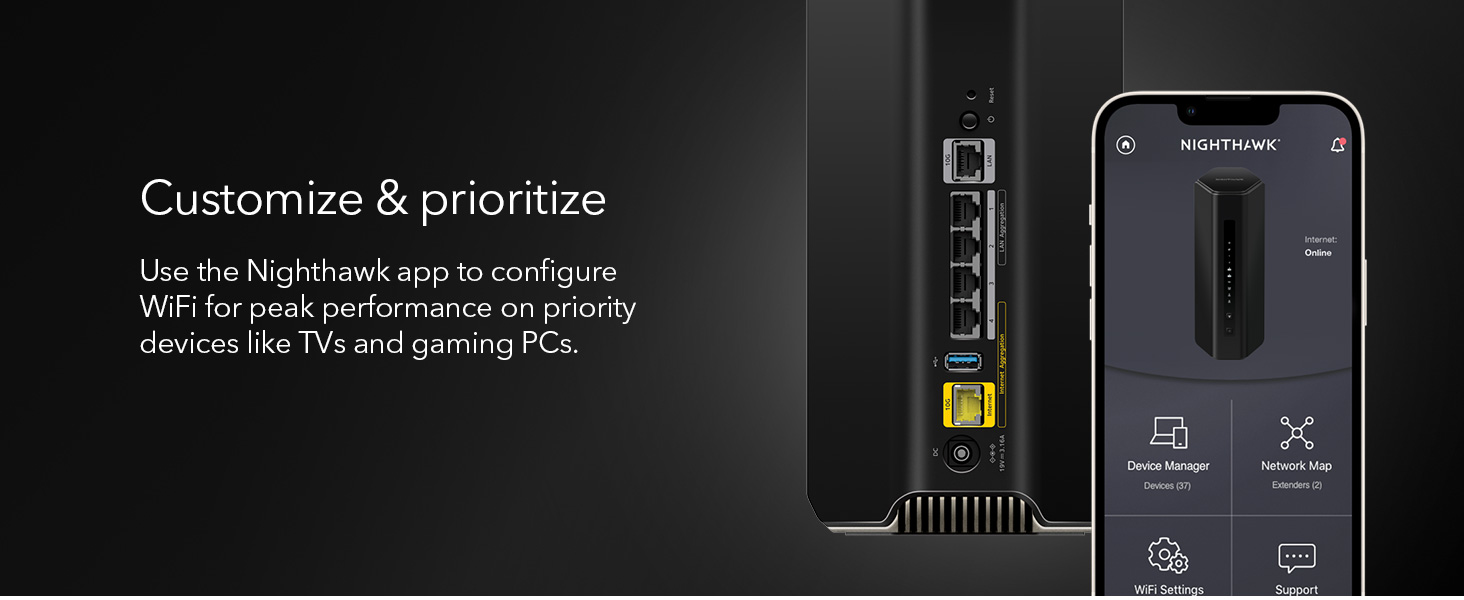
This image shows a smartphone displaying the NETGEAR Nighthawk app interface, demonstrating how users can customize and prioritize WiFi settings for optimal performance on devices like TVs and gaming PCs.
6. Maintenance
To ensure optimal performance and longevity of your Nighthawk RS700S router, consider the following maintenance tips:
- Firmware Updates: Regularly check for and install firmware updates through the Nighthawk app or the router's web interface. Firmware updates often include performance improvements, security patches, and new features.
- Optimal Placement: Ensure the router remains in an open, central location to maximize WiFi signal distribution. Avoid placing it inside cabinets, near large metal objects, or close to other signal-emitting devices.
- Cleaning: Periodically clean the router's exterior with a soft, dry cloth. Ensure ventilation openings are free from dust to prevent overheating.
- Restarting: If you experience network issues, a simple restart of the router (and modem) can often resolve temporary glitches. Unplug the power adapter, wait 10 seconds, then plug it back in.
7. Troubleshooting
This section addresses common issues you might encounter with your Nighthawk RS700S router.
| Problem | Possible Solution |
|---|---|
| No Internet Connection |
|
| Slow WiFi Speeds |
|
| Cannot Connect to WiFi Network |
|
| Router Not a Cable Modem |
|
For more detailed troubleshooting or persistent issues, refer to the NETGEAR support website or contact technical support.
8. Technical Specifications
| Feature | Detail |
|---|---|
| Model Name | RS700S |
| Item Model Number | RS700S-100NAS |
| Wireless Communication Standard | 802.11.be (WiFi 7) |
| Frequency Band Class | Tri-Band (2.4 GHz, 5 GHz, 6 GHz) |
| Maximum Wireless Speed | Up to 19 Gbps (BE19000) |
| WiFi Coverage | Up to 3,500 sq. ft. |
| Ethernet Ports | 1 x 10 Gig Internet Port, 1 x 10 Gig LAN Port, 4 x 1 Gig LAN Ports |
| USB Ports | 1 x USB 3.0 Port |
| Special Feature | WPS (Wi-Fi Protected Setup) |
| Compatible Devices | Personal Computer, various WiFi-enabled devices |
| Connectivity Technology | Ethernet, Wi-Fi |
| Color | Black |
| Item Weight | 5.5 pounds |
| Package Dimensions | 12.2 x 9.21 x 5.83 inches |
| Manufacturer | Netgear |
| First Available Date | July 7, 2023 |
9. Warranty and Support
NETGEAR provides comprehensive support for its products. Your Nighthawk RS700S router includes:
- 1-Year NETGEAR Armor Subscription: This provides advanced cybersecurity protection for your network and connected devices.
- Free Expert Help: For assistance with setup and optimization of your NETGEAR router, free expert help is available.
This image advertises free expert help for setting up and optimizing your NETGEAR router, providing a contact number: 866-853-4942.
For specific warranty details, product registration, and additional support resources, please visit the official NETGEAR support website. It is recommended to register your product to receive timely updates and support notifications.