
1. Introduction
This manual provides detailed instructions for the proper use, setup, operation, and maintenance of your SSK SD301 2TB Dual-Interface USB 3.2 Gen 2 External Solid State Drive. Please read this manual thoroughly before using the device to ensure optimal performance and data integrity. Keep this manual for future reference.
2. Product Overview
The SSK SD301 is a high-speed, portable external solid state drive designed for efficient data storage and transfer. It features both USB Type-C and USB Type-A 3.2 Gen 2 interfaces, offering broad compatibility with a variety of devices. Its robust zinc alloy casing provides durability and effective heat dissipation.

Image 2.1: The SSK SD301 External SSD, showcasing its dual USB-C and USB-A connectors, along with a protective cap and an included leather pouch for portability.
3. Key Features
- Dual Drive USB Type-C + USB-A: Equipped with both USB-C and USB-A 3.2 Gen 2 ports for versatile connectivity.
- Ultra-Fast Transfer Speed: Achieves read speeds up to 550MB/s and write speeds up to 500MB/s, significantly faster than traditional USB 3.0 flash drives.
- Plug and Play Functionality: No software installation required for immediate use.
- Safe & Reliable Design: Constructed with a high-grade zinc alloy shell for shock resistance and efficient heat dissipation, featuring a double-head protective cover.
- Universal Compatibility: Supports Windows, Mac OS, Linux, Android, iPhone 15, iPad, PS4, smart TVs, car audio systems, and more.

Image 3.1: Visual representation of the SSK SD301 SSD emphasizing its ultra-high-speed data transfer capabilities, up to 550MB/s.
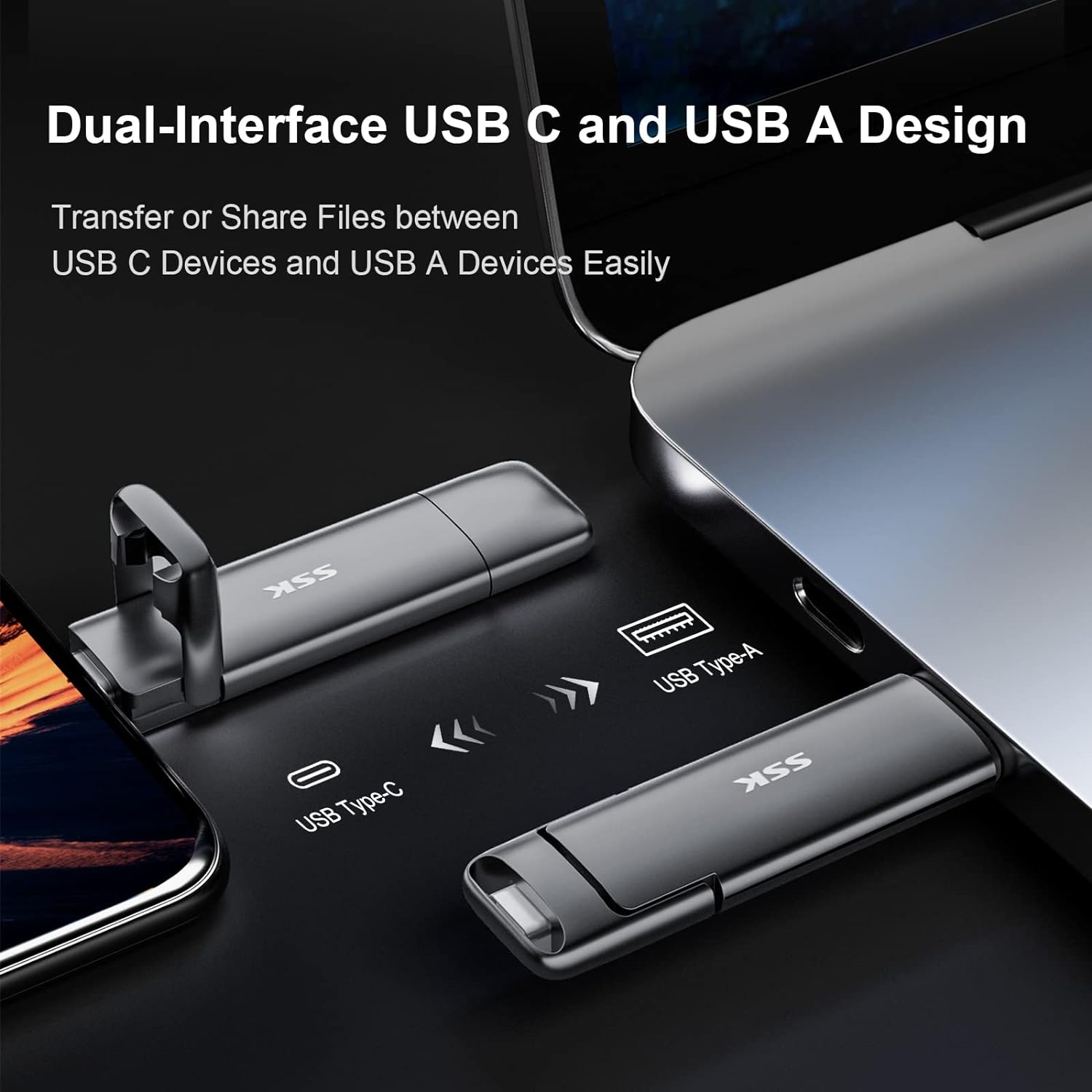
Image 3.2: The SSK SD301 SSD demonstrating its dual-interface design, featuring both USB Type-C and USB Type-A connectors for broad device compatibility.
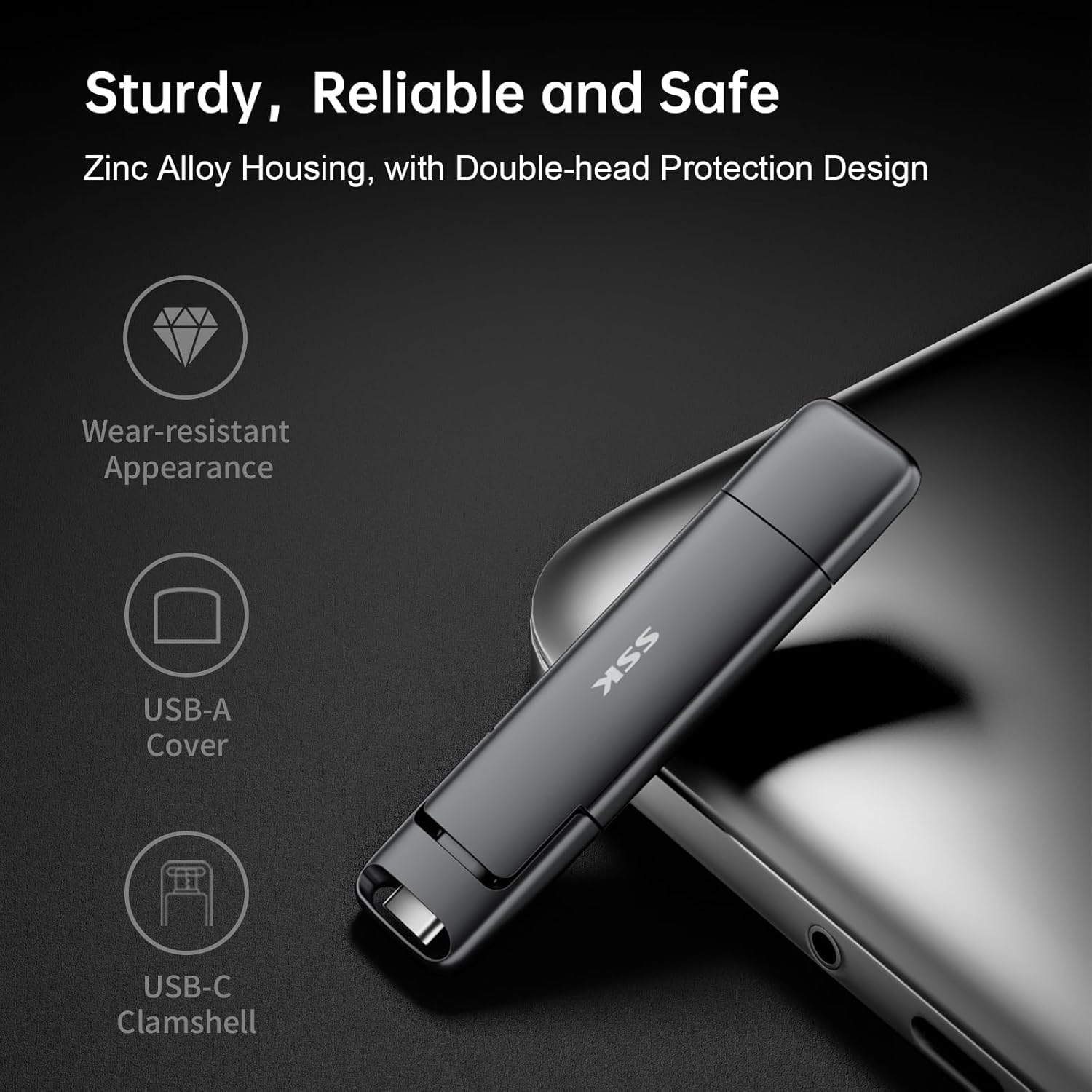
Image 3.3: Close-up of the SSK SD301 SSD, illustrating its sturdy zinc alloy housing, wear-resistant appearance, and the protective covers for both USB-A and USB-C interfaces.
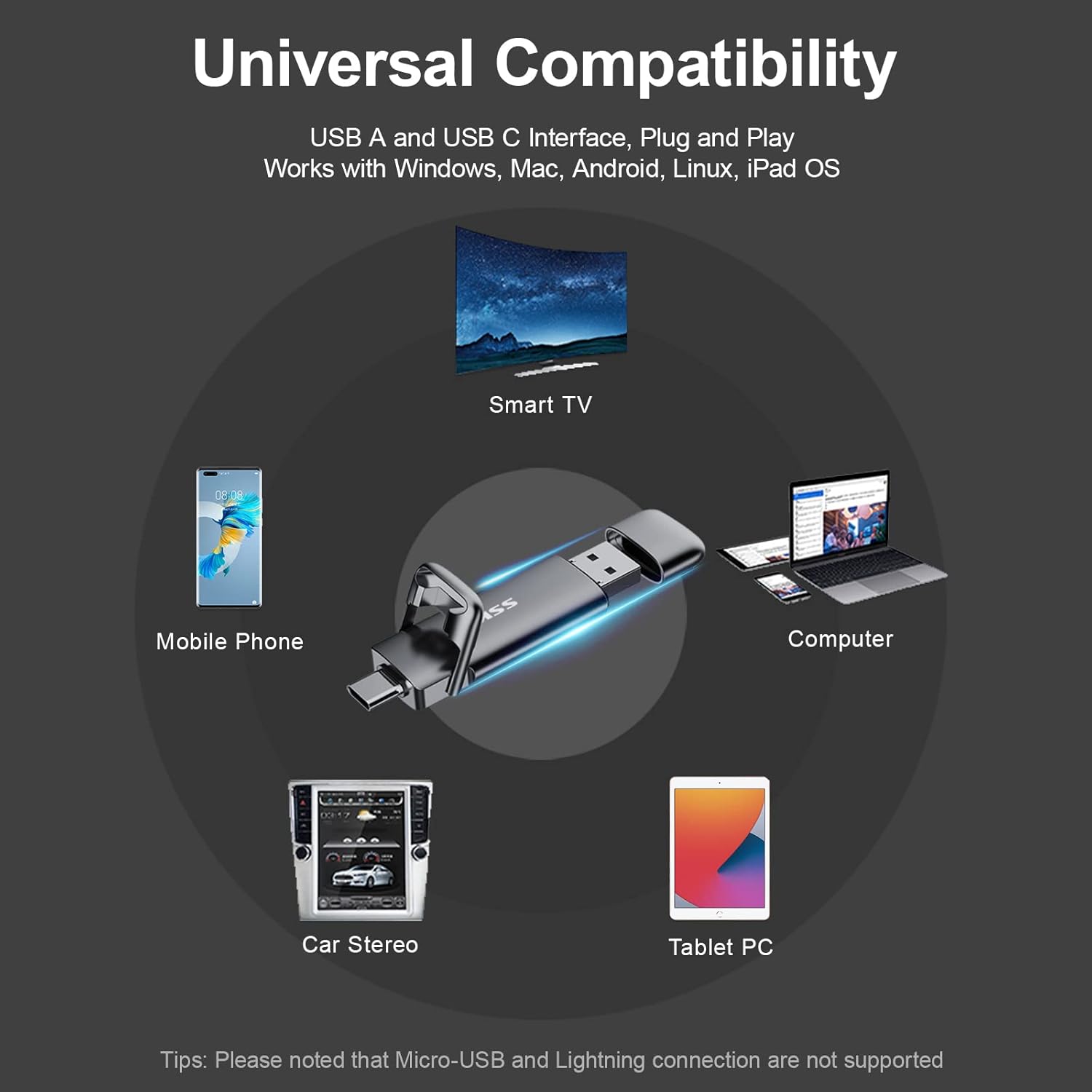
Image 3.4: Diagram showing the universal compatibility of the SSK SD301 SSD with devices such as mobile phones, smart TVs, computers, car stereos, and tablet PCs. Note: Micro-USB and Lightning connections are not supported.
4. Setup Instructions
- Identify the Correct Port: Determine whether your device (computer, smartphone, tablet, etc.) has a USB Type-C port or a USB Type-A port.
- Connect the SSD:
- For USB Type-C devices: Gently insert the USB-C connector of the SSD into your device's USB-C port.
- For USB Type-A devices: Remove the protective cap from the USB-A connector and insert it into your device's USB-A port.
- Device Recognition: Your operating system (Windows, macOS, Linux, Android) should automatically detect the SSD. It may appear as a removable drive or external storage.
- Initial Format (if necessary): The drive comes pre-formatted with exFAT for broad compatibility. If your device requires a different file system (e.g., NTFS for specific Windows uses or HFS+ for older macOS systems), you may need to reformat the drive. Refer to your operating system's documentation for instructions on how to format external drives. Warning: Formatting will erase all data on the drive.
5. Operating Instructions
- Transferring Files:
- From Device to SSD: Locate the files you wish to transfer on your device. Drag and drop them into the SSK SSD's folder, or copy and paste them.
- From SSD to Device: Open the SSK SSD's folder. Drag and drop the desired files to a location on your device, or copy and paste them.
- Using with Mobile Phones/Tablets: Connect the SSD to your compatible Android or iPhone 15 device via the USB-C port. The device's file manager app should allow you to access and manage files on the SSD directly. This can be used for file sharing, data transmission, and video playback.
- Safe Removal: To prevent data corruption, always safely eject the SSD from your operating system before physically disconnecting it. For Windows, use the "Safely Remove Hardware" icon in the taskbar. For macOS, drag the drive icon to the Trash or use the Eject option. For Android, use the