
1. Introduction
Thank you for purchasing the Acouto Zen18 18.5-inch 120Hz Portable Monitor. This manual provides essential information for setting up, operating, and maintaining your new portable display. Please read it thoroughly before use to ensure optimal performance and longevity of your device.
2. Product Features
- 120Hz High Refresh Rate: Experience smooth visuals with up to 120 frames per second, ideal for gaming and fast-paced content. This significantly reduces screen tearing and motion blur.
- Integrated Stand & VESA Mount: The monitor features a built-in adjustable stand, allowing for viewing angles from 0° to 180°. It is also VESA compatible (75x75mm) for mounting on monitor arms, providing flexible setup options.
- USB Type-C Connectivity: Connect to compatible devices (laptops, smartphones) with a single USB Type-C cable for both video signal and power, simplifying your setup. (Note: Your device must support DisplayPort Alt Mode. External power may be required if the device cannot supply sufficient power.)
- Blue Light Reduction & Flicker-Free Technology: Designed to reduce eye strain and fatigue during prolonged use by cutting blue light emissions and eliminating screen flicker.
- Wide Compatibility: Equipped with USB Type-C and Mini-HDMI ports, the monitor supports a broad range of devices including laptops, smartphones, gaming consoles (PS5, Switch, XBOX), cameras, tablets, and Fire TV sticks. No additional drivers are required for most connections.
- Full HD 1080p IPS Panel: Enjoy vibrant colors and wide 178° viewing angles with the 1920x1080 resolution IPS panel. The non-glare surface enhances viewing comfort.
- HDR Mode: Supports HDR technology for enhanced contrast and color accuracy, making bright areas brighter and dark areas deeper.
3. Package Contents
Please check the box for the following items:
- Acouto Zen18 18.5-inch Portable Monitor
- USB Type-C to Type-C Cable
- HDMI to Mini-HDMI Cable
- AC Power Adapter
- User Manual
4. Product Overview
Familiarize yourself with the monitor's ports and controls:

Image: Side view diagram of the Acouto Zen18 monitor, highlighting the HDMI (Mini) port, two USB Type-C ports, 3.5mm headphone jack, menu button, and power button.
- HDMI (Mini) Port: For video input from devices like gaming consoles, PCs, or cameras.
- USB Type-C Ports (x2): For video input, power delivery, and data transfer with compatible devices.
- 3.5mm Headphone Jack: For connecting external audio devices.
- Menu Button: Accesses the On-Screen Display (OSD) menu for settings adjustments.
- Power Button: Turns the monitor on/off.
5. Setup Instructions
5.1. Connecting to Devices
- Via USB Type-C (Single Cable): If your laptop or smartphone supports DisplayPort Alt Mode and can provide sufficient power, connect one end of the USB Type-C to Type-C cable to your device and the other end to one of the monitor's USB Type-C ports. The monitor will automatically receive video signal and power.
- Via HDMI: Connect the Mini-HDMI end of the provided cable to the monitor's HDMI (Mini) port and the standard HDMI end to your device. For power, connect the monitor to an external power source using the provided AC adapter and a USB Type-C cable.
- Connecting to Smartphones: When connecting to a smartphone, external power is typically required for the monitor. Use a USB Type-C cable for video/data and the AC adapter for power.
5.2. Using the Integrated Stand
The monitor features a flexible integrated stand that allows for angle adjustments from 0° to 180°. Simply unfold the stand to your desired viewing angle. The stand is designed for stability in both landscape and portrait orientations.
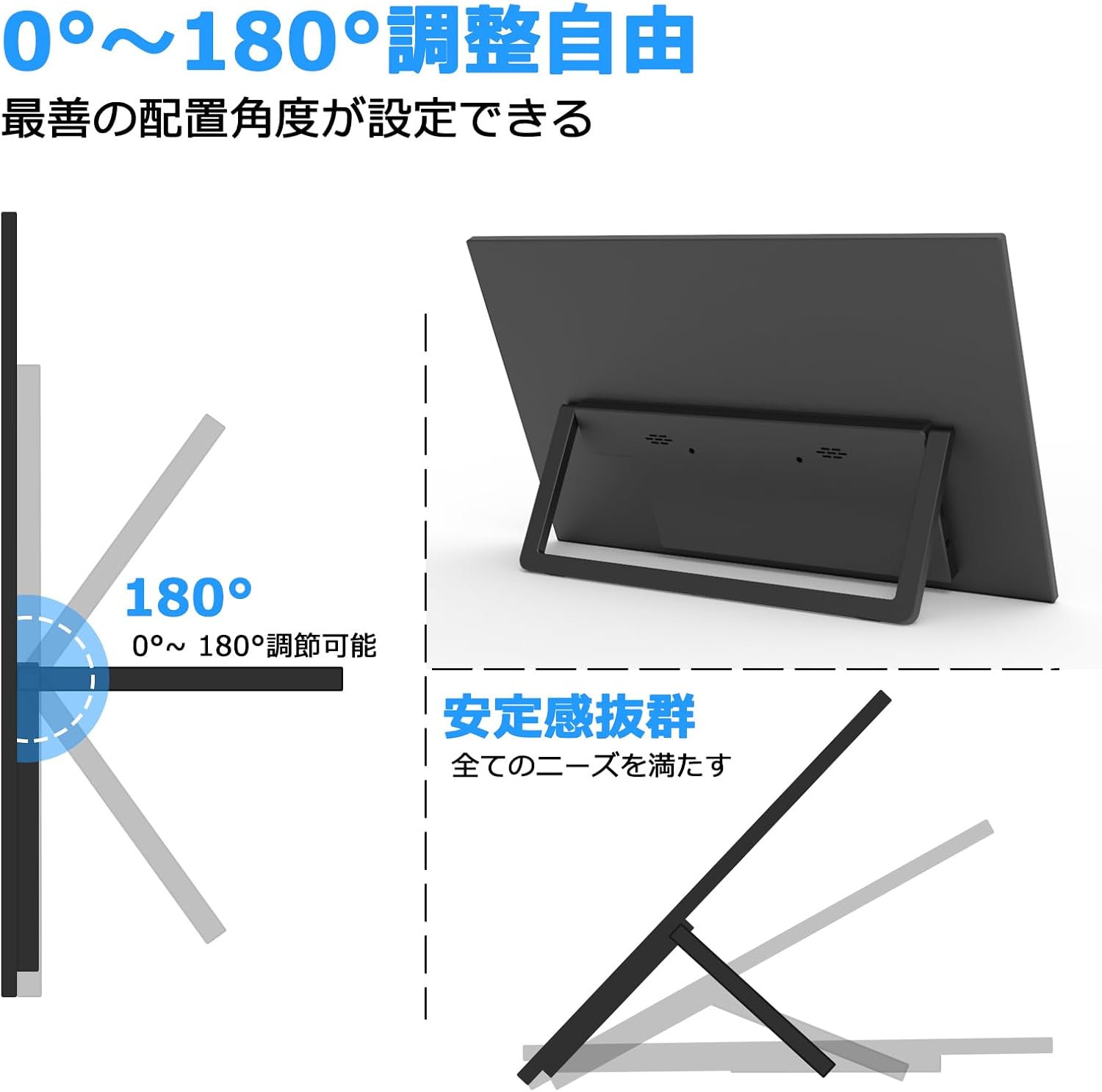
Image: The monitor's integrated stand can be adjusted from 0 to 180 degrees for optimal viewing.
5.3. VESA Mounting
For a more permanent setup or to save desk space, the monitor is VESA compatible (75x75mm). Remove the integrated stand if necessary and attach the monitor to a compatible VESA mount or arm using M4*4mm screws.

Image: The back of the monitor with VESA mounting holes for attachment to a monitor arm.
6. Operating Instructions
6.1. Power On/Off
Press the Power Button located on the side of the monitor to turn it on or off.
6.2. OSD Menu Navigation
Use the Menu Button and adjacent buttons to navigate the On-Screen Display (OSD) menu. Here you can adjust settings such as brightness, contrast, color temperature, input source, and activate features like Blue Light Reduction and HDR mode.
6.3. Portrait and Landscape Modes
The monitor automatically detects orientation when connected to a compatible device. You can manually adjust the physical orientation of the monitor to switch between portrait and landscape modes, which is particularly useful for coding, document viewing, or specific gaming experiences.
7. Media Integration
7.1. Product Images

Image: Visual comparison demonstrating the smoother motion and reduced ghosting at 120Hz refresh rate compared to 60Hz.

Image: Illustration of a car's movement, highlighting the difference in smoothness between 60Hz and 120Hz refresh rates.

Image: A laptop connected to the portable monitor using a single USB-C cable for both power and display.

Image: A visual representation of a laptop connected to the portable monitor using a single USB-C cable.

Image: An array of devices including gaming consoles, laptops, and smartphones connected to the portable monitor, demonstrating wide compatibility.

Image: A gaming console (PS5) connected to the portable monitor, showcasing an immersive gaming experience.

Image: A Nintendo Switch console connected to the portable monitor, enabling a larger display for gaming.

Image: A smartphone connected to the portable monitor, displaying its content on a larger screen.

Image: A visual guide illustrating how to connect a smartphone to the portable monitor using a USB-C cable.

Image: A desktop computer connected to the portable monitor via HDMI, creating a dual-display setup for increased productivity.

Image: A Fire TV Stick connected to the portable monitor, allowing for streaming media on the go.

Image: The monitor displaying a colorful landscape, emphasizing its 100% sRGB color gamut for vivid color reproduction.

Image: A side-by-side comparison of Standard Dynamic Range (SDR) and High Dynamic Range (HDR) content, showing the enhanced detail and contrast with HDR.

Image: A demonstration of the monitor's 178-degree ultra-wide viewing angle, ensuring clear visibility from various positions.

Image: A visual representation of the monitor's blue light reduction technology, designed to protect eye health.
7.2. Official Product Videos
Video: This video demonstrates the monitor's easy setup, various connection options including USB-C and HDMI, and its VESA mounting capability. It highlights the monitor's versatility for different uses.
Video: This video showcases the monitor's key features such as 120Hz refresh rate, 100% sRGB color accuracy, 1080P FHD resolution, and HDR mode, emphasizing its suitability for gaming and vibrant visuals.
Video: This video illustrates the monitor's adjustable stand, allowing for flexible positioning, and demonstrates its use in portrait mode for various applications, including gaming.
Video: A short video highlighting the 120Hz refresh rate of the portable monitor, specifically demonstrating its smooth performance during gaming sessions.
Video: This video shows the monitor's stand functionality, various connection types, and its touch capabilities for interactive use with compatible devices.
Video: A demonstration of the monitor's portability, stand adjustments, and seamless connection to gaming consoles for an enhanced gaming experience.
Video: This video provides a general overview of the 18.5-inch portable monitor, showcasing its design and various applications for work and entertainment.
Video: A detailed unboxing and setup guide for the 18.5-inch portable monitor, demonstrating its connections to various devices and highlighting its features for productivity and gaming.
8. Maintenance
- Cleaning: Use a soft, lint-free cloth to gently wipe the screen and exterior. Avoid using harsh chemicals or abrasive materials.
- Storage: When not in use, store the monitor in a cool, dry place, preferably in its original packaging or a protective sleeve, to prevent dust and damage.
- Handling: Avoid dropping or subjecting the monitor to strong impacts. Do not place heavy objects on top of it.
9. Troubleshooting
- No Signal:
- Ensure all cables are securely connected.
- Verify that your source device is powered on and outputting a signal.
- Check if your USB Type-C port supports DisplayPort Alt Mode.
- If using HDMI, ensure the monitor is receiving external power.
- No Power:
- Confirm the power adapter is correctly plugged into a working outlet and the monitor.
- If powered via USB Type-C, ensure the source device can provide sufficient power. Try connecting the AC adapter.
- Flickering Screen:
- Check cable connections.
- Ensure the refresh rate setting on your source device matches the monitor's capabilities.
- Activate Flicker-Free mode in the OSD menu.
- Image Quality Issues:
- Adjust brightness, contrast, and color settings in the OSD menu.
- Ensure the resolution on your source device is set to 1920x1080.
10. Specifications
| Feature | Specification |
|---|---|
| Brand | Acouto |
| Model | Zen18 |
| Screen Size | 18.5 inches |
| Resolution | 1920 x 1080 (FHD 1080p) |
| Refresh Rate | 120Hz |
| Panel Type | IPS |
| Aspect Ratio | 16:9 |
| Screen Surface | Non-glare |
| Connectivity | 2x USB Type-C, 1x Mini-HDMI |
| Audio | Built-in speakers, 3.5mm Headphone Jack |
| Stand | Integrated, 0-180° adjustable |
| VESA Compatibility | 75x75mm |
| Weight | 1.08 Kilograms |
11. Warranty and Support
The Acouto Zen18 Portable Monitor comes with a 3-year warranty. For any questions regarding compatible devices or technical support, please contact the seller directly via LINE or email. Our support team is ready to assist you.