
COCONISE ME6S-ARM
COCONISE Gaming Microphone User Manual
Model: ME6S-ARM | Brand: COCONISE
Introduction
The COCONISE Gaming Microphone (Model ME6S-ARM) is a versatile USB condenser microphone designed for high-quality audio capture in various applications, including gaming, streaming, podcasting, and recording. It features a cardioid polar pattern for focused sound pickup, dynamic RGB lighting, convenient on-board controls, and a robust boom arm for flexible positioning. This manual provides detailed instructions for setting up, operating, and maintaining your microphone to ensure optimal performance.
What's in the Box
- COCONISE Gaming Microphone Unit
- Flexible Boom Arm
- Desk Clamp for Boom Arm
- Detachable USB Data Cable (180CM)
- Metal Pop Filter
- Shock Mount
- User Manual (this document)
 Figure 1: Complete COCONISE Gaming Microphone package contents.
Setup Instructions
1. Boom Arm Assembly
- Attach the desk clamp to the edge of your desk or table. Ensure the surface thickness is less than 1.8 inches for a secure fit. Tighten the clamp screw until it is firmly in place.
- Insert the base of the boom arm into the hole on the desk clamp. Secure it by tightening the screw on the clamp.
- Adjust the boom arm to your desired position. The flexible design allows for easy movement and stable placement.
 Figure 2: The adjustable boom arm securely clamped to a desk, demonstrating its flexibility.
2. Microphone Attachment
- Carefully screw the COCONISE microphone unit onto the threaded end of the boom arm. Ensure it is tightened securely to prevent wobbling.
- Attach the metal pop filter to the microphone. This helps to filter plosive sounds (like 'p' and 'b') for clearer audio.
- Ensure the microphone is seated correctly within its shock mount. The rubber elastic band of the shock mount helps to reduce vibration noise from keyboard typing or mouse clicks.
 Figure 3: Close-up of the microphone showing the metal pop filter and shock mount assembly.
3. USB Connection (Plug and Play)
- Connect the detachable USB data cable to the microphone's USB port.
- Plug the other end of the USB cable into an available USB port on your PC, PS4, or PS5. The microphone is plug-and-play and does not require additional drivers.
 Figure 4: The microphone connected to a computer, illustrating the plug-and-play functionality.
4. System Sound Settings
- For PC users: Navigate to your operating system's sound settings. Select the COCONISE microphone as your default input device. For optimal monitoring, you may also select it as an output device if using the 3.5mm headphone jack on the microphone.
- For PS4/PS5 users: Go to your console's audio settings and select the COCONISE microphone as your input device for game chat.
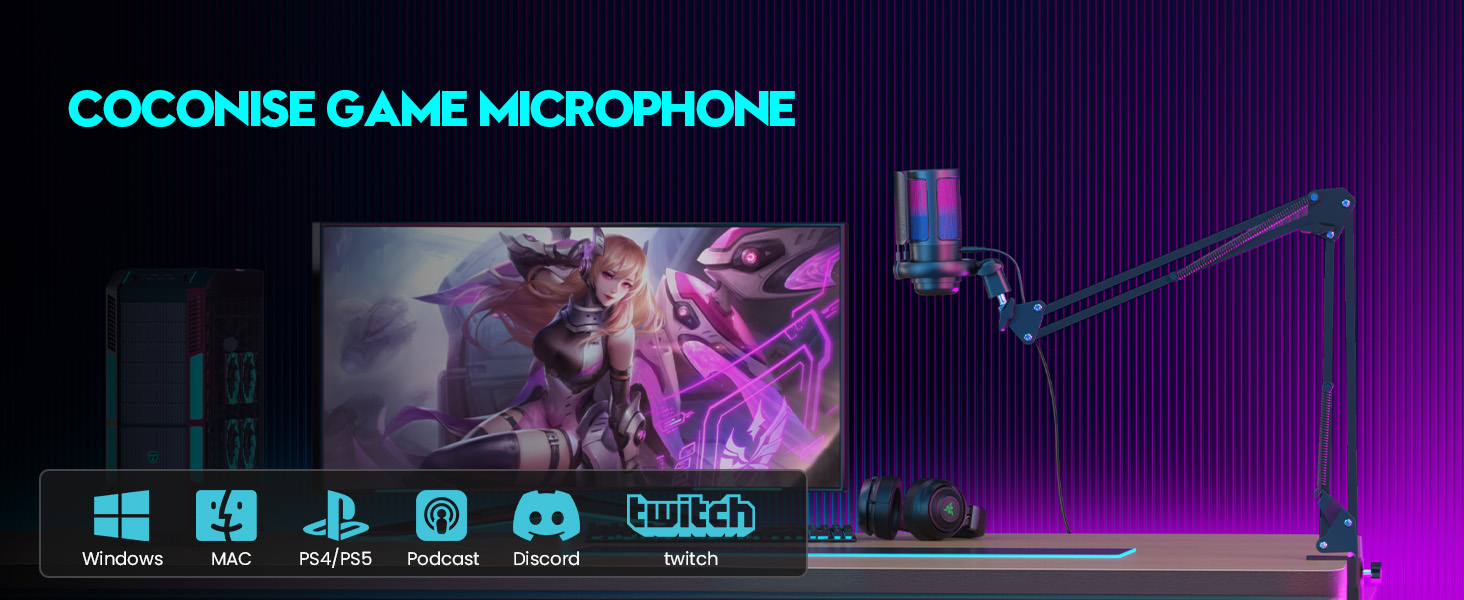 Figure 5: The COCONISE microphone is compatible with various platforms and applications.
Operating Instructions
1. Quick Mute Function
The microphone is equipped with a one-touch mute sensor located on the top. Simply tap the top of the microphone to mute or unmute your audio. When muted, the RGB lights will turn off, providing a clear visual indicator that the microphone is inactive.
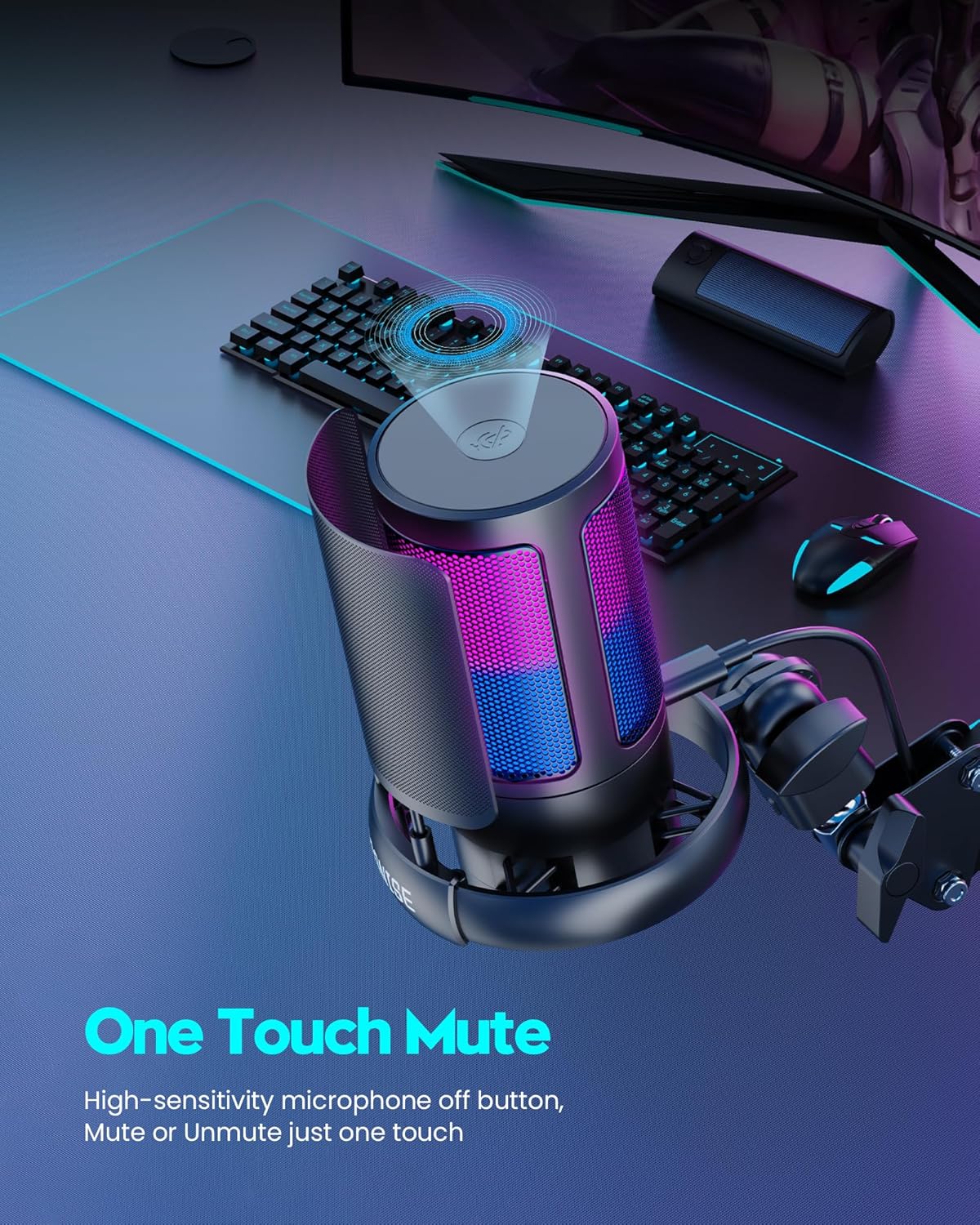 Figure 6: The top of the microphone highlighting the one-touch mute sensor.
2. Volume/Gain Control
Adjust the microphone's input volume (gain) using the rotary control button located at the bottom of the microphone unit. Rotate clockwise to increase volume and counter-clockwise to decrease it. This allows for precise adjustment of your voice level.
 Figure 7: The bottom of the microphone showing the rotary gain control knob.
3. Headphone Monitoring
A 3.5mm headphone jack is integrated into the microphone. Plug your headphones into this jack to monitor your own voice in real-time with zero delay. This feature is crucial for making immediate adjustments to your speaking volume and clarity during recording or live sessions.
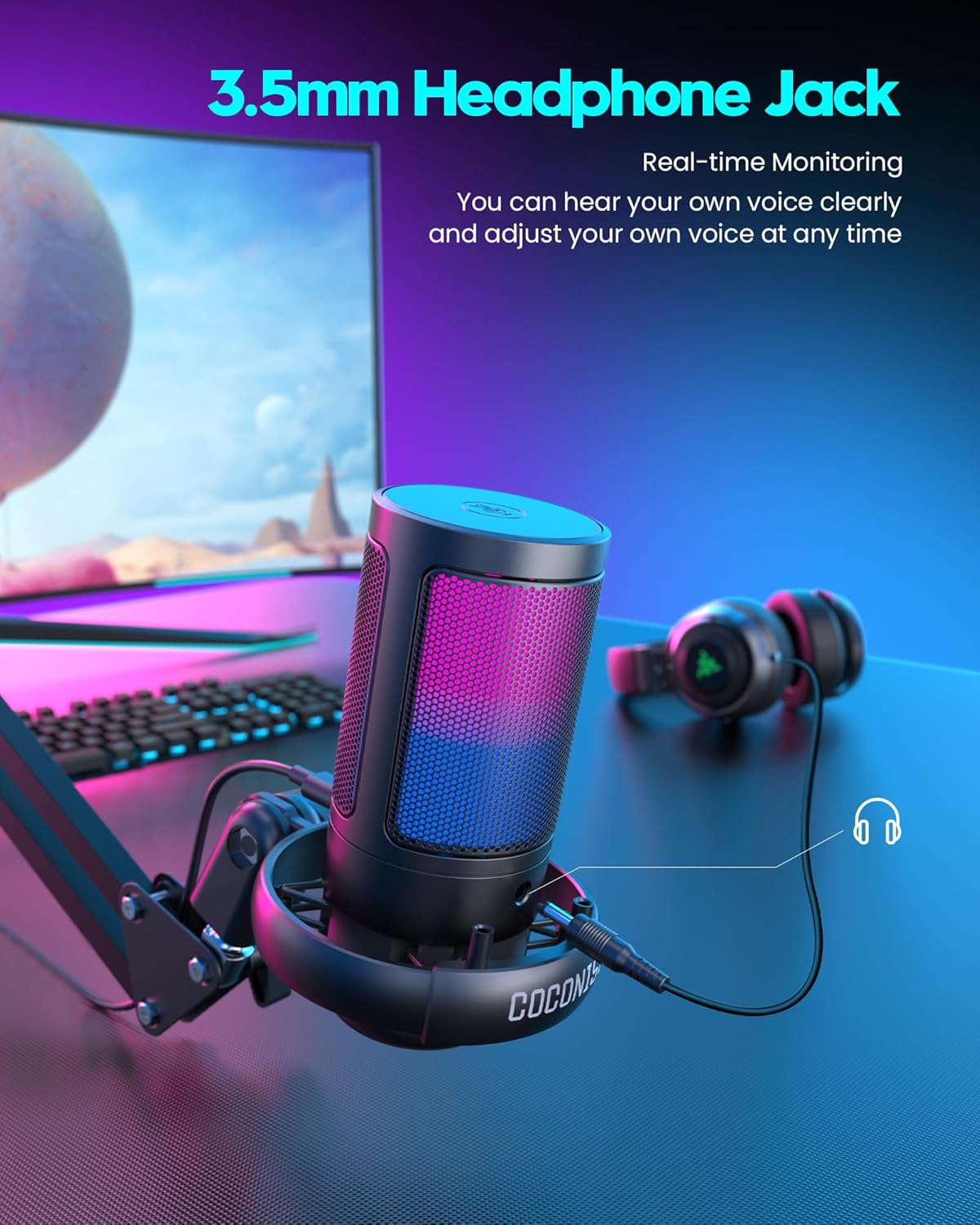 Figure 8: The microphone with headphones plugged into the 3.5mm jack for real-time audio monitoring.
4. RGB Lighting Modes
The microphone features cyclic and gradient RGB lighting with 7 distinct modes. These lights enhance your gaming or streaming setup. The lighting is designed to be soft and non-dazzling while maintaining optimal color saturation.
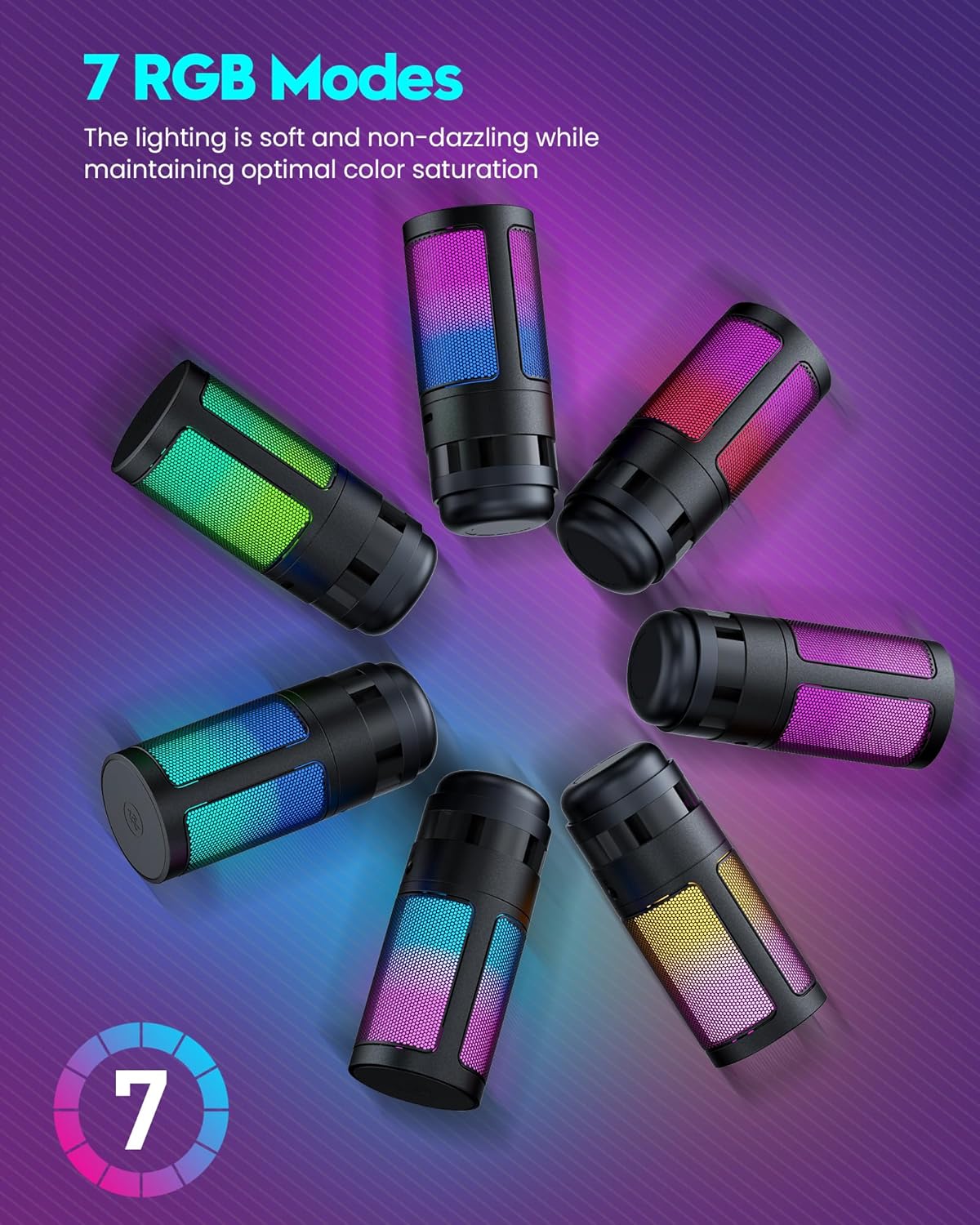 Figure 9: Various RGB lighting modes demonstrated on the microphone.
5. Cardioid Polar Pattern
This microphone utilizes a cardioid polar pattern, which means it primarily captures sound from directly in front of the microphone while significantly reducing pickup from the sides and rear. This design ensures your voice is crisp, smooth, and clear, minimizing unwanted background noise.
 Figure 10: Visual representation of the cardioid polar pattern, showing focused sound capture.
Features Overview
- Gradient RGB Symphony Lights: Enhances your setup with cyclic and gradient RGB lighting, creating an immersive gaming experience. The lights turn off when muted, providing a clear status indicator.
- Practical and Convenient Functionality: Features a one-button mute touch sensor for instant muting (RGB lights off when muted). A rotary control volume button at the bottom allows for easy gain adjustment. Includes a 3.5mm headphone jack for real-time voice monitoring.
- Cardioid Polar Pattern: Captures crisp, smooth, and clear sound directly in front of the microphone, reducing side pickup. Equipped with a 25mm ultra-large capacitor diaphragm capsule for a wider audio range and up to 192kHz sampling rate, ensuring delicate and noise-free pickup.
- Solid Fit and Vibration Reduction: The weighted carbon steel base ensures stability, preventing the mic from tipping during intense use. A detachable metal anti-splash screen effectively filters plosive sounds. The rubber elastic band firmly clamps the shock mount, reducing vibration noise from keyboard and mouse.
- Plug and Play Compatibility: Designed for PC gaming, streaming, and compatible with PS4/PS4 Pro/PS5 desktop and laptop systems. Allows for quick entry into game chat without complex setup. The 180CM long detachable USB data cable offers flexible placement.
- Flexible Arm Boom: The easy-to-position metal boom arm adjusts to support various setups. It allows you to quickly pull the microphone to your mouth when in use or fold it away to save space. Includes a 2.5M long line for extended reach.
Maintenance
- Cleaning: Use a soft, dry cloth to clean the microphone and boom arm. Avoid using abrasive cleaners or solvents that could damage the finish or internal components.
- Storage: When not in use, store the microphone in a clean, dry environment away from extreme temperatures and humidity.
- Cable Care: Avoid bending or kinking the USB cable excessively to prevent internal damage.
- Pop Filter: The metal pop filter can be gently wiped clean with a damp cloth if necessary. Ensure it is dry before reattaching.
Troubleshooting
| Problem | Possible Cause | Solution |
|---|---|---|
| No sound output from microphone. |
|
|
| Audio is unclear or has background noise. |
|
|
| RGB lights are off or not cycling. |
|
|
Specifications
| Feature | Detail |
|---|---|
| Brand | COCONISE |
| Model Number | ME6S-ARM |
| Microphone Form Factor | Gooseneck |
| Connectivity Technology | USB |
| Polar Pattern | Unidirectional (Cardioid) |
| Audio Sensitivity | 45 dB |
| Signal-to-Noise Ratio | 78 dB |
| Frequency Response | 20 Hz - 20 kHz |
| Hardware Platform | PC |
| Compatible Devices | Personal Computer, Gaming Console (PS4/PS5) |
| Item Weight | 1.94 pounds |
| Package Dimensions | 16.42 x 6.18 x 3.78 inches |
| USB Cable Length | 180 CM |
| Boom Arm Line Length | 2.5 M |
Official Product Video
This video provides a comprehensive overview of the COCONISE Gaming Microphone, demonstrating its features and setup.
Warranty and Support
COCONISE products are manufactured with high-quality standards. For information regarding warranty coverage, technical support, or service inquiries, please refer to the contact information provided on the product packaging or visit the official COCONISE website. Keep your purchase receipt for warranty claims.
Related documentsME6S-ARM

Ask a question about this manual
Ask about setup, troubleshooting, compatibility, parts, safety, or missing instructions. Manuals+ will review the question and use this page’s manual context to help answer it.