
HGFRTEE B156
HGFRTEE 18.5-inch 1080P FHD Portable Monitor User Manual
Model: B156
1. Introduction
Thank you for choosing the HGFRTEE 18.5-inch 1080P FHD Portable Monitor. This device is designed to enhance your productivity and entertainment experience by providing a versatile external display for various devices. Its lightweight and ultra-slim design makes it ideal for on-the-go use, offering a 100Hz refresh rate and HDR technology for clear and smooth visuals.

The HGFRTEE 18.5-inch portable monitor features a Full HD 1080P IPS screen, HDR support, eye care technology, and versatile USB-C and Mini HDMI connectivity.
2. Safety Information
- Do not expose the monitor to rain or moisture to prevent electric shock.
- Avoid placing the monitor near heat sources or in direct sunlight.
- Use only the power adapter and cables provided by the manufacturer.
- Do not attempt to disassemble or repair the monitor yourself. Refer all servicing to qualified personnel.
- Keep the monitor away from strong magnetic fields.
- Clean the screen with a soft, lint-free cloth. Avoid using abrasive cleaners.
3. Package Contents
Please check the package contents to ensure all items are present:
- HGFRTEE Portable Monitor
- 5V / 2.4A Power Adapter
- Smart Cover
- Type-C to Type-C Cable (full-featured)
- Type-C to Type-C Cable (power only)
- HDMI to Mini HDMI Cable
- User Manual

The package includes the portable monitor, power adapter, smart cover, two Type-C cables (one full-featured, one power-only), an HDMI to Mini HDMI cable, and the user manual.
4. Product Overview
4.1 Key Features
- 100Hz Portable Gaming Monitor: Features an 18.5-inch advanced IPS screen with a 178° wide viewing angle, delivering 1920x1080 Full HD resolution and HDR technology. The 100Hz refresh rate ensures clear, smooth performance for gaming and multimedia. It also includes blue light reduction and flicker-free technology for eye comfort during extended use.
- Ultra-slim Portable Design: With a 0.2-inch ultra-slim profile and weighing approximately 2.4 lbs, this monitor is designed for portability, easily fitting into bags for travel or mobile setups.
- Durable & Smart Cover: The monitor comes with a scratch-proof smart cover made of durable PU leather, providing comprehensive protection. The magnetic cover also functions as a stable stand.
- Built-in Speakers: Equipped with 2 built-in speakers for audio output.
- User-Friendly Controls: Features a menu control wheel for easy settings adjustment.

The monitor boasts an ultra-portable design with a slim profile and lightweight construction, featuring a durable CNC aluminum alloy frame.
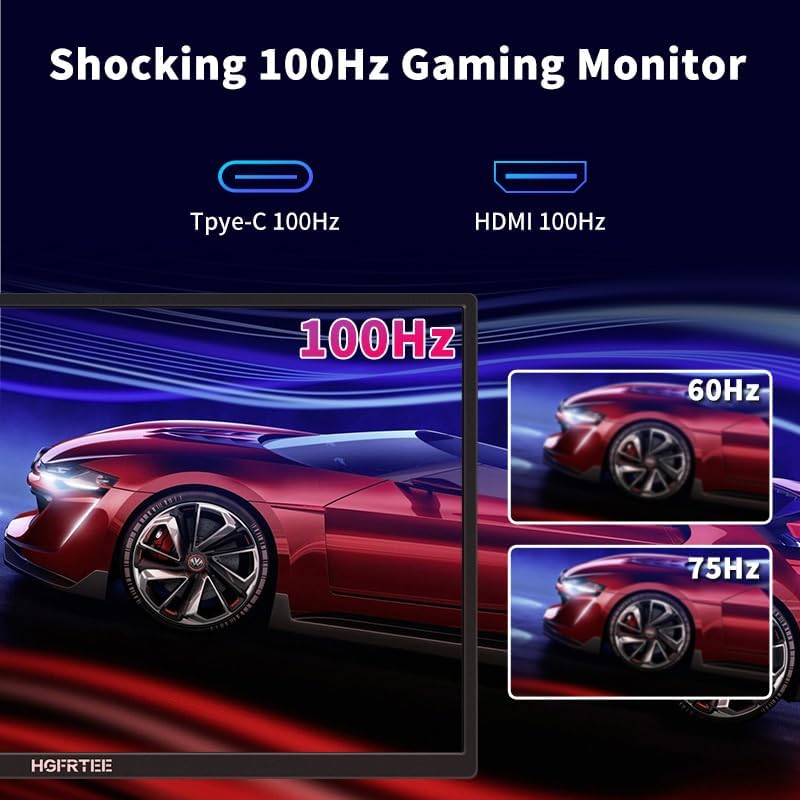
Experience smooth visuals with the monitor's 100Hz refresh rate, ideal for gaming and fast-paced content.

The monitor supports HDR10, providing enhanced color and contrast compared to standard dynamic range displays.

Integrated speakers provide audio output directly from the monitor.

The monitor's lightweight design makes it easy to carry for mobile professionals and travelers.
4.2 Ports and Controls
The monitor is equipped with multiple ports for wide compatibility and easy control:
- 2x USB Type-C Ports: Full-function ports for power and display with a single cable solution.
- 1x Mini-HDMI Port: For video input from various devices.
- 1x 3.5mm Audio Jack: For connecting external headphones or speakers.
- OSD Wave Wheel: Used to navigate the On-Screen Display (OSD) menu and adjust settings like volume and brightness.
- Power Button: To turn the monitor on/off and exit OSD menu.

The monitor features versatile connectivity options including USB-C and Mini HDMI, along with intuitive controls.
5. Setup
5.1 Connecting Your Device
The HGFRTEE portable monitor offers flexible connection methods:
- One Cable Connection (USB-C): For devices with a full-featured USB-C port (supporting DisplayPort Alternate Mode and power delivery), simply connect the provided full-featured Type-C to Type-C cable between your device and the monitor. This single cable will transmit both video signal and power.
- Two Cables Connection (Mini-HDMI + USB-C Power): For devices with an HDMI output (e.g., gaming consoles, older laptops), connect the provided Mini-HDMI to HDMI cable for video. Then, connect the provided power-only Type-C cable or the full-featured Type-C cable to a power source (e.g., wall adapter, power bank) and the monitor's USB-C power input port.

Choose between a single USB-C cable connection for compatible devices or a two-cable setup using Mini HDMI and a separate power cable.
5.2 Using the Smart Cover as a Stand
The included smart cover can be folded to serve as a stand for the monitor:
- Lay the monitor face down with the smart cover attached.
- Fold the cover along its creases to form a triangular prism shape.
- Position the monitor so that the folded cover supports it at your desired viewing angle. The magnetic attachment helps secure the stand.

Follow these steps to configure the smart cover into a stable stand for your monitor.
6. Operating the Monitor
6.1 Power On/Off
Press the power button located on the side of the monitor to turn it on or off. The monitor will automatically detect the input signal from your connected device.
6.2 Display Modes
When connected to a laptop or PC, you can configure the display mode through your operating system settings:
- Duplicated Mode: Mirrors your primary screen's content.
- Extended Mode: Extends your desktop, allowing for more workspace.
- Second Screen Only Mode: Displays content only on the portable monitor.

The monitor supports various display modes, including duplicated, extended, and second screen only, for flexible use with laptops and other devices.
6.3 On-Screen Display (OSD) Menu
Use the OSD wave wheel to access and navigate the monitor's settings menu. This allows you to adjust brightness, contrast, color settings, input source, and other display parameters.
6.4 Device Compatibility
The monitor is compatible with a wide range of devices:
- Laptops/PCs: Compatible with most laptops and desktop PCs via USB-C (full-featured) or Mini-HDMI.
- Smartphones: Supports direct connection for screen extension or mirroring with compatible models (e.g., Huawei Mate series, Samsung S/Note/Fold series, Smartisan, Honor).
- Gaming Consoles: Connects to PS4, PS5, Xbox, and Nintendo Switch via Mini-HDMI.

Refer to this list for specific mobile and computer models that support direct connection to the monitor.
This video demonstrates the portability and ease of use of the HGFRTEE monitor, highlighting its suitability for digital nomads and on-the-go productivity.
7. Maintenance
- Cleaning the Screen: Gently wipe the screen with a soft, dry, lint-free cloth. For stubborn marks, lightly dampen the cloth with water or a screen-specific cleaning solution (avoiding ammonia-based cleaners) and wipe carefully.
- Cleaning the Casing: Use a soft, dry cloth to clean the monitor's casing. Do not use liquid or aerosol cleaners directly on the monitor.
- Storage: When not in use, store the monitor in a cool, dry place, preferably in its smart cover or original packaging, to protect it from dust and physical damage.
- Cable Care: Handle cables carefully. Avoid bending or twisting them excessively, which can damage internal wires.
8. Troubleshooting
If you encounter issues with your HGFRTEE portable monitor, please refer to the following common solutions:
| Problem | Possible Cause | Solution |
|---|---|---|
| No Signal / Black Screen | Incorrect cable connection, insufficient power, incorrect input source selected. | Ensure all cables (USB-C or HDMI + power) are securely connected. Verify the power adapter is functioning. Check if your device's USB-C port supports video output. Use the OSD menu to manually select the correct input source. |
| Flickering Screen | Faulty cable, unstable power supply, refresh rate mismatch. | Try a different cable. Ensure the power supply is stable. Adjust the refresh rate settings on your connected device. |
| No Sound | Volume too low, audio output not selected on device, faulty audio cable/port. | Increase monitor volume using the OSD wheel. Ensure your connected device is outputting audio to the monitor. If using external speakers/headphones, check their connection to the 3.5mm jack. |
| Monitor not turning on | No power, power button issue. | Ensure the power adapter is connected and receiving power. Press and hold the power button for a few seconds. |
| Smart Cover Stand is Unstable | Incorrect folding, uneven surface. | Refer to section 5.2 for correct folding instructions. Ensure the monitor is placed on a flat, stable surface. |
9. Specifications
| Parameter | Value |
|---|---|
| Model Number | B156 |
| Screen Size | 18.5 Inches |
| Resolution | 1920 x 1080 Pixels (FHD 1080p) |
| Refresh Rate | 100Hz |
| Aspect Ratio | 16:9 |
| Screen Surface Description | Glossy |
| Image Brightness | 250 Candela |
| Product Dimensions | 12 x 7 x 0.2 inches |
| Item Weight | 2.4 pounds |
| Voltage | 5 Volts |
| Total USB Ports | 2 (Type-C) |
| Manufacturer | Shenzhen Bolinia Technology Co., Ltd. |
For detailed energy information, please refer to the EPREL database.
10. Warranty and Support
HGFRTEE is committed to providing high-quality products and customer satisfaction. Your portable monitor comes with the following:
- Warranty: 360 days from the date of purchase.
- Replacement: 90 days for product defects.
- Money Back Guarantee: 60 days from the date of purchase.
For any technical assistance, product inquiries, or warranty claims, please contact our professional support team. We are available 24/7 to assist you.
Related documentsB156


Ask a question about this manual
Ask about setup, troubleshooting, compatibility, parts, safety, or missing instructions. Manuals+ will review the question and use this page’s manual context to help answer it.