
1. Introduction
This manual provides detailed instructions for the installation, operation, and maintenance of your Junsun XT892C 9-inch Car Stereo. Please read this manual thoroughly before using the product to ensure proper function and safety. Keep this manual for future reference.
2. Vehicle Compatibility
The Junsun XT892C car stereo is designed for a perfect fit in the following vehicles:
- Chevrolet Colorado RG: 2015, 2016, 2017, 2018, 2019 (Base Mode/Low-end)
- GMC Canyon: 2015, 2016, 2017, 2018, 2019 (Base Mode/Low-end)
Important Compatibility Notes:
- This unit is not compatible with vehicles equipped with a high-configuration system, specifically those with an optical fiber port or a Bose sound system.
- If your original car radio is 4-inch or 8-inch and has a Bose sound system, a separate decode box is required.
- Do not purchase if your vehicle is subscribed to OnStar.

Image Description: This image illustrates important compatibility details. The top section shows a warning against purchasing if the vehicle has an OnStar subscription, with an image of the OnStar button. The bottom section explains that if the original car radio has a Bose sound system (indicated by a Bose logo), a separate decode box is needed, showing wiring diagrams and the decode box itself. It also provides a solution for static audio by unplugging a red/orange wire.

Image Description: This image displays a comparison of car dashboards. The top part shows a "Before" and "After" view of a low-configuration Chevrolet Colorado/GMC Canyon dashboard, illustrating the successful installation of the Junsun car stereo. The bottom part shows a "High configuration" dashboard with a red cross, indicating that the unit cannot fit cars with an optical fiber port or Boss sound system.
3. Package Contents
Upon opening the package, please verify that all the following items are included:
- Junsun 9-inch Car Stereo Unit
- Power Connector
- Original USB Adapter
- CANBUS Decoder
- Crowbar (for trim removal)
- Screwdriver
- RCA Cable Set
- Reversing Cable
- Microphone
- GPS Antenna
- Reversing Radar (if included in specific package)
- USB Cable 1
- USB Cable 2

Image Description: This image displays a grid of all components included in the Junsun car stereo package. It shows the main head unit, power connector, original USB adapter, CANBUS, crowbar, screwdriver, RCA cable, reversing cable, microphone, GPS antenna, reversing radar, and two USB cables.

Image Description: This image provides a detailed layout of the Junsun car stereo unit and its accompanying accessories, including various cables, tools, and modules, clearly labeling each item for easy identification.
4. Key Features
- Operating System: Android 13
- Display: 9-inch HD Touch Screen (1280x720P resolution)
- Memory: 2GB RAM + 32GB ROM
- Connectivity: 5G WiFi, Bluetooth 4.0
- Smartphone Integration: Built-in Wireless CarPlay and Android Auto, Mirror Link
- Audio: DSP (Digital Sound Processor) for high-quality audio, personalized sound adjustments, auto-enhanced soundstage, 48-band custom EQ, multiple ASP options, sound balance adjustment.
- Navigation: GPS with precise location, real-time traffic data, smart voice guidance, multiple map choices.
- Radio: FM/AM Radio with RDS support, long-distance switching, search station function.
- Safety Features: Rearview camera support (camera not included), effortless reversing.
- Control: Steering Wheel Control (SWC) function for one-touch operation, safe driving, quick response, and multi-function integration.
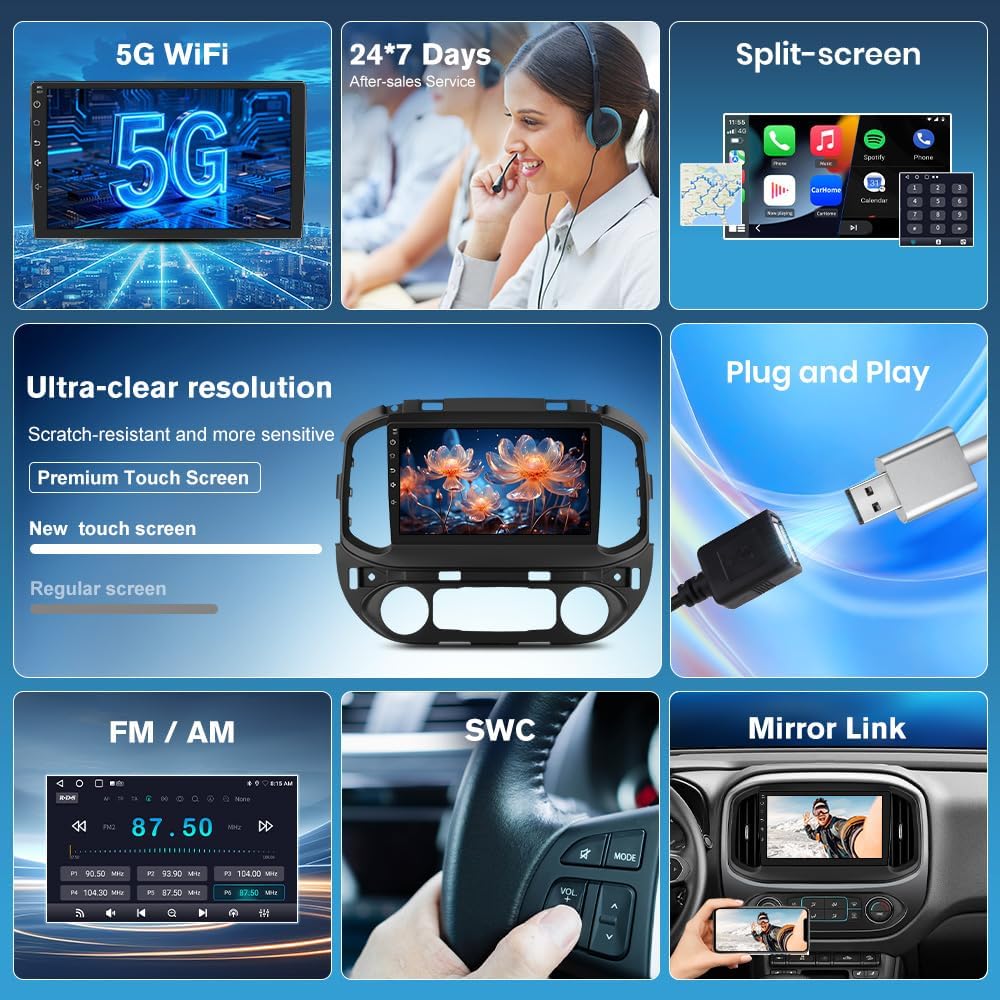
Image Description: This image provides a visual overview of the Junsun car stereo's key features, including 5G WiFi, 24/7 customer service, split-screen capability, ultra-clear resolution with a premium touch screen, plug-and-play installation, FM/AM radio, steering wheel control (SWC), and mirror link functionality.

Image Description: This image highlights the wireless CarPlay, Android Auto, and Mirror Link features of the Junsun car stereo. It shows smartphone screens displaying various apps integrated with the car stereo interface, demonstrating seamless connectivity.

Image Description: This image showcases the stunning 1280x720P resolution supported by the Junsun car stereo, emphasizing crisp and vivid details on the large screen through a visually appealing butterfly image.

Image Description: This image presents key technical specifications of the Junsun car stereo, including Bluetooth 4.0, HD 1280*720P resolution, 5G WiFi, and 2GB RAM with 32GB ROM.

Image Description: This image illustrates the endless entertainment possibilities with the Junsun car stereo, showcasing various apps like Netflix, YouTube, and social media platforms, emphasizing seamless 5G WiFi streaming and downloadable apps.

Image Description: This image details the DSP (Digital Sound Processor) powerful customization system, highlighting features like a 48-band custom EQ, multiple ASP options, and easy sound balance adjustment for an exceptional audio experience.

Image Description: This image emphasizes the HD 1280x720P touch screen of the Junsun car stereo, showcasing its large size, touch functionality, and 9-inch display for an impressive visual experience.
5. Installation Guide
Proper installation is crucial for the optimal performance of your Junsun car stereo. It is recommended that installation be performed by a qualified professional. Refer to the following steps and diagrams for guidance:
- Preparation: Ensure the vehicle's power is off before beginning installation. Gather all necessary tools, including the provided crowbar and screwdriver.
- Remove Original Unit: Carefully remove the original car radio unit from the dashboard. Use the crowbar to gently pry off trim panels as needed.
- Connect Wiring Harness: Connect the main wiring harness from the Junsun stereo to the vehicle's corresponding connectors. Ensure all connections are secure.
- CANBUS Connection: Connect the CANBUS decoder as per the wiring diagram. This is essential for integrating with vehicle controls.
- Antenna Connections: Connect the GPS antenna and any other relevant antennas (e.g., radio antenna).
- Accessory Connections: Connect the reversing cable, microphone, and USB cables to their respective ports on the stereo unit.
- Test Functionality: Before fully reassembling the dashboard, temporarily power on the vehicle and test basic functions of the stereo (power, audio, touch screen, steering wheel controls, etc.).
- Secure Unit: Once tested, carefully mount the Junsun stereo unit into the dashboard opening.
- Reassemble: Reattach all trim panels and secure them properly.

Image Description: This image provides a visual guide for installing the Junsun car stereo. It shows the internal structure of the original factory-made main unit and step-by-step connections for the main harness, CANBUS, and horn, illustrating how to connect the corresponding plug interfaces.
6. Operating Instructions
6.1. Wi-Fi Connection
To connect your Junsun car stereo to Wi-Fi, typically via a mobile hotspot:
- Enable the Wi-Fi feature on the car stereo.
- On your mobile phone, go to Settings and turn on "Personal Hotspot".
- Ensure the "Maximize Compatibility" option is enabled in your phone's hotspot settings; otherwise, the car stereo may not detect the hotspot.
- On the car stereo, select your phone's hotspot from the list of available Wi-Fi networks.
- Enter your phone's hotspot password when prompted and connect.
Video Description: This video demonstrates the step-by-step process of connecting the Junsun car stereo to a mobile Wi-Fi hotspot. It shows how to enable Wi-Fi on the stereo, activate the personal hotspot on an iPhone, ensure "Maximize Compatibility" is on, and then connect the stereo to the phone's hotspot by entering the password.

Image Description: This image displays the WiFi connection interface and GPS navigation screen on the Junsun car stereo. It shows available Wi-Fi networks and a map with navigation details, along with icons for various apps like Instagram, Twitter, TikTok, and Netflix.
6.2. Bluetooth Connectivity
To pair your phone with the car stereo via Bluetooth:
- On the car stereo, open the Bluetooth application.
- On your mobile phone, go to Settings and enable Bluetooth.
- On the car stereo, search for available Bluetooth devices.
- Select your phone's Bluetooth name from the list on the car stereo.
- Confirm the pairing request on both devices.
- Allow contacts and favorites sync if prompted.
Video Description: This video demonstrates how to correctly pair a Bluetooth device with the Junsun car stereo. It shows enabling Bluetooth on both the phone and the stereo, searching for devices, and confirming the pairing request to establish a connection.

Image Description: This image illustrates the Bluetooth 4.0 features of the Junsun car stereo, including wireless CarPlay/Android Auto, Bluetooth music streaming, and hands-free phone calls, with visuals of a phone dialer and music playback interface.
6.3. Wireless CarPlay / Android Auto
To connect to Wireless CarPlay or Android Auto:
- Ensure both Wi-Fi and Bluetooth are enabled on your phone.
- Pair your phone with the car stereo via Bluetooth (refer to section 6.2).
- Once paired, the car stereo will prompt you to connect to CarPlay or Android Auto. Confirm the connection.
- For automatic connection, navigate to the Zlink app settings on the stereo and set the "Default Connection Type" to "Last Mode" or "Link Mode First" as preferred.
- To switch between wireless and wired connections, access the Zlink app settings and select the desired mirroring mode.
Video Description: This video demonstrates how to connect to wireless CarPlay. It shows the process of enabling Wi-Fi and Bluetooth on the phone, pairing the phone with the car stereo via Bluetooth, and then initiating the CarPlay connection. It also briefly touches on settings for automatic connection and switching between wired/wireless modes.
6.4. GPS Navigation
The built-in GPS provides accurate navigation. Ensure the GPS antenna is properly installed for optimal signal reception.
- Access the Navigation app from the main menu.
- Enter your destination to receive real-time traffic data and smart voice guidance.
- Multiple map choices are available.
6.5. FM/AM Radio
To operate the radio function:
- Open the Radio app from the main menu.
- Use the search function to find stations or manually tune to a frequency.
- Long-press a frequency to save it as a preset.
- Switch between FM1/FM2 bands as needed.

Image Description: This image displays the AM/FM Radio interface of the Junsun car stereo, showing frequency display, search station buttons, long-press to save function, and options for switching between FM1/FM2 bands and DSP settings.
6.6. Steering Wheel Control (SWC)
The SWC function allows you to control the stereo directly from your steering wheel buttons. This enhances driving safety by keeping your hands on the wheel.
- Access the SWC settings in the stereo's menu to configure button assignments.
- Follow the on-screen instructions to program each button (e.g., volume up/down, track skip, mode change).

Image Description: This image illustrates the effortless driving and control experience provided by the Junsun car stereo's steering wheel control feature. It shows a driver maintaining focus while controlling audio functions, with icons representing various controls like track skip and volume adjustment.
6.7. Rearview Camera Support
The unit supports a rearview camera (not included) for enhanced safety during reversing. Ensure the reversing cable is correctly connected during installation.
- When the vehicle is put into reverse gear, the stereo will automatically display the rearview camera feed.
- This provides clear images and real-time display to assist with parking.

Image Description: This image demonstrates the rearview support feature of the Junsun car stereo, showing a car successfully parking with the aid of a rearview camera (represented by green checkmark) versus a car struggling without it (represented by red cross), highlighting the safety benefits.
7. Technical Specifications
| Feature | Specification |
|---|---|
| Brand | Junsun |
| Model Name | XT892C |
| Operating System | Android 13 |
| Screen Size | 9 Inches |
| Display Type | LCD |
| Touch Screen Type | Capacitive |
| Resolution | 1280x720P |
| Memory (RAM) | 2 GB |
| Storage (ROM) | 32 GB |
| Connectivity Technology | Bluetooth, 5G WiFi |
| Bluetooth Version | 4.0 |
| Supported Navigation System | GPS |
| Map Type | North America |
| Human-Interface Input | Touchscreen |
| Control Method | Touch |
| Mounting Type | Dashboard Mount |
| Vehicle Service Type | Truck (Chevrolet Colorado RG, GMC Canyon) |
| Batteries Included | No |
8. Troubleshooting
This section addresses common issues you might encounter with your Junsun car stereo.
8.1. No Power / Unit Not Turning On
- Check all power connections to ensure they are securely plugged in.
- Verify the vehicle's fuse related to the car stereo is not blown.
- Ensure the vehicle's ignition is on.
8.2. No Audio / Static Sound
- Check speaker wire connections.
- Ensure the volume is not muted or set too low.
- If experiencing static, especially in compatible vehicles, try unplugging the red/orange wire as indicated in the compatibility notes.
- Verify the DSP settings are configured correctly.
8.3. Wi-Fi Connection Issues
- Ensure your mobile hotspot is active and broadcasting.
- Verify the "Maximize Compatibility" option is enabled on your phone's hotspot settings.
- Double-check the Wi-Fi password entered on the stereo.
- Restart both your phone's hotspot and the car stereo.
8.4. Bluetooth Pairing Problems
- Ensure Bluetooth is enabled on both your phone and the car stereo.
- Make sure both devices are in pairing mode and discoverable.
- Delete previous pairings on both devices and try pairing again.
- Ensure your phone is not connected to other Bluetooth devices.
8.5. CarPlay / Android Auto Not Connecting
- Confirm that your phone is successfully paired via Bluetooth and connected to Wi-Fi (if using wireless).
- Ensure the Zlink application is open on the car stereo.
- Check your phone's settings for any permissions required by CarPlay or Android Auto.
- Try restarting both your phone and the car stereo.
9. Warranty & Support
Junsun offers comprehensive support for your product:
- Free Returns & Exchanges: Within one month of purchase.
- Free Repairs: Within one year of purchase.
- Customer Service: 24/7 professional customer service is available online.
For installation assistance, technical support, or warranty claims, please contact Junsun Car Electronics directly.

Image Description: This image provides contact information for Junsun Car Electronics customer support, including an email address (Junsun-US@outlook.com) and highlights 24-hour customer support availability.


