
Phomemo T02
Phomemo T02 Mini Sticker Printer User Manual
Model: T02
Introduction
The Phomemo T02 Mini Sticker Printer is a portable, inkless thermal printer designed for various printing needs, including study notes, photos, DIY projects, and labels. Its compact size and Bluetooth connectivity make it convenient for on-the-go use. This manual provides essential information for setting up, operating, maintaining, and troubleshooting your T02 printer.
Setup Guide
1. Unboxing and Initial Charge
Upon receiving your Phomemo T02 printer, ensure all components are present: the printer unit, charging cable, and paper rolls. It is recommended to fully charge the printer before first use. Connect the charging cable to the charging port on the side of the printer.
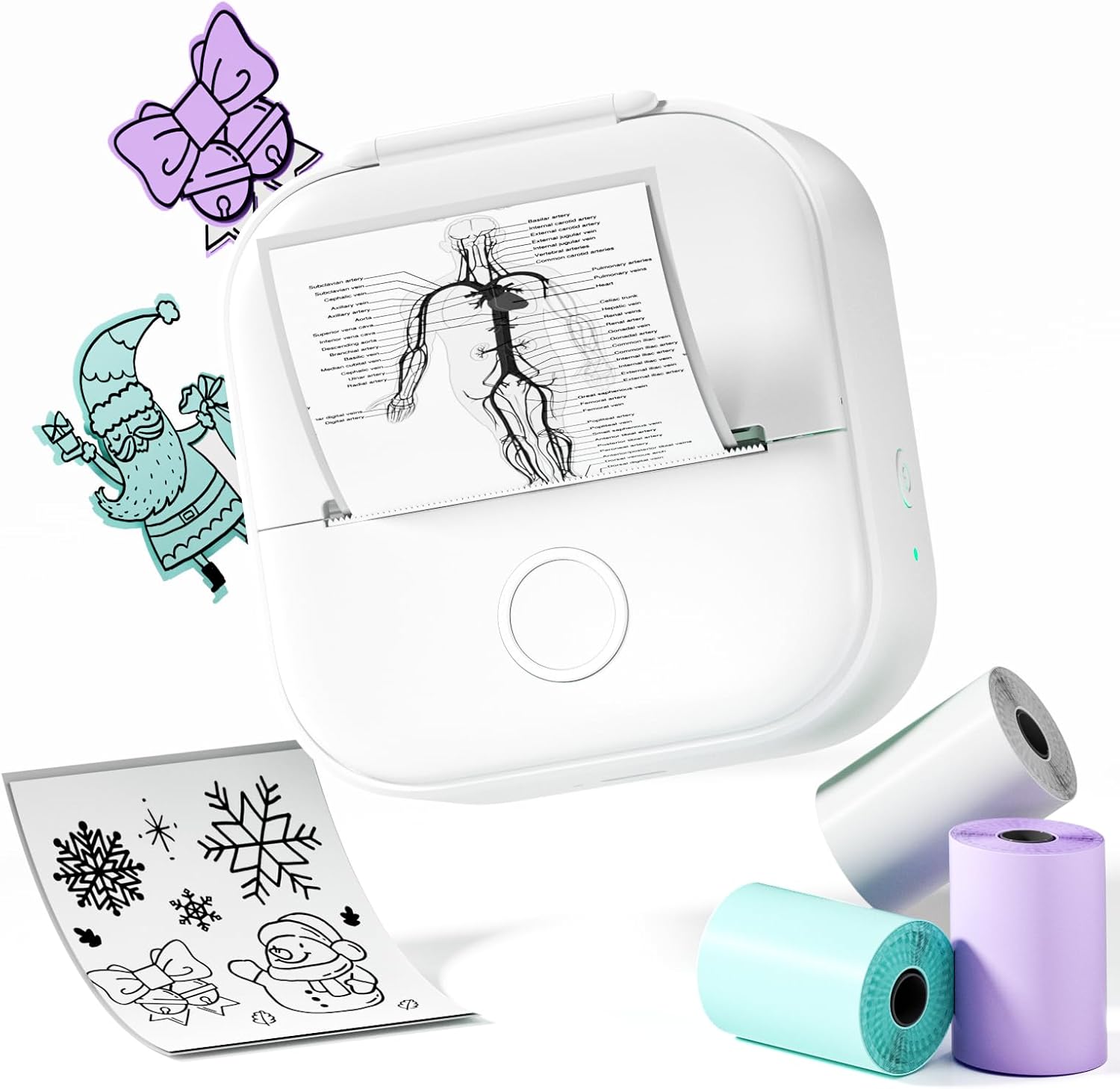
Image: Phomemo T02 Mini Sticker Printer with included paper rolls.
2. Installing Paper Roll
- Press the Printer Lid Button to open the printer lid.
- Insert the paper roll into the Paper Holder, ensuring the paper feeds out from the top and is positioned correctly. The paper should pull out from the outside of the Printer Heat.
- Close the printer lid firmly until it clicks into place.

Image: Step-by-step guide for turning on, installing paper, and connecting via Bluetooth.
Note: Ensure the paper is inserted with the thermal side facing the print head for proper printing. If the paper is inserted backward, it will not print.
3. App Download and Bluetooth Connection
- Download the "Phomemo" app from your device's app store (available on Apple App Store and Google Play Store).
- Turn on the printer by pressing and holding the power button until the indicator light illuminates.
- Open the Phomemo app on your smartphone or tablet.
- Within the app, navigate to the device connection section and select "T02" to pair via Bluetooth. The indicator light will change to confirm a successful connection.

Image: Phomemo app interface showing Bluetooth connection status.
Operating Instructions
The Phomemo T02 printer utilizes thermal inkless technology, providing clear prints without the need for ink cartridges. It supports various types of thermal paper, including white, color, clear, semi-transparent, gold, and silver stick paper.

Image: Illustration of the Phomemo T02 printer compatible with various paper types and sizes.
Using the Phomemo App
The Phomemo app is your primary interface for controlling the printer and customizing your prints. It offers a wide range of features and templates.
- Print Images: Select photos from your gallery to print directly.
- Notes: Create and print text notes, lists, or study materials.
- Templates: Access over 2500 pre-designed templates for stickers, labels, to-do lists, and more.
- Editing Tools: Adjust brightness, contrast, and other settings to enhance print quality. Add text, frames, and other elements to personalize your creations.

Image: The Phomemo app displaying a variety of templates for different uses.
The printer is ideal for creating study notes, personalized stickers, and even gift cards. Its monochrome output ensures clear and efficient printing for educational materials and creative projects.
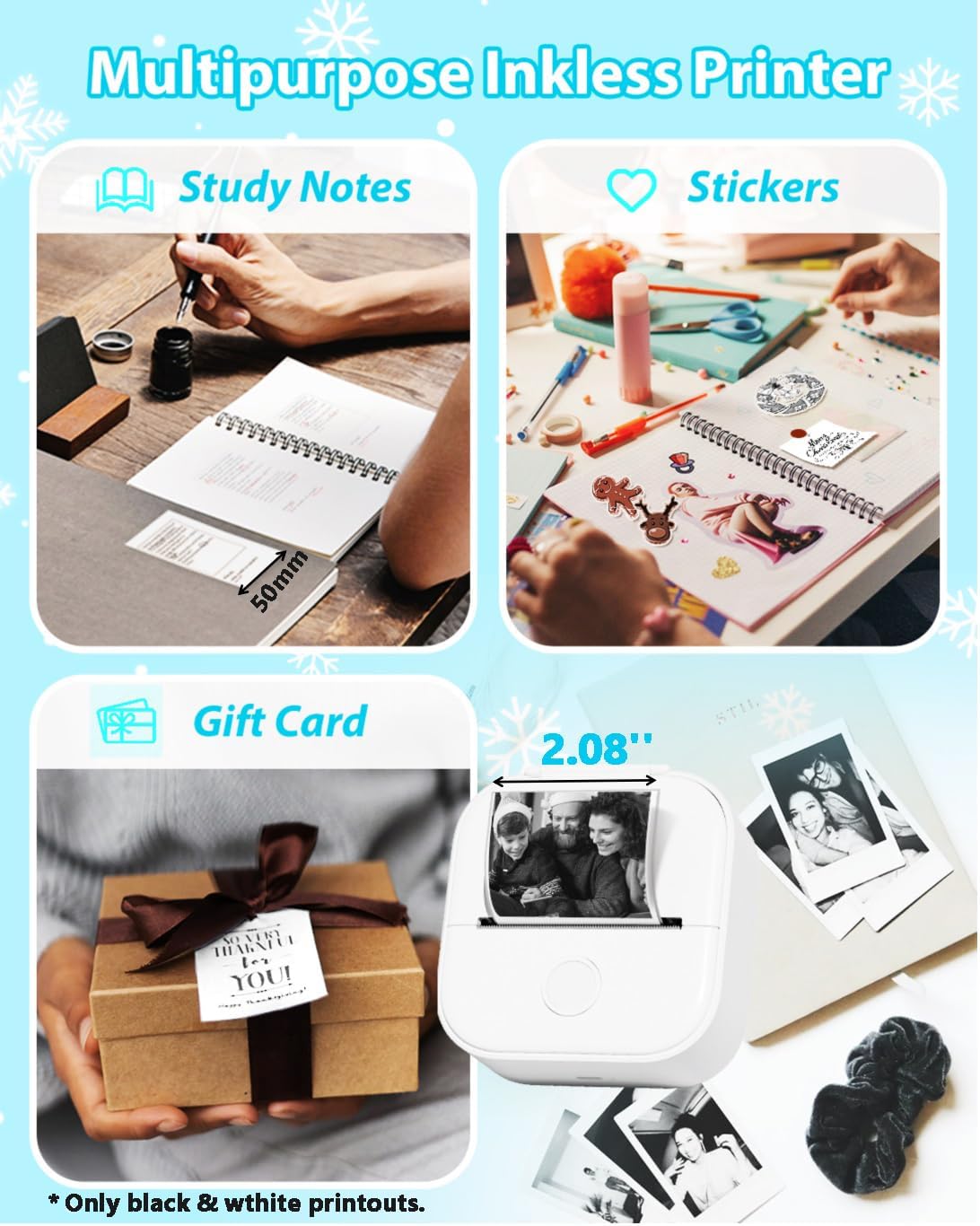
Image: Examples of the Phomemo T02 printer's versatile applications, including study notes, stickers, and gift cards.
Maintenance
Cleaning the Print Head
To ensure optimal print quality, regularly clean the rubber roller (print head) with alcohol. This helps prevent dust and debris buildup that can affect print clarity.

Image: Diagram illustrating the components of the T02 printer, including the rubber roller for cleaning.
Paper Storage
Store thermal paper in a cool, dry place away from direct sunlight and heat to preserve its quality and ensure long-lasting prints.
Troubleshooting
- Printer Not Connecting:
- Ensure the printer is turned on and fully charged.
- Verify Bluetooth is enabled on your device and within the Phomemo app.
- Try restarting both the printer and your device.
- If issues persist, use the Reset Button on the printer (refer to the component diagram in the Maintenance section).
- Poor Print Quality / Blank Prints:
- Check if the paper roll is inserted correctly with the thermal side facing the print head.
- Clean the rubber roller (print head) as described in the Maintenance section.
- Ensure the image or text being printed is clear and has sufficient contrast.
- Try adjusting print density settings within the Phomemo app.
- Note that print quality can vary with different types of thermal paper.
- Paper Jams:
- Open the printer lid and carefully remove any jammed paper.
- Ensure the paper roll is properly aligned and not too tight or loose.
Specifications
| Feature | Detail |
|---|---|
| Brand | Phomemo |
| Model Name | T02 |
| Connectivity Technology | Bluetooth |
| Printing Technology | Thermal |
| Printer Ink Type | Inkless |
| Maximum Black and White Print Resolution | 203 dpi |
| Compatible Devices | Smartphones (iOS, Android) |
| Product Dimensions | 4.57 x 3.8 x 2.22 inches |
| Item Weight | 11.3 ounces |
| Included Components | Printer, Paper |
Warranty and Support
For any product inquiries, technical support, or warranty information, please contact Phomemo customer service. Refer to the official Phomemo website or the contact information provided in your product packaging for the most up-to-date support channels.
Related documentsT02


Ask a question about this manual
Ask about setup, troubleshooting, compatibility, parts, safety, or missing instructions. Manuals+ will review the question and use this page’s manual context to help answer it.