
1. Introduction
The Phomemo T02 is a compact and portable inkless thermal printer designed for a variety of uses, including printing study notes, creating custom stickers, and organizing daily tasks. Its thermal technology eliminates the need for ink cartridges, offering clear and efficient printing on the go. Control your printer easily through the user-friendly 'Phomemo' mobile application.
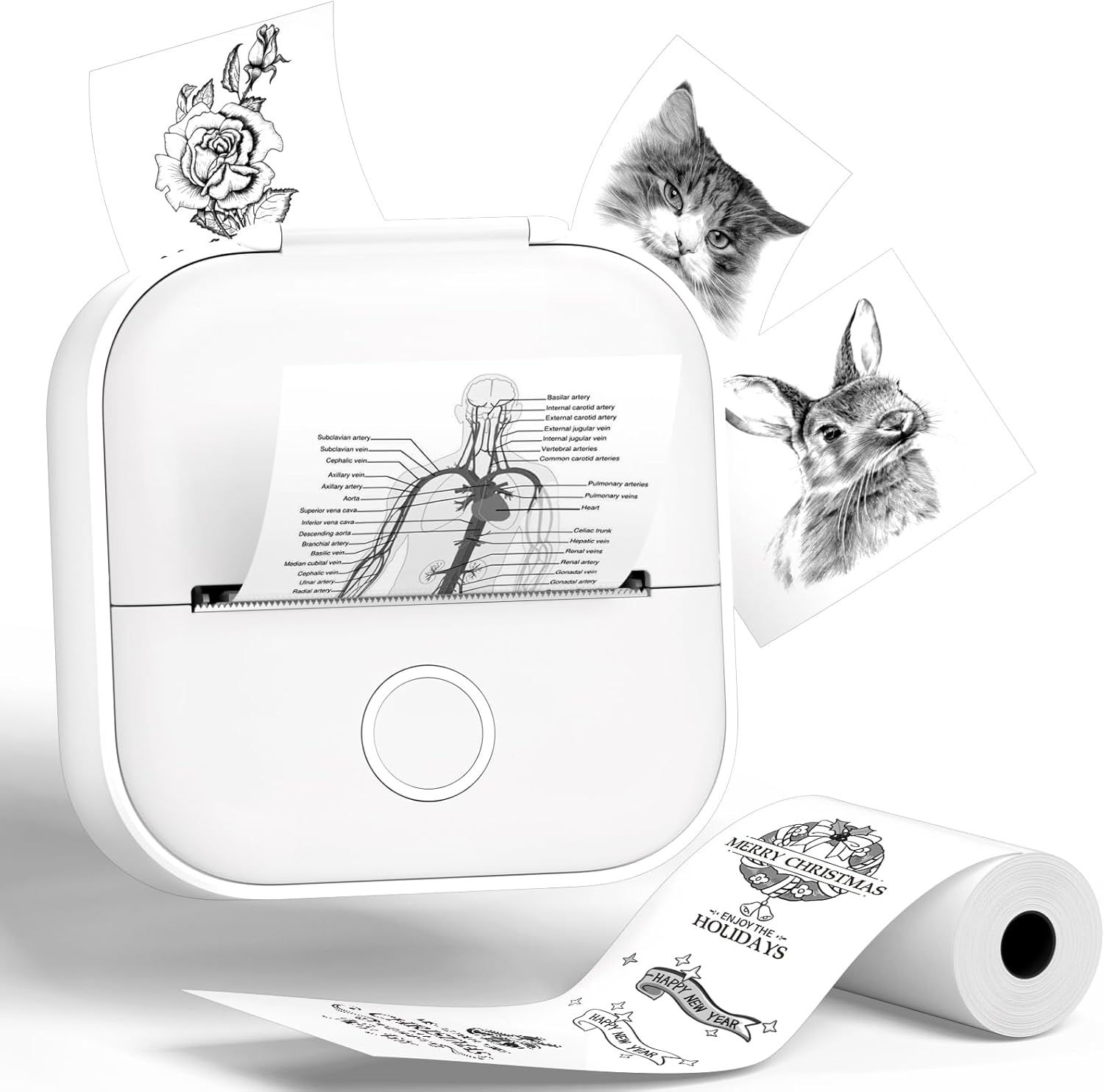
Figure 1: The Phomemo T02 Mini Sticker Printer, showcasing its compact design and diverse printing capabilities.

Figure 2: Versatile applications of the Phomemo T02, including study notes, custom stickers, and personalized gift tags.
2. Package Contents
Upon unboxing your Phomemo T02 Mini Sticker Printer, please ensure all the following items are present:
- Phomemo T02 Mini Sticker Printer
- 1 Roll of Thermal Paper (pre-installed or included separately)
- USB Charging Cable
- User Manual (this document)

Figure 3: All items included in the Phomemo T02 Mini Sticker Printer package.
3. Product Overview
Familiarize yourself with the various components of your Phomemo T02 printer:

Figure 4: Labeled diagram of the Phomemo T02 printer, highlighting key components such as the Paper Holder, Charging Port, Reset Button, Printer Lid Button, Rubber Roller, ON/OFF switch, and Indicator Light.
- Paper Holder: Secures the paper roll in place.
- Charging Port: USB-C port for charging the T02 printer.
- Reset Button: Used to reset the T02 printer if needed.
- Printer Lid Button: Press to open the printer lid for paper installation.
- Rubber Roller: Regularly clean with alcohol to improve printing quality.
- ON/OFF Switch: Powers the device on or off.
- Indicator Light: Displays the printer's status (e.g., green for ready, orange/red for low battery or paper issue).
4. Setup
4.1 Charging the Printer
Before first use, fully charge your Phomemo T02 printer using the provided USB charging cable. Connect the cable to the charging port on the printer and a compatible USB power source. The indicator light will show charging status.
4.2 Installing the Paper Roll
Follow these steps to correctly install a new paper roll:
- Press the Printer Lid Button to open the upper cover.
- Remove the used paper roll holder and any empty tube core.
- Take a new paper roll. Ensure the print-facing side is positioned downwards.
- Place the paper roll into the perforated baffle, then merge it onto the other side baffle.
- Install the assembled paper roll and load it into the machine.
- Before closing the lid, pull the end of the paper roll out to the machine's paper outlet position.
- Close the printer lid securely.
Video 1: Detailed demonstration of the T02 Printer's display and operation process, including paper installation.
Video 2: Guide on how to determine the correct printing surface of your thermal paper for optimal results.
4.3 Downloading the Phomemo App
The Phomemo T02 printer is controlled via the dedicated 'Phomemo' mobile application. Download it from your device's app store:

Figure 5: The Phomemo app interface, showing availability on both Apple App Store and Google Play.
4.4 Connecting via Bluetooth
Once the app is installed and the printer is powered on (long press the power button for 3 seconds until the green indicator light is steady), open the Phomemo app and follow the on-screen instructions to connect your printer via Bluetooth. The app will guide you through the pairing process.

Figure 6: A visual guide illustrating the four simple steps required for initial setup and Bluetooth connection of the Phomemo T02 printer.
5. Operation
5.1 Basic Printing (Text, Images, Stickers)
The Phomemo app provides various options for creating and printing content:
- Text: Use the text editor to type and format notes, labels, or messages.
- Images: Import photos from your phone's gallery. Note that thermal printing produces black and white images.
- Stickers: Access a wide range of pre-designed stickers or create your own custom designs.
Video 3: An overview of the Phomemo T02 printer's capabilities, demonstrating its use for various personal and educational printing needs.
Video 4: A brief demonstration of how the Phomemo T02 printer can be used to print notes, highlighting its quick and convenient function.
5.2 Utilizing Templates
The Phomemo app offers over 2500 templates to help you create unique stickers and designs. Browse through categories like greeting cards, to-do lists, schedules, and more to find inspiration or a starting point for your creations.

Figure 7: A glimpse into the Phomemo app's extensive library of over 2500 templates, enabling users to freely customize their stickers.
5.3 Paper Compatibility
The Phomemo T02 is compatible with more than 50 kinds of thermal papers, including white, color, clear, semi-transparent, gold, and silver stick paper. This variety allows for diverse creative projects and practical applications.

Figure 8: An illustration of the wide range of paper types compatible with the Phomemo T02, highlighting different colors and finishes.

Figure 9: Examples of diverse designs and patterns printed using the Phomemo T02, demonstrating print clarity and versatility.
6. Maintenance
Proper maintenance ensures the longevity and optimal performance of your Phomemo T02 printer:
- Cleaning the Print Head: Regularly clean the print head with a cotton swab lightly dampened with alcohol. This prevents residue buildup and ensures clear prints.
- Storing Paper Rolls: Store unused thermal paper rolls in a cool, dry place away from direct sunlight and excessive heat to prevent premature fading or damage.
- Battery Care: To prolong battery life, avoid fully discharging the printer frequently. Charge it regularly, even if not in constant use.
7. Troubleshooting
If you encounter any issues with your Phomemo T02 printer, refer to the table below for common problems and their solutions:
| Problem | Possible Cause | Solution |
|---|---|---|
| No print output | Paper installed incorrectly (print side up) or paper jam. | Re-install paper with the print-facing side down. Check for and clear any paper jams. |
| Poor print quality (faded, blurry) | Low battery, dirty print head, or old/damaged paper. | Charge the printer. Clean the print head with alcohol. Replace the paper roll. |
| Bluetooth connection issues | Printer not powered on, out of range, or app not recognizing device. | Ensure printer is on and charged. Move printer closer to your device. Restart the app and try pairing again. Use the reset button if necessary. |
| Printer not responding | Device frozen or battery completely drained. | Press and hold the power button to force restart. If unresponsive, connect to charger and allow time to charge before attempting to power on. Use the reset button. |
8. Specifications
Below are the technical specifications for the Phomemo T02 Mini Sticker Printer:
| Feature | Specification |
|---|---|
| Model Name | T02 |
| Brand | Phomemo |
| Printing Technology | Thermal |
| Connectivity Technology | Bluetooth |
| Printer Output | Monochrome |
| Max Print Resolution | 203 dpi or 300 dpi |
| Printer Media Size Maximum | 4x3 inches |
| Product Dimensions | 4 x 3 x 2 inches |
| Item Weight | 8.8 ounces |
| Batteries | 1 Lithium Polymer batteries required (included) |
| Control Method | App (iOS/Android) |
| Manufacturer | Phomemo |
| Country of Origin | China |
9. Warranty and Support
Your Phomemo T02 Mini Sticker Printer comes with a Limited Warranty. For specific details regarding warranty coverage, duration, and terms, please refer to the warranty card included in your product packaging or visit the official Phomemo website.
For technical support, troubleshooting assistance, or any inquiries not covered in this manual, please contact Phomemo customer service through their official website or the contact information provided in your product documentation. Always ensure you are using the latest version of the Phomemo app for optimal performance and access to new features.


